---
title: "User Spend Limits: One AI Budget per Person, Every Agent"
slug: "user-spend-limits-default-for-new-members"
date: "2026-11-10"
tag: "Application"
summary: "A fourth Billing tab, User Limits, caps what one person spends across every agent in a workspace, and a Default for New Users gives each member who joins later their own limit automatically, with block or alert-only enforcement and near-limit alerts."
author: "ibl.ai Engineering"
repo: "iblai/vibe"
linkedin: |
  ibl.ai can now give every person in a workspace one AI budget that covers every agent they use, and hand each new member a starting budget the day they join.

  The Billing page gained a fourth tab, User Limits. Search for a person, set an amount and a period (day, week, month or year), and the table shows their limit, what they have spent and what is left.

  Below it sits Default for New Users. Switch it on, enter, say, $25 a month, and each member who joins from then on gets that as their own limit, which an admin can change later. Admins are left out, and editing the default never rewrites limits it already gave out.

  Each limit either blocks new requests once it is reached or only alerts, and fires near-limit alerts at 80% and 95% by default. In the chat, people see percentages, never dollars, and Send is disabled while a blocking limit is exceeded.

  That is the budget shape per-seat pricing cannot give you: pay for the tokens people actually use, with a ceiling per person that you set.

  iblai/vibe v2.21.0, released November 9, documents the tab end to end; it is one SDK component in your own Next.js app. With ibl.ai you own all the code and the data, run any LLM, and host it wherever you choose.

  #iblai #AgenticAI #EnterpriseAI #FinOps #AICost
---

**ibl.ai now caps what one person can spend on AI across every agent in a workspace, from a fourth Billing tab called User Limits, and can give each member who joins later a starting budget automatically, so AI cost follows people the way a budget does rather than a per-seat price list, and the tab mounts in your own Next.js app — with ibl.ai you own all the code and the data.**

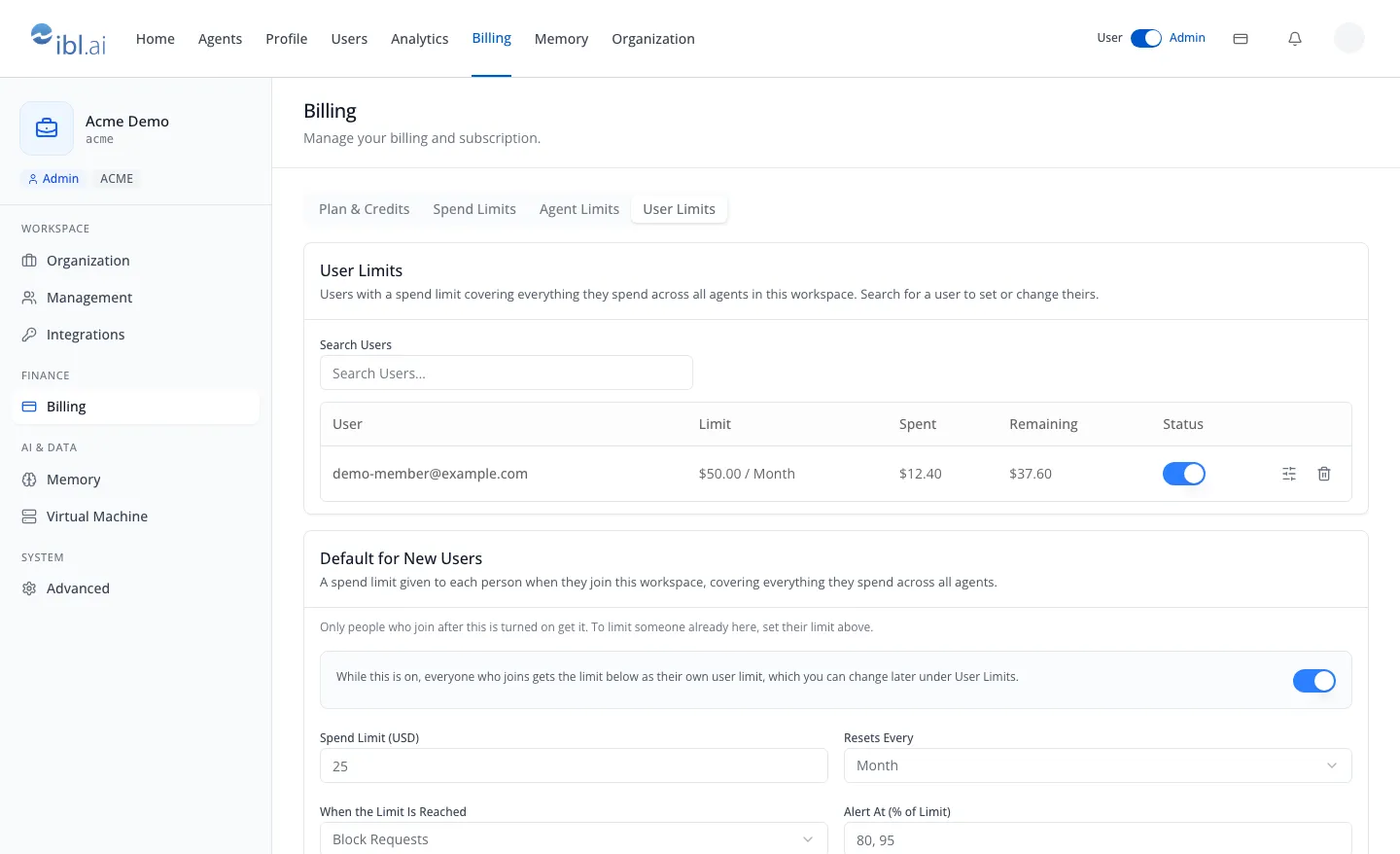
<a href="/images/updates/user-spend-limits-default-for-new-members-user-limits.webp" target="_blank" rel="nofollow noopener noreferrer"><img src="/images/updates/user-spend-limits-default-for-new-members-user-limits.webp" alt="The User Limits tab on the organization's Billing page for a demo workspace: a Search Users field above a table row for demo-member@example.com with a $50.00 per month limit, $12.40 spent, $37.60 remaining and its status switch on, then the Default for New Users section switched on with a $25 spend limit, Resets Every Month, Block Requests and alerts at 80 and 95 percent." width="1440" height="878" /></a>

The toolkit's `/iblai-vibe-billing` skill documents the tab in [iblai/vibe v2.21.0](https://github.com/iblai/vibe/releases/tag/v2.21.0), released on November 9, 2026, the toolkit's first release since v2.20.1 on November 3.

The platform side, the `user` spend-cap scope and the default for new members, first shipped in the [October 30 platform update](/updates/platform-update-2026-10-30). It extends the three scopes described in [Spend Limits](/updates/spend-limits).

## How do you cap one person's AI spend across every agent?

**User Limits** holds one limit per person that covers everything they spend across all agents in the workspace. The per-person limits described in Spend Limits live inside one agent's settings and cover that agent alone.

**Search Users** autocompletes over the organization's users from two characters. It filters the table, and a person with no limit yet gets a **Set Spend Limit** button.

Each row shows the user, the limit as amount and period, what has been spent, what remains, and a status switch that saves at once, with **Exceeded** and **Alert Only** badges. In the frame, a demo member has spent $12.40 of a $50.00 monthly limit, leaving $37.60.

**Edit** and **Set** open the same popup as the per-agent user limits: Spend Limit (USD), Resets Every (Day, Week, Month or Year), When the Limit Is Reached (Block Requests or Alert Only), and Alert At (% of Limit), for example `80, 95`. **Delete** asks for confirmation first.

## Can every new employee start with an AI budget automatically?

Yes. **Default for New Users**, below the table, is the limit each person gets when they join the workspace as a member, written as their own user limit. It is off by default: a switch, the same four fields, then **Save**.

In the frame it is on at $25 a month, blocking requests once reached, with alerts at 80% and 95%. Each member who joins from then on starts with that limit, and an admin can change it later in the User Limits table, where those rows appear.

Three boundaries keep it predictable. Only people who join after it is turned on get it; someone who joins as an admin does not. Editing the default never changes the limits it already created. Turning it off keeps the values for later.

To limit someone already in the workspace, or an admin, set their limit in the table above.

## Which spend limit applies when several overlap?

ibl.ai now enforces LLM spend limits at four scopes, set from the Billing page or an agent's own settings. The platform's REST contract states which ones apply to a given chat:

<table style="width:100%; border-collapse:collapse; margin:1.5rem 0; font-size:0.95rem;">
  <thead>
    <tr style="background:#f5f5f0; border-bottom:2px solid #2175C5;">
      <th style="text-align:left; padding:0.75rem; color:#5f6368;">Scope</th>
      <th style="text-align:left; padding:0.75rem; color:#5f6368;">What it covers</th>
      <th style="text-align:left; padding:0.75rem; color:#5f6368;">When it applies</th>
      <th style="text-align:left; padding:0.75rem; color:#5f6368;">Where it is set</th>
    </tr>
  </thead>
  <tbody>
    <tr style="border-bottom:1px solid #e5e7eb;">
      <td style="padding:0.75rem;"><strong>Organization</strong></td>
      <td style="padding:0.75rem;">Everything every agent and person spends</td>
      <td style="padding:0.75rem;">Every chat</td>
      <td style="padding:0.75rem;">Billing, Spend Limits</td>
    </tr>
    <tr style="background:#f0f9ff; border-bottom:1px solid #e5e7eb;">
      <td style="padding:0.75rem;"><strong>User (new)</strong></td>
      <td style="padding:0.75rem;">One person, across every agent</td>
      <td style="padding:0.75rem;">Every chat of theirs</td>
      <td style="padding:0.75rem;">Billing, User Limits</td>
    </tr>
    <tr style="border-bottom:1px solid #e5e7eb;">
      <td style="padding:0.75rem;"><strong>Agent</strong></td>
      <td style="padding:0.75rem;">One agent</td>
      <td style="padding:0.75rem;">When that agent is in play</td>
      <td style="padding:0.75rem;">Agent settings, or Billing, Agent Limits</td>
    </tr>
    <tr style="border-bottom:1px solid #e5e7eb;">
      <td style="padding:0.75rem;"><strong>User on one agent</strong></td>
      <td style="padding:0.75rem;">One person, on one agent</td>
      <td style="padding:0.75rem;">When both are known</td>
      <td style="padding:0.75rem;">Agent settings, Per User, or Billing, Agent Limits, Manage</td>
    </tr>
  </tbody>
</table>

A **Block Requests** limit that is exceeded refuses the next chat with HTTP 429 and the error code `spend_cap_exceeded`, which names the interval but deliberately leaves out dollar amounts.

When several blocking limits are exceeded at once, the most specific one is reported: user on one agent, then user, then agent, then organization.

A spend limit is a separate layer from prepaid credits: running out of credits returns HTTP 402, not 429. Spend counters are reconciled from ClickHouse on a schedule, so enforcement reads a cached figure that can trail real-time spend slightly.

## What does a person see when they near their AI spend limit?

The chat reads each person's own limits as zones and percentages, never dollars. When a limit is near, a banner above the composer says "Usage is nearing its limit." Once a **Block Requests** limit is exceeded, a red banner appears and **Send** is disabled until the period resets.

A refused send tells a member to contact their administrator. An admin instead gets an **Open Billing** button, which in the starter app opens the Billing page.

Over the platform's REST API, a status endpoint lets any signed-in member read their own limits. It returns zones (`ok`, `warning` or `exceeded`) and percentages used, for example `82.5`, never dollar amounts, so it is safe to show to the person being limited.

## How do you add User Limits to your own app?

The whole Billing page, all four tabs, is one component, `BillingTab`, from `@iblai/iblai-js/web-containers`.

The User Limits tab needs `@iblai/iblai-js` 2.62.3 or later; the v2.21.0 starter pins `^2.67.3`. Spend Limits, Agent Limits and User Limits each check access on their own and show their own denied panel, while Plan & Credits stays visible.

Over the platform's REST API, `spend-caps/users/` lists every user limit and `spend-caps/users/{username}/` reads, writes or deletes one. `spend-caps/users/default/` holds the default for new users as a full-replace `PUT`, where `enabled: false` turns it off and keeps the values.

Giving every member who joins from now on $25 a month across all agents is one call:

```bash
curl -X PUT "https://api.iblai.app/dm/api/ai-mentor/orgs/$IBLAI_ORG/spend-caps/users/default/" \
  -H "Authorization: Api-Token $IBLAI_API_KEY" -H 'Content-Type: application/json' \
  -d '{"enabled": true, "interval_type": "month", "max_cost_usd": "25.00",
       "enforcement": "block", "alert_thresholds": [0.8, 0.95]}'
```

The documentation is in the [`/iblai-vibe-billing`](https://github.com/iblai/vibe/blob/main/skills/billing/iblai-vibe-billing/SKILL.md) and [`/iblai-api-spend-caps`](https://github.com/iblai/vibe/blob/main/skills/billing/iblai-api-spend-caps/SKILL.md) skills. The other three Billing tabs are covered in [Organization Settings: Billing](/docs/os/organization-settings/billing), and the toolkit itself in [Agentic Vibe](/product/agentic-vibe).

## Want to see per-person AI budgets on your own deployment?

We'll walk through User Limits, the default for new members and the chat-side banners on a workspace shaped like yours.

[Book a 30-minute demo](https://cal.com/iblai/30min) or [talk to the ibl.ai team](/contact) — ibl.ai is family-owned and operated from New York, NY.
