ibl.ai's rebuilt organization settings group every admin panel under Workspace, Finance, AI & data and System, and split Management into eight sub-tabs — Users, Groups, Roles, Policies, Teams, Alerts, Applications and Onboarding — six of them gated by their own permission, on a platform where you own all the code and the data.
The rebuild was documented in iblai/vibe on September 25, 2026, merged on October 6 and released in v2.12.0 on October 12. Applications and Onboarding now sit in Management; the earlier docs listed six sub-tabs.
The screenshots come from the ibl.ai organization settings dialog in Agentic LMS. The same <Account> component runs in Agentic OS and drops into any app built with Agentic Vibe.
What changed in ibl.ai organization settings?
Two things: the sidebar and the Management tab. The sidebar now groups its tabs under four headings — Workspace (Organization, Management, Integrations), Finance (Monetization, Billing), AI & data (Benchmarks, Memory and Virtual Machine) and System (Advanced).
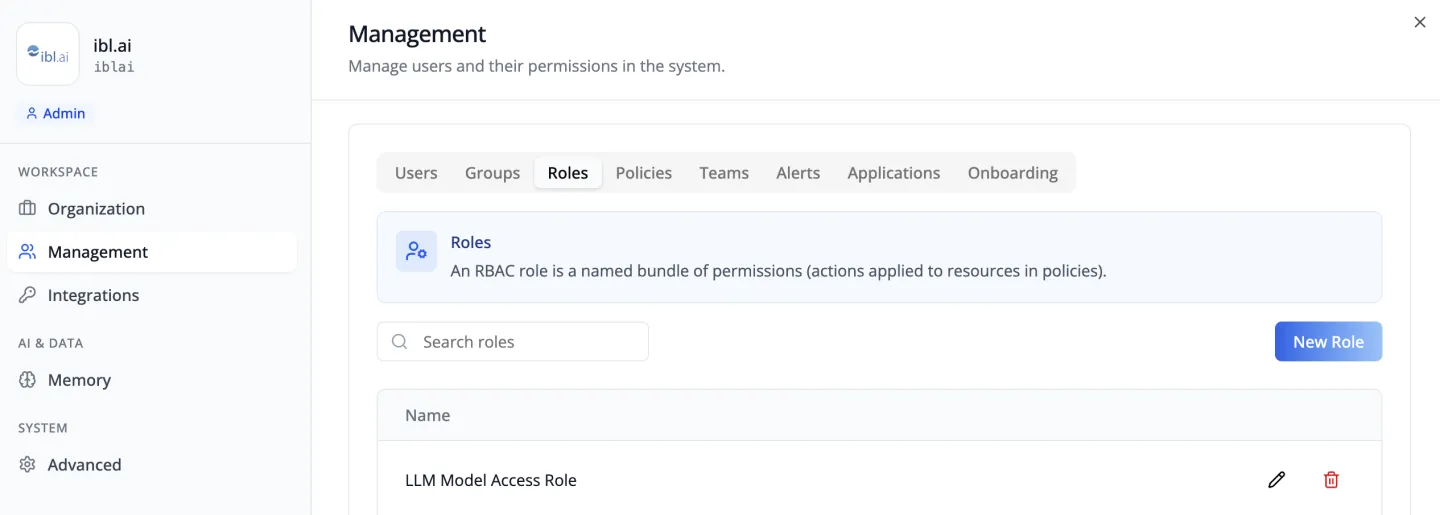
A heading disappears when every tab under it is hidden from you, so a small organization sees two or three headings, not four — the organization above has no Finance group and shows only Memory under AI & data.
Below the desktop breakpoint, the sidebar turns into a scrolling strip of pills.
How does role-based access control work in ibl.ai?
Three objects do the work. A role is, in the screen's words, "a named bundle of permissions (actions applied to resources in policies)." Its actions take the form Namespace/Resource/verb and accept wildcards, and a role can also carry data actions that reach individual fields.
A policy grants a role's permissions to a set of users or groups on a set of resources.
Resources are hierarchical paths: a policy granted on the collection of all agents covers every agent, while one granted on a single agent's path stops at that agent.
Built-in roles and policies are protected — their delete buttons are disabled with "Cannot delete internal roles" and "Cannot delete internal policies".
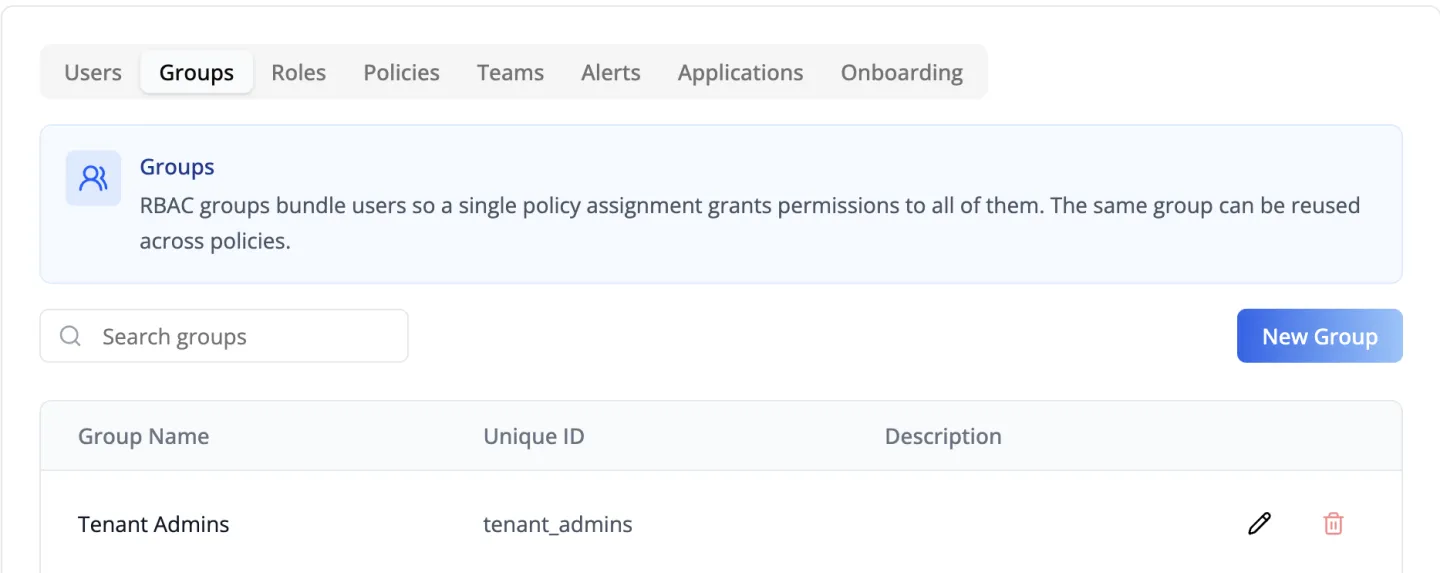
A group bundles users so that one policy assignment covers all of them, and the same group can be reused across any number of policies. Add a person to a group once, and every policy that names the group applies to them.
With RBAC on, six sub-tabs are gated by seven permissions — can_manage_users, can_invite, and list permissions on groups, roles, policies, user groups and watched groups — so a person sees only the ones they can use.
Applications and Onboarding appear for anyone who can open Management, watchers excepted.
How do you get notified about what specific users do?
With Teams and Alerts. A team is "a curated set of users that you can share with others" — for example, to let a manager view the team's analytics, or to send notifications to it.

An alert pairs a team of watched users with one or more watchers, who are notified when monitored events occur. Each watcher subscribes to its own subset of events, so two people on the same alert can follow different things.
How do new people join an ibl.ai organization?
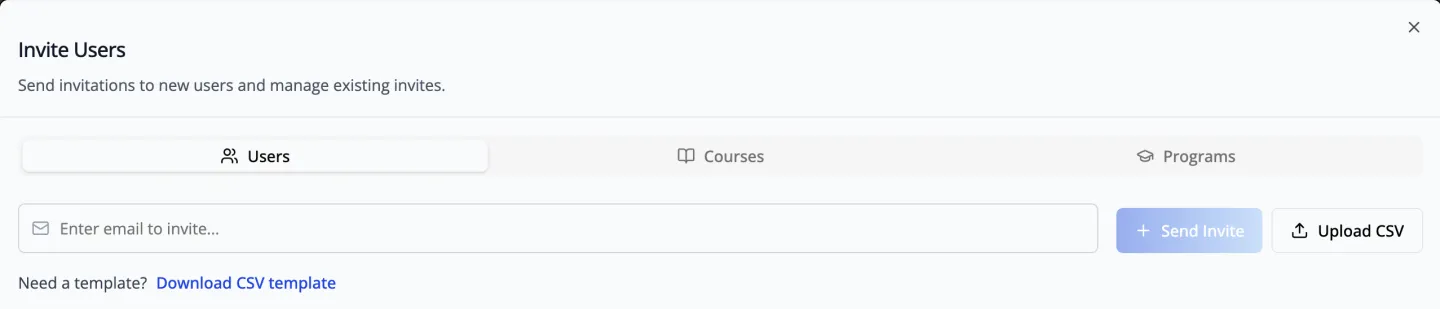
Through three paths on Management. Invite, from the Users sub-tab, invites by user, by course or by program: one email at a time, or a CSV with an email column and five optional ones, from first_name to user_group.
Applications reviews applications to the organization and edits the questions applicants answer, with Blocked Users, All Submissions and New form controls.
Onboarding chooses the agents that greet new members, sets how each introduces itself, and gives you the link that opens it.
Until an onboarding agent is picked, new members skip onboarding entirely. Selecting anyone on the Users sub-tab opens their profile read-only, including a Usage tab with that person's AI spend.
Can you build these admin screens into your own app?
Yes. Organization settings ship as one component, <Account>, from @iblai/iblai-js/web-containers/next, with a 280 px sidebar and keyboard navigation by arrow keys, Home and End.
Pass enableRbac together with the caller's permissions from the platform's RBAC check endpoint, and Management, its sub-tabs and the Finance tabs (Monetization, Billing) follow them; every other tab stays admin-only.
One rule the /iblai-vibe-account skill states plainly: turn on enableRbac without passing the permissions and Management disappears, even for an admin. Pass both, or neither.
Each sub-tab has its own walkthrough: Users, Groups, Roles, Policies, Teams and Alerts. The rest of the dialog is covered in user profile and organization settings.
Want to map your org chart onto roles and policies?
Bring your access model and we'll show it as roles, policies and groups on a live tenant. Book a 30-minute demo or talk to the ibl.ai team — ibl.ai is family-owned and operated from New York, NY.