Organization Settings: Teams
Overview
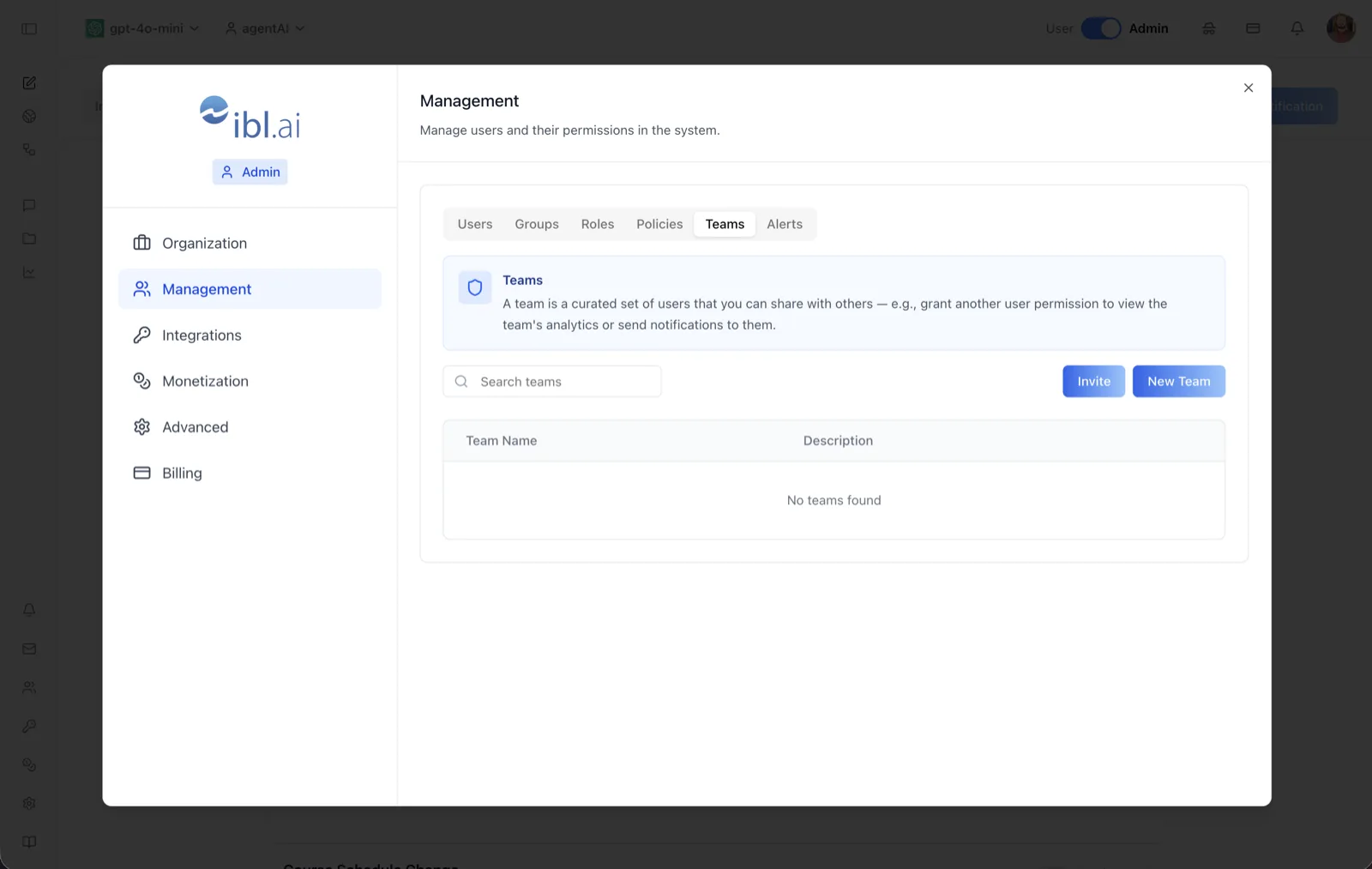
The Teams tab manages shareable sets of users. As the on-screen description says: "A team is a curated set of users that you can share with others — e.g., grant another user permission to view the team's analytics or send notifications to them."
Where Groups exist purely for RBAC policy assignment, Teams are audience-facing: a team is something you monitor and act on. Typical uses are giving a manager or instructor visibility into their team's analytics, or targeting a notification to a defined cohort.
To reach it, switch the top-bar toggle to Admin, open the settings dialog, choose Management, and select the Teams tab (alongside Users, Groups, Roles, Policies, and Alerts).
Target Audience
Administrator
Fields and Controls
Search teams
A search box that filters the team list by name as you type.
Invite
Opens the user invite dialog so you can bring new people into the organization directly from this tab — by single email or CSV bulk upload. Useful when assembling a team whose members don't have accounts yet.
New Team
Opens the New Team dialog with a Team Name field (required), a Description field, and a Team Members section where you type to search existing users and add them. Members are listed with name and email and can be removed before saving.
Team Name column
The team's display name.
Description column
An optional description of the team's purpose.
Empty state
When no teams exist yet, the table shows "No teams found."
Row actions
Each team row provides edit and delete actions like the Groups tab, plus a share action (permission-gated) that lets you share the team with another user — granting them the ability to view the team's analytics or send notifications to its members.
How to Use
Step 1: Open the Teams tab
In Admin mode, open the settings dialog, click Management, and select Teams.
Step 2: Create a team
Click New Team, name it, add a description, and search-and-add its members. Save the dialog and the team appears in the table.
Step 3: Invite missing members
If someone isn't in the organization yet, click Invite to send them an email invitation (individually or via CSV), then add them to the team once their account exists.
Step 4: Share the team
Use the share action on the team's row to grant another user access to the team — for example, so a supervisor can view the team's analytics or send notifications to it.
Step 5: Keep it current
Edit the team to adjust membership over time, or delete it when the cohort is no longer needed.