Two walkthroughs are now published for the panels behind the top-right menu in Agentic OS — the individual's profile and the organization's settings. They are the two halves of the same surface: one governs a single person, the other governs the whole tenant.
What does a user control from their own profile?
The user profile panel in Agentic OS.
Every account on the platform has a profile, reached from the avatar in the top right. Seven tabs sit in the left rail — Basic, Social, Education, Experience, Memory, Privacy, and Security.
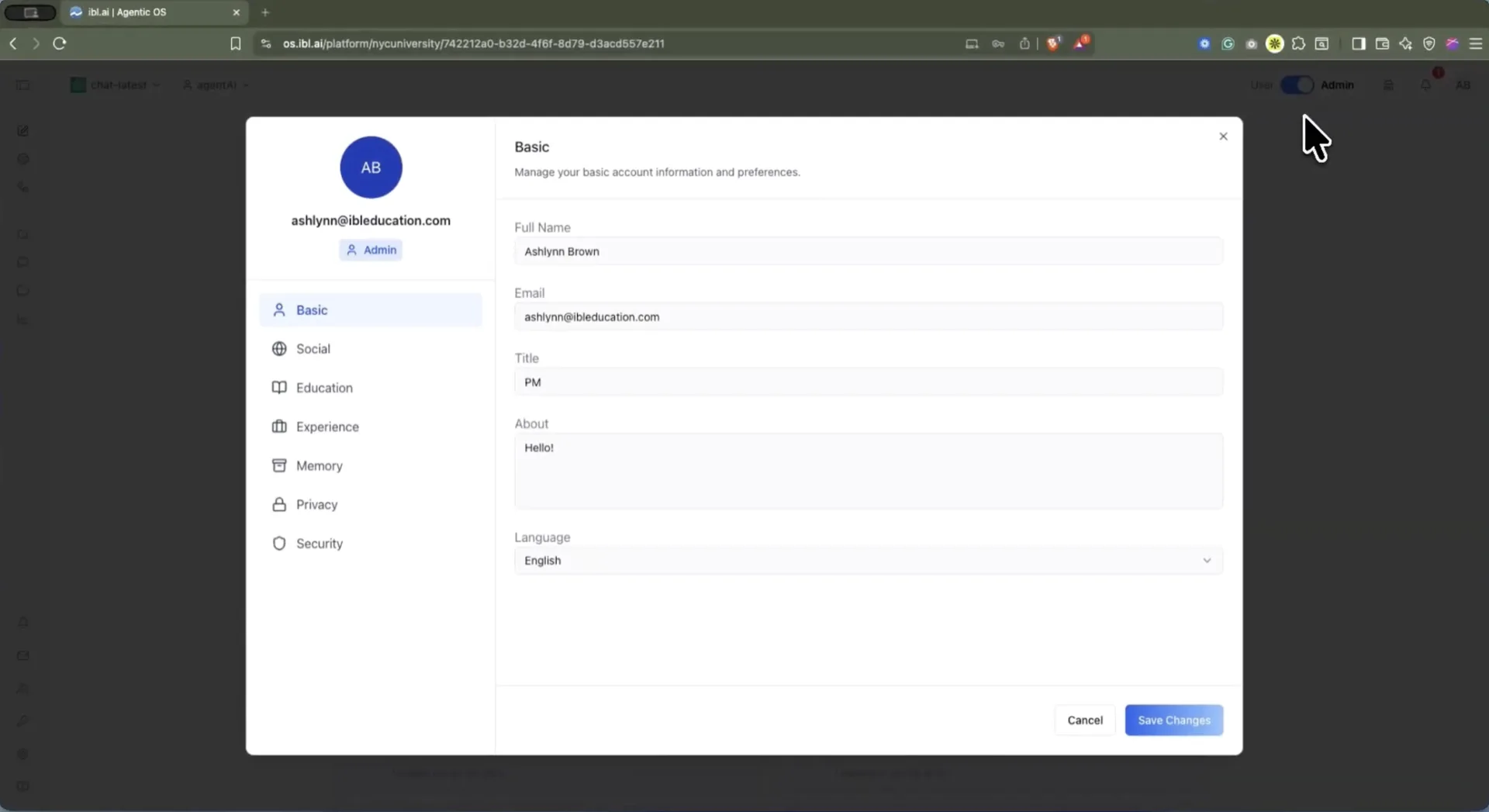
Basic holds the identity tied to the account — full name, email, title, a short About bio, and language preference. Social connects Facebook, LinkedIn, and X.
Education splits into three sub-tabs: Education itself (institution, degree, dates, grade), Credentials (verified credentials and badges tied to a unique ID), and Skills — a searchable list where each entry is tagged Earned, Self-Reported, or Desired, so a person can flag what they want to learn, not only what they already know.
Experience records role, organization, and employment dates, with a Resume sub-tab for uploading a résumé to share with agents and administrators.
Who decides what the AI remembers about you?
The user does. This is the part of the profile worth pausing on, because on most platforms this control does not exist at the individual level at all.
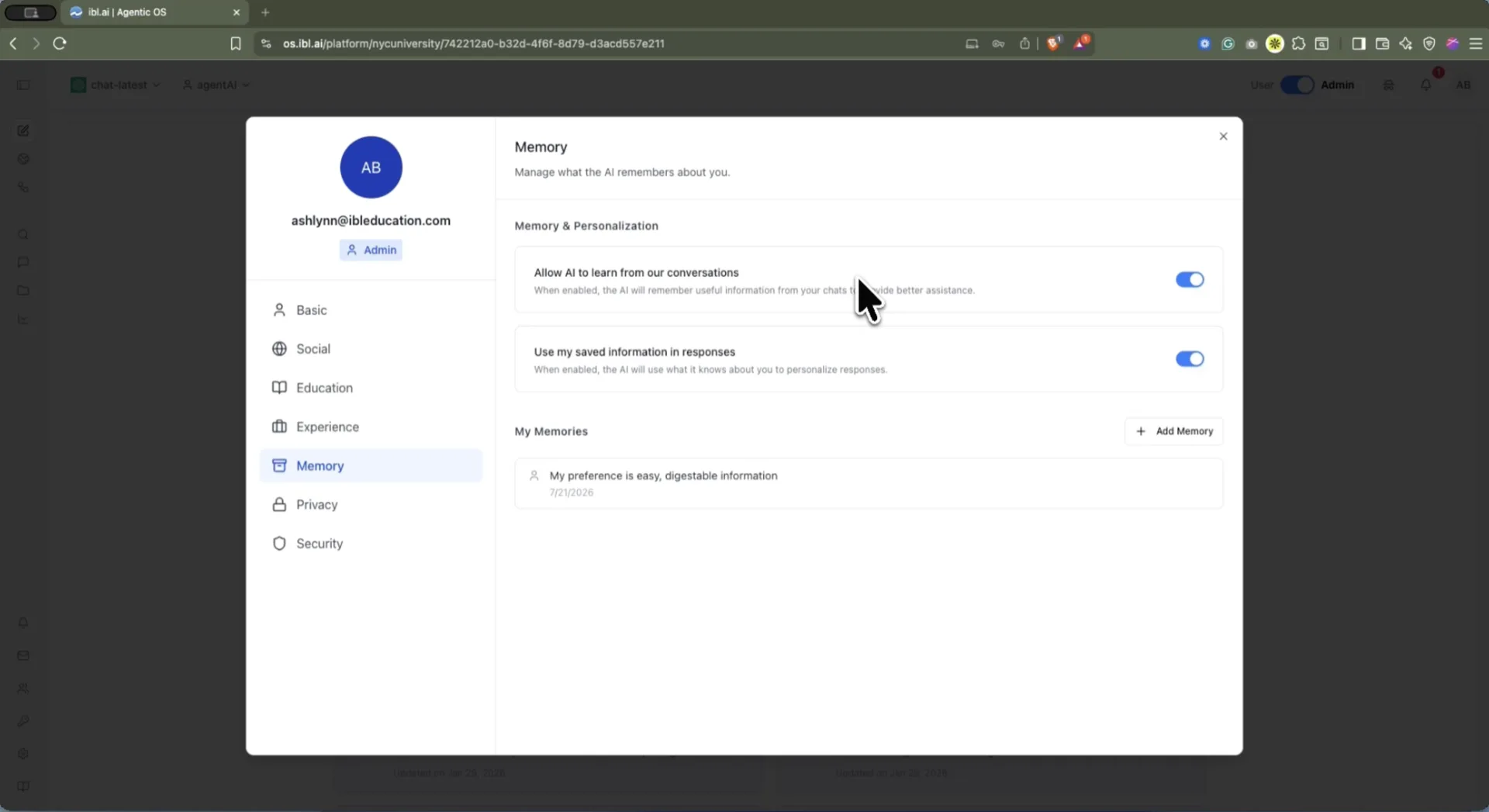
The Memory tab is headed "Manage what the AI remembers about you" and carries two independent toggles:
- Allow AI to learn from our conversations — whether agents may capture new memories from chats at all. Turning it off stops new capture; it does not delete what is already saved.
- Use my saved information in responses — whether saved memories are injected into answers. Turning it off leaves the memories stored but unused.
Below them, My Memories lists every saved fact in plain language with the date it was created. Auto-captured entries carry a bot icon and an auto badge; hand-added ones carry a person icon. The user can add a memory (minimum 10 characters) or delete any entry outright.
That list is the point. Memory here is legible — a person can read exactly what the system believes about them and remove a line they disagree with, rather than trusting an opaque profile they never see.
What does Private Mode actually do?
The Privacy tab sets a Default Private Mode, with three mutually exclusive options. The wording below is the platform's own.
| Mode | Saved to history | Linked to the account | Context from prior turns |
|---|---|---|---|
| Normal | Yes | Yes | Yes |
| Anonymized | Yes, for AI context | No — identifying account info stripped | Yes |
| Disabled | No — nothing is recorded | No | No — every message is a single-turn Q&A |
Disabled is the strict one, and it is stricter than it first reads: with nothing recorded, an agent cannot reference an earlier message even inside the same conversation.
The setting is a default, not a lock. Any individual chat can be switched into Private Mode from the chat header, and an agent or the organization can override the default for specific conversations. The Security tab rounds out the panel with a password reset by email link and account deletion.
The takeaway for a privacy officer: on this platform, memory and recording are governed per individual and per conversation, not only by an organization-wide policy switch.
Private Mode has since been renamed Incognito and joined by a per-agent policy and PII filtering — see Incognito and PII Filtering for Every Agent.
What can an administrator configure for the whole organization?
Organization settings in Agentic OS.
Flip the header toggle to Admin and the same top-right menu opens the organization panel instead — four sections: Organization, Management, Integrations, and Advanced.
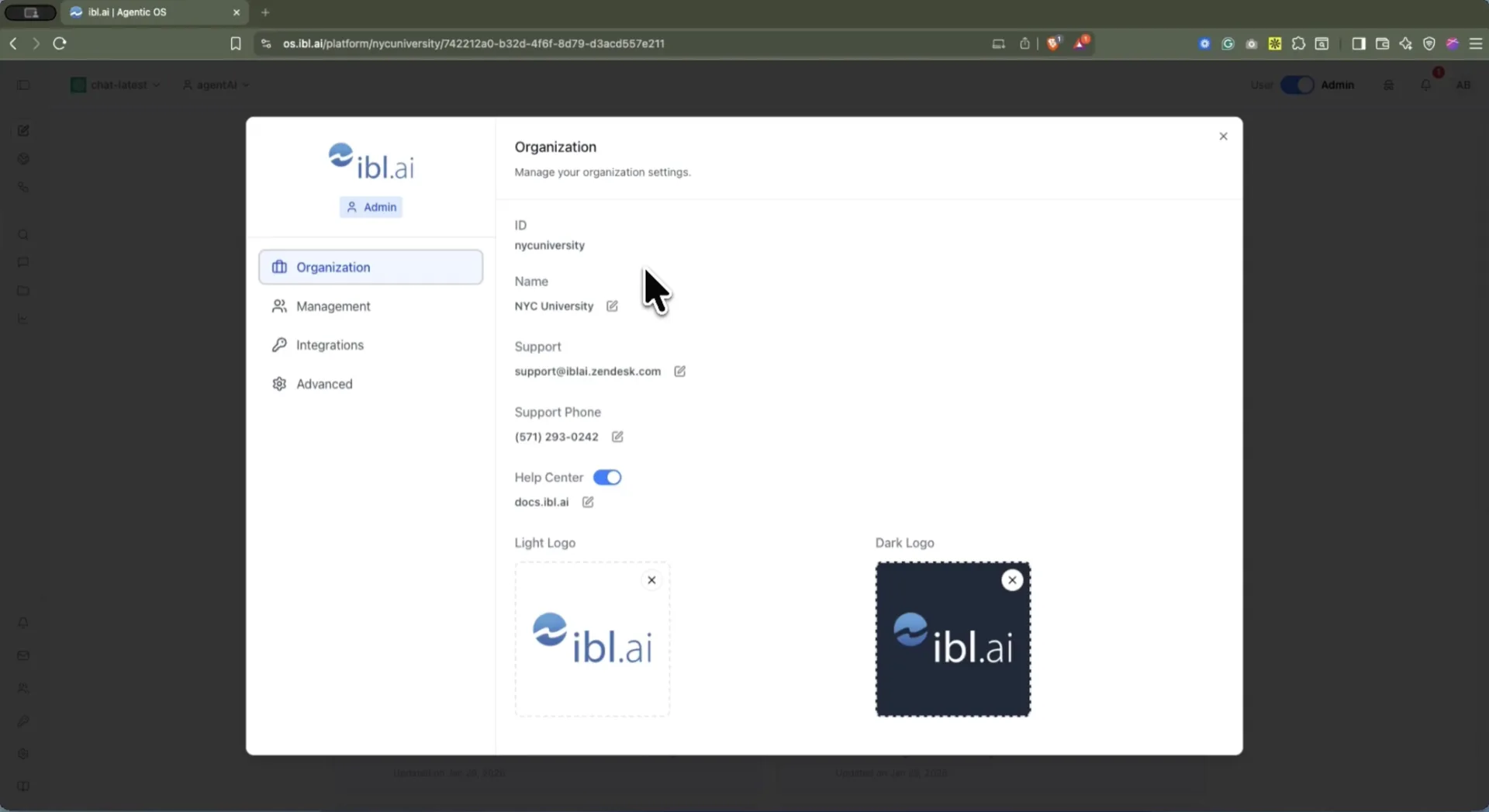
Organization is the tenant's identity: its ID, display name, support email and phone, a Help Center toggle with a custom URL, and separate light and dark logo uploads for white-labeling the interface to institutional branding.
Management covers the people — users, teams, groups, and the roles that define who may do what.
How do you white-label the platform as your own?
Through Advanced, which is where an instance stops looking like a vendor's product and starts looking like the institution's.
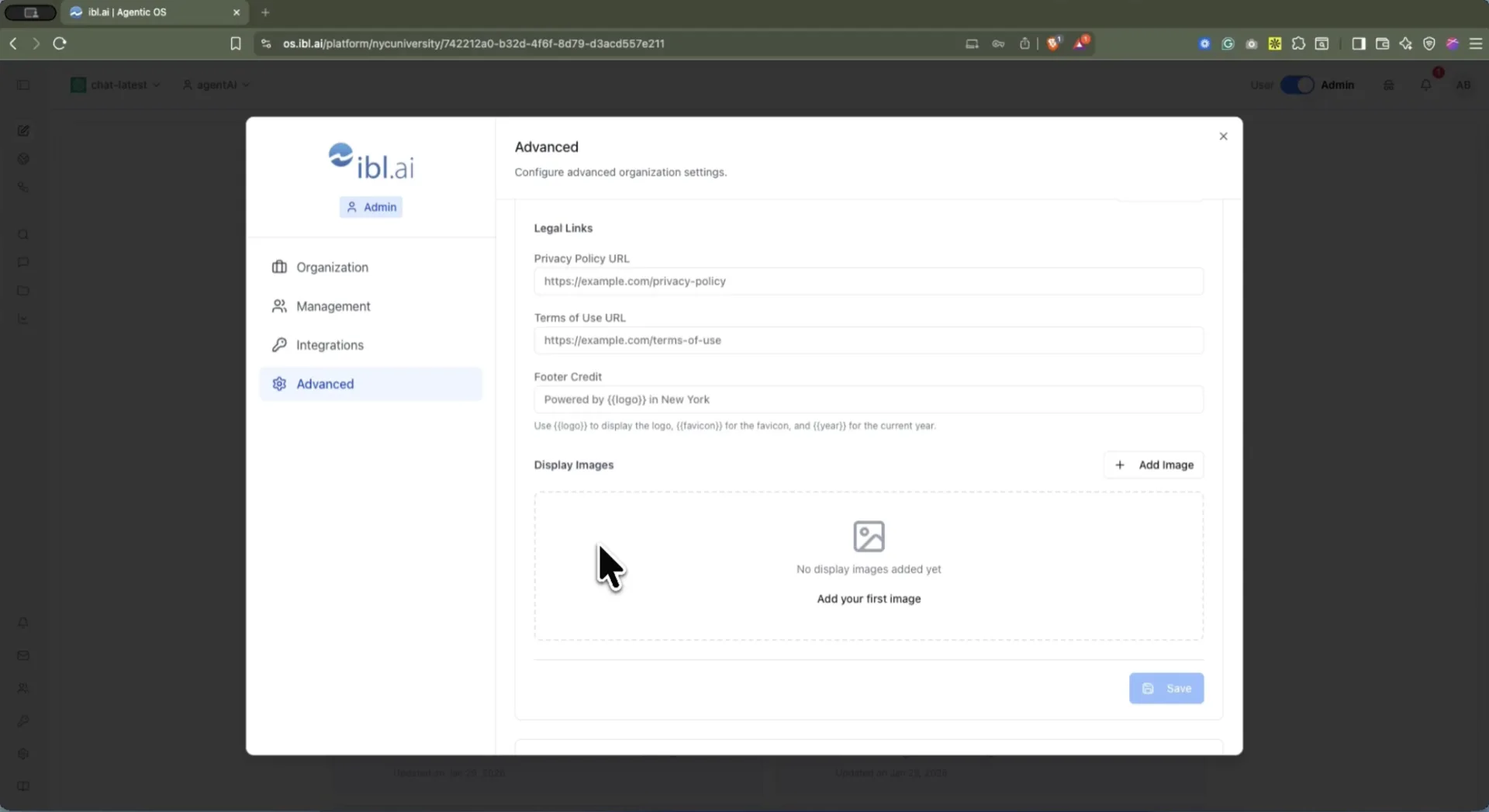
The panel carries Legal Links — your own Privacy Policy and Terms of Use URLs — and a Footer Credit field that accepts {{logo}}, {{favicon}}, and {{year}} tokens, so the credit line renders your mark and stays current without an annual edit. Display Images holds the imagery shown in the workspace.
The rest of Advanced is the platform-wide behavior: chat area width, the authentication interface and Advanced CSS for theming, recommendation system prompts, whether users may create their own agents, user-controlled chat privacy, the built-in memory system, public registration, and DNS and SMTP configuration so the instance answers on your own domain and sends mail from your own addresses.
Custom domain, custom mail, custom CSS, custom legal links, custom footer. Nothing in that list is a co-branding concession — it is the same theming surface we use ourselves.
Which models and keys does the organization control?
Its own. Integrations has three tabs, and each one is a place where the organization supplies its own credentials rather than consuming ours.
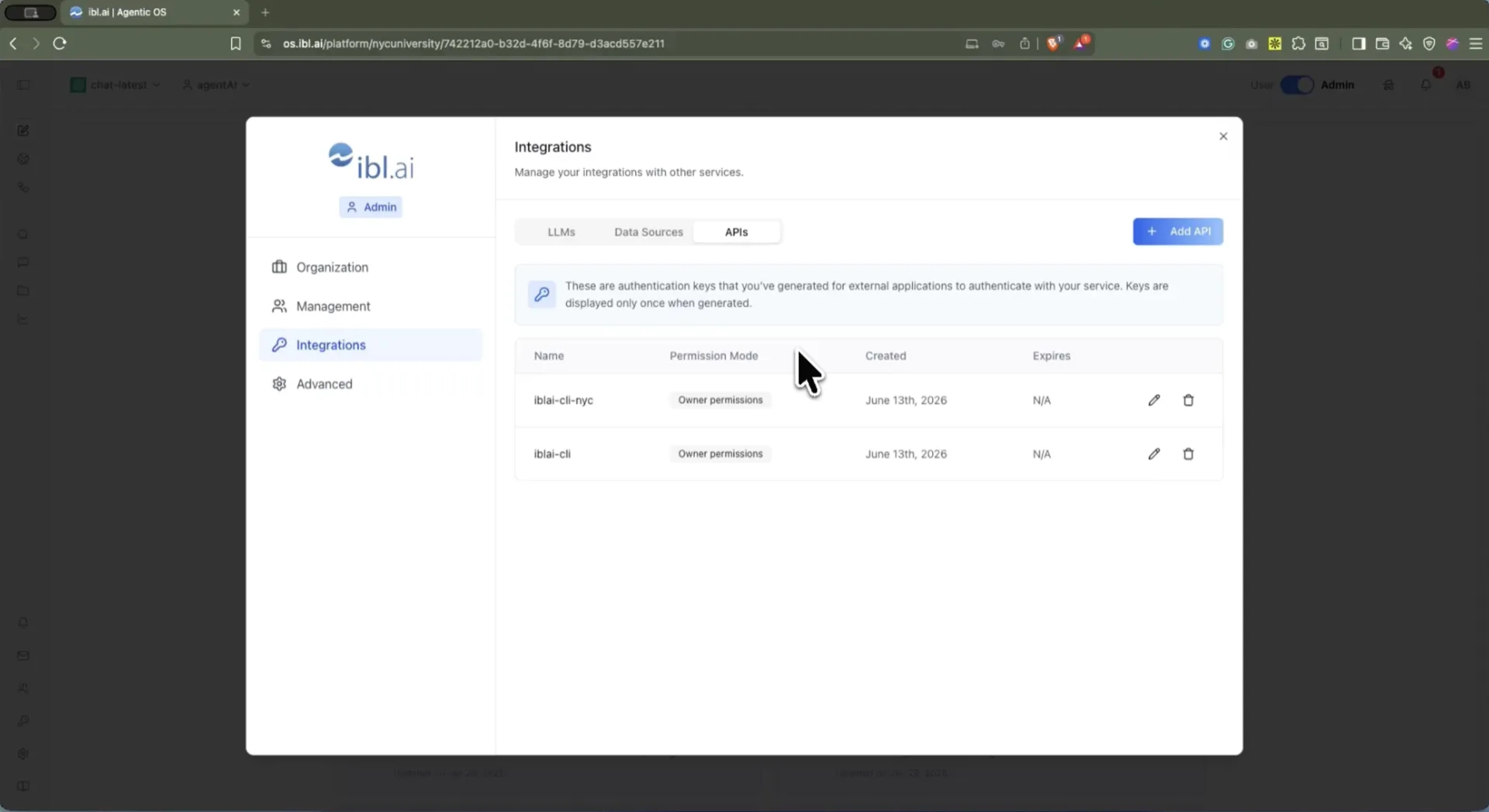
LLMs stores the organization's model-provider keys. This is the mechanism behind the model-agnostic claim: agents run on whichever providers you hold keys for, and switching provider is a credential change rather than a migration. Keys are stored per organization and served back masked, so the full secret is never redisplayed.
Data Sources holds credentials for connecting external data services.
APIs issues authentication keys for external applications to authenticate against the platform, each with a permission mode — the two in the screenshot carry Owner permissions — and each shown only once at generation.
Because the deployment runs on the organization's own infrastructure, these settings are the organization's in the literal sense: its branding, its domain, its email, its models, its keys.
Documentation
User profile
- Profile: Basic — name, email, title, bio, and language
- Profile: Memory — the two personalization toggles and the My Memories list
- Profile: Privacy — Default Private Mode, and the per-chat override
- Profile: Education and Credentials — degrees, verified credentials, and skills
- Profile: Experience and Résumé
- Profile: Security — password reset and account deletion
Organization settings
- Organization — tenant ID, support contacts, Help Center, and logos
- Advanced — organization-wide defaults and feature flags
- Integrations: LLMs — bring your own model-provider keys
- Integrations: Data Sources — external data service credentials
- Roles and Users — who may do what
- Policies — organization-level governance settings
Management has since been rebuilt with eight sub-tabs — see Organization Settings, Rebuilt: Roles, Policies, Groups and Alerts.