Two surfaces shipped for giving agents structure, at different levels. Projects organize the context a body of work needs. Workflows organize the steps a task runs through.
Projects
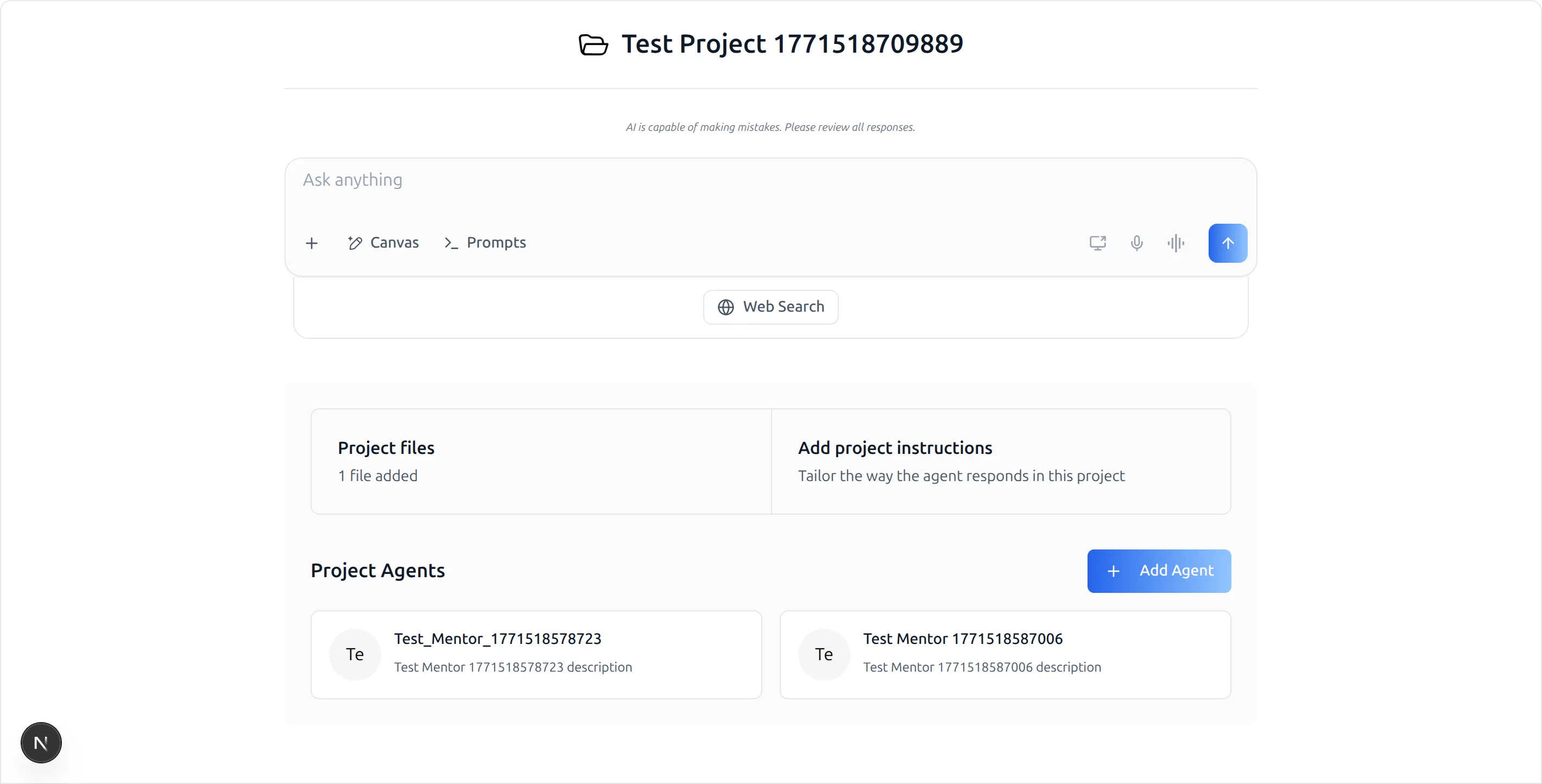
A project is a named workspace holding three things: the files the agents in it can draw on, the instructions that tailor how they respond inside it, and the agents assigned to the work. Opening a project replaces the usual chat welcome screen with a landing page for that work, and the chat input at the top of it behaves exactly as it does elsewhere — the same composer, the same Canvas and Prompts controls — except that what you send is scoped to the project.
Project instructions are the part that changes the day-to-day: they layer on top of an agent's own prompts and apply only inside the project, so a project is where you set the conventions, the audience, and the output format for one piece of work without touching how that agent answers anyone else.
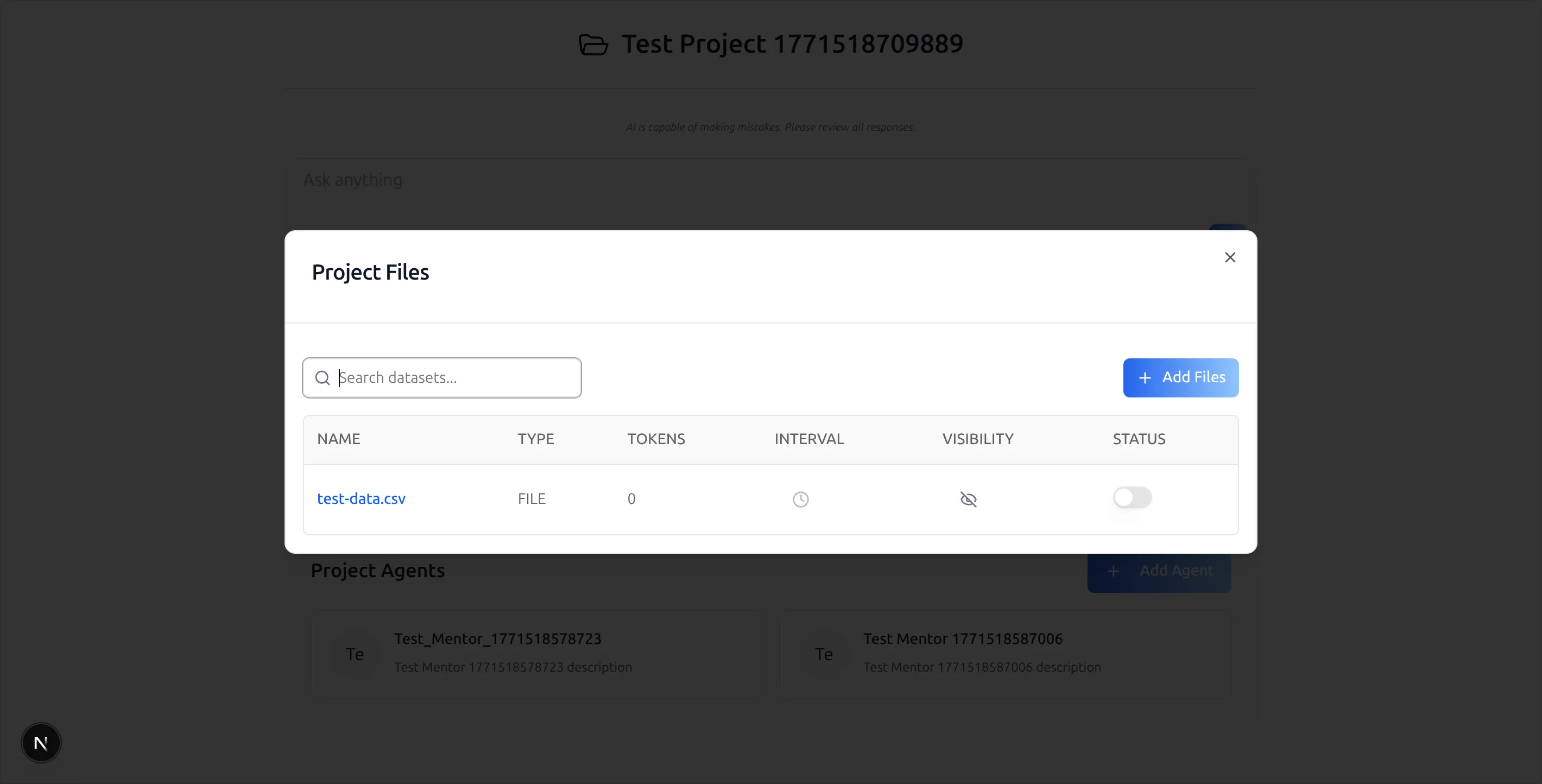
Project files manages the project's own document set, each with its refresh interval, visibility, and an active switch. Several agents can share one project when the work spans more than one specialism.
Workflows
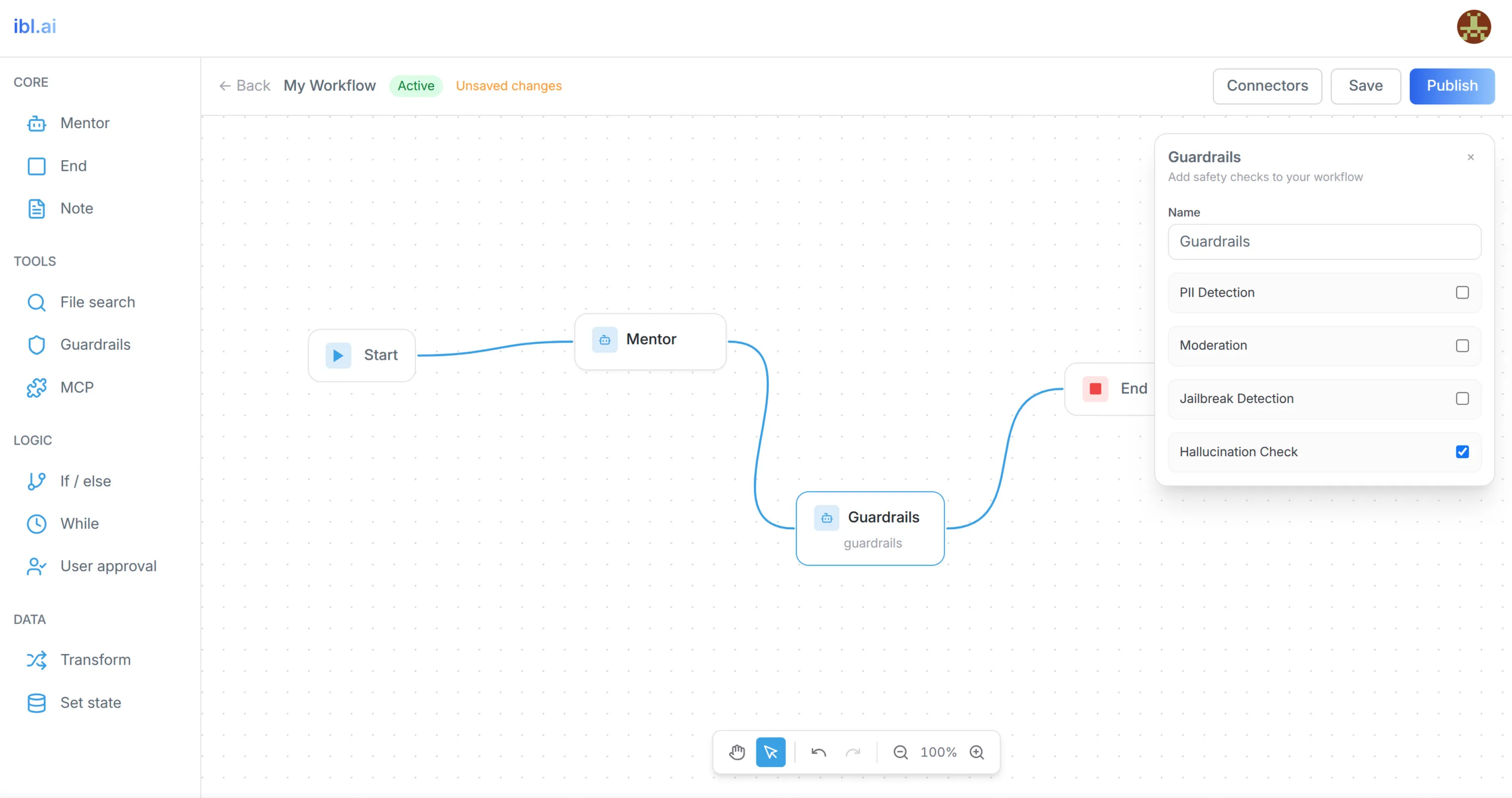
A workflow is an agent run you draw rather than describe. The sidebar is the palette of node types, in four groups:
- Core — an agent step, an End node, and a Note for annotating the graph.
- Tools — File search, Guardrails, and MCP.
- Logic — If / else, While, and User approval.
- Data — Transform and Set state.
The canvas gives you drag-and-drop, pan and zoom, undo and redo, and auto-save, with the header showing the workflow's status and whether there are unsaved changes.
Each node type opens its own configuration. An agent step takes instructions, a model, and a Continue on error switch that decides — per step — whether a failure stops the run or the work carries on. A Guardrails node offers a checklist of PII Detection, Moderation, Jailbreak Detection, and Hallucination Check, which means the screening happens at exactly the point in the run you place it. The Start node declares the state variables the run carries, and End defines what it returns.
Publish validates the graph before promoting it to the running version, so a structurally broken workflow is refused rather than shipped.
Also in this release
Explore Agents is documented as its own surface — the searchable, filterable agent browser with starred, featured, custom, and all-agents sections, and category, subject, type, and LLM-provider filters.
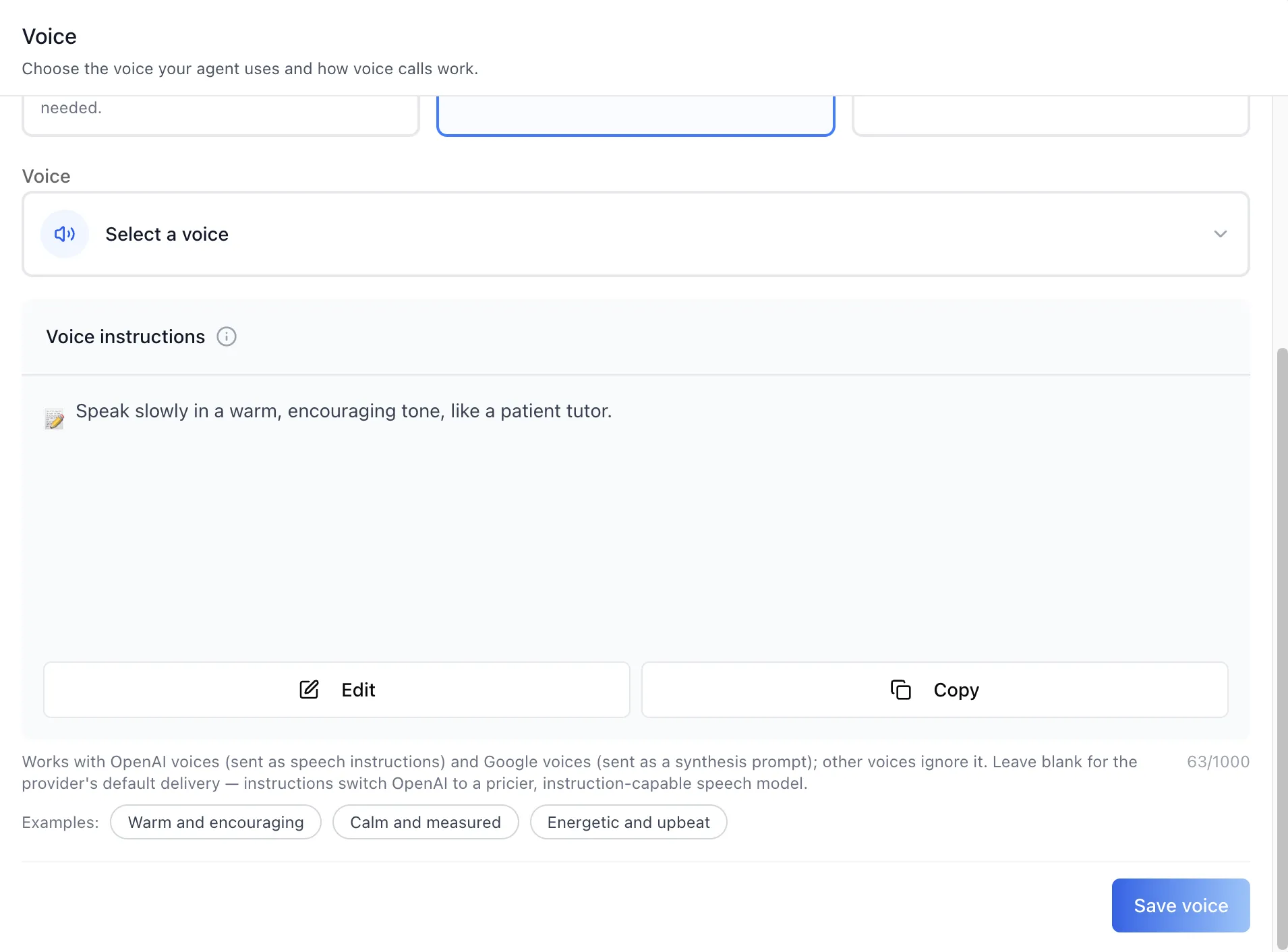
Voice instructions let an agent be told how to speak, as distinct from which voice says it — a free-form style prompt with a rich-text editor, a 1,000-character cap, and one-click presets. OpenAI reads it as speech instructions and Google as a synthesis prompt; both treat it as guidance on delivery, not content.
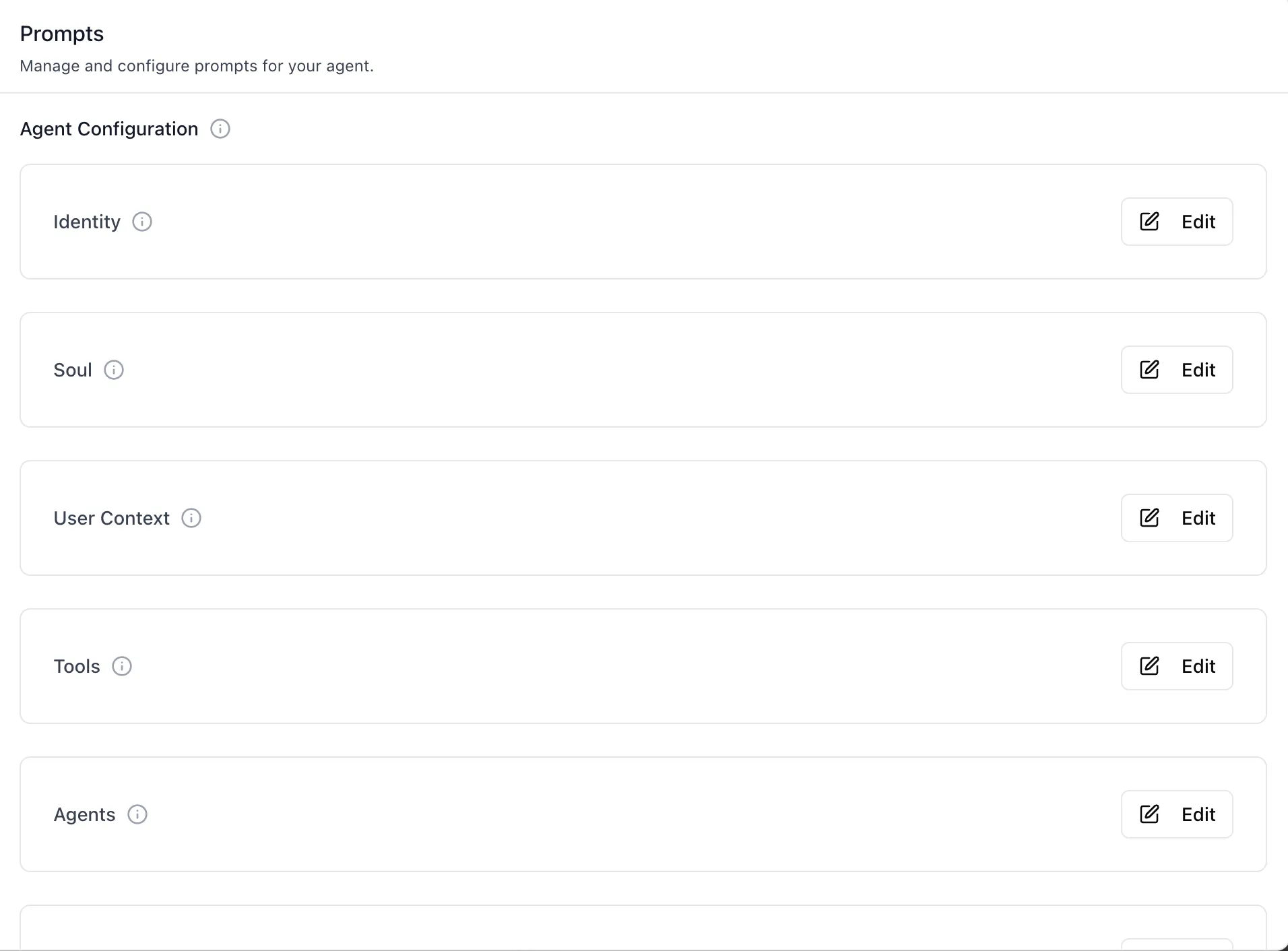
Sandbox workspace prompts — the eight files that define a sandboxed agent on its runtime (Identity, Soul, User Context, Tools, Agents, Bootstrap, Heartbeat, and Memory) — are each editable from the Sandbox panel, with Auto Push on Save keeping the runtime in step.
LTI launch links now build asynchronously. Creating one provisions a course behind the scenes, so the link appears immediately with a status of its own — pending, building, ready, or failed — with a refresh while it builds and a retry on the rare failure, rather than holding a browser request open for the duration.