Projects
Overview
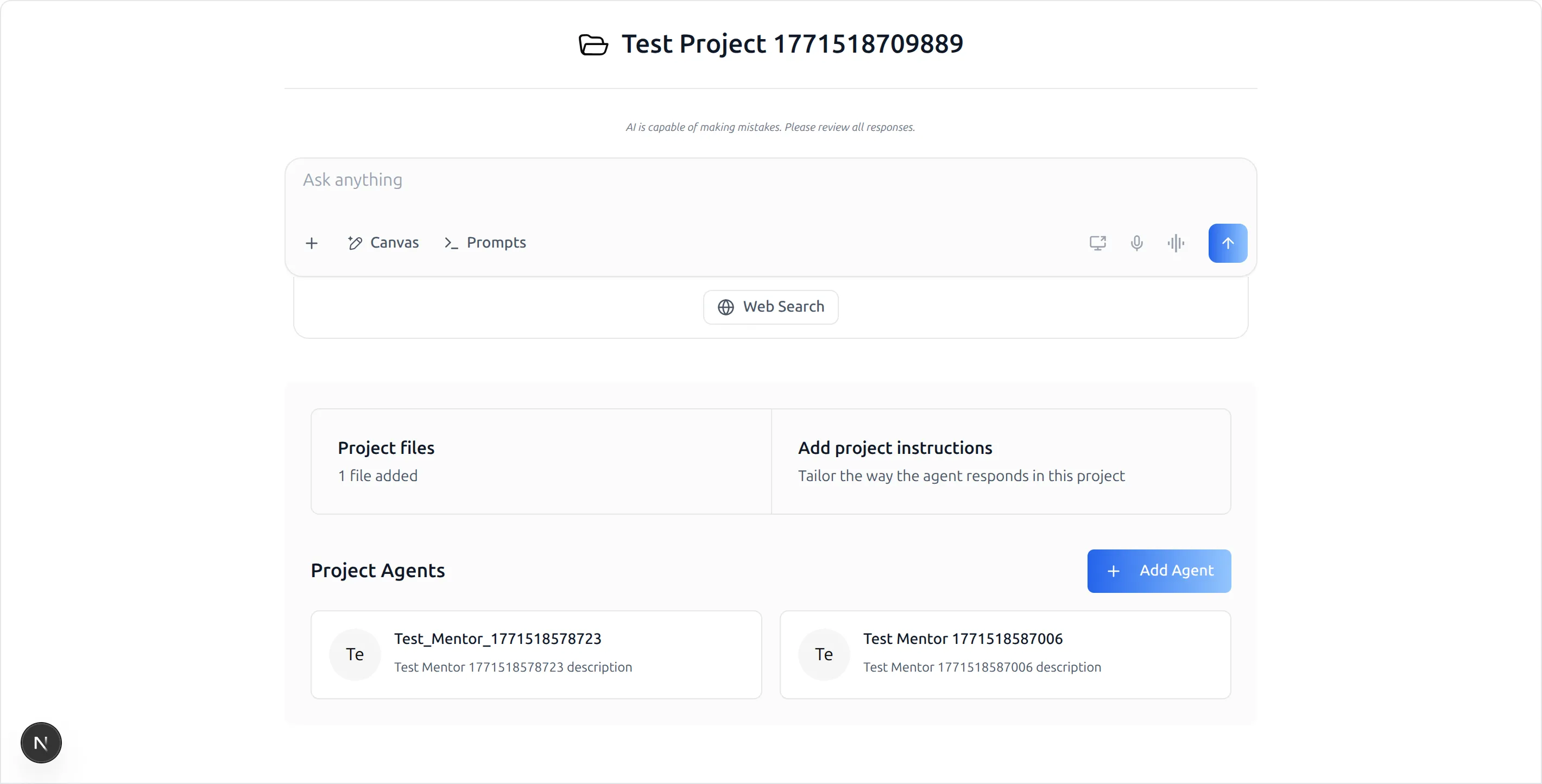
A project is a named workspace that keeps a body of work — its files, its standing instructions, and the agents that act on it — together in one place. Opening a project replaces the usual chat welcome screen with a landing page for that work, so every conversation you start from it already carries the project's context.
Three things belong to a project. Project files are the documents the agents in it can draw on. Project instructions tailor how the agents respond inside this project, without changing how they behave anywhere else. Project Agents are the agents assigned to the work, so a project can bring together several specialists rather than being tied to one.
The chat input sits at the top of the landing page and behaves exactly as it does elsewhere — the same composer, the same Canvas and Prompts controls — with the difference that what you send is scoped to the project.
To reach a project, open Projects in the left icon rail of the chat interface and select one.
Target Audience
Any User | Agent Builder
Panel Reference
Project title
The project's name, at the head of the landing page. It identifies which body of work the conversation below it belongs to.
Chat input
The standard composer — "Ask anything" — with the same attachment, Canvas, Prompts, voice, and web-search controls documented on the Chat Interface page. Sending a message from here starts a conversation inside the project rather than a loose chat.
Project files
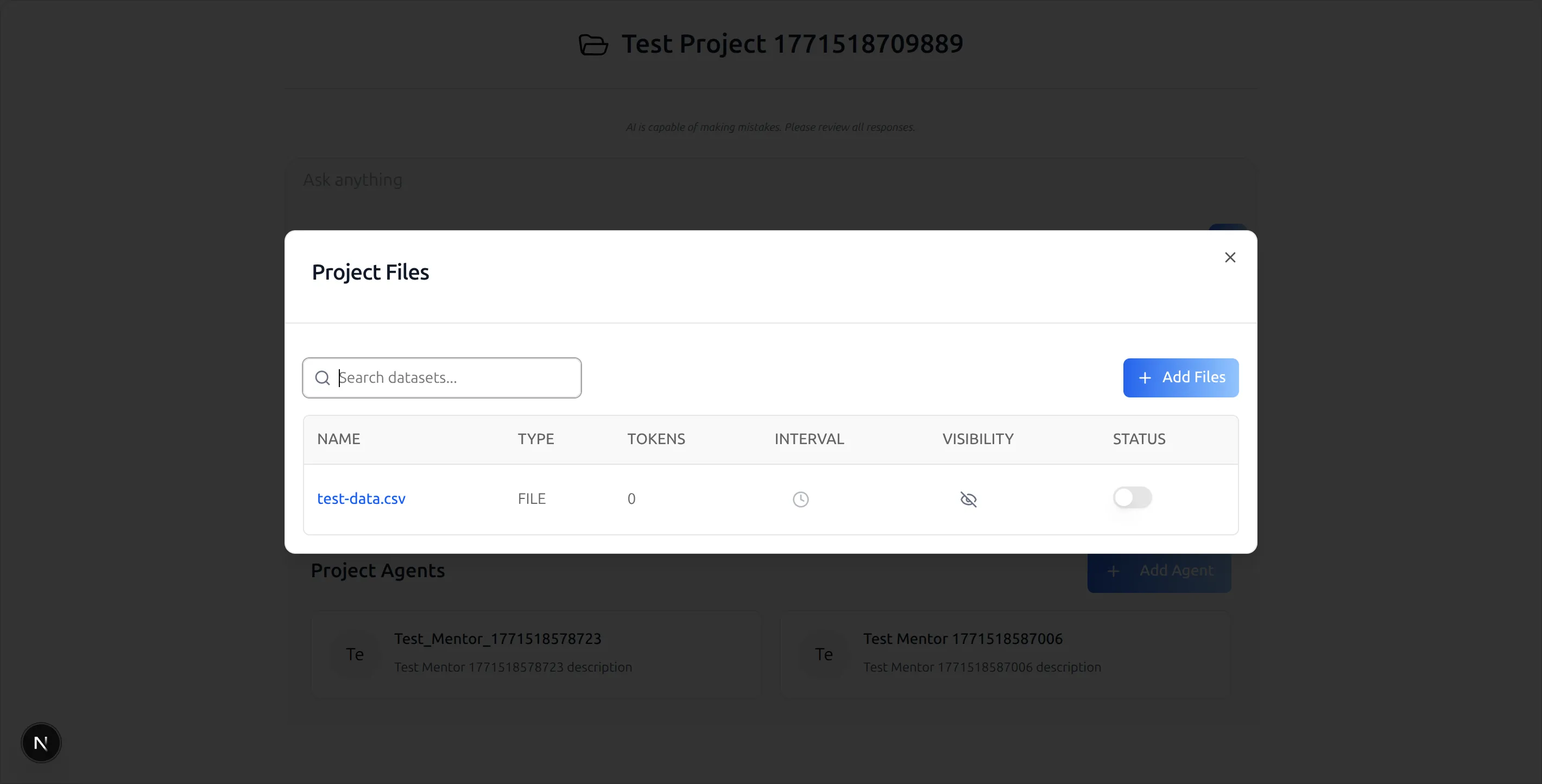
A card showing how many files the project holds; opening it lists them in the Project Files dialog. Each row carries the file's Name, Type, Tokens, refresh Interval, Visibility, and a Status switch, with a search box for finding one in a long list and Add Files for adding more.
Add project instructions
A card that opens the project's instructions — "Tailor the way the agent responds in this project." These sit alongside each agent's own prompts and apply only within the project, which is what makes a project a place to set house rules for one piece of work.
Project Agents
The grid of agents assigned to the project, each shown with its avatar, name, and description. Add Agent assigns another.
How to Use
Step 1: Open a project
In the chat interface, open Projects from the left icon rail and pick the project you want to work in. Its landing page opens with the chat input ready.
Step 2: Add the material the work depends on
Open Project files and use Add Files to bring in the documents, exports, or datasets the agents should be able to draw on. The table shows what is already there and whether each file is active.
Step 3: Set the project's standing instructions
Open Add project instructions and describe how agents should behave in this project — the conventions, the audience, the format you want back. This is scoped to the project, so it does not change how the same agent answers elsewhere.
Step 4: Assign the agents that will do the work
Use Add Agent to bring the right agents into the project. Several can share one project when the work spans more than one specialism.
Step 5: Work from the project
Start conversations from the project's own chat input. They carry the project's files, instructions, and agent assignment with them.
Behavior Notes
- A project scopes context, not capability. The agents in a project are the same agents configured elsewhere; the project adds files, instructions, and a shared home for the conversations.
- Instructions are additive and local. Project instructions layer on top of an agent's own prompts and apply only inside the project.
- Files are managed per project. The Project Files dialog is the project's own list, with its own visibility and status switches per file.
- The composer is unchanged. Canvas, prompts, attachments, voice, and web search all work exactly as they do in an ordinary chat.
Building Projects Into Your Own App
The project surface ships in the ibl.ai SDK as a mode of the same chat component used for ordinary conversations — passing a project identifier swaps the default welcome screen for the project landing page, so an app that already mounts chat gets projects for the cost of the routing. The file, instruction, and agent-assignment dialogs come with it.
Install the iblai/vibe skills; the reusable skill for this workflow is iblai-vibe-project, which builds on iblai-vibe-agent-chat. The SDK overview is at Vibe SDK.