Organization Settings: Advanced
Overview
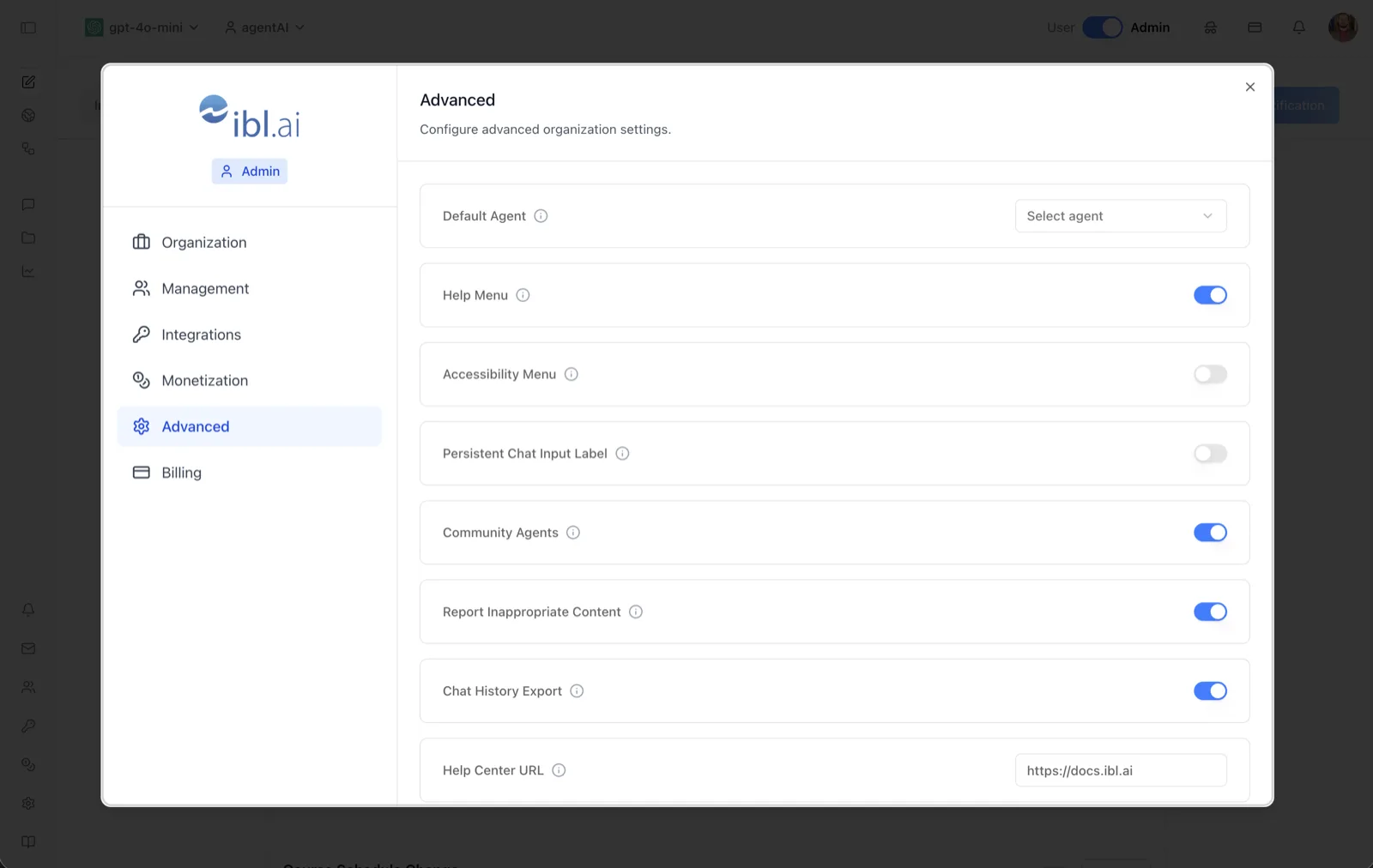
The Advanced page exposes organization-level feature flags and defaults. The header reads "Advanced — Configure advanced organization settings," and each row pairs a setting name (with an info tooltip explaining it) with its control — a toggle, a dropdown, or a text field.
These settings are stored as organization metadata and apply to everyone in the organization. Changes save immediately when you flip a toggle or confirm a value; a toast confirms each update. The list is filtered to the settings relevant to the current application.
To reach it, switch the top-bar toggle to Admin, open the settings dialog, and select Advanced in the left sidebar.
Target Audience
Administrator
Settings
Default Agent
A Select agent dropdown that sets the organization-wide default AI agent — the one users land on by default. The dropdown includes a search box to filter the organization's agents, plus a None option to clear the default.
Help Menu
Toggle (on in the screenshot). Controls whether the help menu entry is shown to users in the workspace.
Accessibility Menu
Toggle (off in the screenshot). Controls whether the accessibility menu is available to users.
Persistent Chat Input Label
Toggle (off in the screenshot). Controls whether the chat input's label remains persistently visible rather than disappearing once the user starts interacting.
Community Agents
Toggle (on in the screenshot). Controls whether community agents are available in the organization alongside the organization's own agents.
Report Inappropriate Content
Toggle (on in the screenshot). When enabled, users can report an AI response as inappropriate from the chat; the report is sent by email to the organization's support address (set on the Organization page) with the conversation transcript included.
Chat History Export
Toggle (on in the screenshot). Controls whether users can export chat history from the workspace.
Help Center URL
A text field holding the destination of the help links (e.g., https://docs.ibl.ai). Point it at your own documentation site; this is the same value surfaced on the Organization page's Help Center setting.
How to Use
Step 1: Open Advanced settings
In Admin mode, open the settings dialog and click Advanced in the left sidebar.
Step 2: Understand a setting
Hover the info icon next to any setting name to read its description before changing it.
Step 3: Set the default agent
Open the Select agent dropdown next to Default Agent, search for the agent by name, and select it. Choose None to remove the default.
Step 4: Toggle features
Flip any toggle to enable or disable that feature for the whole organization. Each change saves immediately and shows a confirmation toast.
Step 5: Point help at your docs
Edit Help Center URL with your documentation address so the workspace's help entries (enabled via Help Menu) send users to the right place.