Profile: Experience Resume
Overview
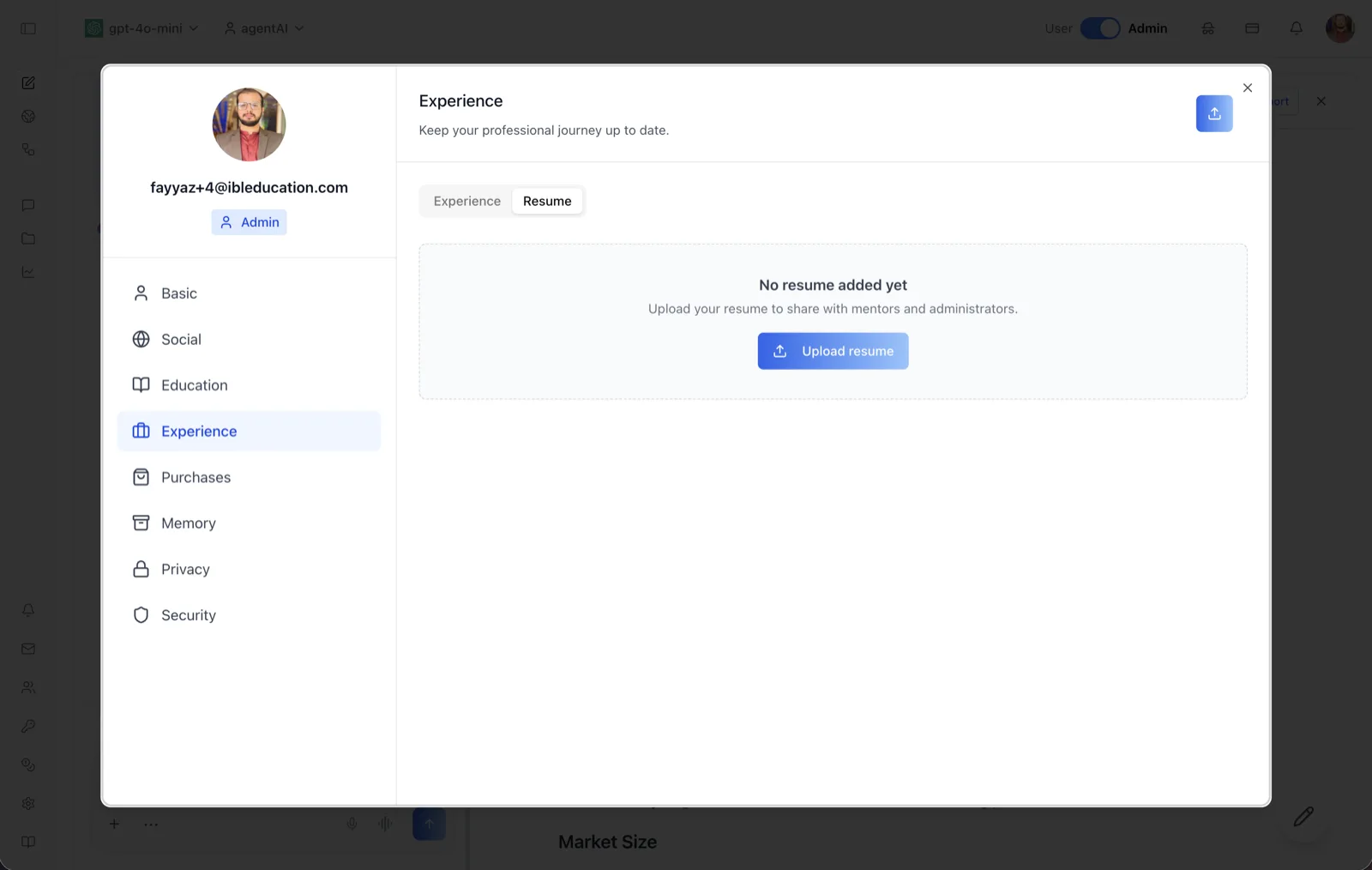
The Resume sub-tab lives inside the Experience section of the User Profile dialog, next to the Experience role list. It stores a single resume file for your account and previews it directly in the dialog once uploaded.
Before a resume is uploaded, the panel shows a dashed placeholder reading "No resume added yet," with the UI note "Upload your resume to share with mentors and administrators" and a blue "Upload resume" button. An upload icon button in the top-right corner of the dialog triggers the same file picker.
To reach this screen, click your avatar in the top-right corner of the OS header, open your profile, select "Experience" in the left navigation rail, and click the "Resume" sub-tab.
Target Audience
User — any account holder. The uploaded resume is intended for sharing with the people supporting you on the platform; the empty-state text on this screen reads "Upload your resume to share with mentors and administrators."
Fields and Controls
Experience / Resume sub-tabs
The pill-style switcher at the top of the panel. "Resume" is the second option.
Upload button (top-right)
The blue icon button in the dialog's top-right corner opens the file picker to upload or replace your resume.
"Upload resume" button (empty state)
Shown inside the placeholder card when no resume exists. It opens the same file picker; the accepted file type is PDF. The button label changes to "Uploading..." while the file transfers.
Resume preview
After upload, the panel renders the PDF inline with paging controls (Prev / Next with a page indicator) plus zoom and rotation controls. The stored file is kept with your user files and identified as your resume.
How to Use
Step 1: Open the Resume sub-tab
Click your avatar in the top-right of the header, open your profile, choose "Experience" from the left navigation, then click "Resume."
Step 2: Upload your resume
Click "Upload resume" (or the upload icon in the top-right corner) and choose a PDF file. The button shows "Uploading..." until the transfer completes.
Step 3: Review it
Once uploaded, the resume renders inside the panel. Use the page, zoom, and rotation controls to review it, and use the top-right upload button to replace it with a newer version.