Profile: Education
Overview
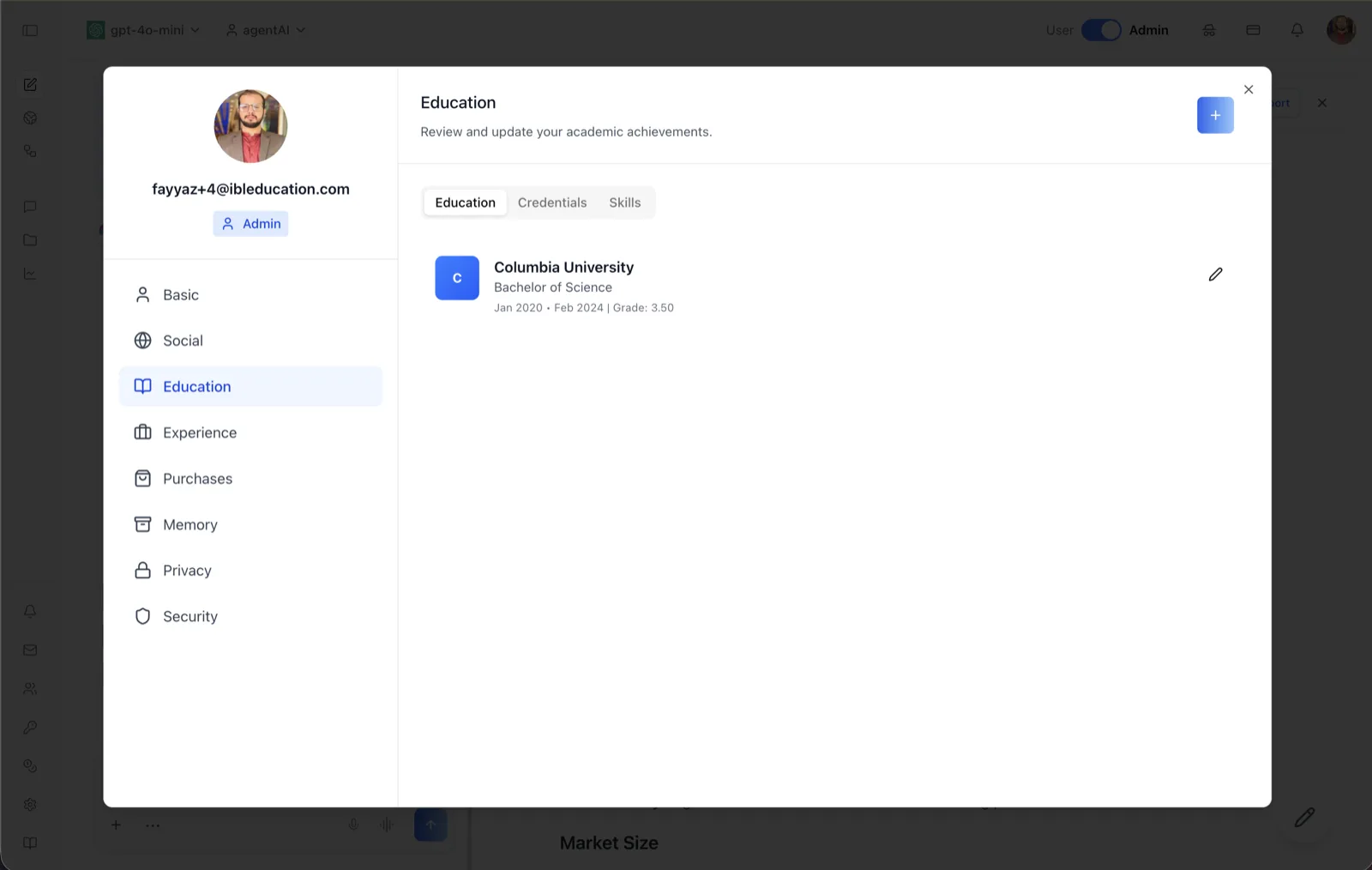
The Education tab of the User Profile dialog records your academic history. Its header reads "Review and update your academic achievements," and it lists each education entry as a card showing the institution, the degree, the date range, and the grade (for example: Columbia University — Bachelor of Science — Jan 2020 · Feb 2024 | Grade: 3.50).
The panel is split into three sub-tabs: Education (degree history, shown here), Credentials, and Skills. The Credentials sub-tab is covered on its own page — see Profile: Education Credentials.
To reach this screen, click your avatar in the top-right corner of the OS header, open your profile, and select "Education" in the left navigation rail.
Target Audience
User — any account holder maintaining their own academic record. In learning deployments this information can also be visible to administrators.
Fields and Controls
Education / Credentials / Skills sub-tabs
A pill-style tab switcher at the top of the panel. "Education" lists degree entries; "Credentials" and "Skills" list earned credentials and recorded skills respectively.
Add button (+)
The blue "+" button in the top-right corner opens the "Add education" dialog for creating a new entry.
Education entry card
Each saved entry displays an institution monogram, the institution name, the degree, the start and end dates, and the grade. Hovering an entry reveals a pencil (edit) button that reopens the same dialog pre-filled for editing.
Add education dialog
The dialog contains: a Degree text field (placeholder "e.g. Bachelor of Science"); a Field of study dropdown; an Institution dropdown that includes an "Add new institution" option; Start month / Start year and End month / End year dropdowns; a numeric Grade field; and an "I currently study here" toggle, which marks the entry as ongoing and disables the end date. "Save changes" saves the entry and "Cancel" closes without saving.
Add Institution sub-dialog
Choosing "Add new institution" from the Institution dropdown opens a secondary dialog where you enter the institution's name and type, then click "Save Institution" (or "Cancel" to return to the education form).
How to Use
Step 1: Open the Education tab
Click your avatar in the top-right of the header, open your profile, and choose "Education" from the left navigation. The Education sub-tab is selected by default.
Step 2: Add an entry
Click the "+" button. Fill in the degree, field of study, and institution — adding a new institution inline if yours is not listed — plus the start date, end date (or the "I currently study here" toggle), and grade.
Step 3: Save
Click "Save changes." The new entry appears as a card in the list. To correct an entry later, hover it and click the pencil icon.