Profile: Experience
Overview
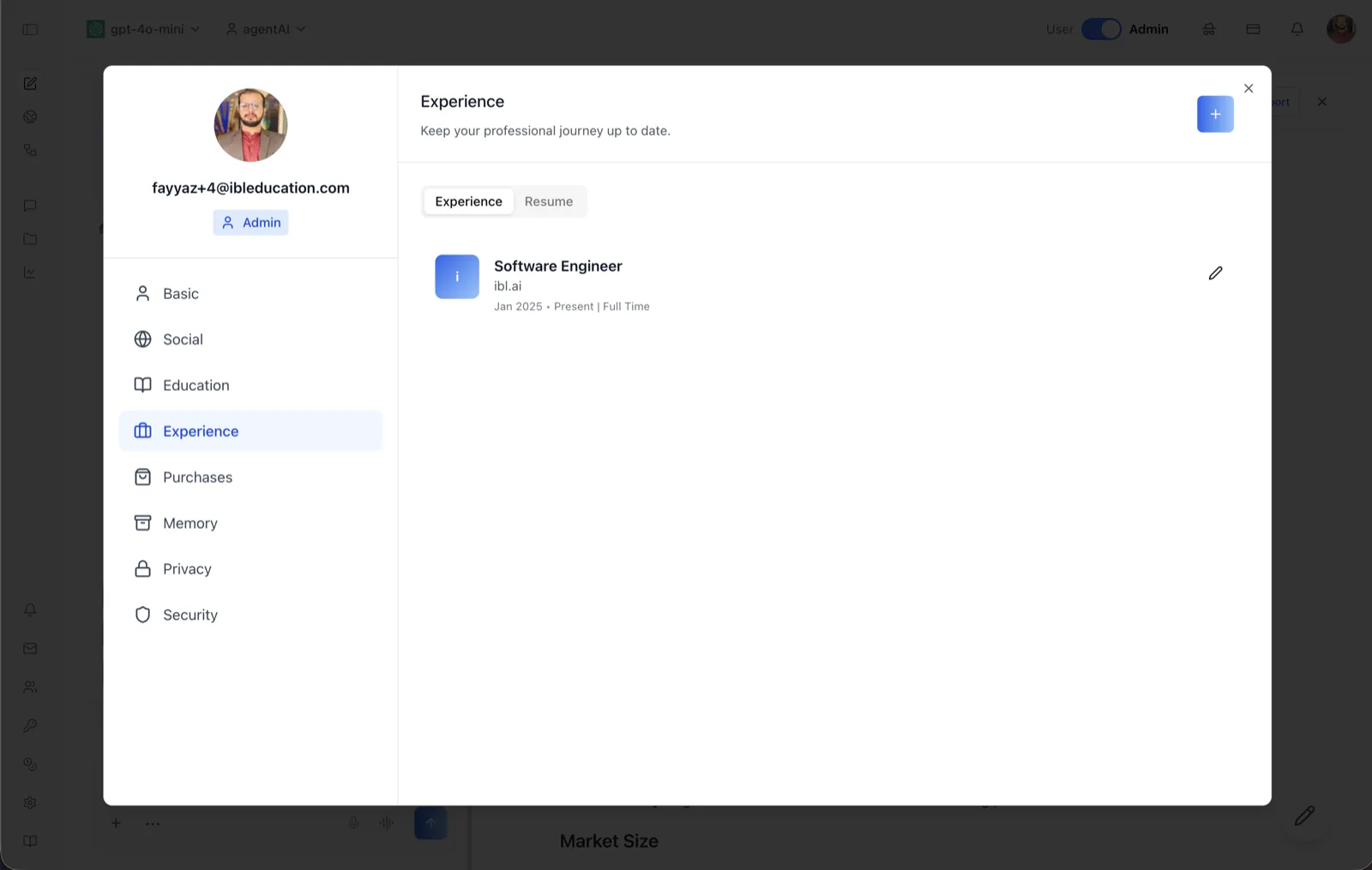
The Experience tab of the User Profile dialog records your work history. Its header reads "Keep your professional journey up to date," and each saved role appears as a card showing a company monogram, the job title, the company, the date range, and the employment type (for example: Software Engineer — ibl.ai — Jan 2025 · Present | Full Time).
The panel has two sub-tabs: Experience (the role list, shown here) and Resume, which handles resume upload and preview — see Profile: Experience Resume.
To reach this screen, click your avatar in the top-right corner of the OS header, open your profile, and select "Experience" in the left navigation rail.
Target Audience
User — any account holder maintaining their own professional history.
Fields and Controls
Experience / Resume sub-tabs
A pill-style switcher at the top of the panel. "Experience" lists work entries; "Resume" manages your uploaded resume file.
Add button (+)
The blue "+" button in the top-right corner opens the "Add experience" dialog for creating a new role entry.
Experience entry card
Each saved role shows the job title, the company, the start date, either an end date or "Present" for a current role, and the employment type. Hovering an entry reveals a pencil (edit) button that reopens the dialog pre-filled for editing.
Add experience dialog
The dialog contains: a Title text field; a Company dropdown that includes an "Add new company" option for companies not yet listed; an Employment type dropdown (for example, Full Time); a Location text field; Start month / Start year and End month / End year dropdowns; and an "I currently work here" toggle, which marks the role as ongoing and disables the end-date fields. "Save changes" saves the entry and "Cancel" closes without saving.
How to Use
Step 1: Open the Experience tab
Click your avatar in the top-right of the header, open your profile, and choose "Experience" from the left navigation. The Experience sub-tab is selected by default.
Step 2: Add a role
Click the "+" button. Enter the title, company (adding a new company inline if needed), employment type, location, and start date. For your current job, enable "I currently work here" instead of setting an end date.
Step 3: Save
Click "Save changes." The role appears as a card in the list. To edit it later, hover the card and click the pencil icon.