Profile: Memory
Overview
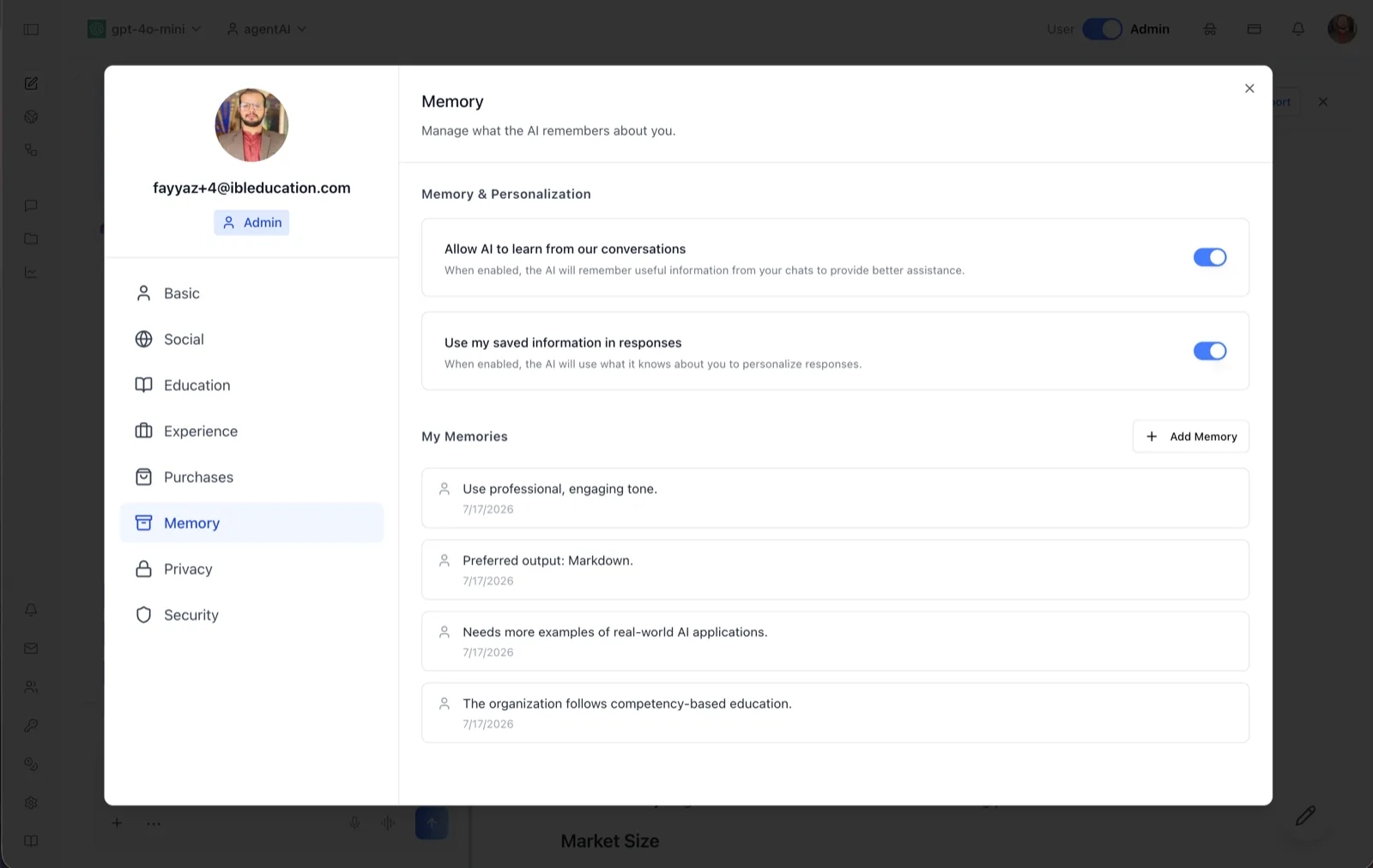
The Memory tab of the User Profile dialog controls what the platform's AI agents remember about you across conversations. Its header reads "Manage what the AI remembers about you," and it combines two personalization toggles with a reviewable list of every saved memory.
Memories are short facts — preferences, context about you or your organization, formatting choices — that agents can capture automatically from chats or that you add by hand. Each entry in the list shows its text and the date it was created; automatically captured memories are marked with a bot icon and an "auto" badge, while manually added ones carry a person icon.
To reach this screen, click your avatar in the top-right corner of the OS header, open your profile, and select "Memory" in the left navigation rail.
Target Audience
User — any account holder. Memory settings apply to your own account's conversations with AI agents.
Fields and Controls
Allow AI to learn from our conversations
A toggle controlling automatic memory capture. Per the on-screen description: "When enabled, the AI will remember useful information from your chats to provide better assistance." Turning it off stops agents from saving new memories automatically; it does not delete existing ones.
Use my saved information in responses
A toggle controlling whether saved memories are injected into responses. Per the on-screen description: "When enabled, the AI will use what it knows about you to personalize responses." Turning it off leaves memories stored but unused.
My Memories list
Every saved memory appears as a row with its content and creation date. Auto-captured memories show a bot icon plus an "auto" badge; manually added memories show a person icon. Hovering a row reveals a delete button that removes that memory permanently.
Add Memory
The "+ Add Memory" button opens a dialog where you type a new memory as free text. The content must be at least 10 characters long; on save it joins the list as a manually added memory.
How to Use
Step 1: Open the Memory tab
Click your avatar in the top-right of the header, open your profile, and choose "Memory" from the left navigation.
Step 2: Set your personalization preferences
Use the two toggles to decide whether agents may capture new memories from your chats, and whether they may use saved memories to personalize responses. The two controls are independent.
Step 3: Curate the memory list
Review the "My Memories" list. Click "Add Memory" to record a fact you want agents to know (at least 10 characters), and hover any entry and use its delete control to remove memories that are outdated or that you prefer not to keep.