Profile: Education Credentials
Overview
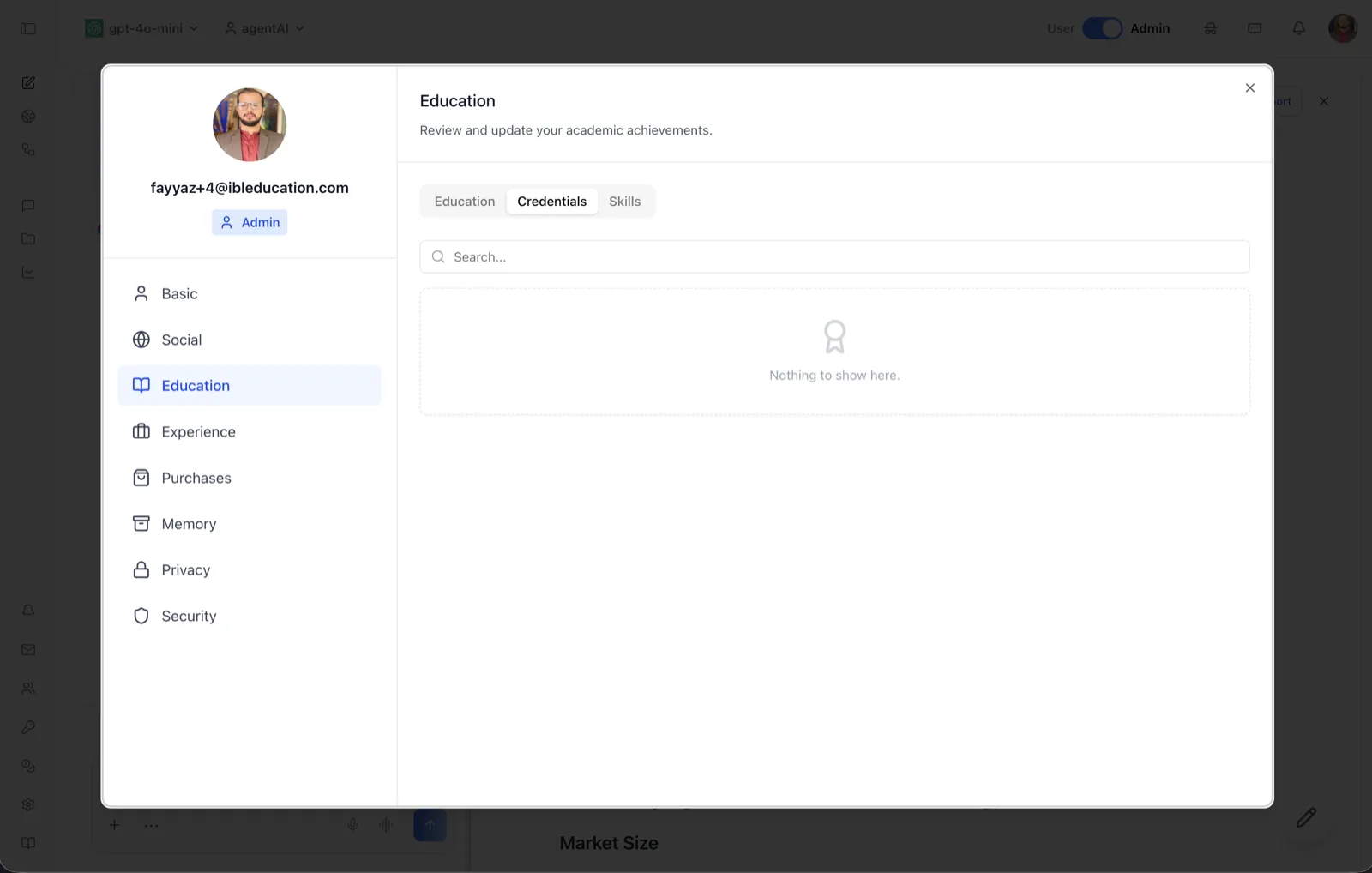
The Credentials sub-tab lives inside the Education section of the User Profile dialog, alongside the Education and Skills sub-tabs. It lists the credentials associated with your account — such as certificates and badges issued through the platform — and provides a search field for filtering them.
When no credentials have been earned yet, the panel shows a dashed placeholder card with a ribbon icon and the message "Nothing to show here." Once credentials exist, they appear in this list and can be located with the search box.
To reach this screen, click your avatar in the top-right corner of the OS header, open your profile, select "Education" in the left navigation rail, and then click the "Credentials" sub-tab.
Target Audience
User — any account holder reviewing the credentials they have earned.
Fields and Controls
Education / Credentials / Skills sub-tabs
The pill-style switcher at the top of the Education panel. "Credentials" is the middle option; the adjacent "Skills" sub-tab uses the same list-and-search layout for recorded skills.
Search field
A search input ("Search...") above the list, used to filter the credential list by keyword.
Credential list / empty state
The area below the search box lists your credentials. Until any exist, it displays the dashed empty-state card reading "Nothing to show here."
How to Use
Step 1: Open the Education section
Click your avatar in the top-right of the header, open your profile, and choose "Education" from the left navigation.
Step 2: Switch to Credentials
Click the "Credentials" sub-tab at the top of the panel. Your earned credentials are listed here; an empty state appears if there are none yet.
Step 3: Search
When the list is populated, type in the search field to filter credentials by name.