Organization Settings: LLM Integrations
Overview
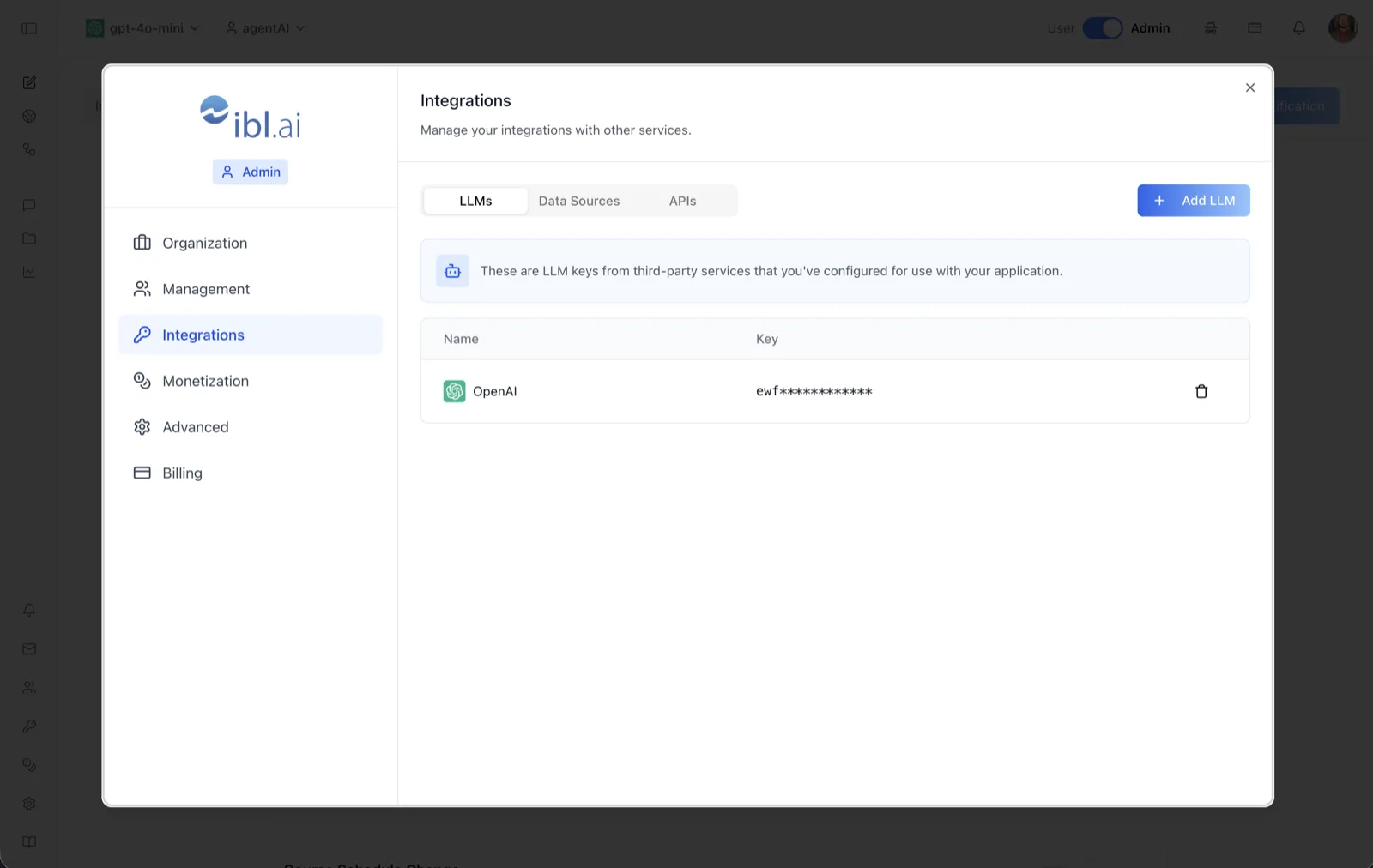
The LLMs tab stores your organization's model-provider credentials. As the on-screen banner says: "These are LLM keys from third-party services that you've configured for use with your application."
OS is model-agnostic: agents can run on any provider you hold keys for. Keys added here are stored per organization and served back masked (e.g., ewf************), so the full secret is never redisplayed in the UI. In the screenshot, an OpenAI key is configured.
To reach it, switch the top-bar toggle to Admin, open the settings dialog, choose Integrations in the left sidebar, and select the LLMs tab (alongside Data Sources and APIs).
Target Audience
Administrator
Fields and Controls
Add LLM
Opens the Add LLM dialog. First choose a Provider from a dropdown of supported services (each listed with its logo and display name); the form then renders that provider's required credential fields dynamically from its schema — typically an API key, plus provider-specific values. Submit to save the credential for the organization.
Azure OpenAI configuration
Azure OpenAI is a special case in the Add LLM dialog: instead of a single key, you select one or more models and enter per-model credentials (key and deployment details) in collapsible cards, since Azure scopes access per deployment.
Name column
The provider for each stored credential, shown with its logo (e.g., OpenAI). Azure OpenAI entries can expand to list per-model credentials.
Key column
The stored key in masked form — only the first characters are visible. The platform never redisplays the full secret; to rotate a key, delete the credential and add a new one.
Delete (trash) icon
Removes the credential from the organization after confirmation. Agents relying on that provider will no longer be able to call it until a new key is added.
How to Use
Step 1: Open the LLMs tab
In Admin mode, open the settings dialog, click Integrations, and make sure the LLMs tab is selected.
Step 2: Add a provider key
Click Add LLM, pick the provider from the dropdown, and fill in the credential fields the form presents. Click Submit; a success toast confirms the key was stored.
Step 3: Verify the entry
The new credential appears in the table with its provider name and a masked key. Agents in this organization can now use models from that provider.
Step 4: Rotate or remove keys
To rotate a credential, delete the old entry with the trash icon and add the replacement via Add LLM. Deleting without replacing disables that provider for the organization's agents.