Profile: Basic Information
Overview
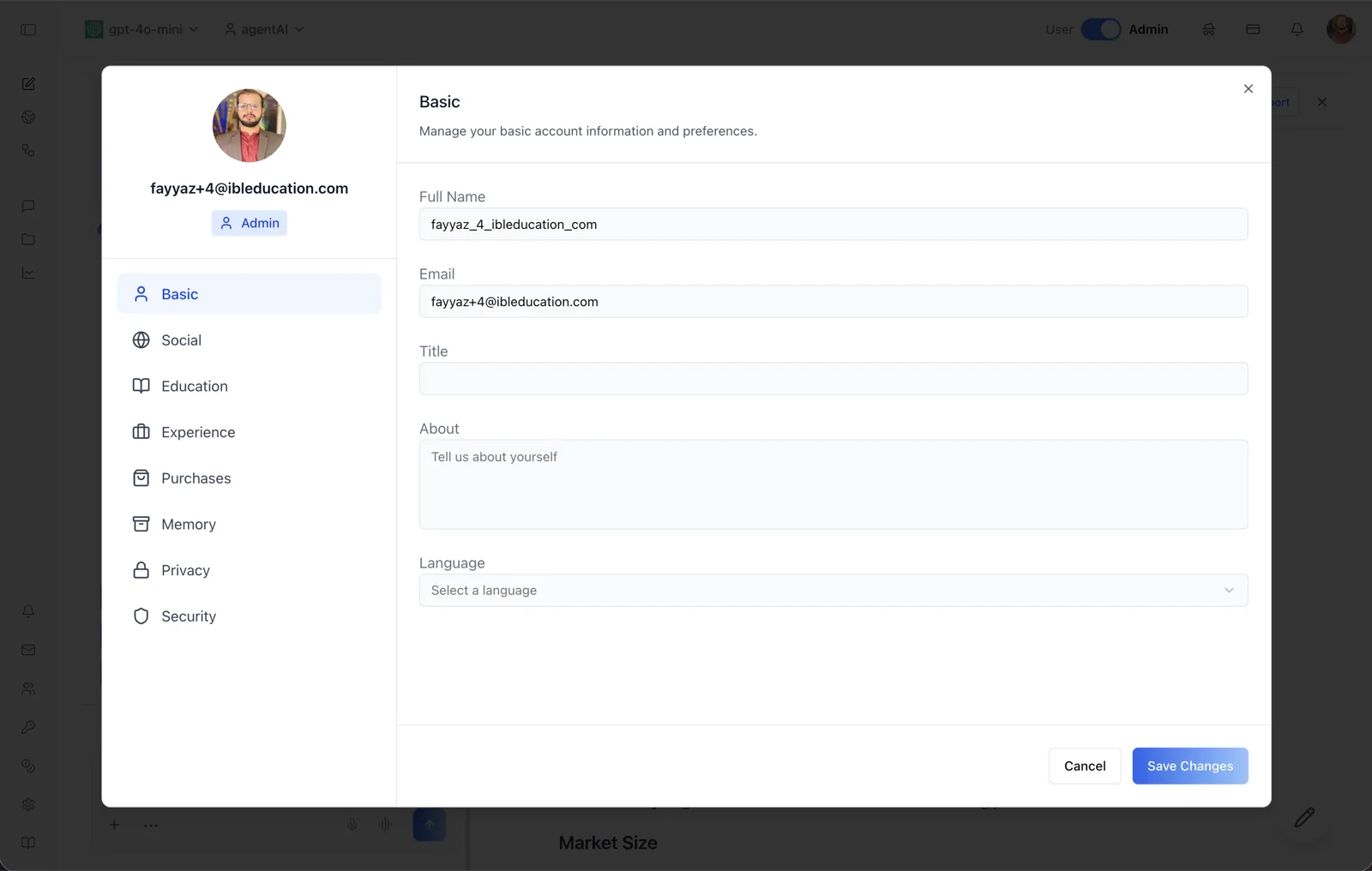
The Basic tab is the first section of the User Profile dialog. It holds your core account information — name, email, professional title, a short bio, and your preferred language — and is where those details are edited and saved.
The left side of the dialog shows your profile photo, your account email, and a role badge (for example "Admin") when your account has elevated permissions. Below that sits the navigation rail with every profile section: Basic, Social, Education, Experience, Purchases, Memory, Privacy, and Security.
To reach this screen, click your avatar in the top-right corner of the OS header and open your profile. The dialog opens on the Basic tab by default, with the header text "Manage your basic account information and preferences."
Target Audience
User — every account holder on the platform. No administrator permissions are required to edit your own basic information.
Fields and Controls
Profile photo (avatar)
Your current profile picture is displayed at the top of the left panel. The avatar doubles as an upload control (accessible name: "Upload profile picture") — click it to choose a new image; image file types are accepted.
Full Name
A text field pre-populated with your display name. This is the name shown across the platform; edit it and save to change it.
A text field showing the email address on the account. It is pre-populated from your account record.
Title
A free-text field for your professional title (for example, "Software Engineer"). Changes persist after saving and remain when the dialog is reopened.
About
A multi-line text area with the placeholder "Tell us about yourself." Use it for a short bio that becomes part of your profile.
Language
A dropdown labeled "Select a language" that sets your preferred language. Available options are English, Spanish, and French.
Save Changes / Cancel
"Save Changes" submits the form and persists all edits on this tab; the dialog stays open after a successful save. "Cancel" discards unsaved edits. While a save is in progress the fields are temporarily disabled.
How to Use
Step 1: Open your profile
Click your avatar in the top-right corner of the header and open your profile. The User Profile dialog appears on the Basic tab.
Step 2: Edit your details
Update the Full Name, Title, or About fields, and pick a preferred language from the Language dropdown.
Step 3: Save
Click "Save Changes." The dialog remains open and the new values persist. Click "Cancel" instead to discard the edits, or the X in the top-right corner to close the dialog.