Datasets
Description
The Datasets tab is where you curate the knowledge base for a mentorAI. Upload files, link cloud resources, toggle whether content is active for training, and decide if learners can view the original sources. This central dashboard gives you full control over what the mentor “knows” and what students can see.
Target Audience
Instructor
Features
Comprehensive Dataset Table
Columns show Name, Type (file, URL, etc.), Tokens (size contribution), Storage Location, and Status (training progress).
Training Toggle
Switch a resource On to include it in the mentor’s knowledge base, or Off to exclude it without deleting.
Visibility Toggle
Decide whether learners can open the source in the Retrieved Documents side panel (On) or keep it hidden (Off).
Flexible Resource Types
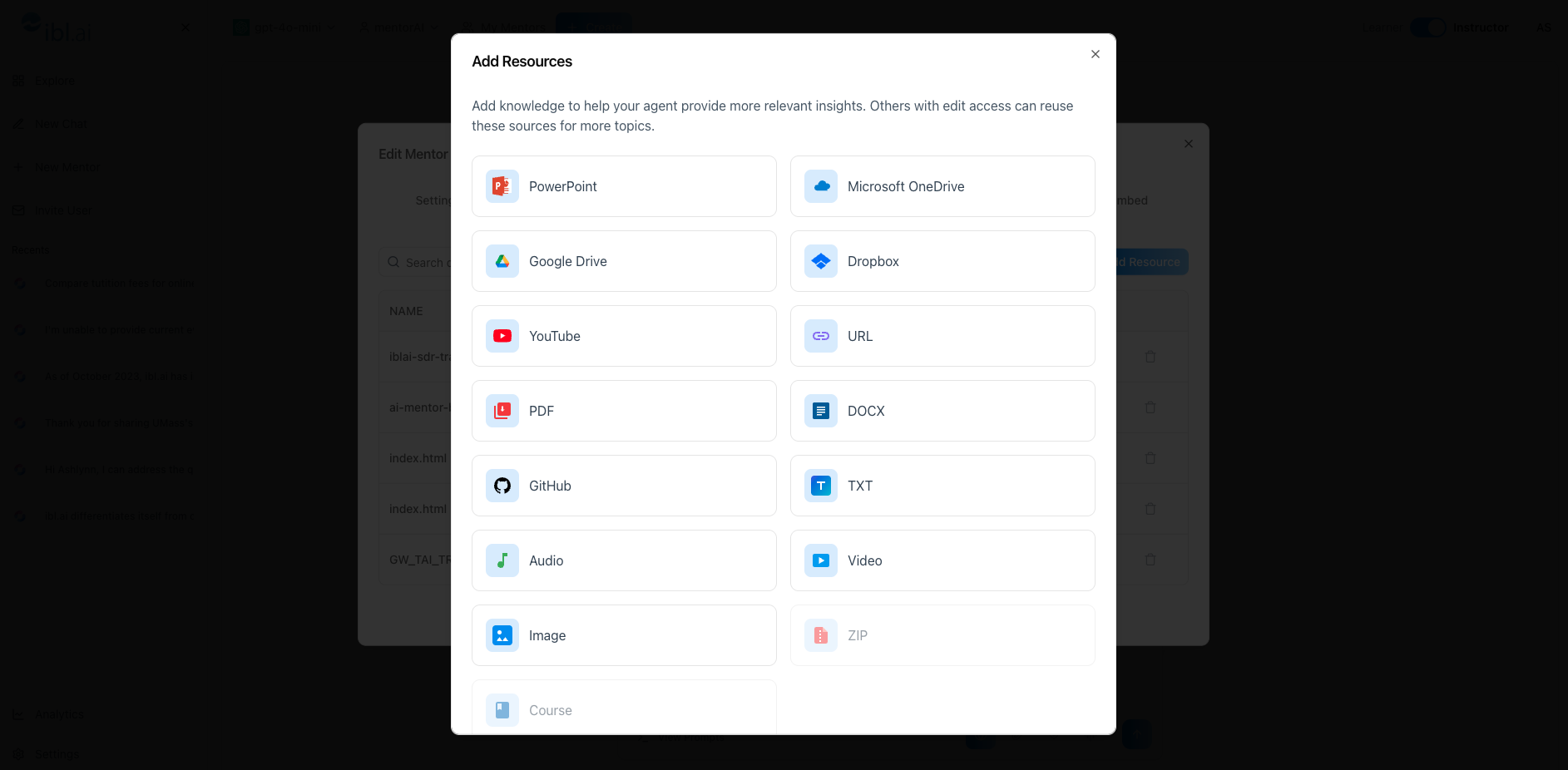
Accepts direct uploads (PDF, PPT, images, video) and cloud links from Google Drive, Dropbox, OneDrive, YouTube, and standard URLs.
Easy Deletion & Re‑Upload
Remove outdated items with a trash‑can icon, or add fresh resources anytime with Add Resource.
How to Use (step by step)
Open the Datasets Tab
- Click the mentor name dropdown
- Select Datasets from the settings list
Review the Dataset List
- Scan the columns: Name, Type, Tokens, Storage Location, Status
- Status shows if training is complete (large files may take longer)
Manage Training Status
Flip the Training switch:
- On → resource is active
- Off → resource is ignored (kept for later reactivation)
Control Learner Visibility
Toggle Visible:
- On → learners see and can open the source
- Off → mentor uses it, but learners can’t access it
Delete a Resource (if necessary)
- Click the trash‑can icon next to an entry to remove it entirely
Add New Resources
Click Add Resource
Choose a source type:
- File upload (PDF, PPT, image, video…)
- Cloud link (Google Drive, Dropbox, OneDrive)
- YouTube or web URL
Connect to your cloud account if prompted, pick the files, or paste a URL
The new item appears in the list and begins training automatically
Monitor Training
- Watch the Status column; wait until it shows Trained before relying on the content
Pedagogical Use Cases
Curriculum Updates
Toggle Off outdated lecture slides while adding new editions—keeping the mentor current without losing historical material.
Selective Source Sharing
Hide proprietary PDFs but keep public articles Visible so learners can read primary sources.
Thematic Mentors
Upload domain‑specific datasets (e.g., nursing guidelines, legal cases) to create specialized tutors.
Iterative Course Development
Add draft materials as Training Off for internal testing, then flip On when finalized.
Compliance & Quality Control
Regularly review the dataset table to ensure only vetted, up‑to‑date documents feed the mentor’s answers.
With the Datasets tab, you have precise, granular control over the mentor’s knowledge and learner access—ensuring accurate guidance and transparent sourcing throughout the course.