Embed
Description
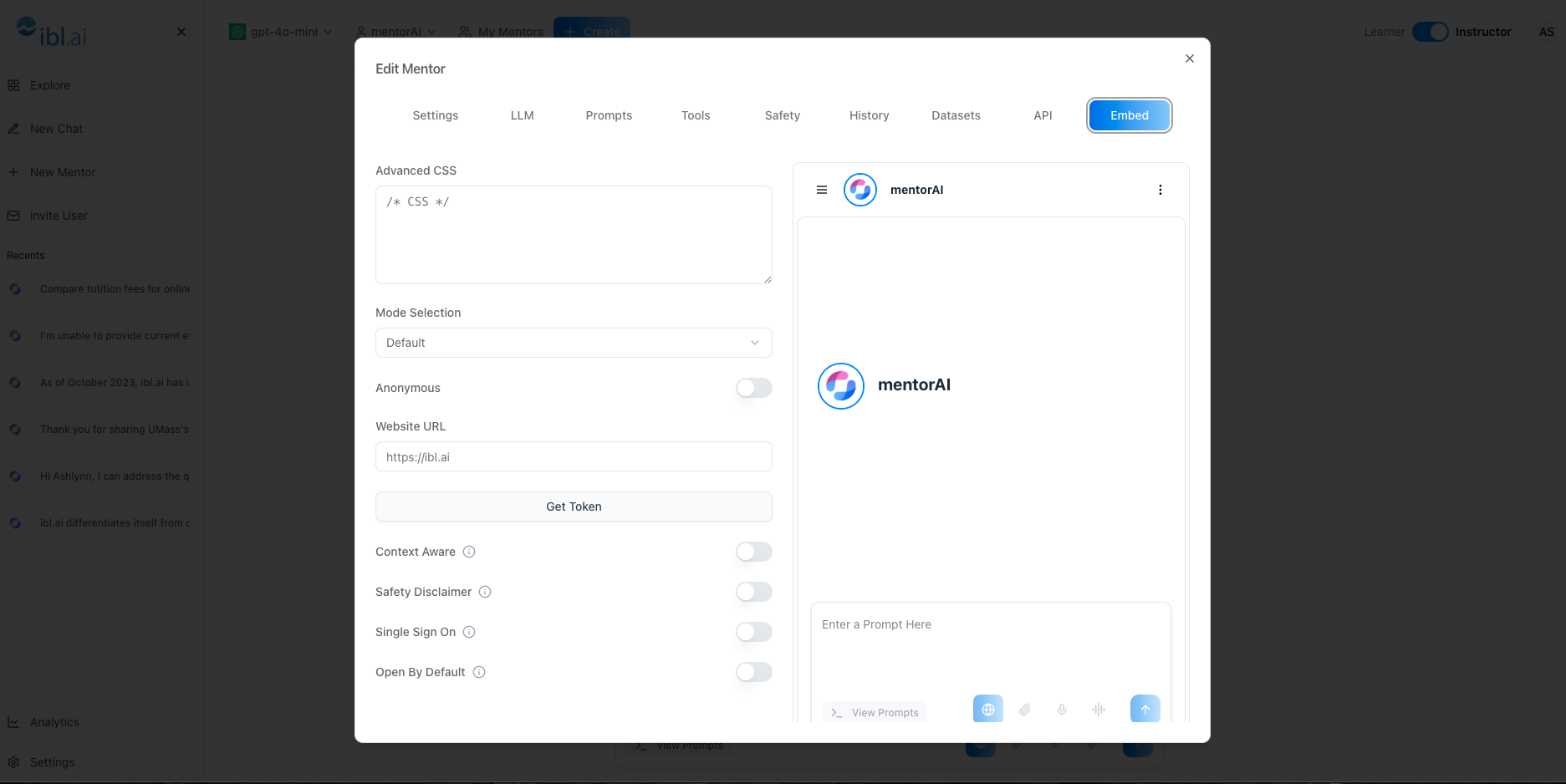
The Embed feature lets you place a fully‑functional mentorAI widget on any website or LMS page. Customize its look, choose which tabs it offers, control user‑tracking options, and enable smart extras (context awareness, safety disclaimer, auto‑open). Once configured, a code snippet drops the mentor directly into your site—no separate login required for end users.
Target Audience
Instructor
Features
Live Preview & Custom CSS
See exactly how the mentor will appear and tweak colors, fonts, or brand styling with optional CSS.
Two Embed Modes
- Default – single Chat tab
- Advanced – extra tabs: Chat, Summarize, Translate, Expand
Anonymous vs. Trackable Access
Allow public use without login, or require user tracking with a website URL and access token.
Context Aware Toggle
Let the mentor read on‑page content (PDFs, articles) and answer in context.
Safety Disclaimer
Add a notice reminding users to verify AI‑generated answers.
Open by Default
Decide if the widget launches open or stays collapsed until clicked.
One‑Click Code Generation
Create the embed snippet (and token if needed) ready to paste into any site or LMS.
How to Use (step by step)
Locate the Mentor
- Sign in to the mentorAI web app
- Open the desired mentor’s chat window
- Click the dropdown next to its name and select Embed
Preview & Style
- A live preview shows the widget
- Optionally add Custom CSS to match your site’s branding
Choose the Mode
- Default → Chat only
- Advanced → adds Summarize, Translate, Expand tabs
Configure Access
- Anonymous toggle On → no login required
- Anonymous toggle Off → enter Website URL and click Get Token for user‑tracking
Enable Extra Options (as needed)
- Context Aware → mentor reads page content
- Safety Disclaimer → adds a cautionary note
- Open by Default → widget starts open on page load
- Icon → choose a launcher icon
Generate Embed Code
- Review settings, then click Create Embed
- Copy the token (for non‑anonymous embeds)
- Copy the embed code snippet
Deploy
- Paste the snippet (and token, if required) into your website or LMS page
- Save and publish. The mentor is live!
Pedagogical Use Cases
Course‑Page Tutors
Embed a mentor on weekly modules so students get in‑context help, summaries, and translations without leaving the LMS.
Public FAQ Bots
Use Anonymous mode to place a “Campus Help Desk” mentor on the university website—no login hurdles for visitors.
Context‑Aware Reading Aids
Turn Context Aware on for pages hosting PDFs or slide decks; students receive page‑specific explanations and summaries.
Multilingual Support
Advanced mode’s Translate tab lets learners switch languages instantly—ideal for international cohorts.
Safety‑Conscious Deployments
Add a Safety Disclaimer when embedding mentors that offer medical, legal, or financial guidance to encourage verification.
With the Embed tool, you can deliver mentorAI exactly where learners need it—styled to match your site, configured for your privacy requirements, and equipped with the features that best serve your audience.