Visibility
Description
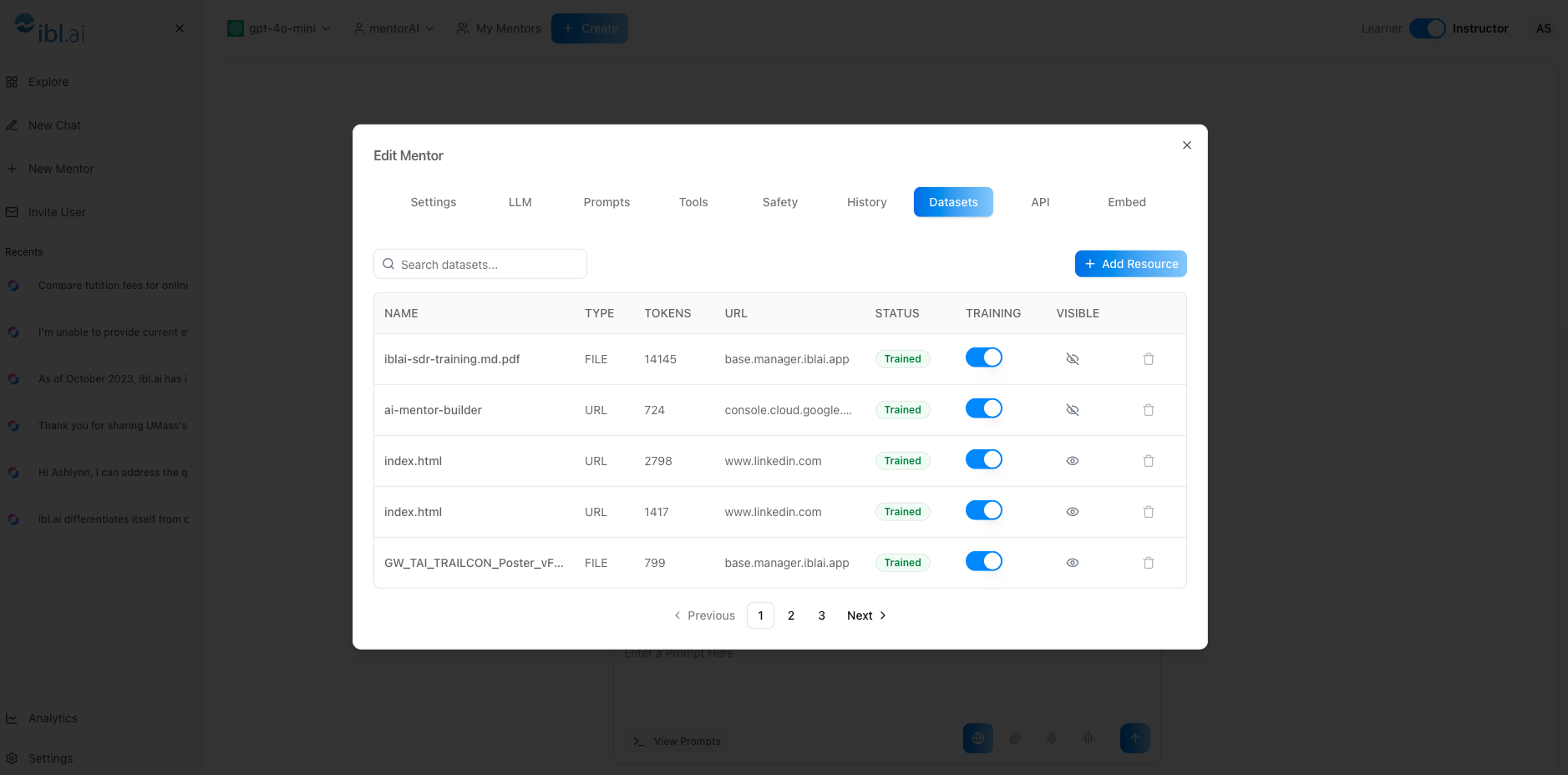
The Visibility setting lets you control whether learners can open the exact source documents a mentorAI retrieved to answer their questions. When visibility is on, the chat shows a Retrieved Documents side panel where students can click and read those files. When visibility is off, the mentor still uses the resource for answers, but students cannot see or open it—ideal for proprietary, assessment, or advanced materials.
Target Audience
Instructor
Features
Per‑Resource Eye Icon
An eye icon (👁️ = visible, 👁️🗨️ = hidden) next to every dataset entry toggles learner access with a single click.
Side‑Panel Source List
Visible resources appear in a side panel after the mentor answers, giving learners direct access to primary materials.
Non‑Destructive Control
Hiding a document never removes it from the mentor’s training; it only affects learner visibility.
Instant Updates
Changes to the eye icon apply immediately—no retraining required unless you re‑enable a previously hidden file.
How to Use (step by step)
Open the Datasets Tab
- Click the mentor’s name → Settings → Datasets
Locate the Resource
- Scroll or search for the file, URL, or cloud link you want to adjust
Toggle Visibility
- 👁️ (no slash) → learners see the document
- 👁️🗨️ (with slash) → learners cannot open the document
Click the icon to switch states:
- Turning Off hides the resource (mentor still uses it)
- Turning On reveals it again in the side panel
Verify in Chat (Optional)
- Ask a question related to the resource
- If visibility is On, the source appears in Retrieved Documents
- If Off, the panel shows no link to that file
Pedagogical Use Cases
Transparent Learning & Citation Practice
Make scholarly articles visible so students can read and cite original sources.
Scaffolded Disclosure
Start a unit with visibility off to prevent spoilers, then toggle on for deeper study.
Assessment Security
Hide answer keys or test banks while still letting the mentor reference them for feedback.
Proprietary Material Control
Keep licensed or sensitive documents hidden for external cohorts.
Adaptive Resource Sharing
Reveal supplementary readings only to learners who ask advanced questions, preserving focus for beginners.
By deciding which datasets are visible, you strike the perfect balance between learner transparency and content control—all while keeping the mentor’s full knowledge base intact.