Guided Mode
Description
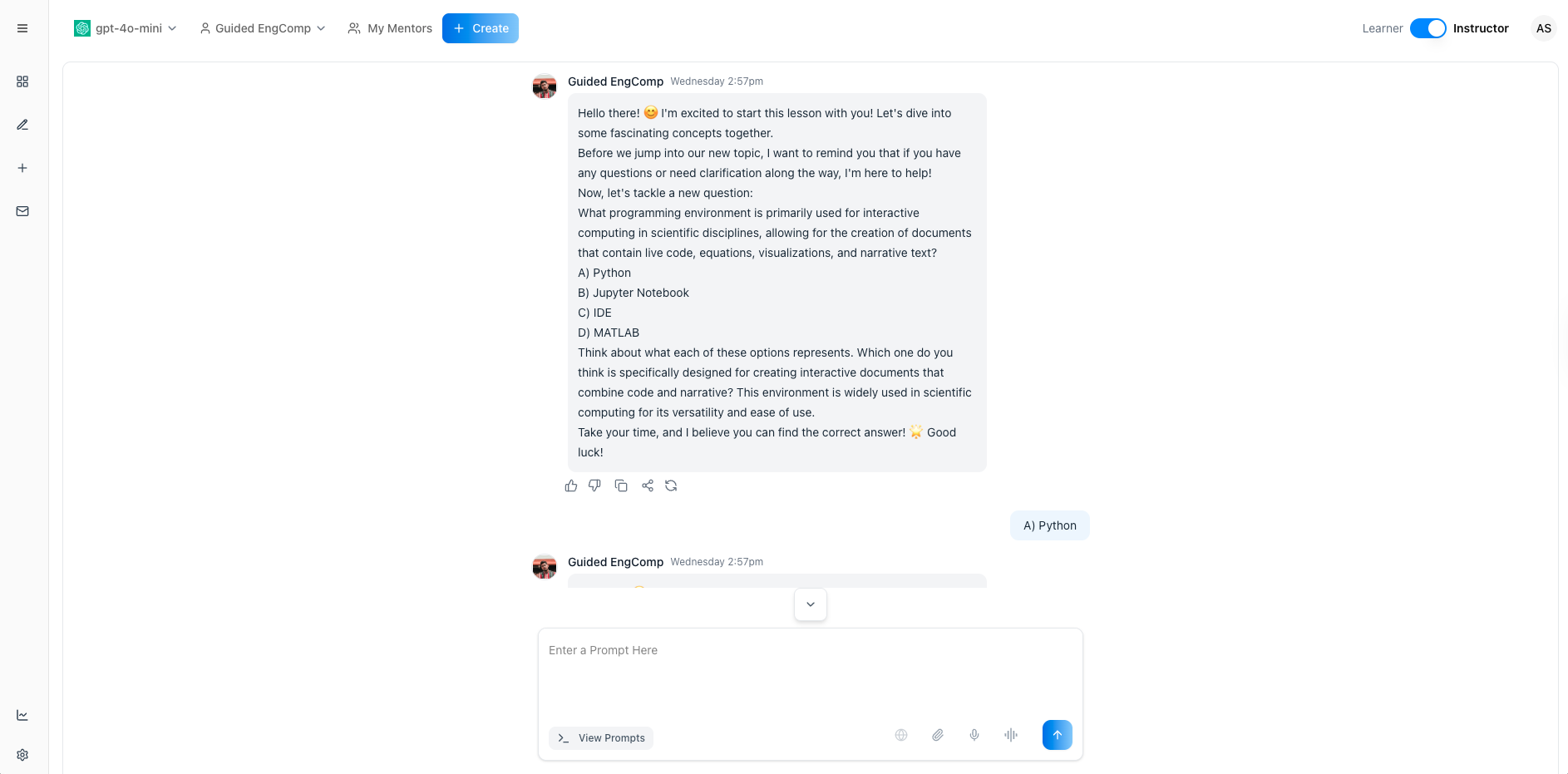
Guided Mode turns a mentorAI chat into an interactive lesson engine that teaches, quizzes, and reinforces concepts automatically. Instructors link a course to a mentor, choose a guide style—Spaced Repetition, Instruction Mode, or Socratic Mode—and mentorAI takes over, presenting material, asking questions, and revisiting topics until mastery is reached. Meanwhile, instructors receive detailed analytics on every question‑and‑answer cycle to pinpoint learning gaps and celebrate student progress.
Target Audience
Student
Features
Course‑to‑Mentor Linking
Connect any course (e.g., Engineering Computations) to an existing mentor with just a few clicks in the Admin Panel.
Three Guide Styles
- Spaced Repetition – repeats quiz questions until answered correctly, optimizing retention
- Instruction Mode – teaches a concept, then immediately checks understanding with a follow‑up question
- Socratic Mode – drives step‑by‑step dialogue, prompting deeper reflection and self‑explanation
Dynamic Learner Prompts
mentorAI adapts prompts on the fly—e.g.,
“Can you explain loops in Python?” → “Quiz me on loops.”
—based on each learner’s performance.
Automated Mastery Tracking
Every attempt, repetition count, and review interval is logged, giving a precise picture of concept mastery over time.
Instructor Dashboards
View the exact questions asked, how many times they repeated, last/next review timestamps, and which student/mentor/course they belong to.
How to Use (step by step)
Connect a Course to a Mentor
- In the Admin Panel, open Memory Component Settings
- Choose the target course (e.g., Engineering Computations)
- Link it to an existing mentor (e.g., Engineering Comp Mentor)
- Select a Catalog Guide—typically the same course content
Pick a Guide Style
- Choose Spaced Repetition, Instruction Mode, or Socratic Mode
- (Demo‑ready setup: Spaced Repetition + Instruction Mode)
Launch Learner Session
- Students open the mentor chat and type “Start lesson.”
- mentorAI explains a topic, then poses a question
- Incorrect answers trigger future repetitions (Spaced Repetition) until the learner answers correctly
Observe Adaptive Prompts
Guided prompts evolve with learner progress, e.g.,
- “Can you explain loops in Python?”
- “Quiz me on loops.”
Review Instructor Insights
In the Admin dashboard, inspect logs showing:
- Exact question text
- Repetition count and interval spacing
- Last/next review times
- Linked student, mentor, and course
Iterate & Refine
- Use analytics to spot learning gaps
- Adjust guide style or content as needed for better outcomes
Pedagogical Use Cases
Mastery‑Based Quizzing
Combine Spaced Repetition with course quizzes to ensure students answer correctly multiple times over increasing intervals—cementing long‑term retention.
Micro‑Lessons with Immediate Checks
Use Instruction Mode to present a short explanation (e.g., Python loops), then instantly ask a question to verify understanding.
Socratic Dialogues for Critical Thinking
Activate Socratic Mode in philosophy or ethics courses to guide students through reasoned arguments via probing questions.
Personalized Remediation
Learners who miss key questions get automatic repeats at spaced intervals, allowing struggling students to catch up without manual instructor intervention.
Data‑Driven Course Adjustments
Instructors analyze repetition logs to identify common pain points—then add resources or adjust lectures where many students falter.
By linking courses, selecting a guide style, and reviewing the built‑in analytics, Guided Mode empowers instructors to deliver adaptive, evidence‑based instruction—while learners enjoy an engaging, feedback‑rich chat experience that drives true concept mastery.