Tools
Description
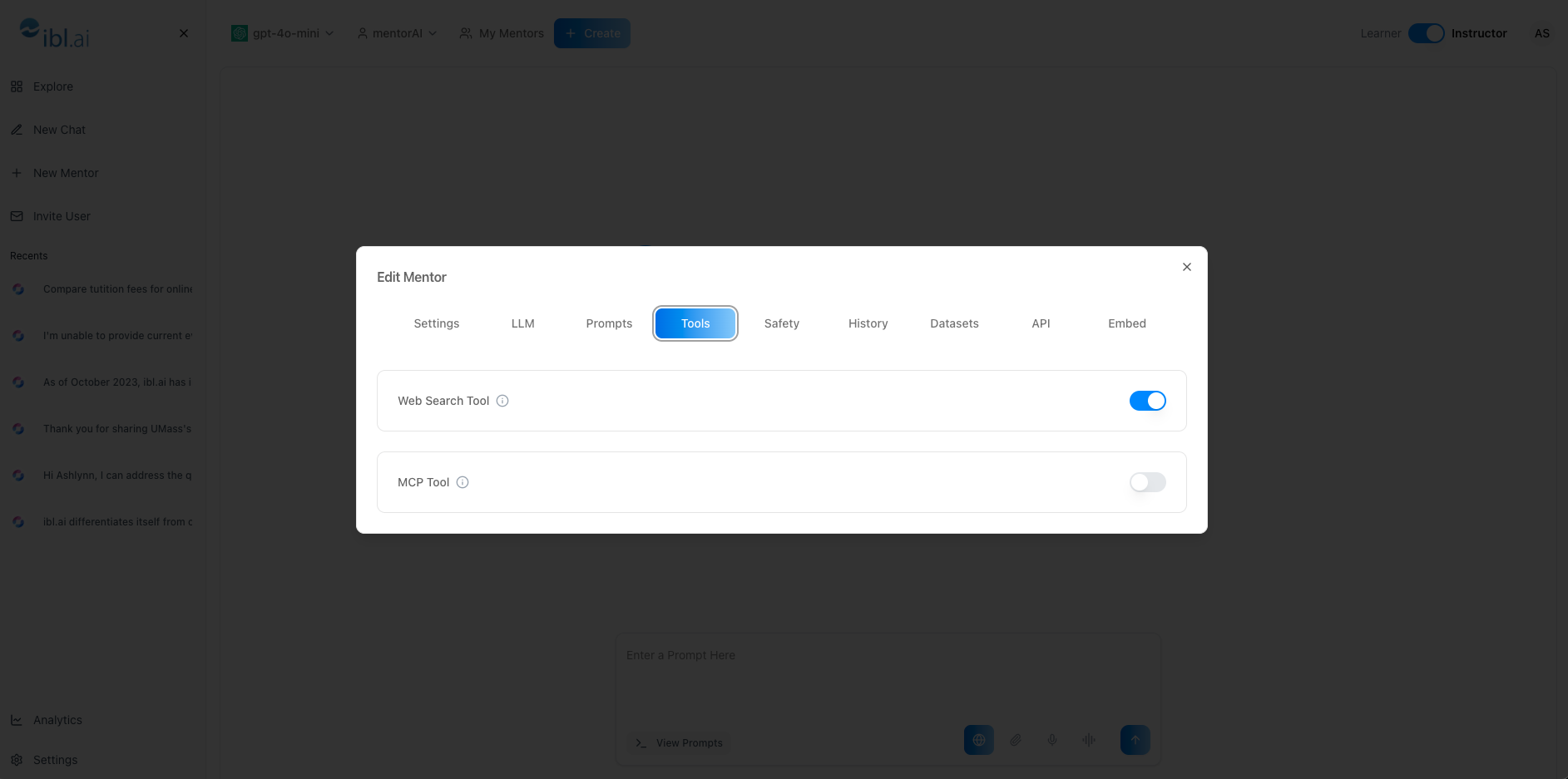
The Tools tab allows you to expand (or limit) what a mentorAI can do by toggling optional capabilities—such as live Web Search, MCP data connections, Code Interpreter, Image Generation, Screen Share, and more. By enabling the right tools for each mentor, you tailor its powers to the course’s needs while keeping the interface uncluttered for learners.
Target Audience
Instructor
Features
Default Tools (Always On)
- Web Search – queries the live internet for up‑to‑date information
- MCP – connects to MCP server endpoints for proprietary data
Optional Tool Toggles (examples)
- Code Interpreter – run Python code and display graphs
- Image Generation – create custom visuals from text prompts
- Screen Share – let the mentor view a shared browser tab for step‑by‑step guidance
- Human Support – in‑chat ticket creation for extra help
Instant Activation & Deactivation
Flip a switch to grant or revoke tool access—changes apply immediately
Per‑Mentor Customization
Each mentor can have a unique tool set, optimizing capability without overwhelming students
How to Use (step by step)
Open the Tools Tab
- Click the mentor’s name at the top of the chat
- From the dropdown, select Tools
Review Default Tools
- Note that Web Search and MCP are enabled by default
Enable or Disable Tools
- Locate a tool’s toggle switch
- On → tool becomes available to learners immediately
- Off → tool disappears from the mentor’s capabilities
Test a Newly Enabled Tool (Web Search examples)
Ask in chat:
“Search the web for current stock prices of Nvidia.”
“What are the latest AI tools released this month?”
“Who is the current president of Mexico?”
“What’s the latest guidance on FA deadlines?”
“Compare tuition fees for online bachelor’s degrees in 2025.”
Confirm the mentor returns up‑to‑date answers
Adjust as Needed
- Toggle additional tools on or off anytime to suit changing course requirements
Pedagogical Use Cases
Current‑Events Assignments
Keep Web Search on so students can research live data (stock prices, policy changes) within the chat.
Domain‑Specific Integrations
Use MCP to pull proprietary datasets—e.g., hospital records for nursing courses—without exposing raw files to students.
STEM Visualization
Enable Code Interpreter for math or data‑science mentors so learners can see plots of integrals, histograms, or regressions instantly.
Creative Projects
Turn on Image Generation for design classes, letting students prototype visuals directly in chat.
Live Troubleshooting
Activate Screen Share when learners need real‑time, context‑aware guidance on complex software or lab simulations.
By selecting the right combination of tools, you empower each mentorAI to deliver exactly the functionality your learners need—no more, no less.