/iblai-vibe-account
Mirrored from
iblai/vibe·skills/organizations/iblai-vibe-account/SKILL.md. This page is generated — edit it in the repository, not here.
First time here? If
iblai.envhas noARCHITECTURE=, run/iblai-vibe-startfirst (four questions; two minutes) — it decides single-org / multi-org / headless and who signs in, and every skill reads the answer.
Add an account/organization settings page whose sidebar groups its tabs under four headings: Workspace (Organization, Management, Integrations), Finance (Monetization, Billing), AI & data (Benchmarks, Memory) and System (Advanced). Every group whose tabs are all gated off disappears, so a small organization sees two or three headings, not four.
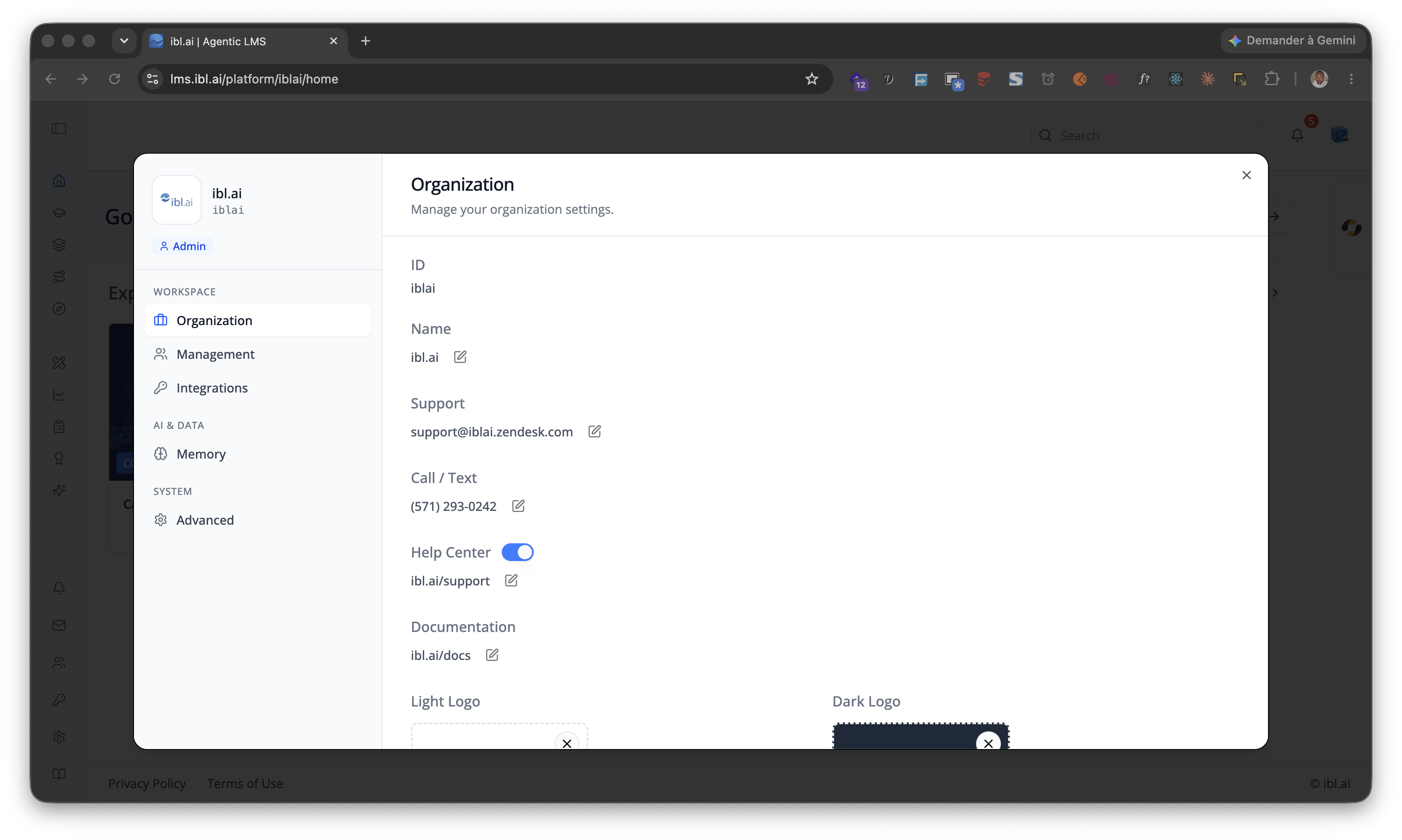
Template: the page this skill creates is bundled as
assets/account-page.tsx.j2. See/iblai-vibe-scaffoldfor the{{ }}contract.
Navbar: If the user wants a navbar with links to the account page, guide them to
/iblai-vibe-navbarfirst. That skill creates the full navbar with logo, page links, notification bell, and profile dropdown.
Common setup (brand, conventions, env files, verification): see docs/skill-setup.md.
Step 0: Start from vibe-starter? (new projects)
Before running this skill, ask the user:
Are you starting a new project from scratch? vibe-starter (https://github.com/iblai/vibe/tree/main/skills/start/iblai-vibe-ops-init/assets/vibe-starter) already ships the /account page wired up, alongside auth, navbar, and profile/notifications. Want to use that instead?
If yes, copy the bundled starter template from the installed
iblai-vibe-ops-init skill's assets/vibe-starter/ directory (it sits
alongside this skill in your skills directory; in the vibe repo it lives
under skills/start/), or fetch it from the vibe repo if those assets
are not installed -- tell the user which path you took -- then skip this
skill:
cp -a <skills-dir>/iblai-vibe-ops-init/assets/vibe-starter/. .
# or, without local assets:
git clone --depth 1 https://github.com/iblai/vibe.git vibe-tmp && cp -a vibe-tmp/skills/start/iblai-vibe-ops-init/assets/vibe-starter/. . && rm -rf vibe-tmp

pnpm install --ignore-scripts
Run with
--ignore-scriptsto skip package lifecycle (postinstall) scripts.
If they prefer to add the account page to an existing app, continue below.
Prerequisites
- Auth must be set up first (
/iblai-vibe-auth) - MCP server + skills configured (
@iblai/mcpin.mcp.json)
Step 1: Check Environment
Before proceeding, check for a iblai.env
in the project root. Look for PLATFORM, DOMAIN, and TOKEN variables.
If the file does not exist or is missing these variables, tell the user:
"You need an iblai.env with your platform configuration. Download the
template and fill in your values:
curl -o iblai.env https://raw.githubusercontent.com/iblai/vibe/refs/heads/main/iblai.env"
Step 2: Create the Page
Render assets/account-page.tsx.j2 into
app/(app)/account/page.tsx (substitute {{ }} placeholders), or just use
the reference implementation in Step 3.
Files created
| File | Purpose |
|---|---|
app/(app)/account/page.tsx | Account/organization settings page with tabs |
The page reads userData, tenant/current_tenant, and tenants from
localStorage. Admin status is derived from the tenants array.
Note: The
Accountcomponent usesnext/imageinternally -- it is imported from@iblai/iblai-js/web-containers/next.
Step 3: Wrap in a White Container
The SDK Account component has no outer background. Wrap it in a white
container so it renders as a card against the gray page background
(--sidebar-bg: #fafbfc).
Reference implementation
// app/(app)/account/page.tsx
"use client";

import { useEffect, useState } from "react";
import { useRouter } from "next/navigation";
import { Account } from "@iblai/iblai-js/web-containers/next";
import config from "@/lib/iblai/config";
import { resolveAppTenant } from "@/lib/iblai/tenant";

export default function AccountPage() {
  const router = useRouter();
  const [username, setUsername] = useState("");
  const [email, setEmail] = useState("");
  const [tenantKey, setTenantKey] = useState("");
  const [tenants, setTenants] = useState<any[]>([]);
  const [isAdmin, setIsAdmin] = useState(false);
  const [ready, setReady] = useState(false);

  useEffect(() => {
    try {
      const raw = localStorage.getItem("userData");
      if (raw) {
        const parsed = JSON.parse(raw);
        setUsername(parsed.user_nicename ?? parsed.username ?? "");
        setEmail(parsed.user_email ?? parsed.email ?? "");
      }
    } catch {}

    const resolved = resolveAppTenant();
    setTenantKey(resolved);

    try {
      const tenantsRaw = localStorage.getItem("tenants");
      if (tenantsRaw) {
        const parsed = JSON.parse(tenantsRaw);
        setTenants(parsed);
        const match = parsed.find((t: any) => t.key === resolved);
        if (match) setIsAdmin(!!match.is_admin);
      }
    } catch {}

    setReady(true);
  }, []);

  if (!ready || !tenantKey) {
    return (
      <div className="flex flex-1 items-center justify-center">
        <p className="text-sm text-gray-400">Loading account settings...</p>
      </div>
    );
  }

  return (
    <div className="mx-auto w-full flex-1 overflow-auto px-4 py-8 md:w-[75vw] md:px-0">
      <div className="rounded-lg border border-[var(--border-color)] bg-white overflow-hidden">
        <Account
          tenant={tenantKey}
          tenants={tenants}
          username={username}
          email={email}
          mainPlatformKey={config.mainTenantKey()}
          isAdmin={isAdmin}
          authURL={config.authUrl()}
          currentPlatformBaseDomain={config.platformBaseDomain()}
          currentSPA="agent"
          onInviteClick={() => {}}
          onClose={() => router.push("/")}
          targetTab="organization"
          showPlatformName={true}
          useGravatarPicFallback={true}
        />
      </div>
    </div>
  );
}
Key patterns
- White container wrapper: Wrap the
Accountcomponent in abg-white rounded-lg border border-[var(--border-color)] overflow-hiddendiv so it renders as a card against the gray page background. - Responsive width:
w-full px-4on mobile,md:w-[75vw] md:px-0on desktop.
Step 4: Use MCP Tools for Customization
get_component_info("Account")<Account> Props
Required
| Prop | Type | Description |
|---|---|---|
tenant | string | Platform key |
tenants | Tenant[] | Full list of user platforms from localStorage |
username | string | Username |
email | string | User email (from userData in localStorage) |
mainPlatformKey | string | Main org key — config.mainTenantKey() |
onInviteClick | () => void | Called when "Invite user" is clicked |
onClose | () => void | Cancel/close callback |
authURL | string | Auth service URL |
isAdmin | boolean | Controls tab visibility -- most tabs require true |
Optional
| Prop | Type | Description |
|---|---|---|
targetTab | string | Initial tab: organization, management, integrations, monetization, billing, datasets, memory, advanced — a tab this viewer may not open falls back to their first visible one |
currentPlatformBaseDomain | string | Base domain for custom domain settings |
currentSPA | string | Current app identifier (e.g., "agent") |
showBenchmarks | boolean | Show the Benchmarks tab (default false; each app opts in) |
showGradebookTab | boolean | Show the Gradebook tab in the profile preview that Management → Users opens for a selected user |
onTabChange | (tabId: string) => void | Fires with "billing" / "monetization" when either opens and with "" when you leave them — mirror it into your URL so those two tabs are linkable |
userActiveApp | UserApp | null | The app whose plan Billing should show |
currentPlan | string | Current plan name, for the Billing header |
defaultSupportPhone | string | Initial support phone on the Organization tab when metadata has none |
enableSupportPhone | boolean | Show the support-phone field at all |
onboardingBasePath | string | Base URL for the copyable per-agent onboarding link (Management → Onboarding); defaults to the browser's origin |
enableRbac | boolean | Turn on RBAC permission checks for Management. Only ever pass this together with rbacPermissions — see the warning below |
rbacPermissions | object | The caller's effective permissions, from POST /dm/api/core/rbac/permissions/check/. Defaults to {} |
onLoadGroupPermissions | (permissions: object) => void | Optional; the Teams tab calls it with group-scoped permissions so you can merge them back in |
showPlatformName | boolean | Show platform name badge in sidebar |
useGravatarPicFallback | boolean | Use Gravatar when no org logo |
enableRbacwithoutrbacPermissionshides Management entirely.checkRbacPermission(perms, resource, enableRbac)returnstruewhen RBAC is off, but denies everything when it is on and the permissions object is empty — so passing the flag alone is strictly worse than omitting it, and the Management tab disappears even for an org admin. Either pass both (load them withPOST rbac/permissions/check/, see/iblai-vibe-rbac) or pass neither. Single-org apps whose admin routes are already admin-gated should pass neither: vibe-starter and the ibl.ai OS's own admin dialog both do.
Layout and navigation
Account and Profile share one shell — a 280px sidebar (organization
logo, name, key and role chip over grouped navigation) beside a content
column with a fixed header carrying the active tab's title and description.
Below lg the sidebar becomes a compact identity row and a scrolling strip
of pills, the active one solid blue. See
/iblai-vibe-profile
for the same description from the profile side.
Two things are specific to Account:
- The navigation is buttons, not ARIA tabs. Each item is a plain
<button>carryingaria-current="page"when active, insidenav[aria-label="Organization settings"](the small-screen strip is"Organization settings (mobile)") — that is the selector to write e2e tests against, sinceProfileusesrole="tab"instead. Arrow keys,HomeandEndstill move between them. targetTabfalls back. Asking for a tab this viewer may not open — a watcher sent toorganization, say — lands on the first tab they can actually see, and it re-runs oncetenantsarrives and the paywall and permission checks settle.
Tabs
| Tab | Group | targetTab id | Requires |
|---|---|---|---|
| Organization | Workspace | organization | isAdmin === true |
| Management | Workspace | management | enableRbac unset (any admin), or enableRbac plus a rbacPermissions object granting one of /platforms/<org>/#can_manage_users, /groups/#list, /roles/#list, /policies/#list, /usergroups/#list, /watchedgroups/#list |
| Integrations | Workspace | integrations | isAdmin === true |
| Monetization | Finance | monetization | isAdmin === true, the organization has monetization enabled and the caller holds /platforms/<org>/#can_sell_items (with RBAC off that check passes automatically) |
| Billing | Finance | billing | The organization's paywall is on (show_paywall) and the caller is an admin or holds can_sell_items |
| Benchmarks | AI & data | datasets | showBenchmarks and isAdmin === true — test-input suites for evaluating agents |
| Memory | AI & data | memory | isAdmin === true — organization-wide global and per-agent memories (see /iblai-vibe-memory) |
| Advanced | System | advanced | isAdmin === true — organization-wide switches, among them Allow users to control chat privacy, the gate that turns Incognito on for the organization (PATCH …/chat-privacy-config/, admin-only; see /iblai-vibe-incognito) |
Every tab but Management and Billing needs isAdmin; those two answer to
RBAC instead (Billing also to an admin). Integrations is itself split into
LLMs, Data Sources and APIs, and the Memory tab into Global
and Agent memories.
Management sub-tabs
Management is itself tabbed — Users, Groups, Roles,
Policies, Teams, Alerts, Applications and Onboarding —
each shown when the matching permission is granted (can_manage_users,
/groups/#list, /roles/#list, /policies/#list,
/usergroups/#list or can_invite, /watchedgroups/#list). The Invite
dialog reached from Users invites by user, by course or by program, and
calls back through onInviteClick.
Picking a user in Users opens their profile in a read-only preview — the
same Profile component as /iblai-vibe-profile, minus Security, with the
Usage tab showing that user's AI spend. showGradebookTab is the one
customization this path forwards.
| Shot | |
|---|---|
| Workspace | Organization · Advanced |
| Management | Users · Groups · Roles · Policies · Teams · Alerts · Applications · Onboarding |
| Invite dialog | users · courses · programs |
| Integrations | LLMs · APIs · Datasources |
| Memory | Global · Agent |
Step 5: Verify
Run /iblai-vibe-ops-test before telling the user the work is ready:
pnpm build-- must pass with zero errorspnpm test-- vitest must pass- Touch test
/accountin the browser as/iblai-vibe-ops-testsays: open it, use every control this skill added, read the console, check the phone width. - In the browser, check the sidebar headings against what the organization
actually has — no Finance group unless it sells something, no
Benchmarks unless you passed
showBenchmarks— then open each tab the sidebar lists; none may 404 or come up blank.
Important Notes
- Next.js required: Import from
@iblai/iblai-js/web-containers/next(usesnext/image) - Redux store: Must include
mentorReducerandmentorMiddleware initializeDataLayer(): 5 args (v1.2+)@reduxjs/toolkit: Deduplicated via webpack aliases innext.config.tscurrentPlatformBaseDomain: Must be{config.platformBaseDomain()}— uses the config helper, not a raw env var. This is correct and intentional.- SDK hardcoded styles: The SDK Account component uses
bg-whiteandbg-gray-50internally. Do NOT override these. Instead, wrap the component in a white container so it renders correctly against the gray page background. - Give the wrapper a height: the settings shell fills its parent
(
h-full); the sidebar and the content panel only scroll independently when that parent is bounded —h-[80vh]ormin-h-[640px]is enough. - Billing is not URL-driven: it shows up when the organization's paywall is on and the caller may see it, not because you passed a Stripe URL.
- Brand guidelines: BRAND.md