Console walkthrough
Mirrored from
iblai/ontology·docs/console.md. This page is generated — edit it in the repository, not here.
Every page of the console, in the order of the five-step flow. The screenshots are from demo mode
(NEXT_PUBLIC_DEMO=1) at 1440 px; signed in, the same pages show your platform's data. The
floating stepper at the bottom of each page is a prototype aid and is removed with
NEXT_PUBLIC_WALKTHROUGH=0.
The shell is the ibl.ai one: the sidebar and header match os.ibl.ai, Open Sans, brand blue
#0058cc. Sign-in is ibl.ai SSO (auth.md).
Shell
Header, left to right. The platform menu lists every platform you belong to. The console works on the one you are signed in to; picking another signs you in to it (one ontology per platform, each with its own servers and engine). Then the current page. On the right: the User/Admin switch (admins only), the systems map, Billing (admins, opens the SDK billing tab), the notifications bell (SDK dropdown) and your profile menu (SDK; profile, help, sign out).
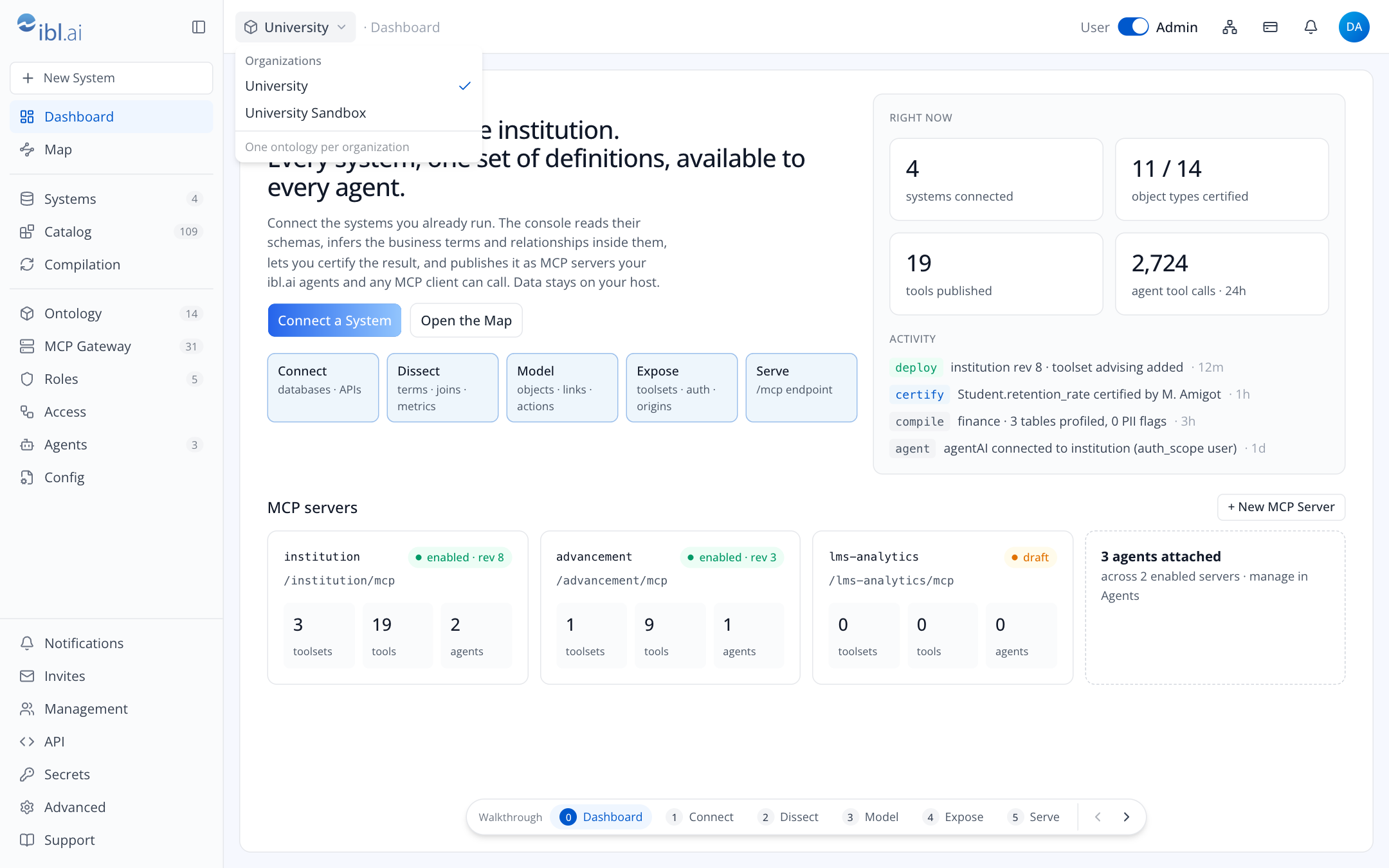
Sidebar footer. The same items as os.ibl.ai, and they behave the same way:
| Item | Opens | Who sees it |
|---|---|---|
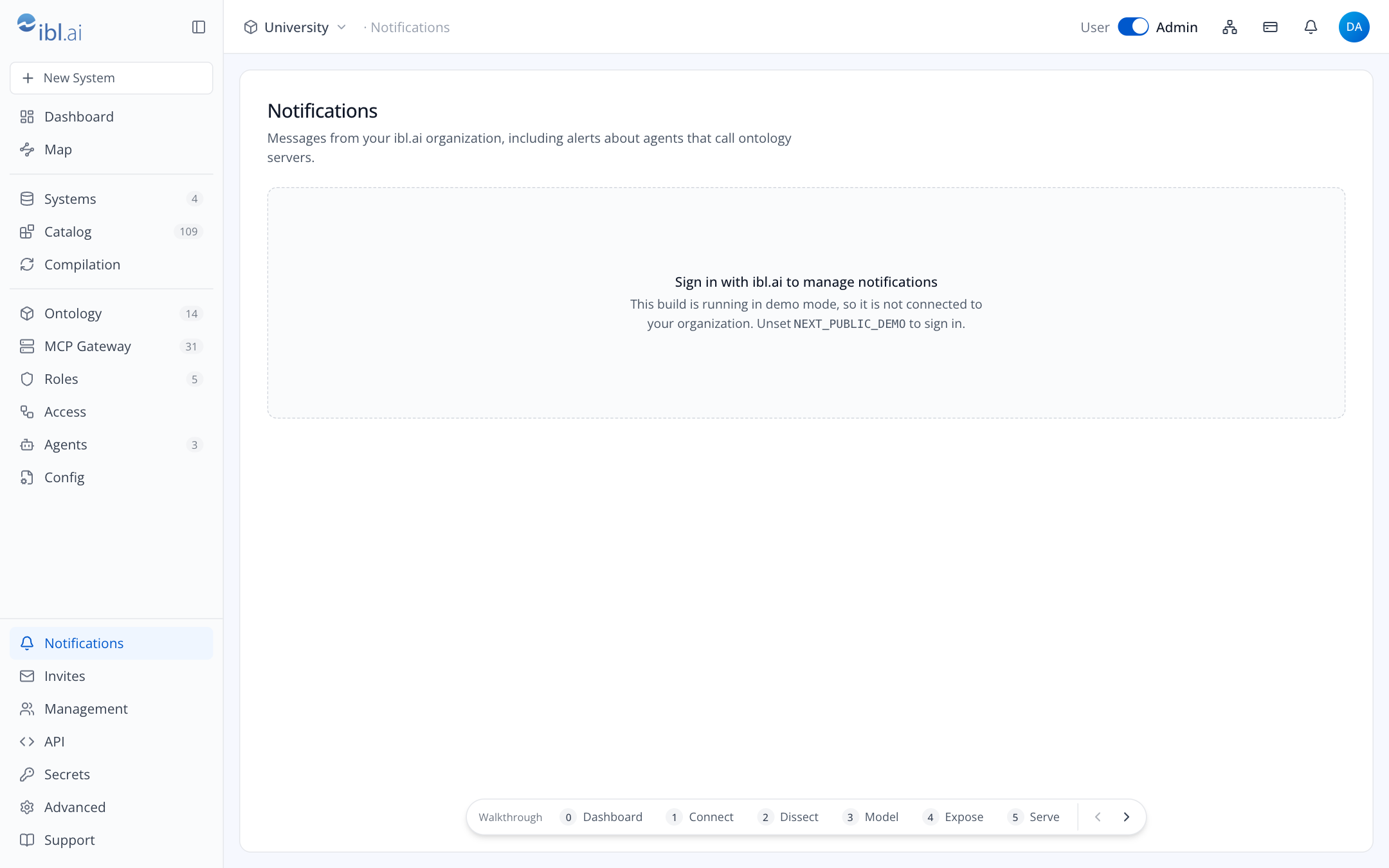
| Notifications | the Notifications page (SDK notification center) | everyone |
| Invites | the SDK invite dialog | admins in Admin mode |
| Management | dialog with the SDK Admin surface: users, groups, roles, policies, teams, alerts | admins in Admin mode |
| API | dialog with the SDK ApiTab: platform API keys | admins in Admin mode |
| Secrets | dialog with the SDK SecretsTab: LLM keys, service credentials, environment variables | admins in Admin mode |
| Advanced | dialog with the SDK AdvancedTab: platform settings | admins in Admin mode |
| Support | docs.ibl.ai in a new tab | everyone |
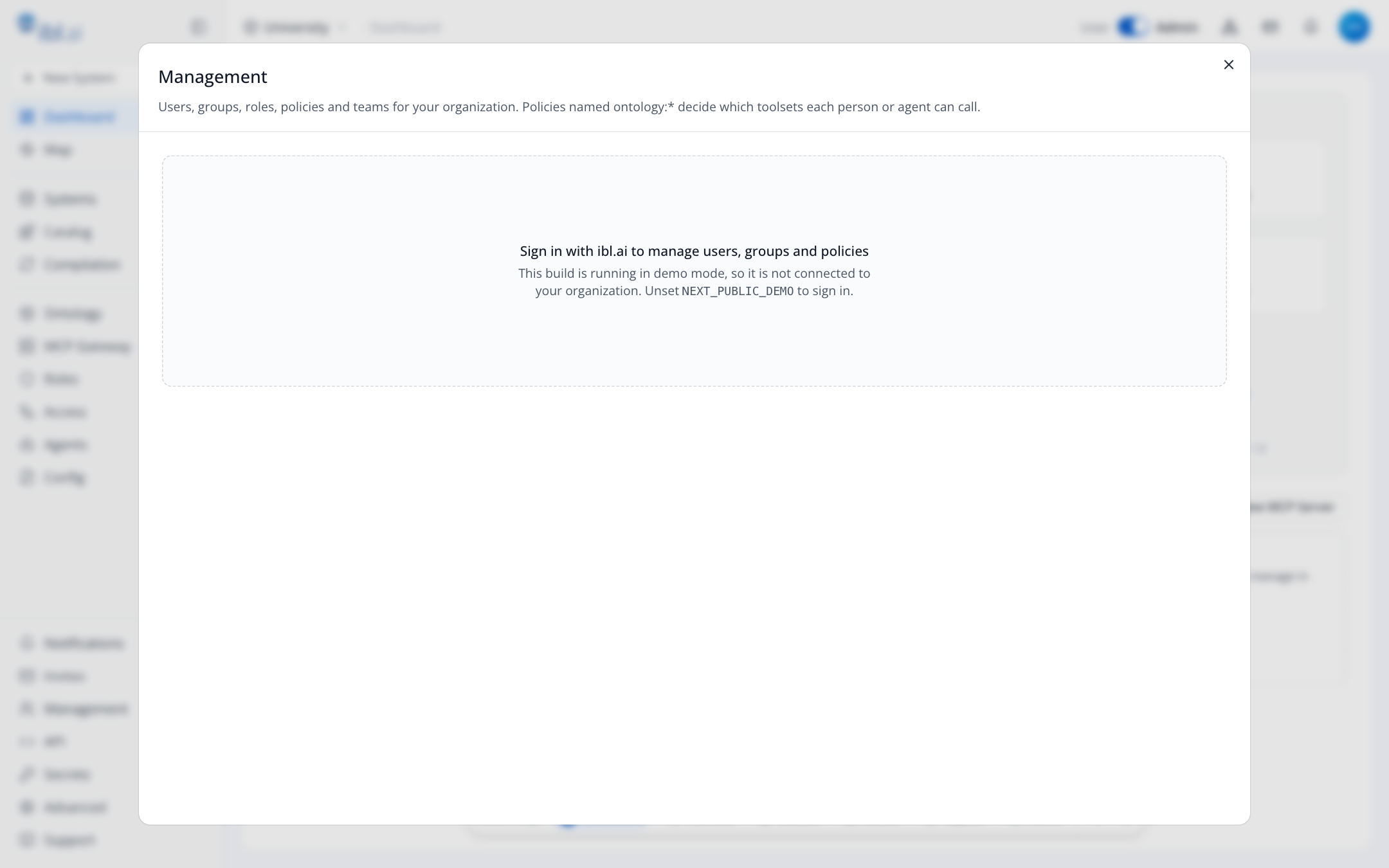
In demo mode SDK panels show a sign-in notice; signed in, the dialog holds the live SDK component.
The platform's server. The console is served by the platform's own ontology server, which
keeps the platform's data and servers (install.md); the browser calls its own origin.
A console hosted elsewhere (the pages-only build) serves pages only. With no server connected for
the platform, its pages show Connect a server: a host name field, checked against that
server's GET /api/host/health, and a link to the install guide. The address is kept in this
browser, per platform.
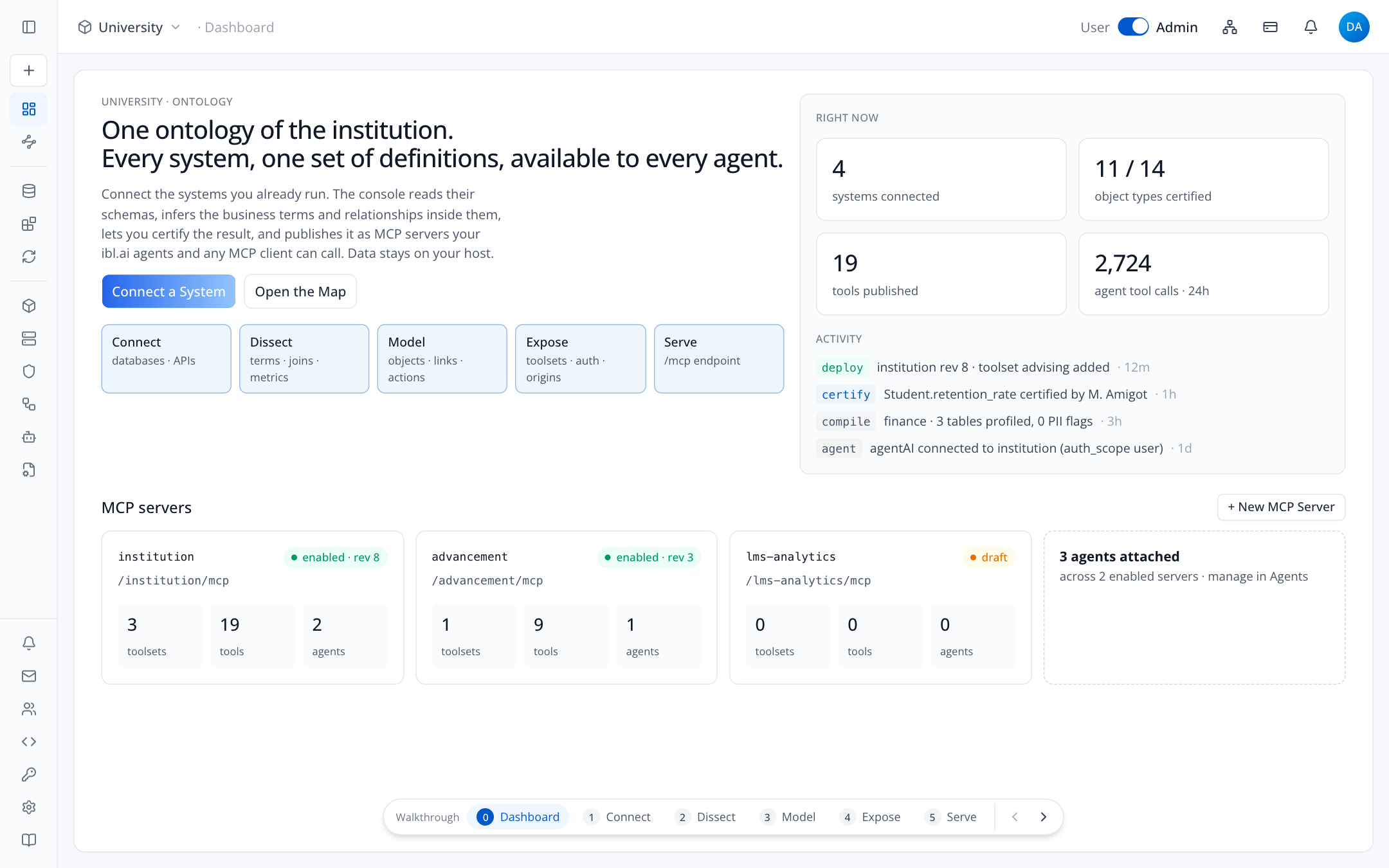
Collapse. The button next to the logo collapses the sidebar to an icon rail (labels on hover) and remembers the choice per browser.
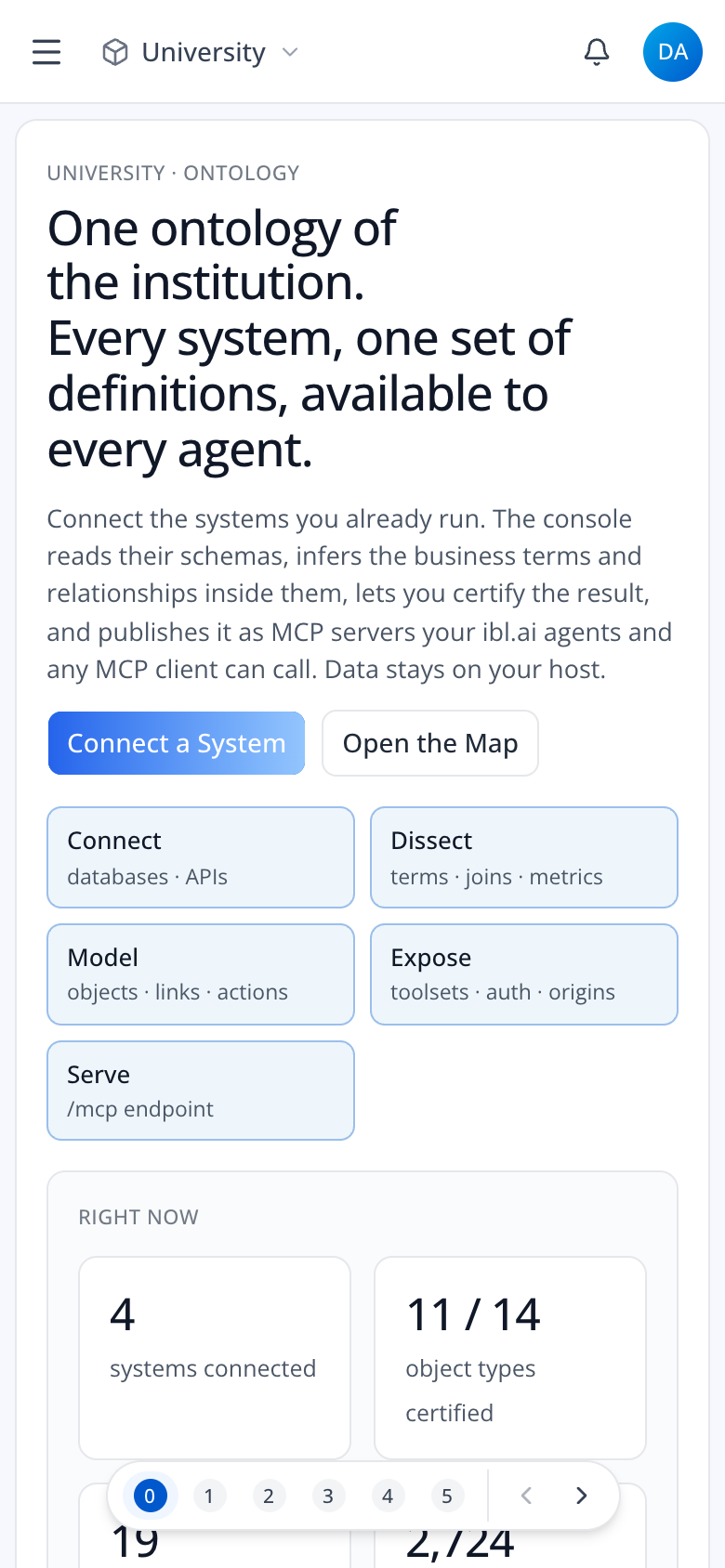
Phone and tablet. Below 768px the sidebar becomes a drawer behind the menu button; every page reflows to one column, tables and code scroll inside their own box, and nothing scrolls sideways.
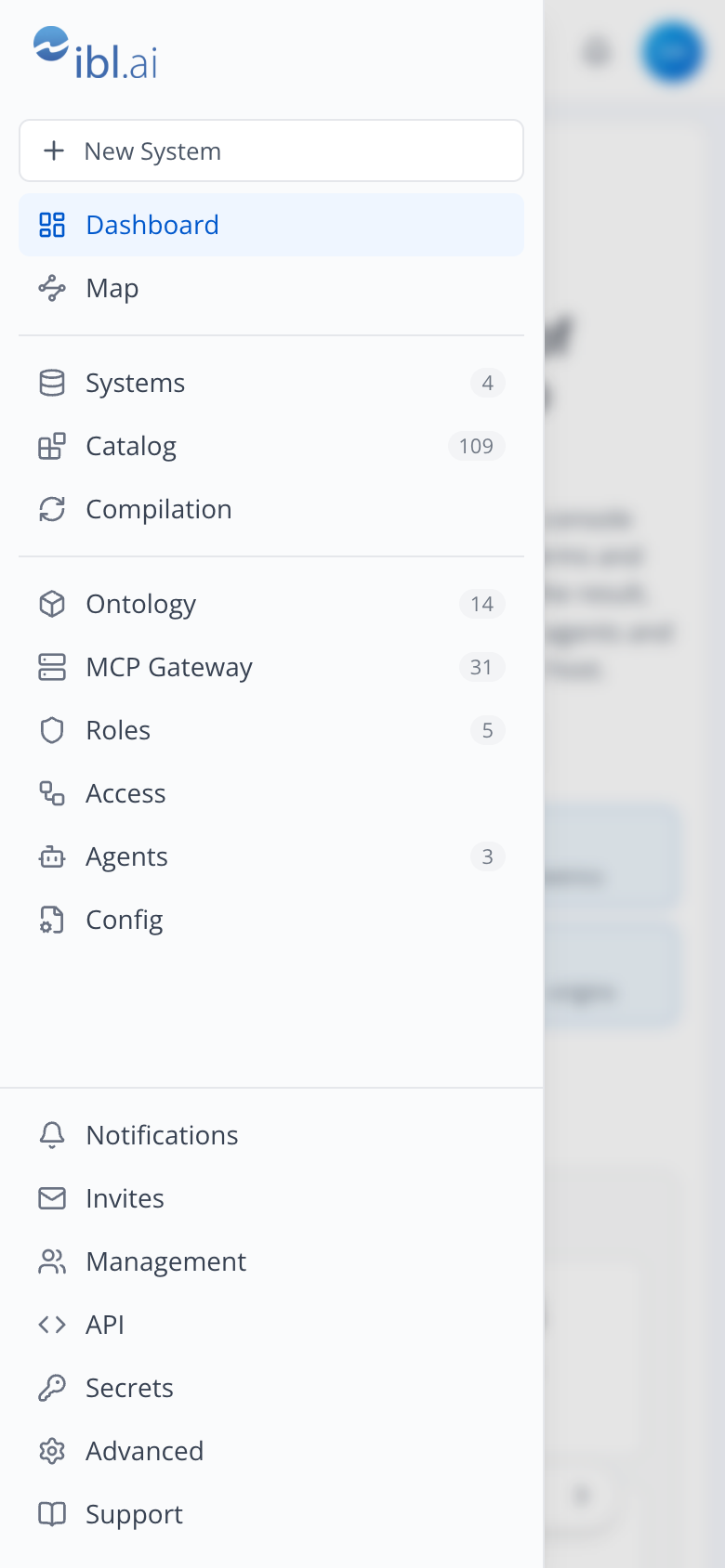
Every page is checked at 375, 768, 1024, 1280, 1440 and 1920px by scripts/audit-layout.mjs
for content outside its card, text overflowing its box, overlapping siblings and sideways scrolling.
Dashboard
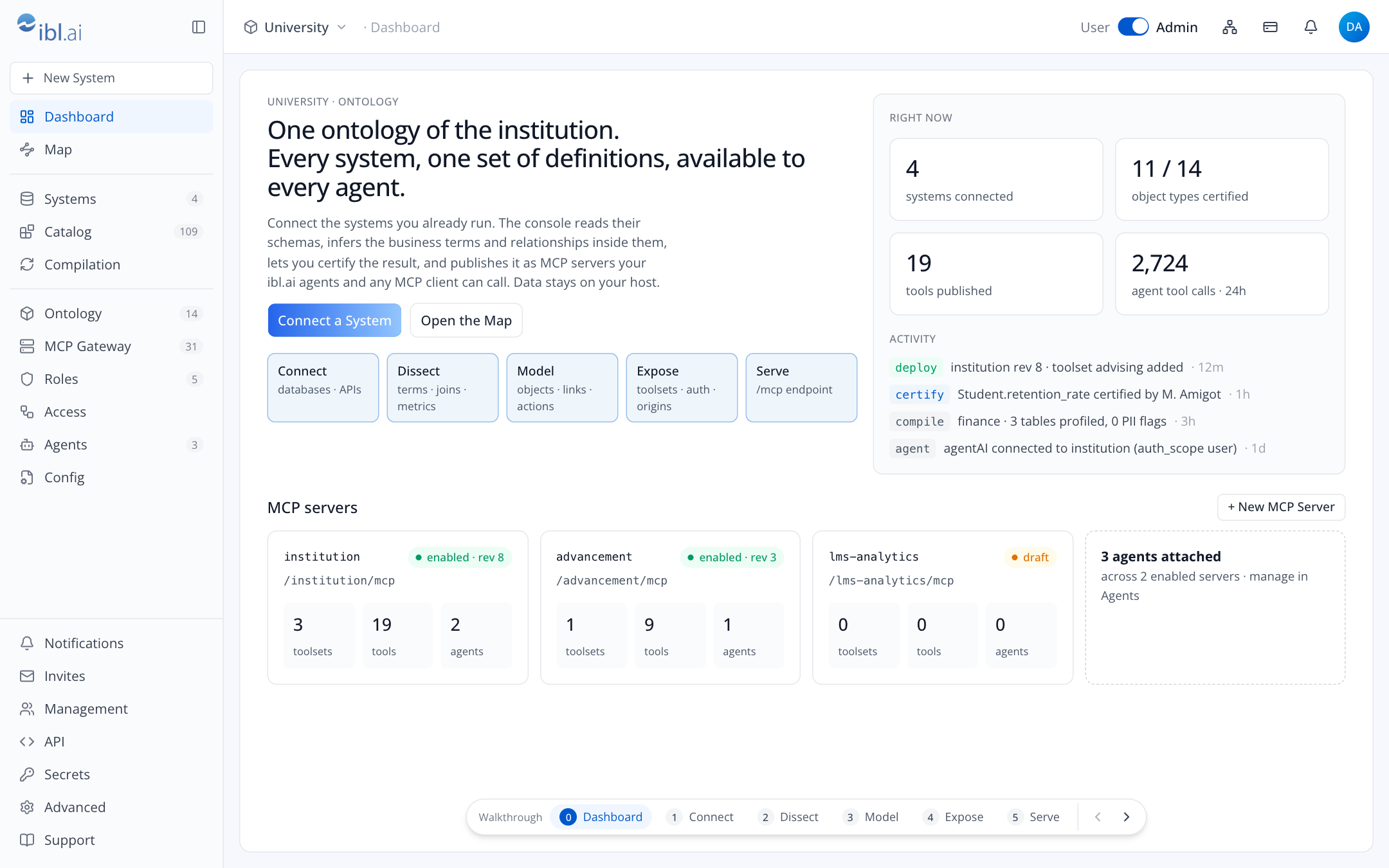
The platform's ontology at a glance. Four counters: systems connected (the engine's connections), object types certified out of total (engine terms), tools published (across server configs) and agent tool calls in the last 24 hours (the gateway's log). The activity feed merges three sources: deploys on the host, compiles and certifications in the engine, and agent attachments on ibl.ai. Below, one card per MCP server with its revision, toolsets, tools and attached agents, and a shortcut to Agents.
Connect a System starts step 1; Open the Map jumps to the graph.
Step 1 · Systems
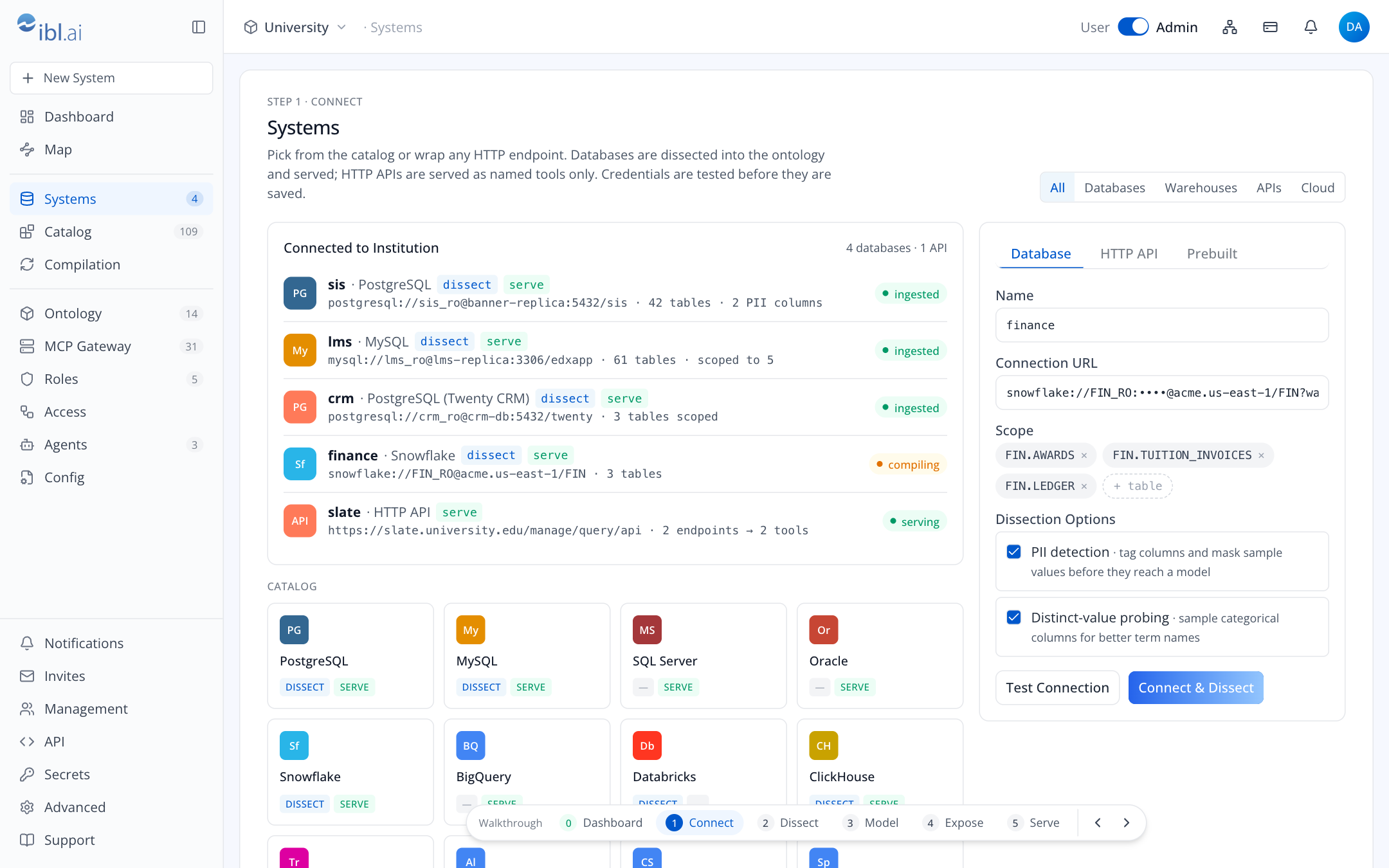
Left: the systems already connected, each with its engine, URL (never the password), table count, PII column count and status (“ingesting” until its tables appear), plus any HTTP APIs served as tools. Under it, the catalog of source kinds, filterable by Databases, Warehouses, APIs and Cloud. Each kind carries two badges: DISSECT (the engine can infer terms from it) and SERVE (the runtime can expose it).
Right: the add panel. Database takes a connection URL, a schema scope and the two dissection options (PII detection, distinct-value probing). The system's name is its database's name, read from the URL. Test Connection tries the login through the engine. Connect & Dissect saves the password on the host, creates the engine connection, which starts its ingest, and opens the Map.
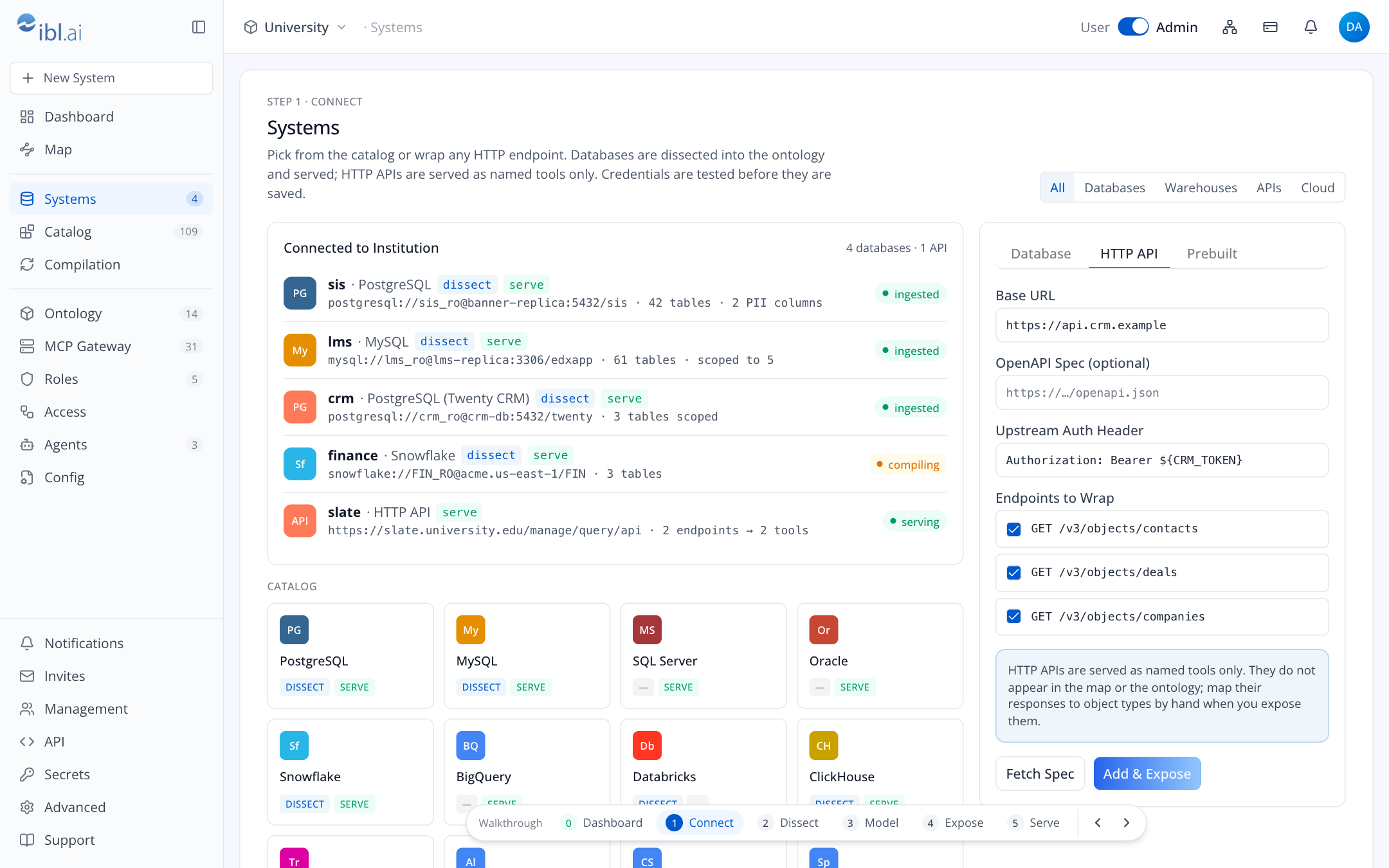
HTTP API takes a base URL, an optional OpenAPI document (Fetch Spec has the host fetch it and list its operations), the upstream auth header (its secret is kept in the host's env file) and the endpoints to wrap, ticked or named by hand. APIs are served only, never dissected, so this tab ends in Add & Expose rather than in the Map. Prebuilt lists a raw SQL toolset per connected database for analysts who need it; the ticked ones open the server builder already ticked.
Step 2 · Map
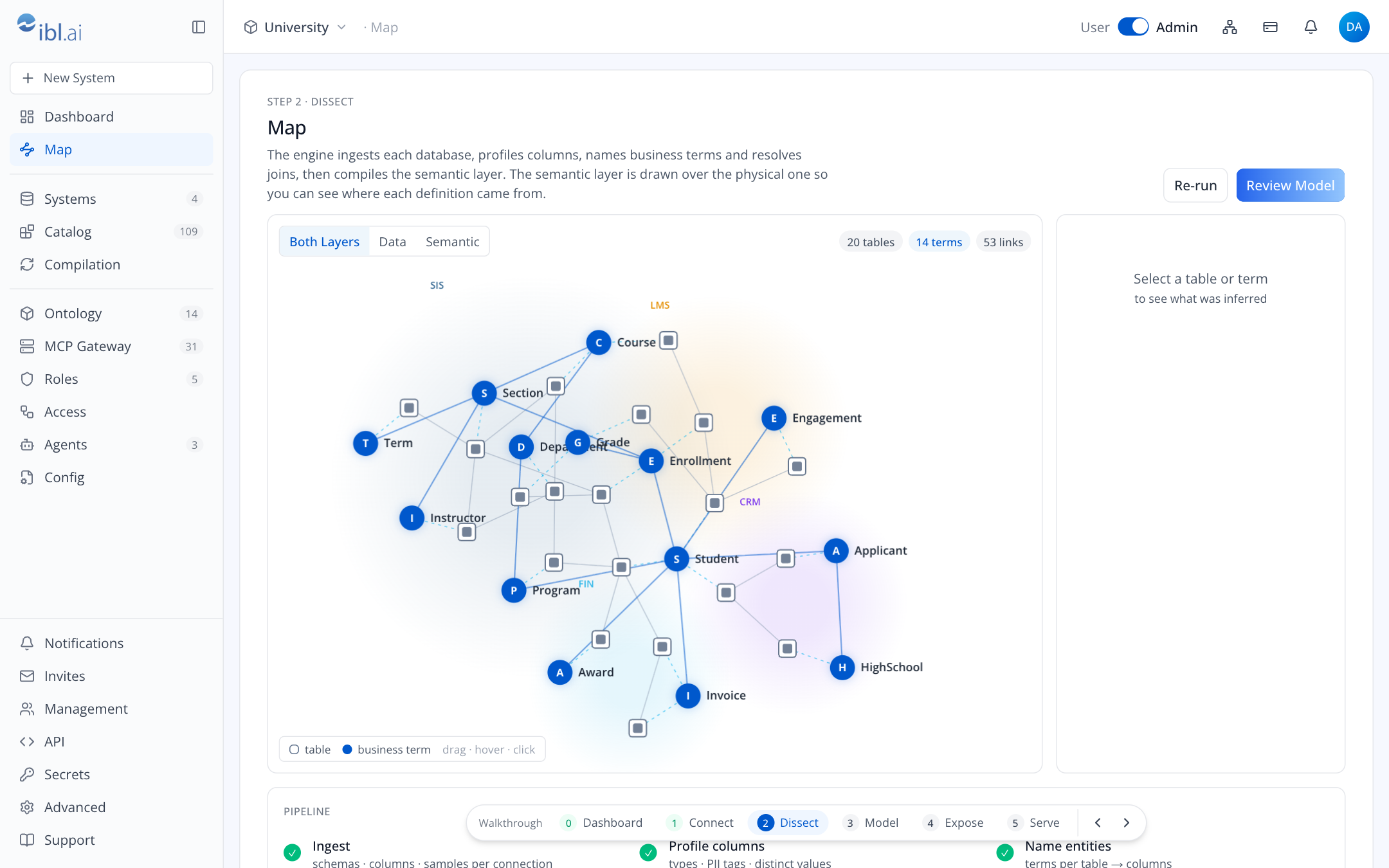
The dissection. Left: the pipeline (Ingest → Profile columns → Name entities → Resolve relationships → Compile → Publish tools). The engine reports no progress and no log over its API, so each stage is derived from what the engine has read (tables, columns, terms, links, a finished compile), and the log lists the changes the console saw while the page was open. The pipeline ends when the compile does: tools are read from certified terms, so the last line counts what is certified so far. Re-run starts a compile.
Center: the graph. Square nodes are tables, clustered and tinted by system; round blue nodes are the business terms the engine named. Dashed blue lines map a term to the tables that back it; solid blue lines are relationships between terms; grey lines are foreign keys. Toggle Both Layers / Data / Semantic, drag nodes, hover for labels, click for detail.
Below 1536px the graph and inspector sit side by side and the pipeline moves underneath them; on phones they stack.
Right: the inspector. For a table: its columns with their types and PII tags, joins, and the terms it maps to; rows show “—” because the engine does not count them. For a term: description, synonyms, the tables it maps to with their system, the SQL attributes inferred for it, and the tools it will become. Certify and Edit in Ontology act on the engine's term.
When a term spans several systems (Student across SIS, LMS and CRM) a banner calls it out with Open Term and Certify Student.
Step 3 · Ontology
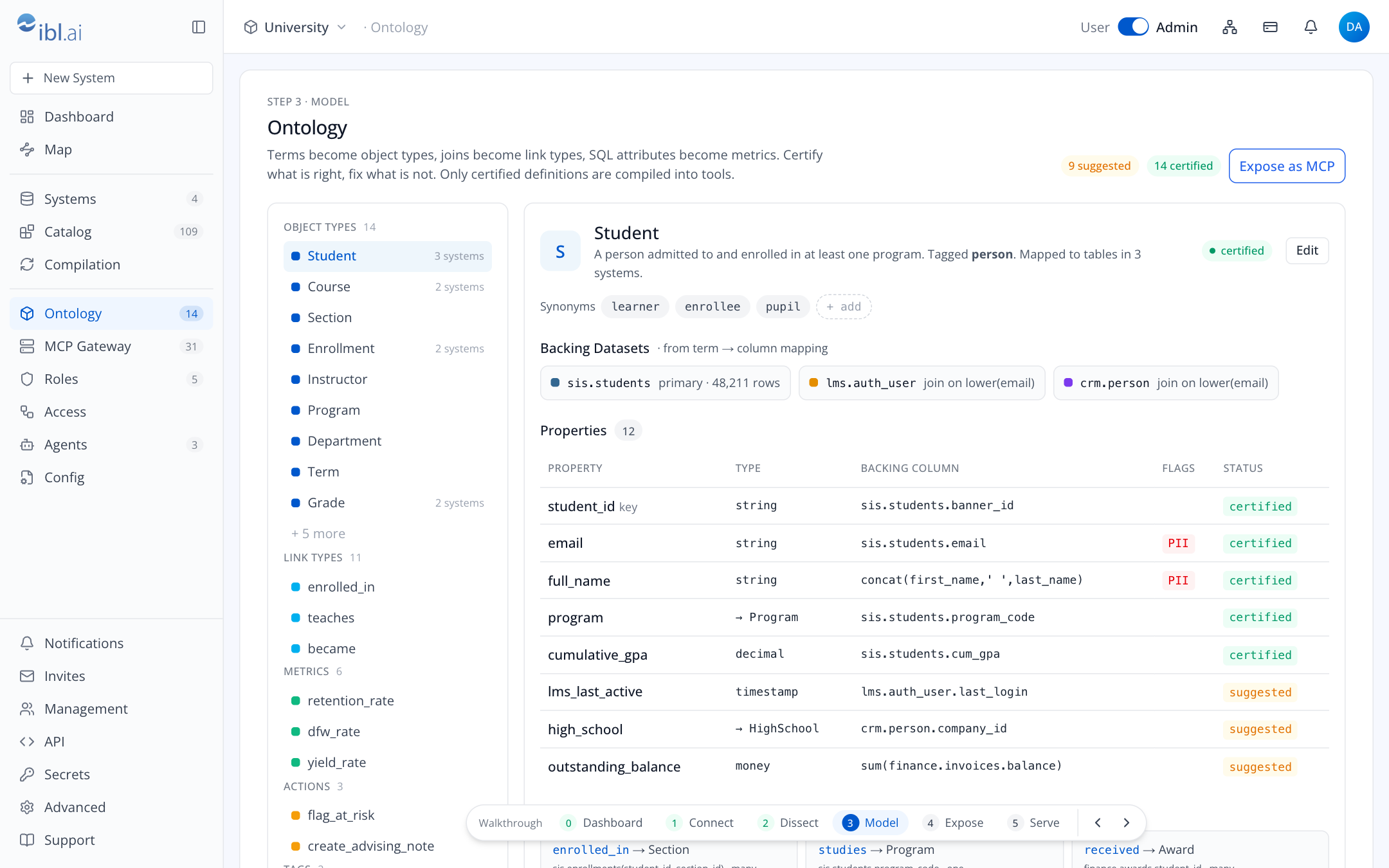
The ontology manager. Left: object types (terms), link types (relationships), metrics (SQL attributes), actions (write tools) and tags, each with counts; suggested items are marked new.
Right, for the selected object type: description and synonyms, Backing Datasets (the tables that
back it, per system, with the join), Properties (name, type, backing column or expression, PII
flag, certified/suggested), Links to other object types with the physical path, Metrics with
their SQL expression, and Actions, the write tools in the host's hand-written actions.yaml
with the toolset that gates them. Edit saves the name and description in the engine; the
certify toggles act on the term, each property and each metric. Synonyms are shown as the engine
inferred them; the engine's API does not take new ones.
Expose as MCP opens the server builder with the certified set.
Step 4 · MCP Gateway · New MCP Server
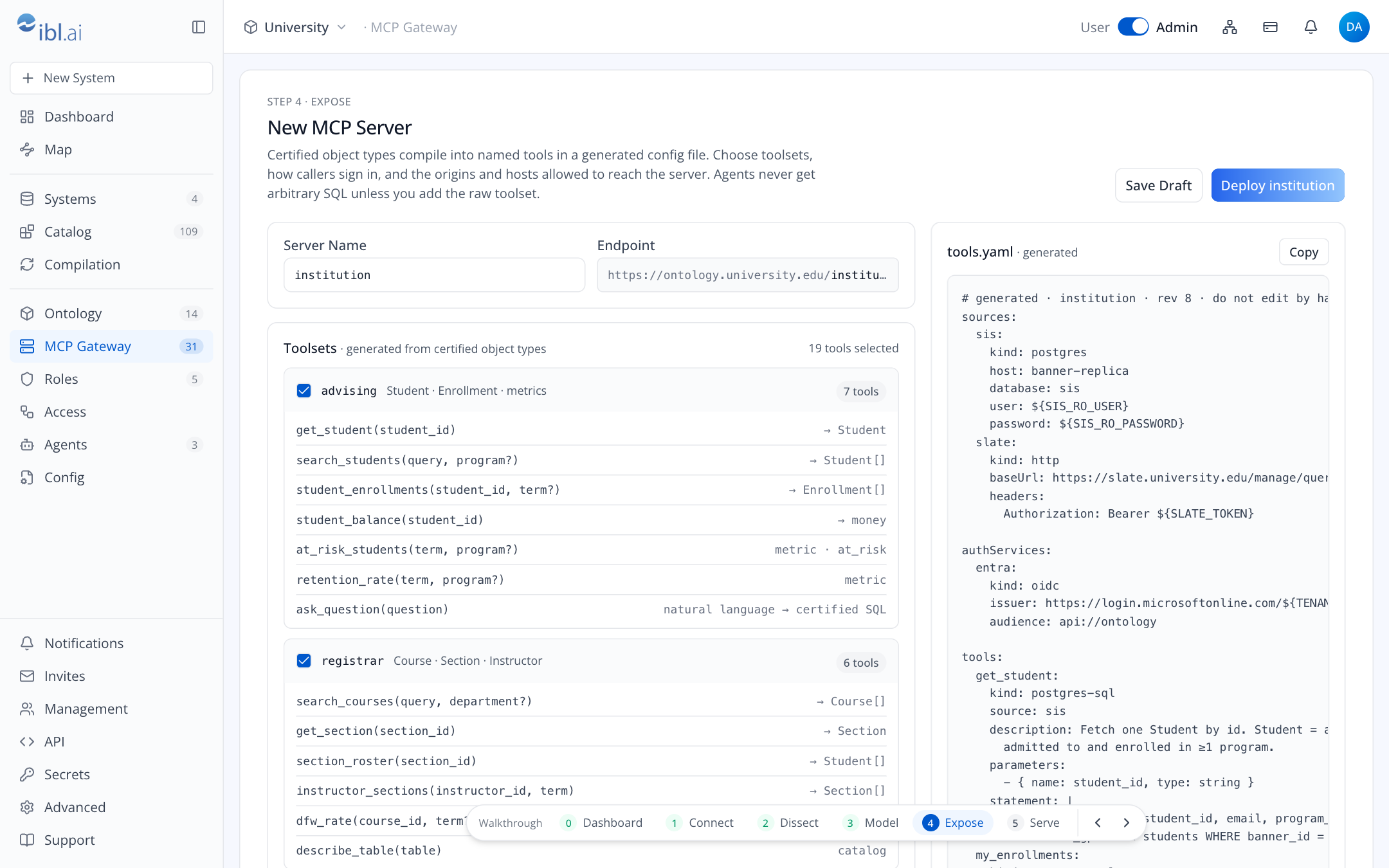
Left column, top to bottom:
- Server Name and the resulting endpoint on the platform's server,
https://<host>/<platform>/<slug>/mcp(its second address,https://<host>/iblai/<platform>/<slug>/mcp, on a console hosted elsewhere). - Toolsets, generated from certified object types and metrics, the connected systems and the HTTP APIs. Each toolset lists its tools with signatures and what they return; toolsets that write show a writes badge, the raw toolsets show unrestricted reads. Untick what this server should not offer.
- Authentication: ibl.ai credentials (checked by the gateway; Issue Token makes sure each ticked toolset has its role and policy on ibl.ai, then creates an API key limited to them and shows it once), Microsoft Entra ID, Google Sign-in and Custom OIDC Issuer (verified by the runtime itself).
- Allowed Origins (chips, add or remove) and Allowed Hosts, both passed to the runtime as
flags and both checked by the gateway, before it checks the credential. A host is a name,
*.namefor every name under it, or*for any; the runtime is given the exact names. Allowed Hosts starts with the server's host name.
Right column: the generated config file exactly as it will be written to the platform's server, updated as you change the left column, with Copy.
Save Draft writes the files without starting anything. Deploy writes the files, starts the runtime, waits until it has loaded the new file, and opens the server. Deploy registers nothing on ibl.ai; attaching an agent does (guides/connect-agents.md).
Step 5 · MCP Gateway · Server
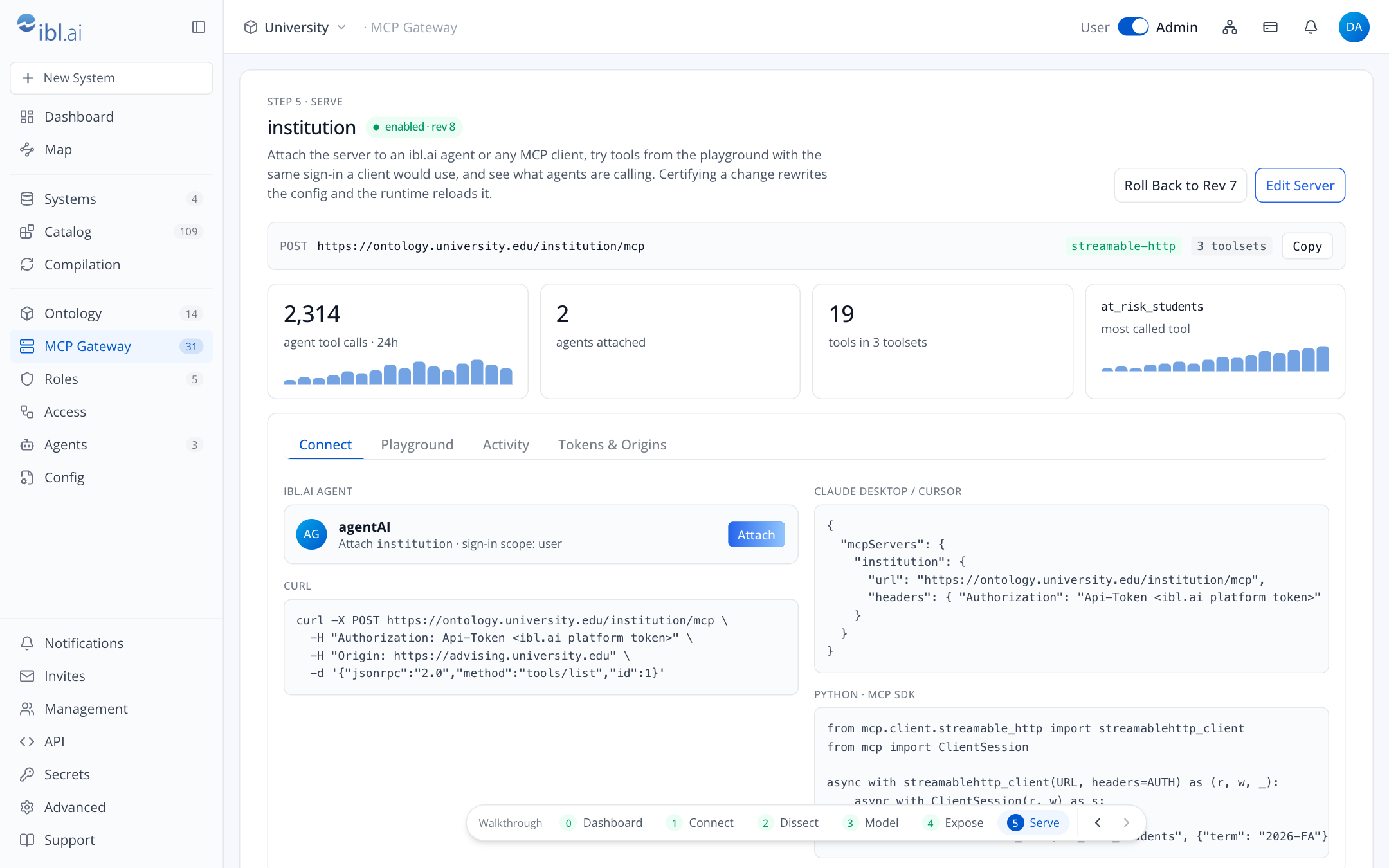
The endpoint with a copy button, then four counters from the gateway's log: agent tool calls in 24 h, agents attached, tools across toolsets, most called tool. Edit Server reopens the builder; Roll Back puts the previous revision back.
Connect: Attach gives an ibl.ai agent this server, limited to the toolsets you pick (a key for that agent, the server registered on ibl.ai for it, the agent's MCP tool turned on), plus ready-to-paste snippets for cURL, Claude Desktop / Cursor and the Python MCP SDK.
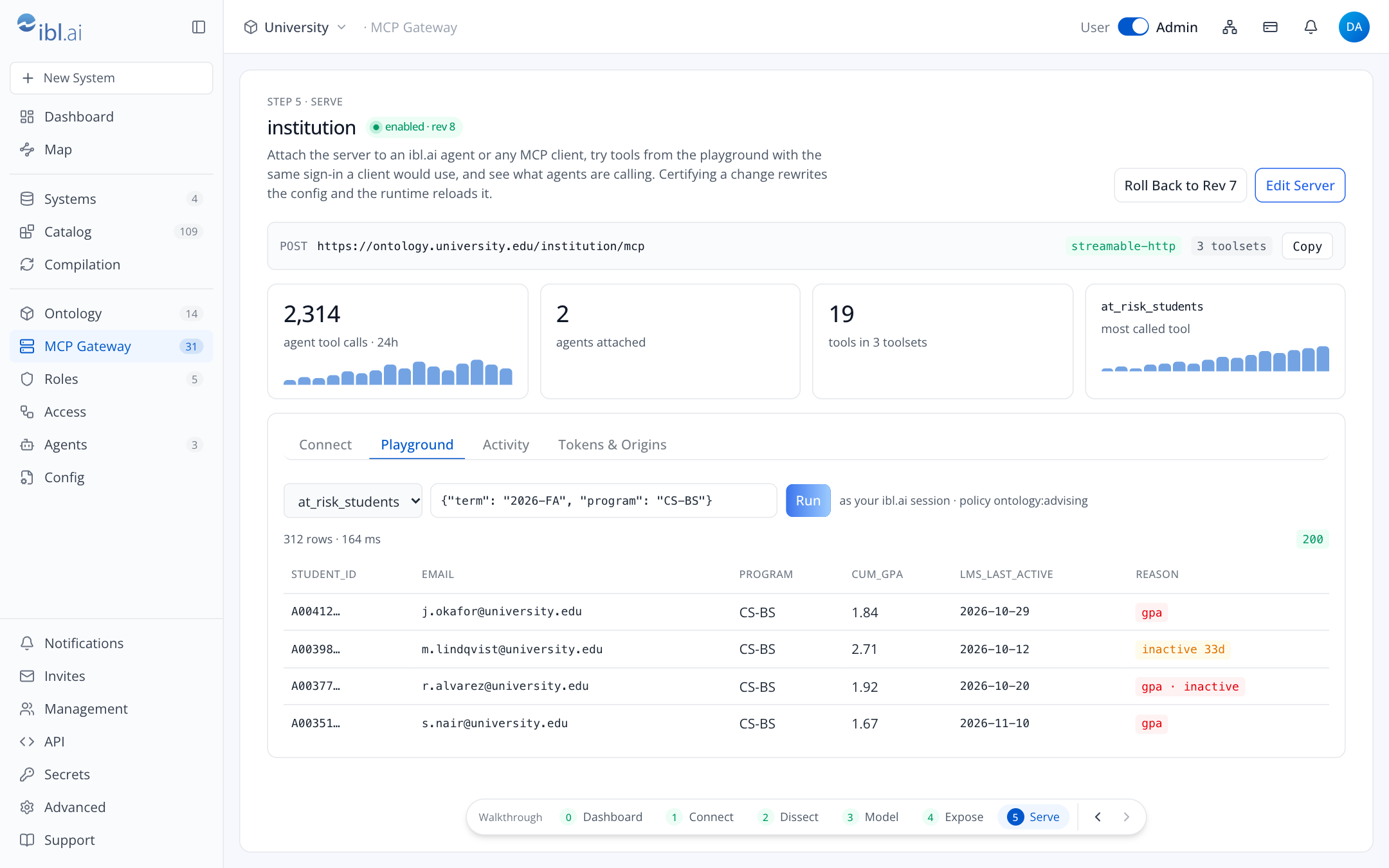
Playground: the tools your own session may call. Pick one, edit its arguments as JSON, Run.
The call goes through the gateway at the server's endpoint with your ibl.ai session, so you see
exactly what a caller with your grants would see. The browser makes the call, so the console's
origin must stay on the server's Allowed Origins (a new server starts with it); on a console hosted
elsewhere that origin is not the server's own. ask_question returns an answer and the SQL it ran.
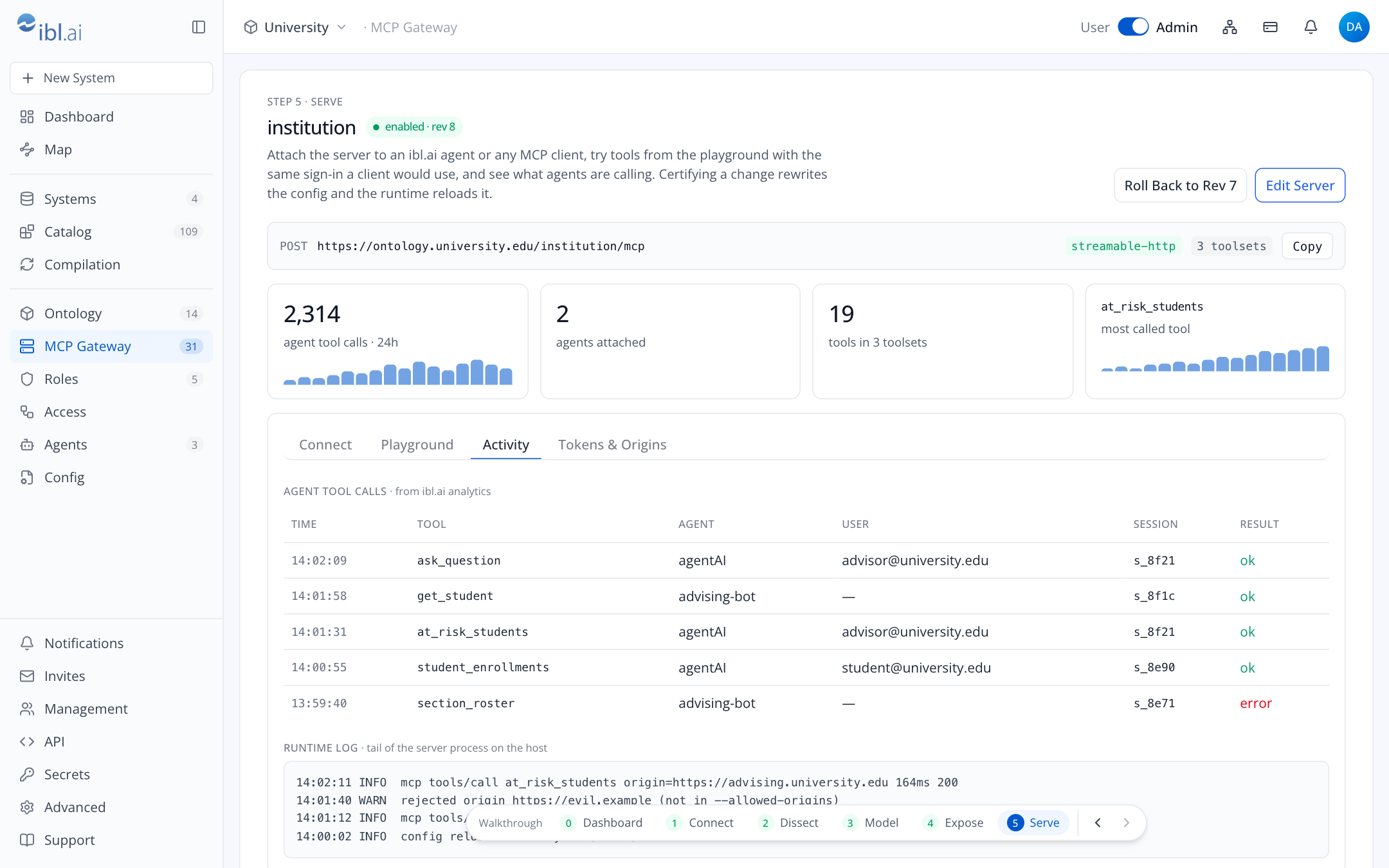
Activity: the tool calls the gateway saw (time, tool, agent, result), read from the gateway's log on the host. User and session show “—”. The Runtime Log comes from the same log: calls, origin rejections and config reloads.
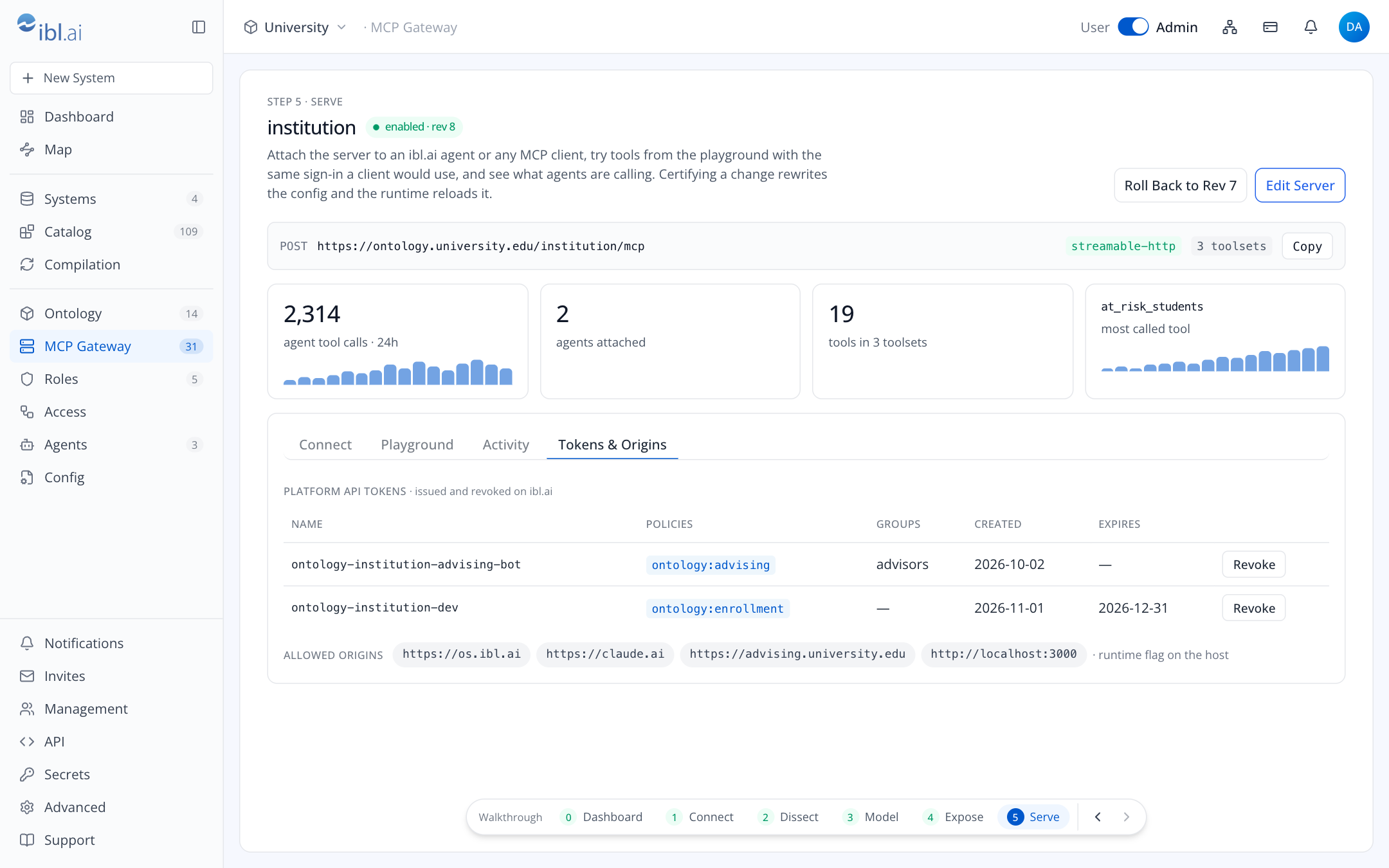
Tokens & Origins: the ibl.ai API keys that carry an Ontology: policy, with their policies,
groups, created and expiry dates and a Revoke button, and the server's allowed origins.
MCP Servers
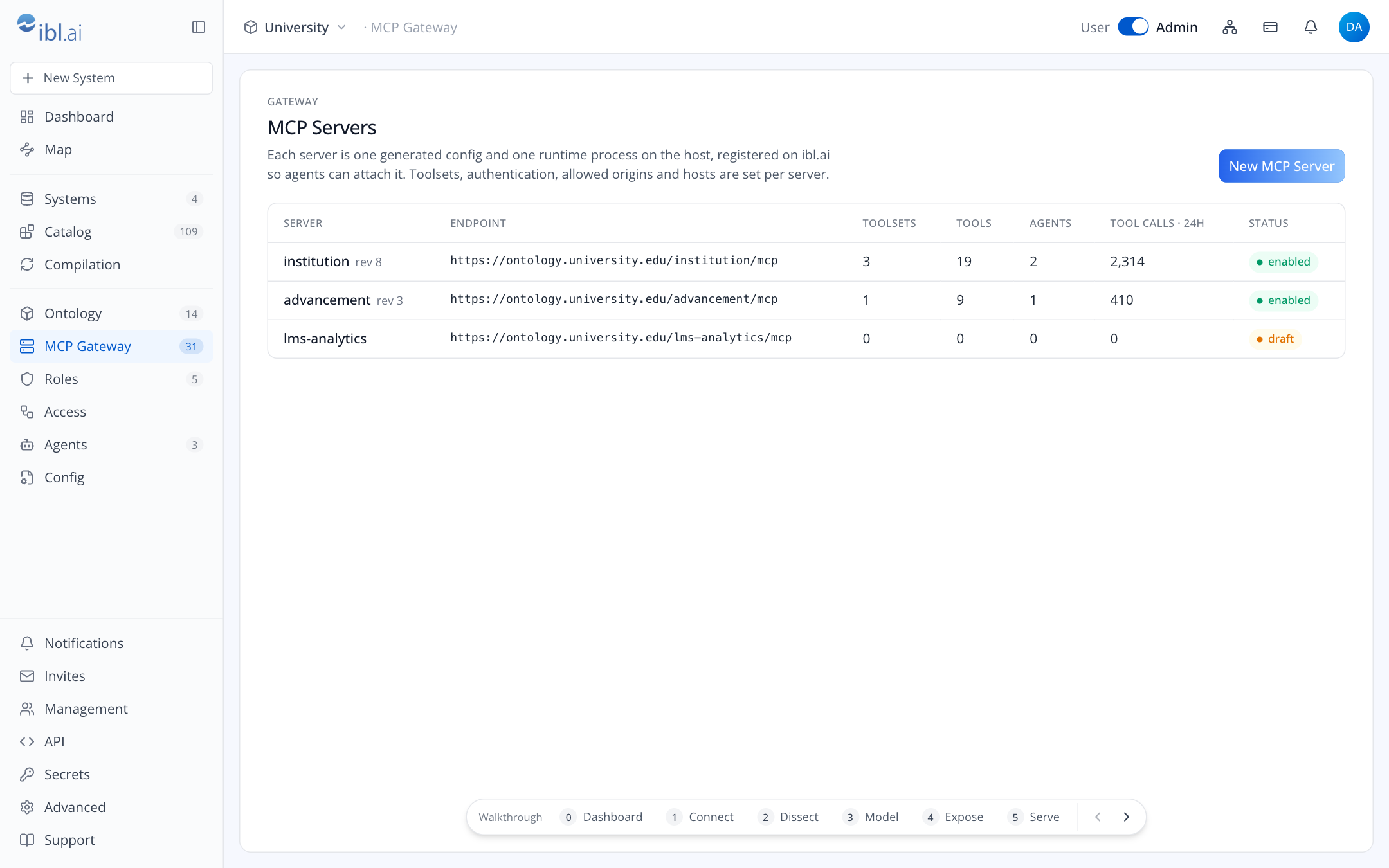
All of the platform's servers on its ontology server: endpoint, toolsets, tools, attached agents, tool calls and status.
Agents
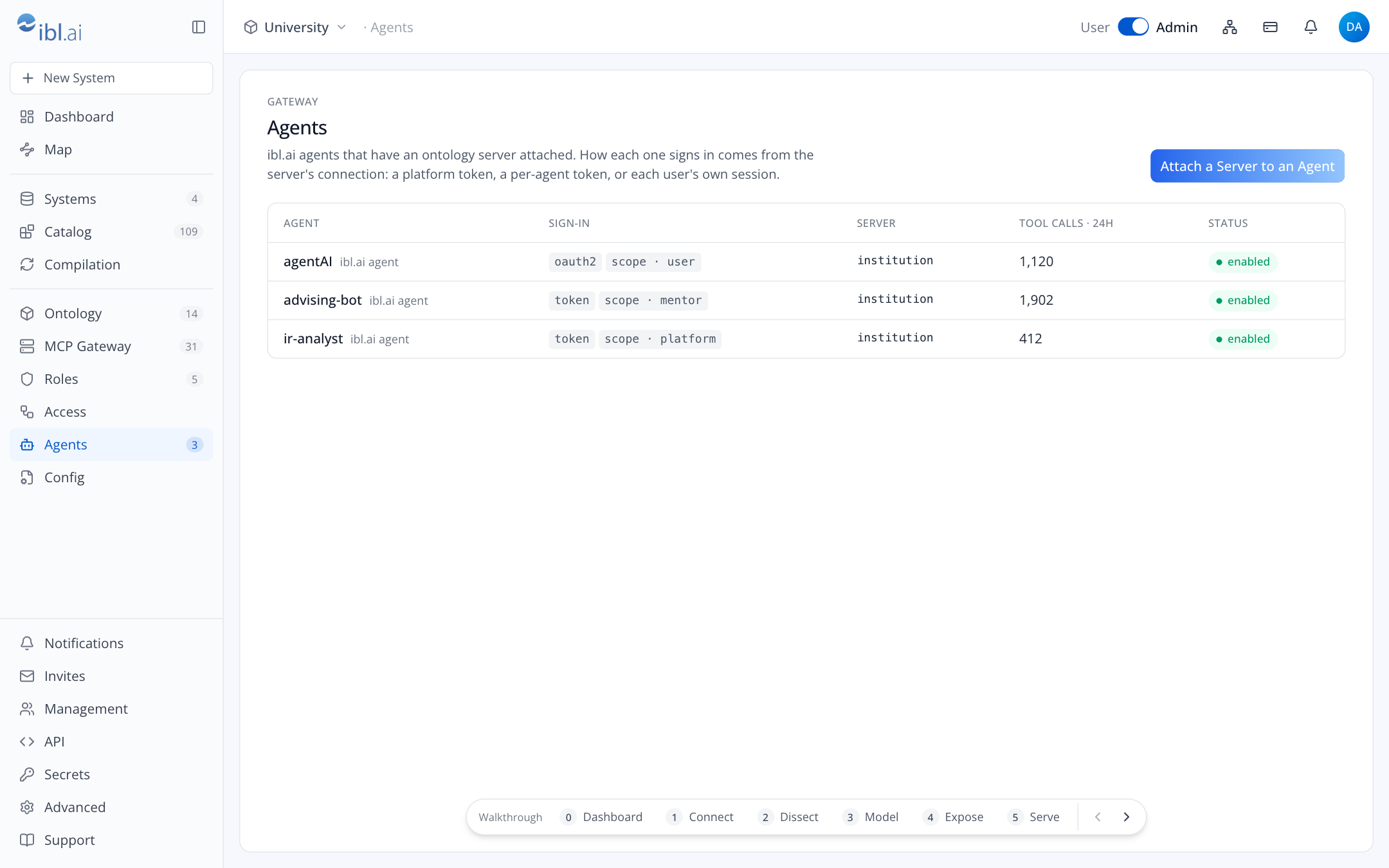
ibl.ai agents that have a server from this console attached, how each signs in, the server, and call counts from the gateway's log. Attach a Server to an Agent opens the same dialog as the server page.
Roles and Access
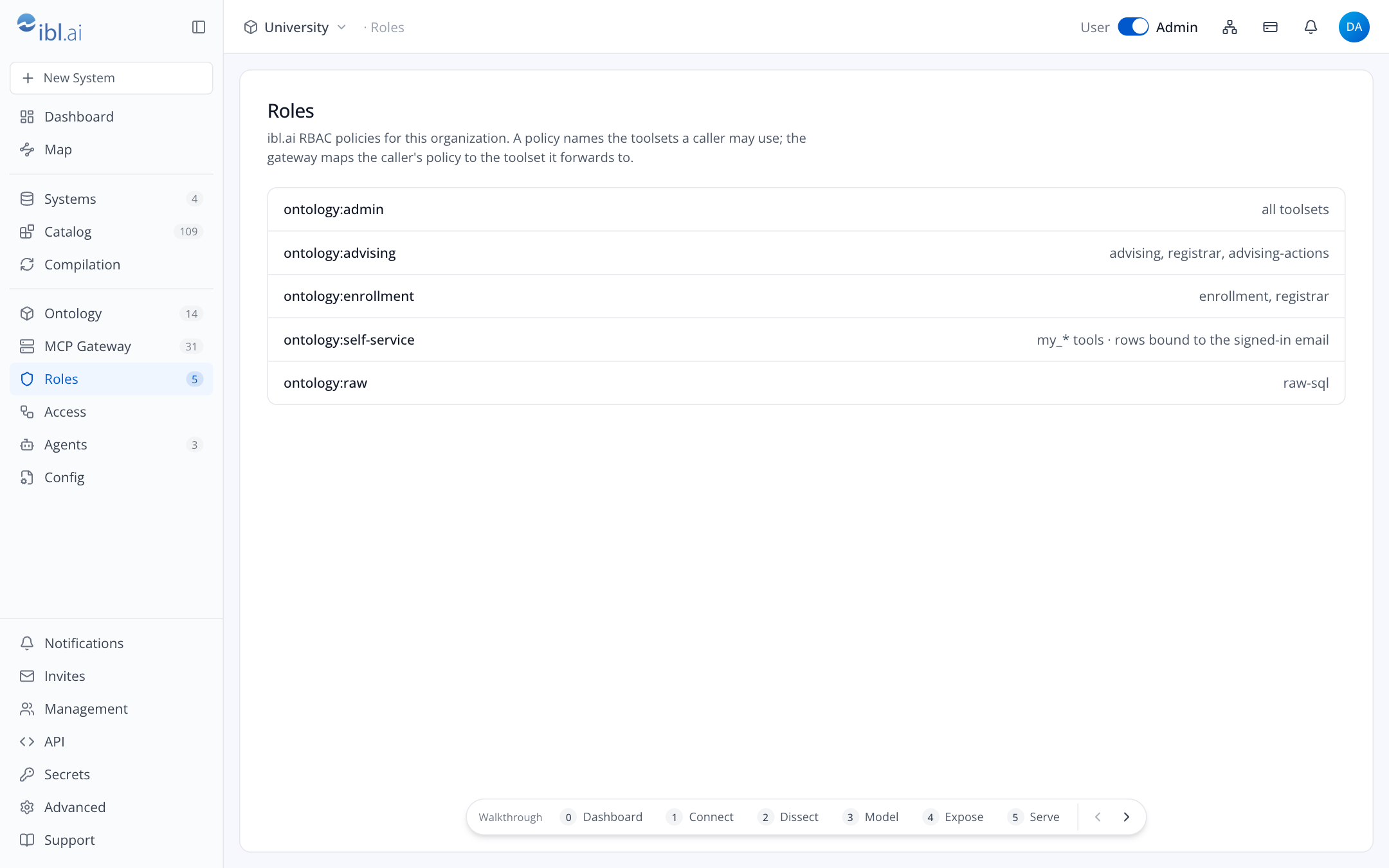
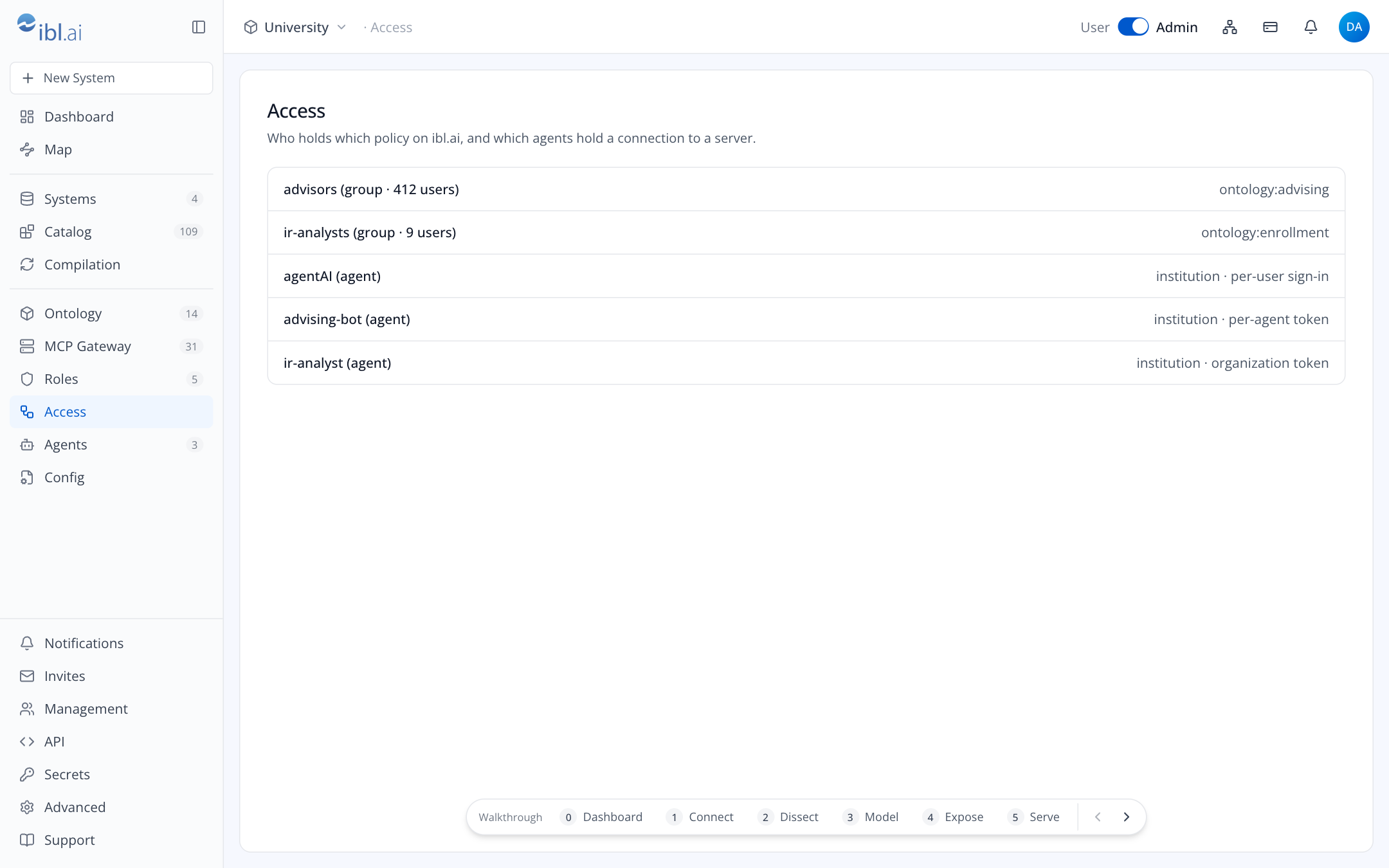
Roles lists the ibl.ai policies named Ontology: <toolset> and the toolset each grants.
Access lists which groups, users and agents hold which policy. Both are views of ibl.ai;
changes are made there (guides/permissions.md).
Catalog, Compilation, Config
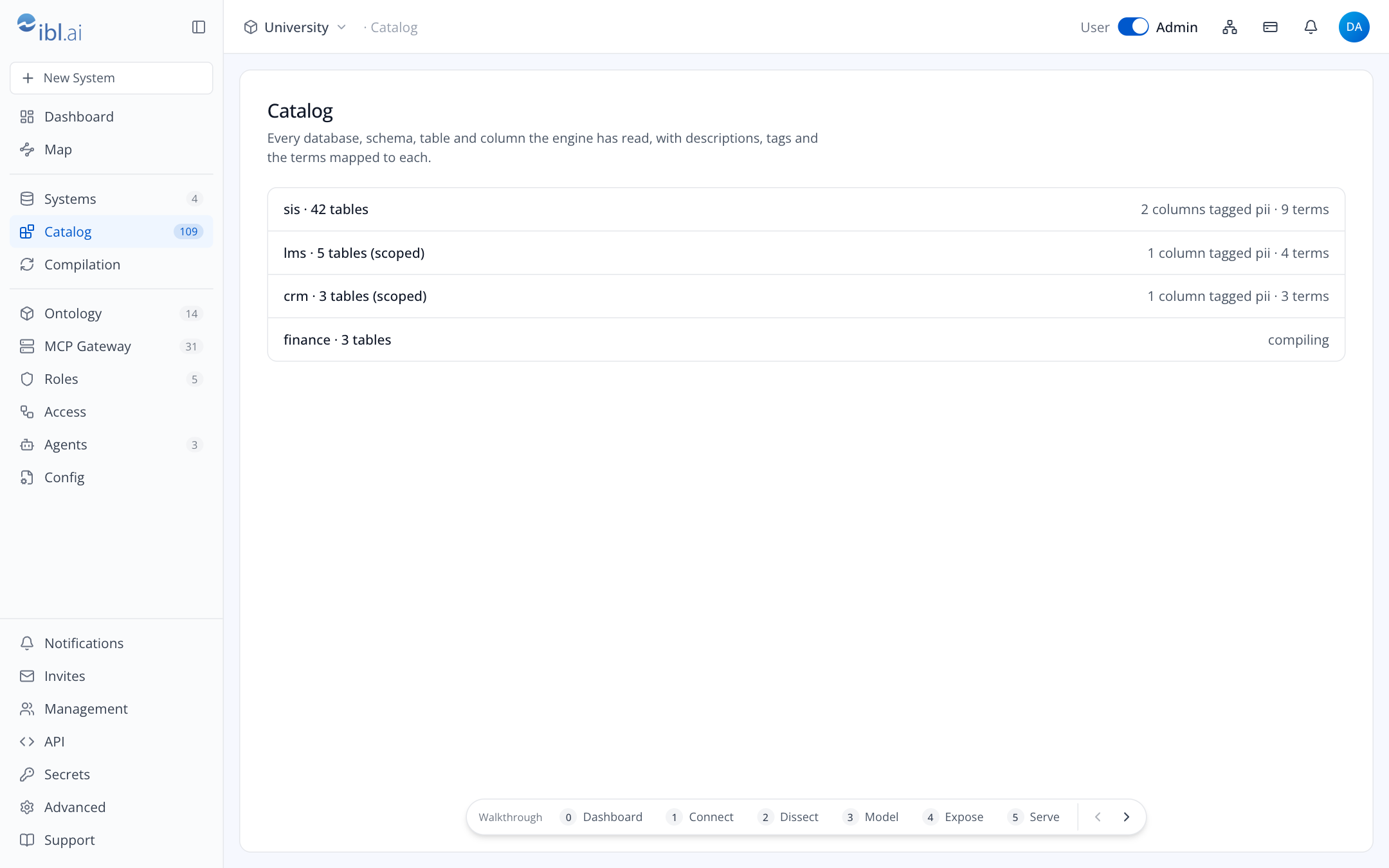
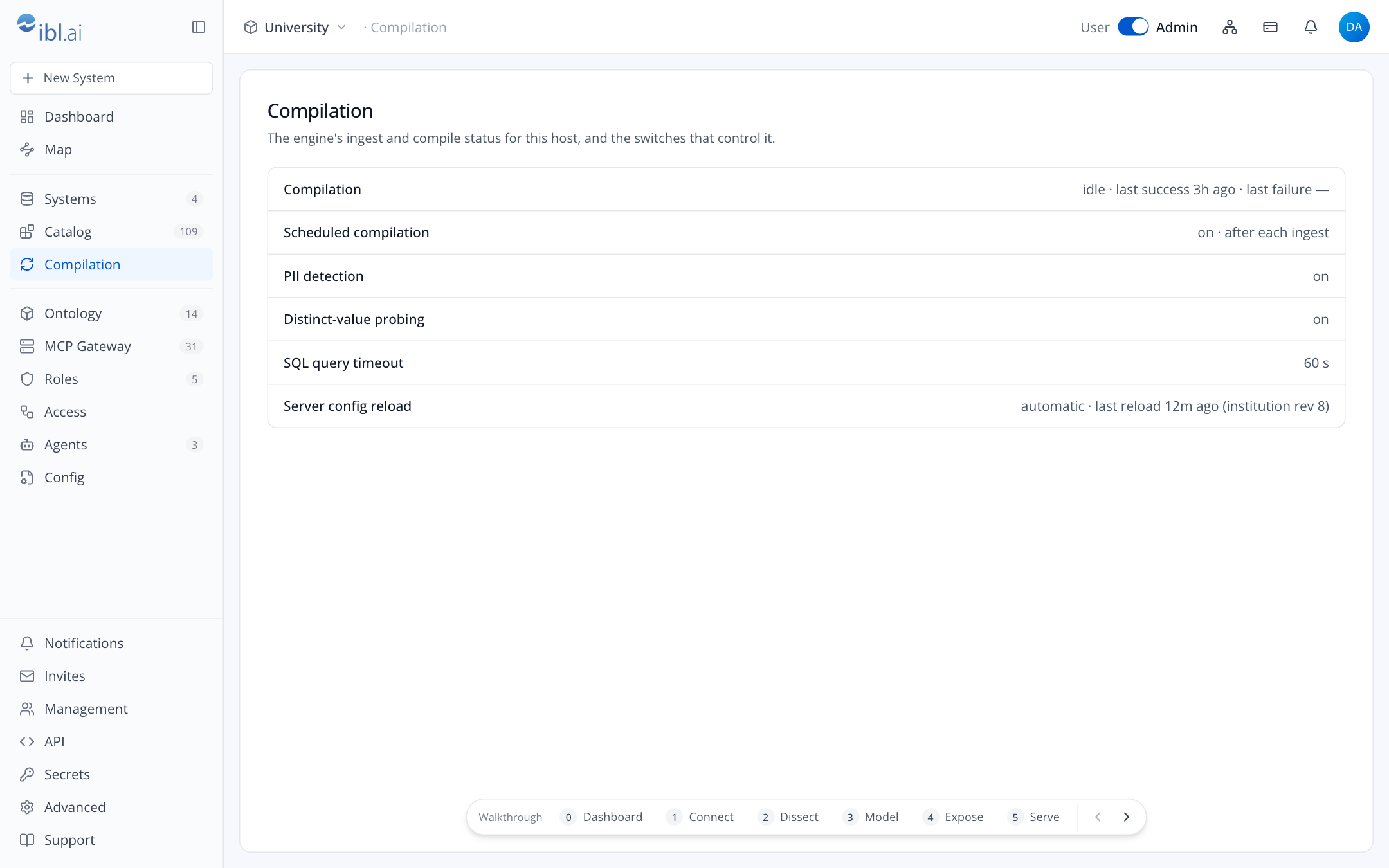
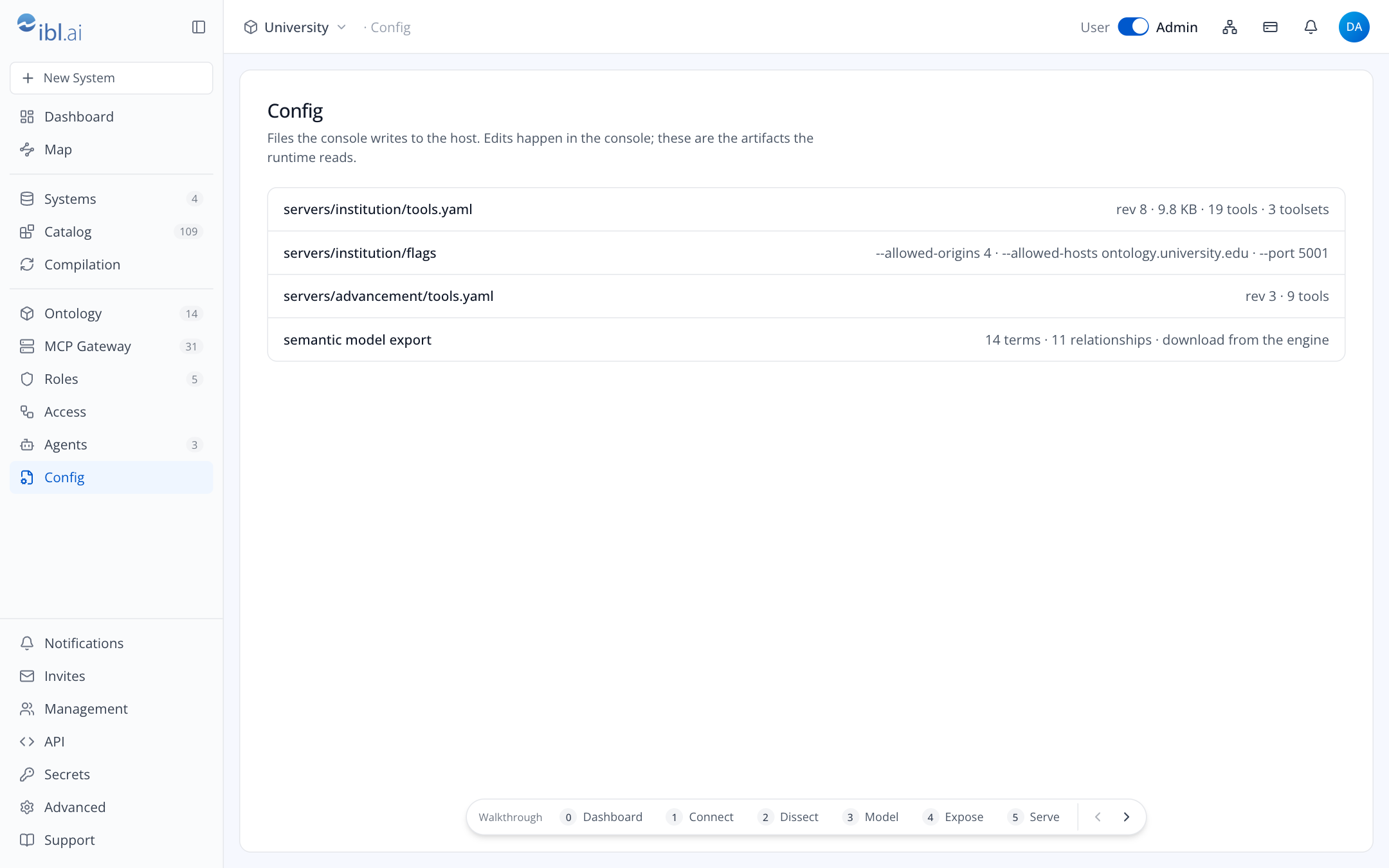
Catalog: every database, schema, table and column the engine read, with tags and mapped terms. Compilation: the engine's run status, its three switches (compilation, PII detection, probing) and Run now. Config: the files the console writes to the host, per server, with revisions, and Export model, which downloads the engine's model. On a console hosted elsewhere (the pages-only build) the platform's server is named beside the title, with Change to connect another: it stays within reach when that server does not answer.