Analytics: Courses
Overview
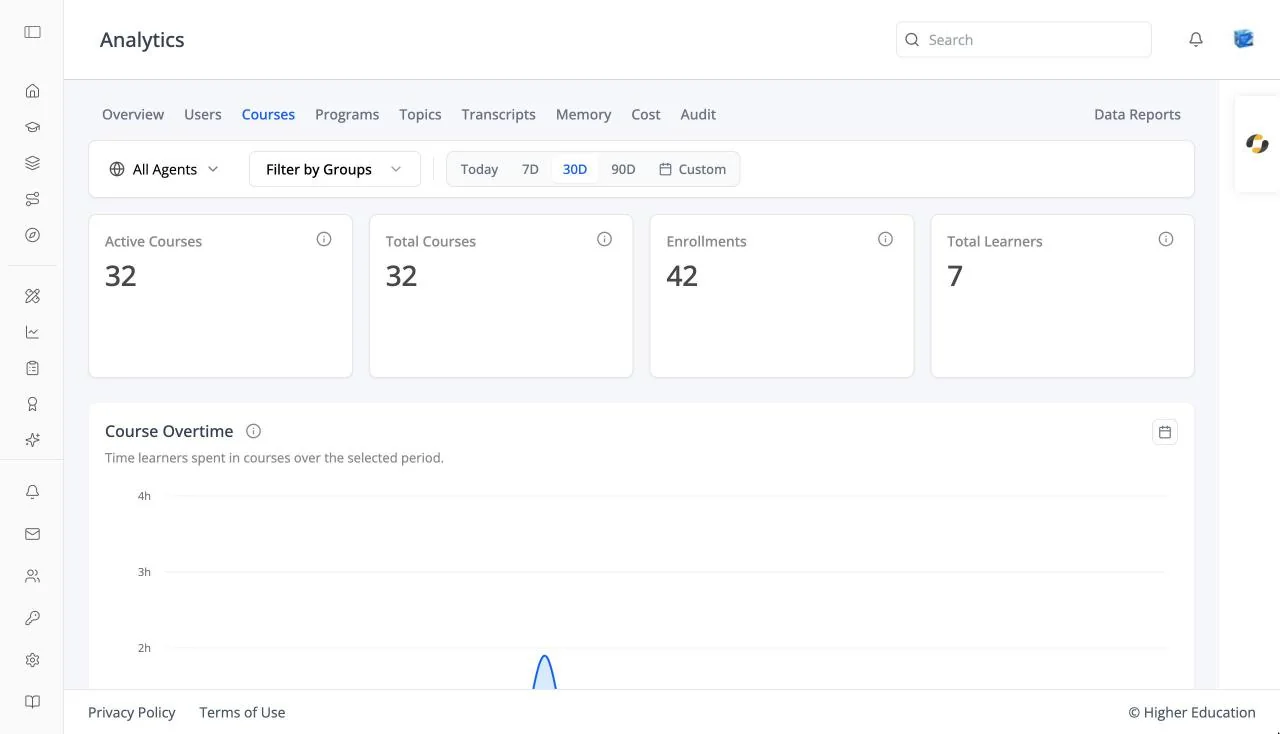
The Courses tab shows enrollment across every course in the organization, and opens a detail page for each course.
Target Audience
Administrator | Analytics viewers | Watchers
Features
Course cards
Active Courses, Total Courses, Enrollments, and Total Learners.
Course Overtime
A chart of time spent in courses over the selected range.
Courses table
Course Name, Course ID, and Enrollments, searchable with "Search by course name or ID...". Click a course to open its detail page. Empty: "No courses available".
Course detail
Active Enrollments and Completed Enrollments, and an Enrolled Users table (Name, Email, Enrollment Date, Last Active On, Progress). Click a learner's progress icon to see their status, time spent, grades, grade summary, and completion breakdown. Course staff see the same page from the course's Administration › Analytics.
How to Use
Step 1: Find the busiest courses
Scan the Enrollments column of the Courses table, or search for a course by name or ID.
Step 2: Open a course
Click it to see who is enrolled and how far they have got.