Credentials
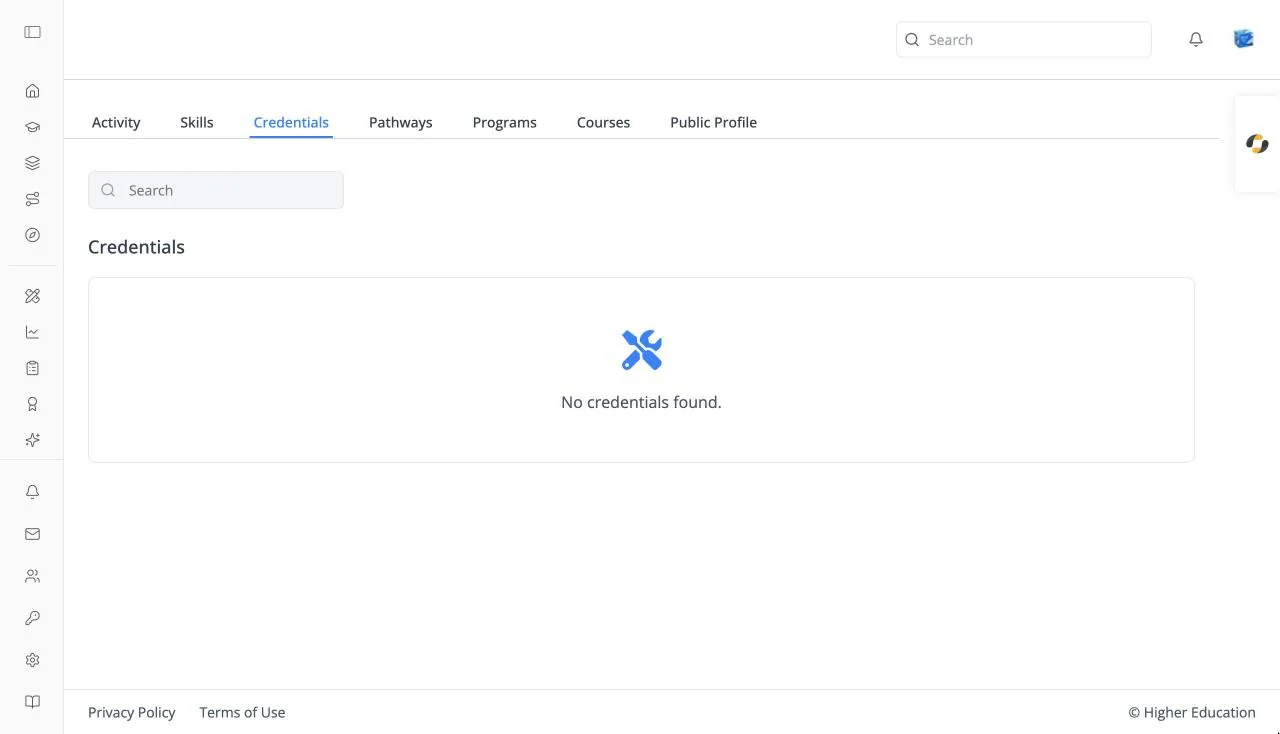
Overview
Credentials lists the certificates and badges you have earned: "Credentials you have earned." Courses award them when you complete or pass them, as set up by the course team in Settings.
Open it from the Credentials icon (an award ribbon) in the left rail, or from the Credentials tab of your learner profile.
Target Audience
Learner
Features
Credential cards
Each card shows the credential's name, the course it came from, and "Earned on" with the date. With none yet: "No credentials found."
Search
Type at least three characters into Search to filter by name.
Credential Details
Click a card to open Credential Details: who issued it, the sentence "A completion credential for {course} was issued to {name} on {date}.", and the Course and Issued on details.
Download Certificate
Opens your browser's print dialog for the certificate, so you can print it or save it as a PDF.
How to Use
Step 1: Find a credential
Open Credentials and search if you have many.
Step 2: Save a copy
Click it, then Download Certificate, and choose Save as PDF in the print dialog.