Course Administration: Attempts
Overview
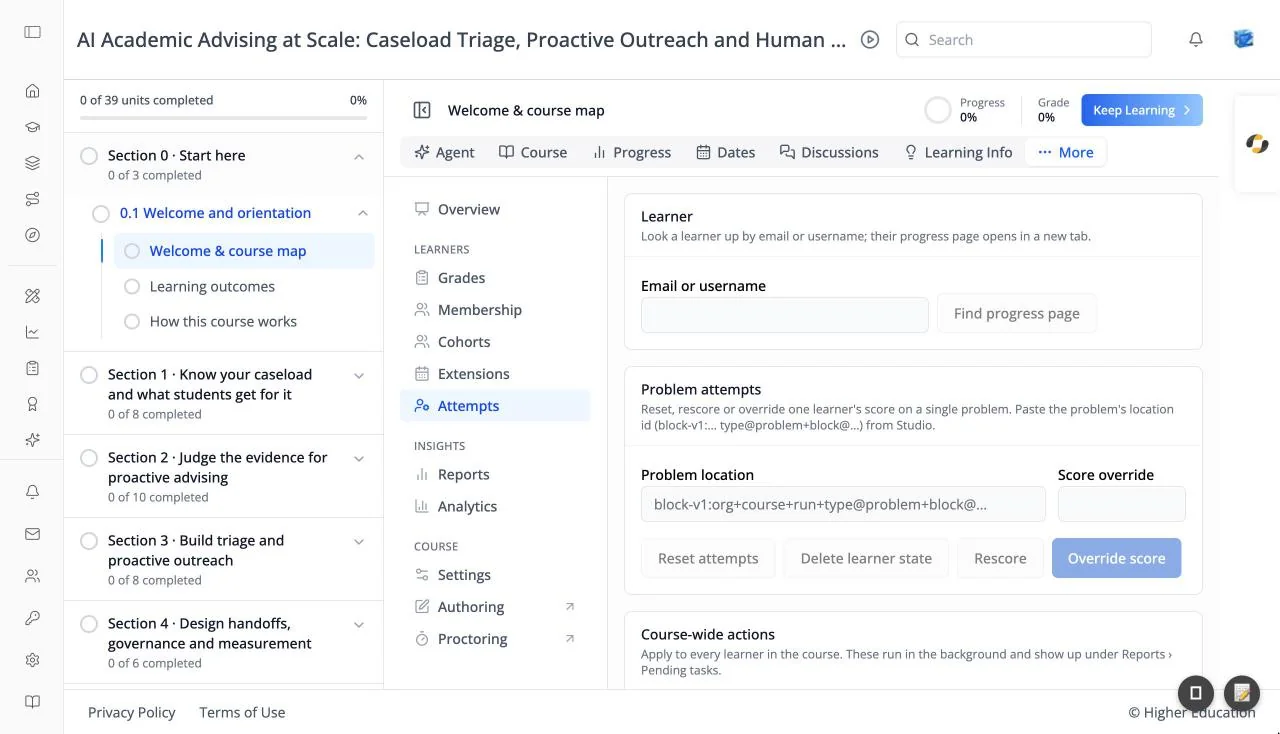
Attempts lets you fix problems with a learner's work on a problem: give them their attempts back, clear their answers, rescore, or set a score by hand. You can act for one learner or for everyone in the course.
Problems are identified by their location id, which you copy from Studio. It looks like block-v1:… type@problem+block@….
Target Audience
Course staff | Administrator
Features
Learner
Enter an Email or username and click Find progress page. An Open progress page ↗ link appears that opens that learner's progress in a new tab.
Problem attempts
"Reset, rescore or override one learner's score on a single problem." Enter the Problem location, then:
- Reset attempts: gives the learner their attempts back, keeping their answers.
- Delete learner state: wipes the learner's answers so the problem starts fresh.
- Rescore: grades the learner's existing answers again.
- Override score: sets the score you enter in Score override.
Course-wide actions
"Apply to every learner in the course." Reset attempts for all learners and Rescore for all learners act on one problem for everyone. You are asked to confirm ("… on this problem for every learner?") with Yes, continue or Cancel. These run in the background and appear under Reports › Pending tasks.
How to Use
Step 1: Find the problem
In Studio, copy the problem's location id.
Step 2: Fix one learner
Enter the learner and the problem location, then click the action you need, for example Reset attempts when a learner ran out of tries.
Step 3: Fix everyone
If a problem was set up wrongly, correct it in Studio, then use Rescore for all learners.