Course Administration: Analytics
Overview
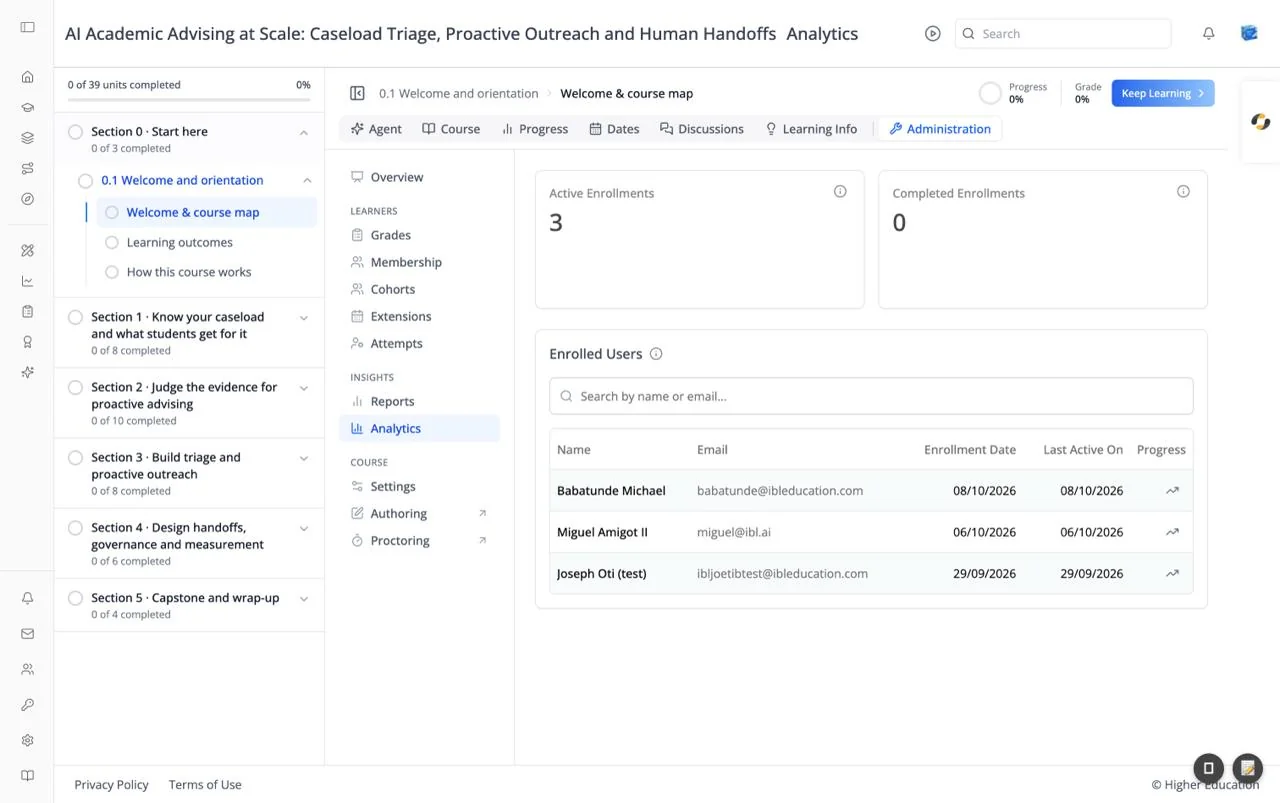
Analytics shows how learners are doing in this course: how many are enrolled, how many have finished, and each learner's progress. It is the same view as the course detail page in the organization's Courses analytics, opened from inside the course.
Target Audience
Course staff | Administrator | Analytics viewers
Features
Active Enrollments
"Learners enrolled in this course who have not finished it yet."
Completed Enrollments
"Learners who have finished every requirement of this course."
Enrolled Users
A table of everyone enrolled, with Name, Email, Enrollment Date, Last Active On, and Progress. Search with "Search by name or email...". With no learners it reads "No enrollments available".
Learner progress
Click the trend icon in a learner's Progress column to open their progress: status, pass date, time spent, enrollment date, grades, a grade summary by assignment type, and a completion breakdown.
How to Use
Step 1: Check the totals
Compare active and completed enrollments.
Step 2: Find a learner
Search by name or email, and check Last Active On to spot learners who have stopped.
Step 3: Look closer
Click a learner's progress icon to see where they are and how they are scoring.