Course Administration: Membership
Overview
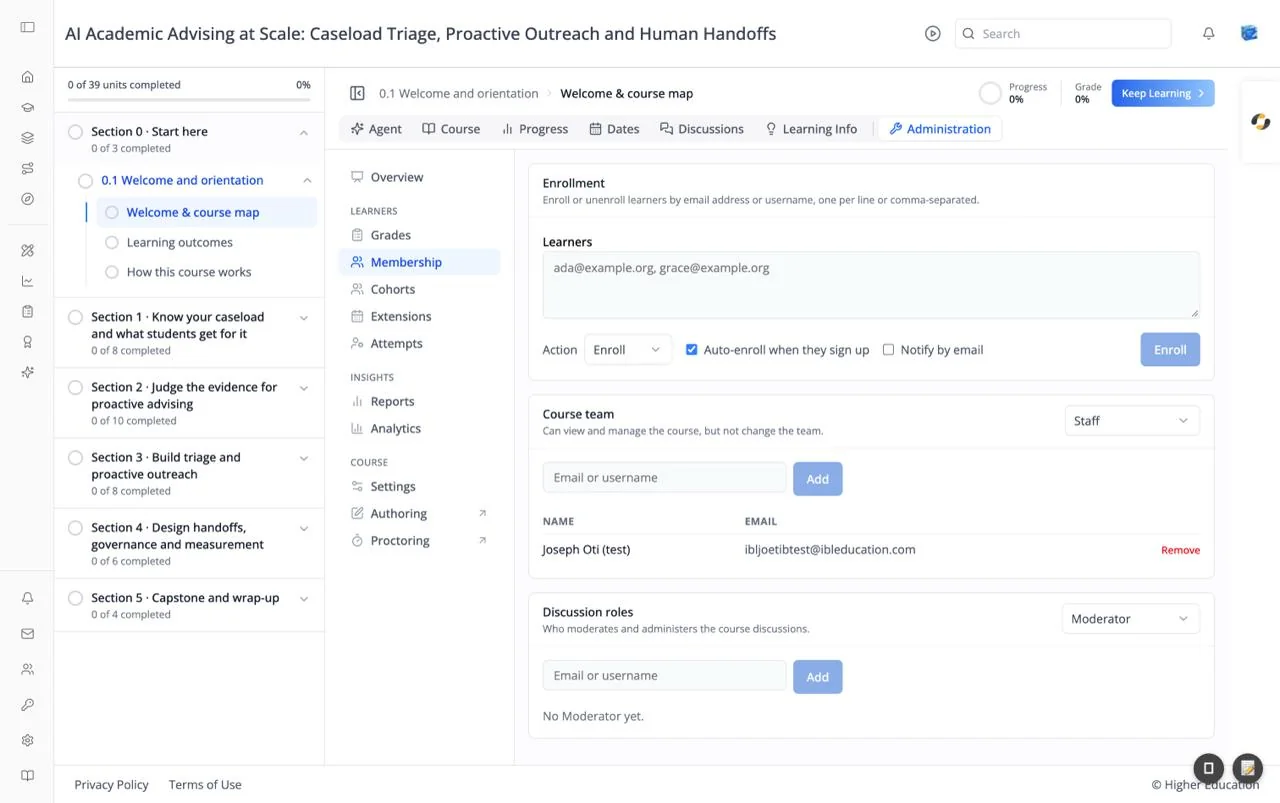
Membership controls who is in the course and what they can do: enroll and unenroll learners, build the course team, and give people discussion roles. Each of the three cards works the same way: choose a role, add people by email address or username, and remove them from the list.
Target Audience
Course staff | Administrator
Features
Enrollment
"Enroll or unenroll learners by email address or username, one per line or comma-separated."
- Learners: the email addresses or usernames to act on.
- Action: Enroll or Unenroll.
- Auto-enroll when they sign up (on by default): people without an account yet are enrolled when they create one.
- Notify by email (off by default): sends each learner an email.
Click Enroll (or Unenroll). Each person gets a result line, such as "enrolled", "already enrolled", "no account yet — will be enrolled on sign-up", "no account found", or "not a valid email or username".
Course team
Choose a role from the list at the top right; the card's description changes to match:
| Role | What they can do |
|---|---|
| Staff | "Can view and manage the course, but not change the team." |
| Admin | "Full control, including the course team." |
| Beta testers | "See content before its release date." |
| Data researchers | "Can download course data." |
Type an Email or username and click Add. The table below lists everyone with that role, by Name and Email, with a Remove link. An empty role reads "Nobody holds the {role} role yet."
Discussion roles
"Who moderates and administers the course discussions." Choose Administrator, Moderator (the default), Group Moderator, or Community TA, then add or remove people the same way. An empty role reads, for example, "No Moderator yet."
How to Use
Step 1: Enroll learners
Paste a list of emails into Learners, leave Action on Enroll, tick Notify by email if you want them told, and click Enroll. Check the result lines for anyone who couldn't be added.
Step 2: Build the course team
Choose Staff or Admin, enter a colleague's email, and click Add.
Step 3: Appoint moderators
Under Discussion roles, choose Moderator or Community TA and add the people who will look after the Discussions.
Step 4: Remove someone
Choose their role and click Remove on their row, or unenroll a learner with Action: Unenroll.