Course Administration: Settings
Overview
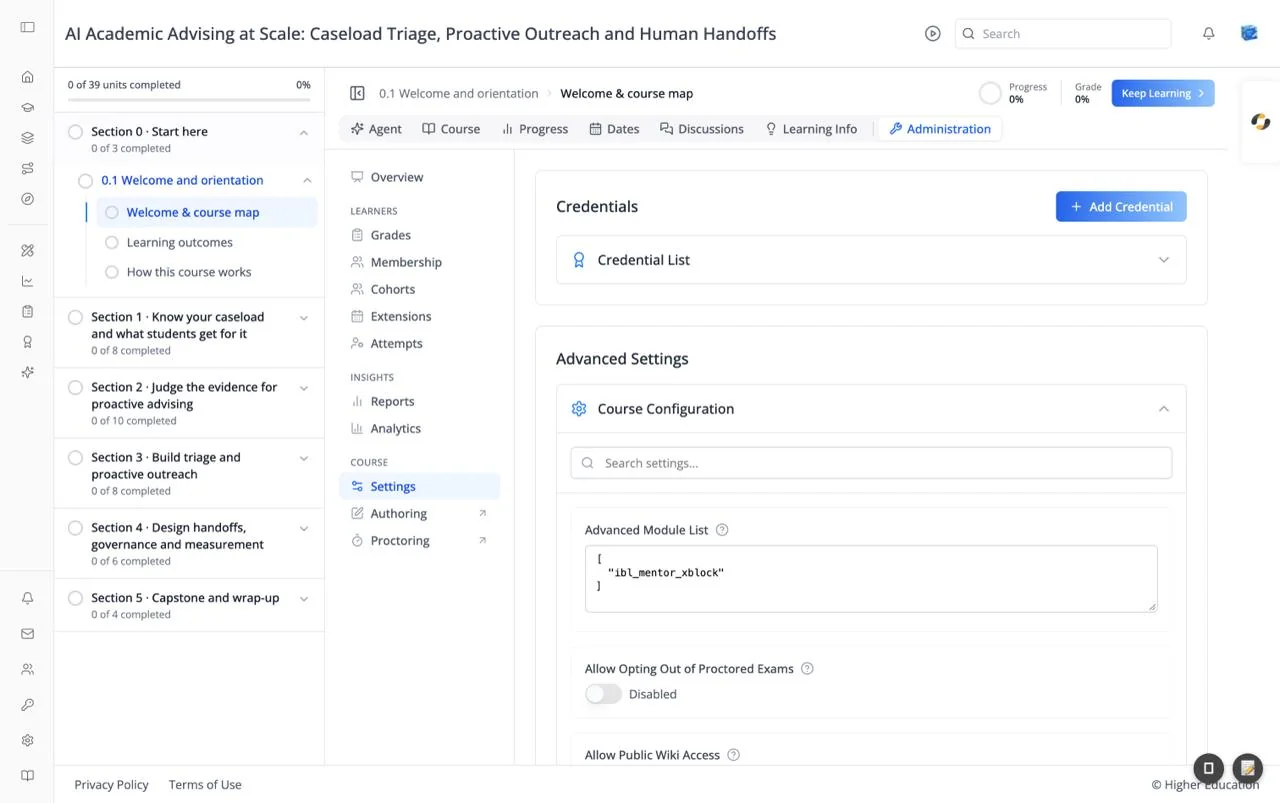
Settings holds two things: the credentials the course awards, and the course's advanced settings. Use it to decide what a learner earns for completing the course, and to change how the course behaves without opening Studio.
Target Audience
Course staff | Administrator
Features
Credentials
Credential List expands into a table of the course's credentials: Name, Entity ID, Issuer, Credential Type, and Actions (edit and delete), 10 per page. With none it reads "No credentials found." Deleting takes effect immediately, without asking you to confirm.
Add Credential
Opens Add New Credential:
- Credential Name (required) and Description.
- Issuer (required).
- Credential Type (required): Micro credential, Certificate, Program certificate, Course certificate, or Pathway certificate.
- Issuing Signal (required): Course completed or Course passed, the event that awards it.
- Icon Image: upload an image, or Remove it.
Click Create. Editing a credential opens the same form as Edit Credential, saved with Update. Learners see credentials they earn under Credentials.
Advanced Settings
Course Configuration lists the course's advanced settings alphabetically, each with a ? for help. Search with "Search settings...". Each setting uses the right kind of control: an Enabled/Disabled switch, a date, a list, a number, or a text or JSON box. For example, Advanced Module List is where tools such as ibl_mentor_xblock (the AI assessment block) are switched on. After you change anything, a Save Changes button appears.
How to Use
Step 1: Award a credential
Click Add Credential, name it, choose the issuer and type, set Issuing Signal to Course passed or Course completed, and click Create.
Step 2: Change a setting
Open Course Configuration, search for the setting, change it, and click Save Changes.