Course Administration: Authoring and Proctoring
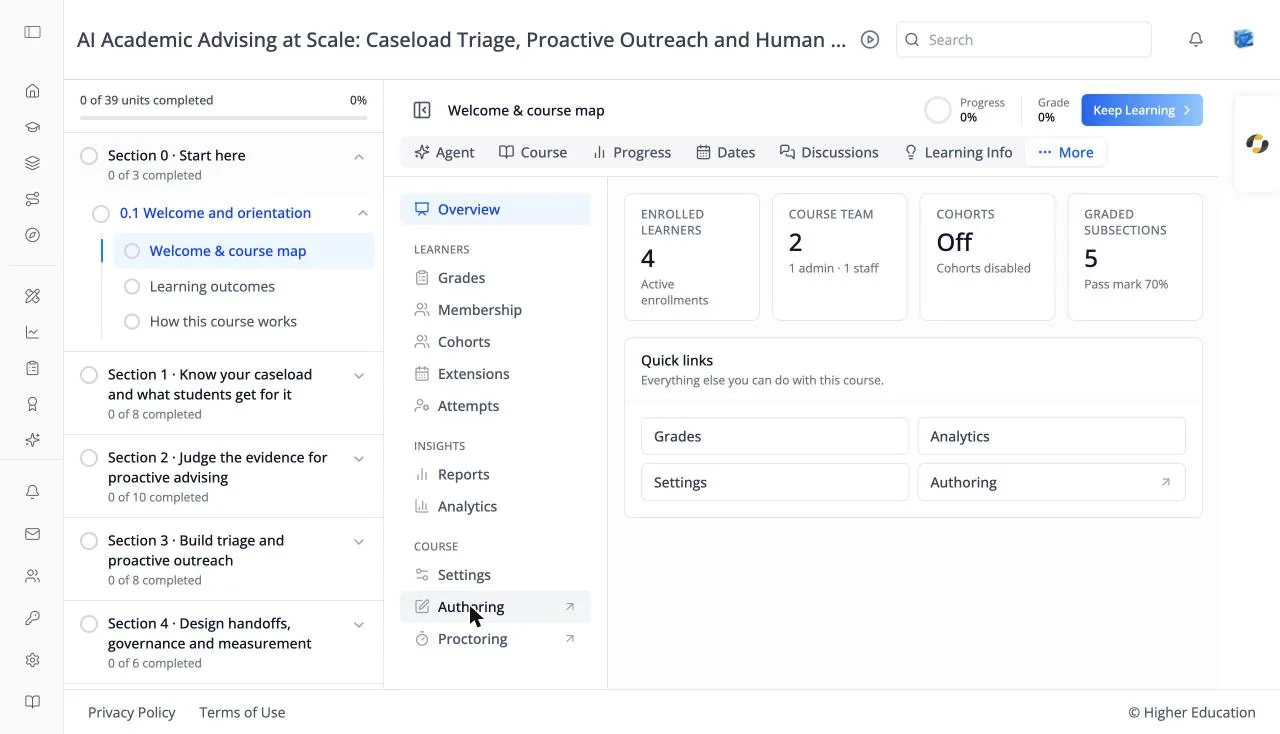
Overview
The last two items in the Administration navigation, Authoring ↗ and Proctoring ↗, open tools outside the LMS in a new browser tab.
Target Audience
Course staff | Administrator
Features
Authoring
Opens this course in Studio, the course editor, where you build sections, subsections, and units, add problems and AI assessments, and publish changes. Course Admin and Staff roles and platform administrators see it; limited staff do not. The Overview quick links and the Studio icon in the left rail lead to Studio too.
Proctoring
Opens the course's special exams page in the instructor dashboard, where you manage timed and proctored exams: review exam attempts, give learners extra time, and handle allowances.
How to Use
Step 1: Edit the course
Click Authoring ↗, make your changes in Studio, and publish them. They appear in the course player straight away.
Step 2: Manage exams
Click Proctoring ↗ to look after timed exams and exam allowances.