Course: Progress Tab
Overview
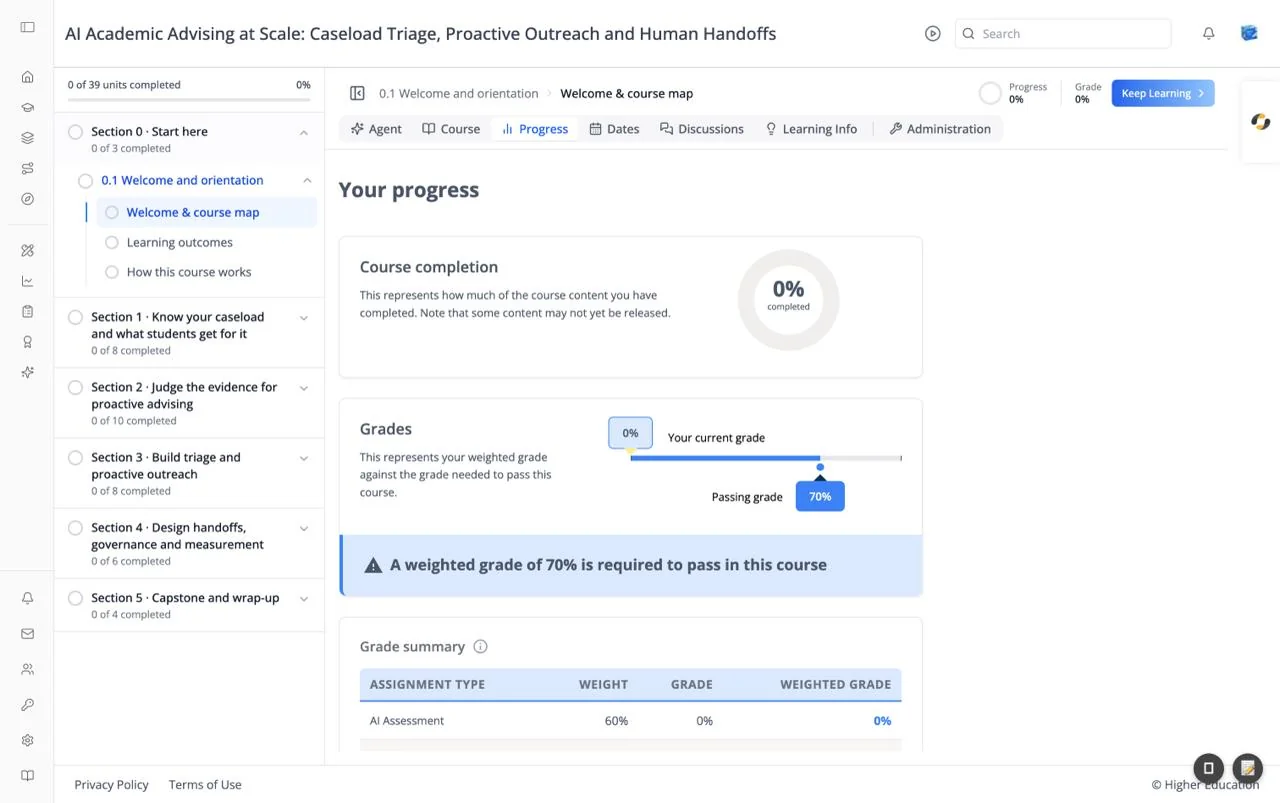
The Progress tab, headed "Your progress", shows how far through the course you are and where your grade stands against the grade you need to pass.
Target Audience
Learner
Features
Course completion
A donut chart of the share of course content you have completed. "Note that some content may not yet be released."
Grades
A bar comparing Your current grade with the Passing grade (for example 70%). A banner beneath states the requirement, for example "A weighted grade of 70% is required to pass in this course".
Grade summary
A table of the course's assignment types with columns Assignment Type, Weight, Grade, and Weighted Grade. For example, an "AI Assessment" type worth 60% of the course grade. Your weighted grades add up to your overall grade.
Detailed grades
Further down, your score on each graded subsection.
How to Use
Step 1: Check your completion
Use the donut to see how much is left.
Step 2: Check your standing
Compare your current grade with the passing grade, and use the Grade summary to see which assignment types count most.