Course Administration: Reports
Overview
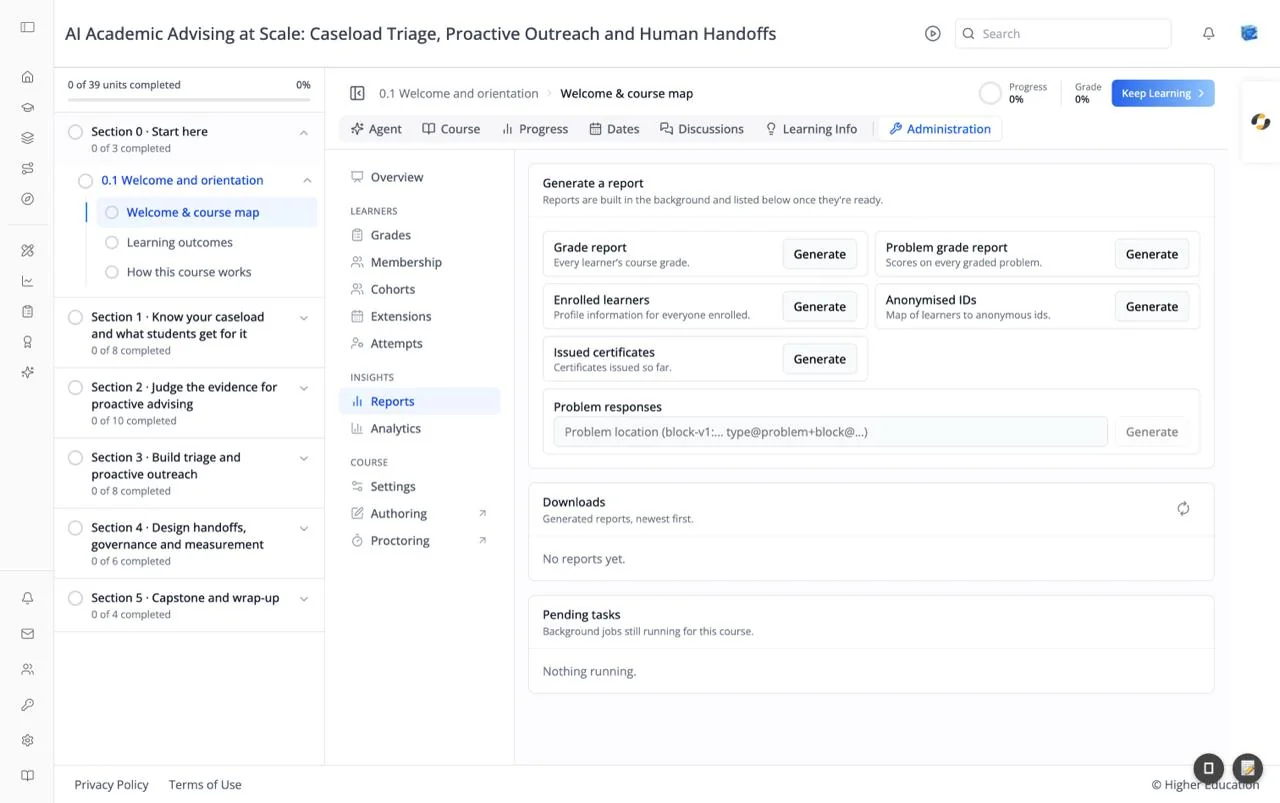
Reports builds downloadable files of the course's data: grades, enrollments, certificates, and learner answers. "Reports are built in the background and listed below once they're ready."
Target Audience
Course staff | Administrator
Features
Generate a report
Click Generate beside the report you need:
| Report | Contains |
|---|---|
| Grade report | "Every learner's course grade." |
| Problem grade report | "Scores on every graded problem." |
| Enrolled learners | "Profile information for everyone enrolled." |
| Anonymised IDs | "Map of learners to anonymous ids." |
| Issued certificates | "Certificates issued so far." |
| Problem responses | Every learner's answers to one problem. Enter its Problem location first |
A message confirms "{report} queued — it appears under Downloads when ready."
Downloads
"Generated reports, newest first." Each finished file has a Download link. Click the refresh icon to check for new ones. Empty: "No reports yet."
Pending tasks
"Background jobs still running for this course.": each with Task, Requested by, Started, and Status. Course-wide actions from Attempts appear here too. Empty: "Nothing running."
How to Use
Step 1: Generate
Click Generate on the report you need.
Step 2: Wait
Watch Pending tasks. Larger courses take longer.
Step 3: Download
Click the refresh icon on Downloads, then Download on your file.