Discover
Overview
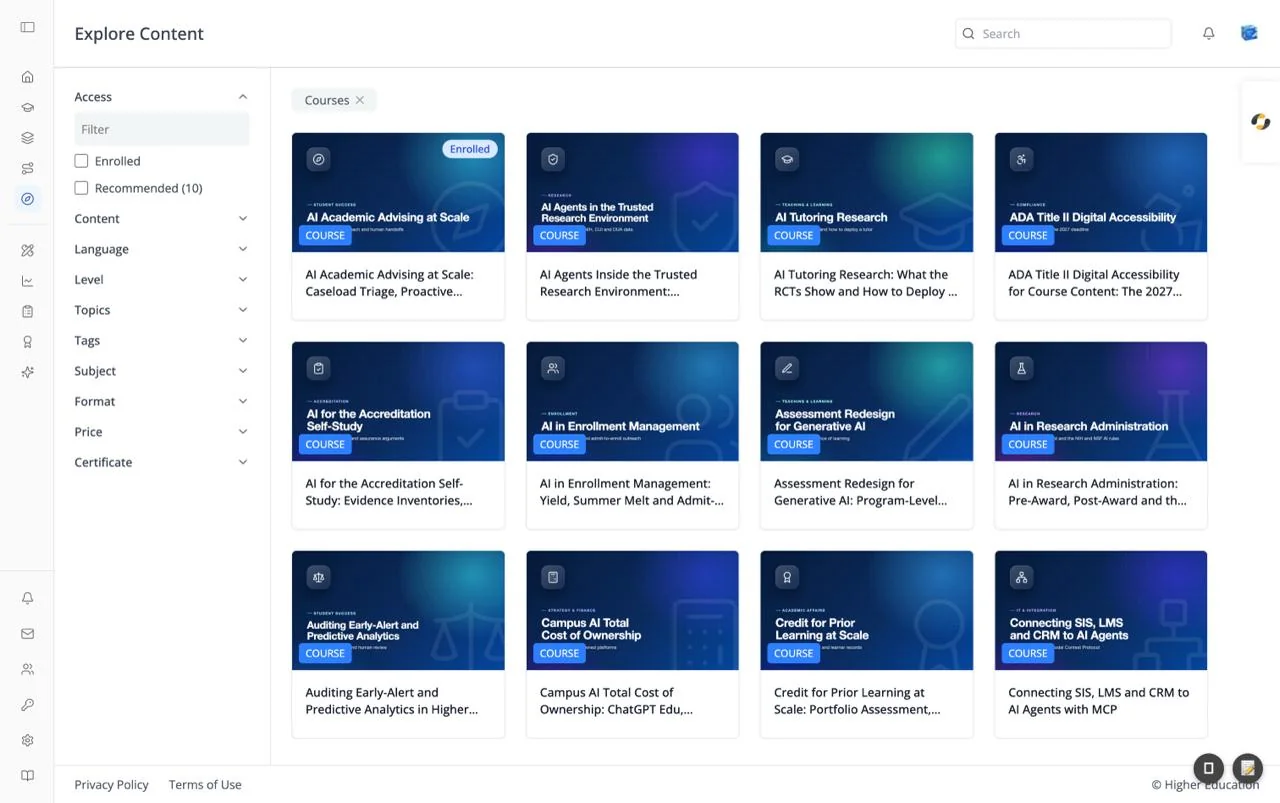
Discover is the catalog: every course, program, and pathway available to you, with filters to narrow it down. The top bar reads "Explore Content".
The page opens on courses, shown as a removable Courses chip above the grid. Filters live in a column on the left; on a phone, tap Filter to open them in a drawer.
Reach Discover from the Discover icon in the left rail, the Explore Catalog button on Home, or by searching from the top bar. The Courses, Programs, and Pathways icons in the rail also open Discover, pre-filtered to what you are enrolled in. If your organization has turned Discover off, the icon, the search box, and this page are unavailable.
Target Audience
Learner | Administrator | Visitor (when the organization allows public browsing)
Features
Access filter
The first filter, open by default, narrows the catalog to Enrolled content or to content Recommended for you (with a count). It is shown only when you are signed in, and Recommended is hidden when the organization has turned recommendations off.
Catalog filters
The remaining filters come from the catalog itself, so the list depends on what your organization has tagged. Typical filters are Content (courses, programs, pathways), Language, Level, Topics, Tags, Subject, Format (self-paced or instructor-led), Price, and Certificate; others such as Provider, Course duration, or Skills appear when the catalog uses them.
Filters start collapsed. Click a filter's name to expand it, then tick the values you want. Each value shows how many items match, and a Filter box at the top narrows a long list of values. Values with no matches, and filters with no values, are hidden. Price takes one value at a time.
Filter chips
Every active filter appears as a grey chip above the grid with an X to remove it. Content and Access chips show just the value (for example "Courses"); others show the filter's name too (for example "Level: Intermediate"). A search from the top bar appears as a chip as well, and removing it clears the search.
Results grid
Matching items appear as cards, 12 to a page, with Previous and Next below. The Enrolled and Recommended views list everything at once without paging. Each card shows its type badge and an Enrolled or Recommended pill when it applies; click it to open the item.
Empty results
When nothing matches you see "No content found." (or "No enrolled content found." / "No recommended content found." in those views).
Shareable links
The filters are kept in the page's address, so you can bookmark or share a filtered view, for example discover?content=courses&enrolled=true for your enrolled courses or discover?q=advising for a search.
How to Use
Step 1: Choose a content type
Use the Content filter, or remove the Courses chip, to switch between courses, programs, and pathways.
Step 2: Narrow the results
Expand filters such as Level or Topics and tick the values you want. Combine them freely; each one adds a chip.
Step 3: Open an item
Click a card to open its page, where you can read about it and enroll.
Step 4: Clear filters
Click the X on any chip to remove that filter.