Notification Inbox
Overview
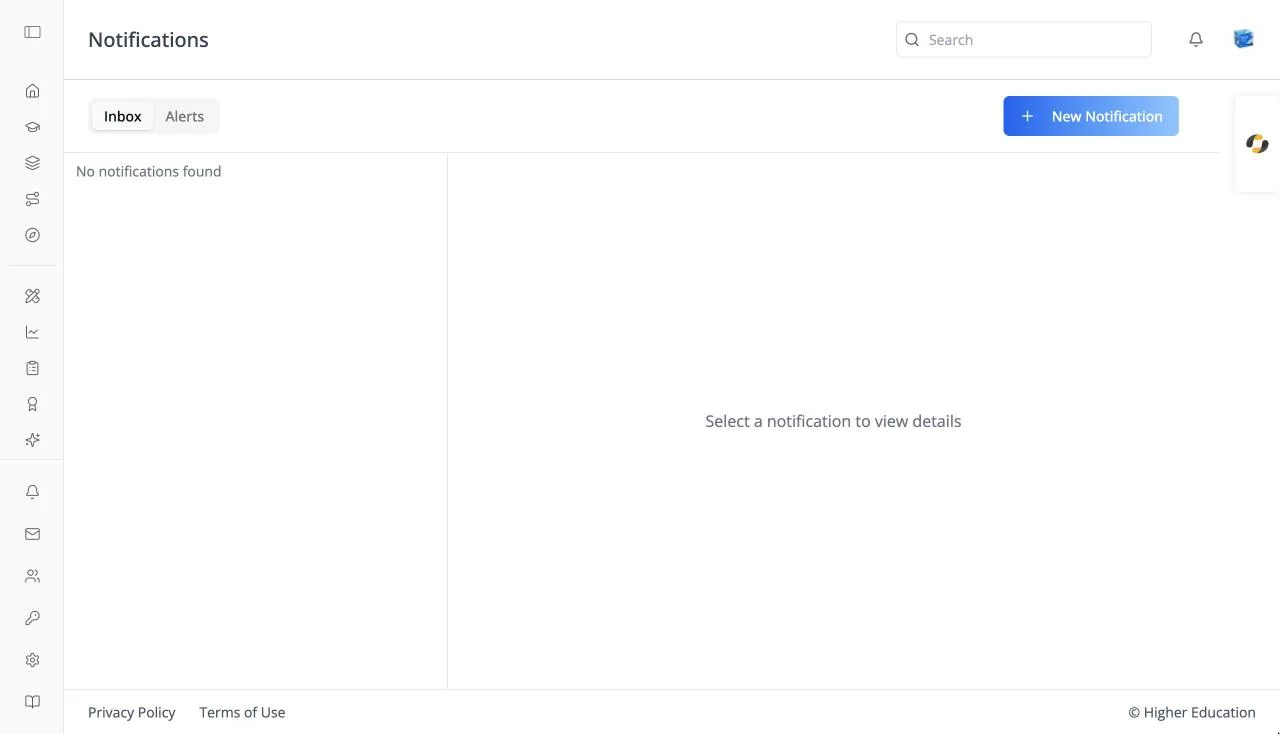
The notification inbox is the full-page list of every notification you have received: announcements from your organization, course alerts, and automatic messages such as enrollment confirmations. The top bar reads "Notifications".
The page has two panes: the list on the left and the selected notification on the right. On a phone, a notification opens in a pop-up instead.
Open it from Notifications at the bottom of the left rail, or from View all in the bell dropdown in the top bar. A link to one notification (/notifications/<id>) opens the inbox with that notification selected.
Target Audience
Learner | Administrator (the Alerts tab and New Notification button)
Features
Inbox / Alerts
Inbox is your notifications. Alerts is the administrator's view of automatic alerts; see Alerts.
Notification list
Newest first. Each entry shows a blue dot when unread, the title, a two-line preview, and when it arrived ("Just now", "N hours ago", "Yesterday", or the date). Click one to open it and mark it read. Empty: "No notifications found".
Notification detail
The full notification: its title, the exact date and time (for example "October 8, 2026 at 4:00 PM"), and the formatted message. Before you pick one: "Select a notification to view details".
Mark all as read
Clears every unread dot and the badge on the bell.
New Notification (administrators)
Sends a notification to people in your organization. See OS: Notification Inbox for the form.
How to Use
Step 1: Open the inbox
Click Notifications in the left rail, or View all under the bell.
Step 2: Read
Click a notification to read it in full.
Step 3: Catch up
Click Mark all as read when you are done.