Course Player
Overview
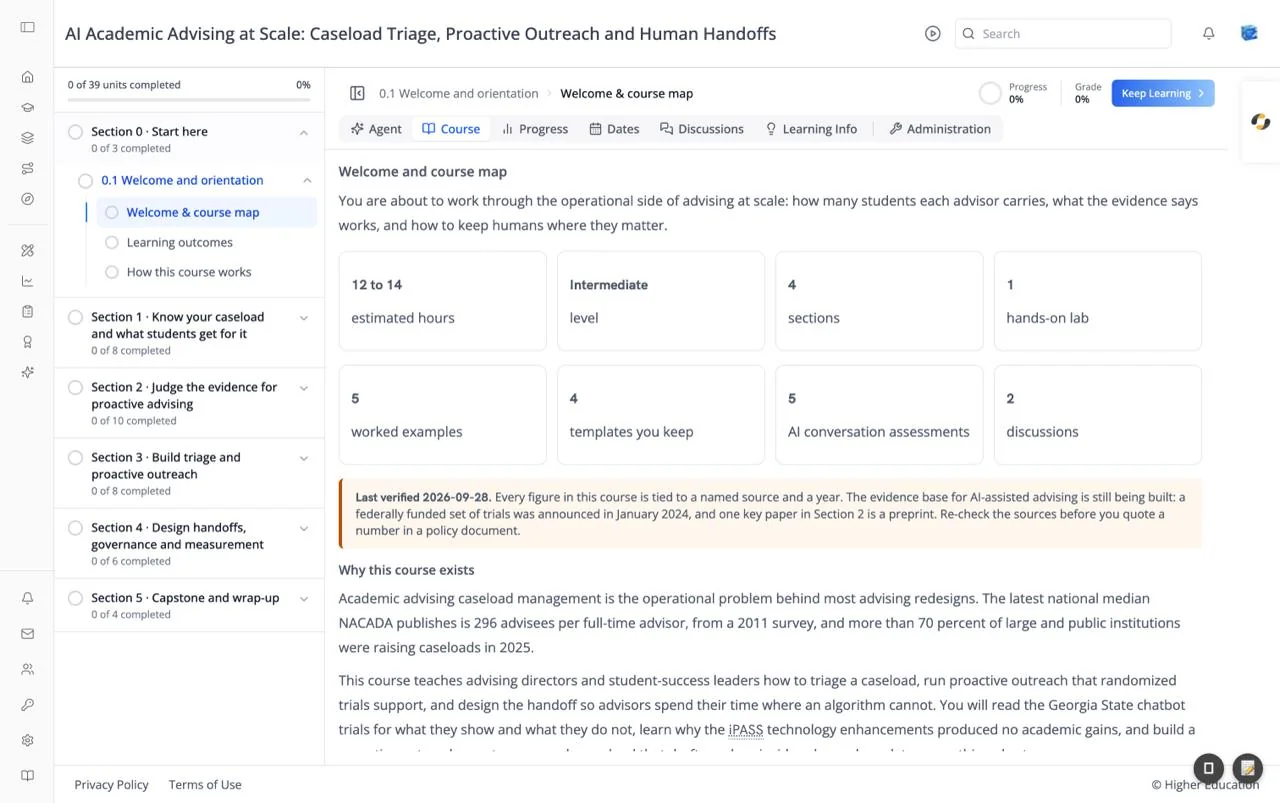
The course player is where you take a course. It opens when you click Access Course on a course page, and the same frame holds every course tab: the course outline on the left, a header row with your position and progress, a row of tabs, and the tab's content below.
The course title runs across the top bar. Each tab has its own page in this section; this page covers the parts that stay the same as you move between tabs.
Target Audience
Learner | Course staff | Administrator
Features
Course outline
The panel on the left lists the course's structure:
- A summary line at the top: "{done} of {total} units completed", with the course's completion percentage and a progress bar.
- Sections, each with a completion ring (empty, partly filled, or a check mark) and "{done} of {total} completed". Only one section is expanded at a time.
- Subsections inside a section, marked with a timer icon for a timed exam and a clipboard icon when graded.
- Units, the individual pages you work through. The current unit is highlighted.
Click a unit to open it. You stay on the Agent tab if you are on it; from any other tab the unit opens on the Course tab. The outline updates as you complete units.
Show / hide outline
The panel icon at the left of the header row hides the outline ("Hide course outline") to give the content more room, and shows it again. Your choice is remembered in your browser. On a phone, the outline opens as a drawer from a button in the header.
Breadcrumb
Shows where you are: section, subsection, and the current unit in bold (for example "0.1 Welcome and orientation › Welcome & course map"). On narrow screens only the unit is shown.
Progress and Grade
A ring labelled Progress shows how much of the course you have completed. Grade shows your current grade, and appears only when the course is graded.
Previous Unit and Keep Learning
Keep Learning moves to the next unit in course order, crossing into the next subsection or section when needed; Previous Unit moves back. Previous is hidden on the first unit and Keep Learning on the last.
Course tabs
The row of tabs under the header. Tabs that don't fit collapse into a More menu.
| Tab | What it shows | Shown when |
|---|---|---|
| Agent | The course's AI tutor | The course is agent-led |
| Course | The course content | On by default; can be turned off for agent-only courses |
| Progress | Your completion and grades | Always |
| Dates | Important dates | Always |
| Discussions | The course forum | Always |
| Learning Info | What you will learn | The course lists learning outcomes |
| Instructors | Who teaches the course | The course lists instructors |
| Administration | Tools for running the course | You are on the course team, or an administrator |
A course can limit the Agent and Course tabs to a particular audience (all learners, watchers, or administrators). If you open a tab you can't use, you are moved to the one you can.
Lesson complete
In agent-led courses where the agent marks units complete, your organization can turn on a Lesson complete dialog. When you finish a unit it asks "Ready to keep learning?" with Stay here, Previous unit, and Keep Learning.
How to Use
Step 1: Start where you left off
Opening a course takes you to the unit you last visited, or the first unit.
Step 2: Move through the course
Click Keep Learning to go to the next unit, or pick any unit from the outline.
Step 3: Watch your progress
The units-completed count, section rings, and the Progress ring update as you go. Open the Progress tab for the full picture.