Course Page
Overview
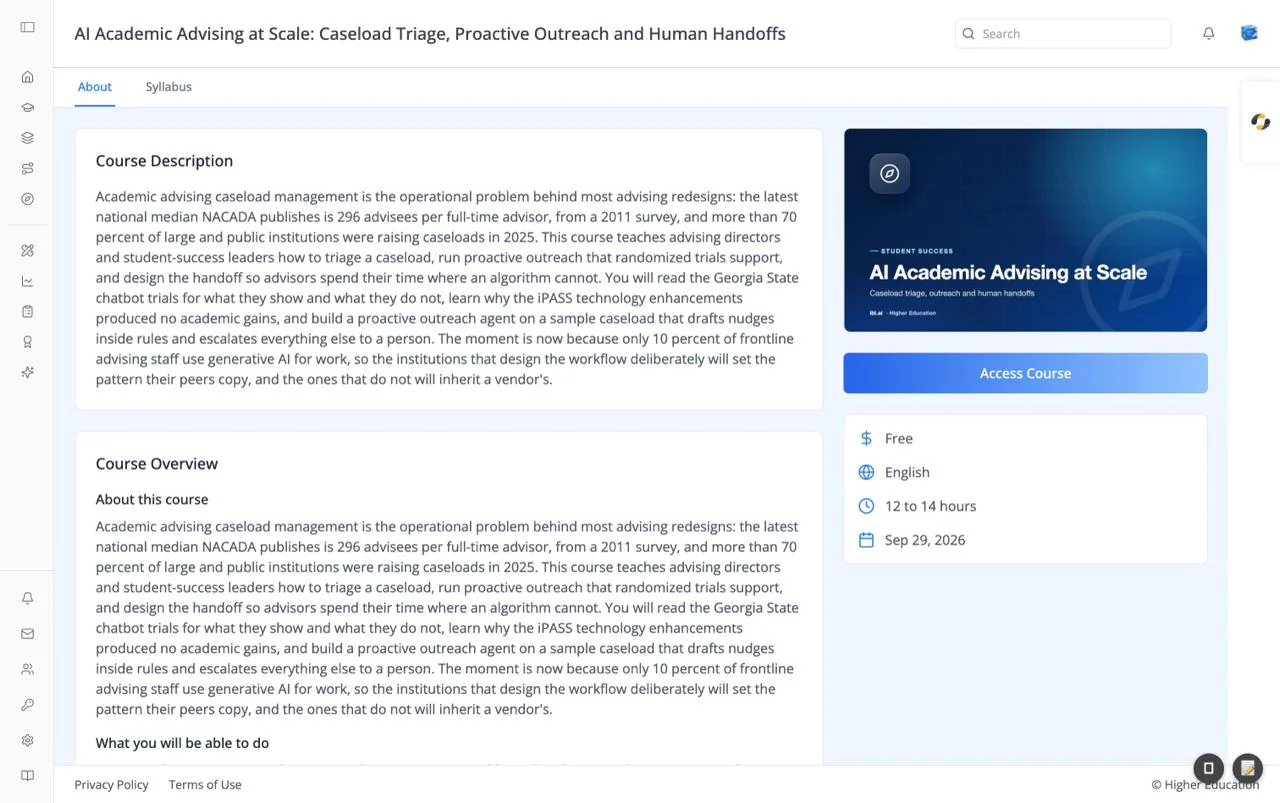
The course page describes a course before you start it and is where you enroll. The course title runs across the top bar, and two tabs, About and Syllabus, sit beneath it. A sidebar on the right shows the course image, the main action button, and key facts.
Open a course page by clicking any course card on Home or Discover. If your organization allows public browsing, visitors who are not signed in can read course pages too.
Target Audience
Learner | Visitor
Features
About tab
A Course Description card with the course's summary, followed by a Course Overview card with the full write-up (for example "About this course" and "What you will be able to do") when the course has one.
Syllabus tab
The course outline as collapsible sections. Click + to expand a section and see its lessons. Once you are enrolled, clicking a lesson opens it. Without a syllabus the tab reads "No course syllabus found."
Course image
The course's cover image, at the top of the sidebar.
Action button
The large button below the image changes with your situation:
| Button | When | What it does |
|---|---|---|
| Access Course | You are enrolled | Opens the course: the Agent tab for agent-led courses, otherwise the Course tab |
| Enroll Now | The course is free and open | Enrolls you ("Enrolled in course successfully") and opens the course |
| Buy Now | The course has a price | Takes you to a secure Stripe checkout ("Redirecting to checkout page...") |
| Purchase Now | Your organization sells access and you have not bought it | Opens the purchase options |
| Invitation Only | Enrollment is by invitation | Disabled; ask the course team for an invitation |
If you are not signed in, clicking the button shows "Please login to access this resource" and takes you to sign in. When you come back, the button is clicked for you.
Course information
A card of facts, each with an icon: price (for example "Free"), language, estimated duration (for example "12 to 14 hours"), and start date.
How to Use
Step 1: Read about the course
Read the About tab, then open Syllabus to see how the course is organized.
Step 2: Enroll
Click Enroll Now, or Buy Now / Purchase Now for a paid course. Free enrollment takes you straight into the course.
Step 3: Come back to it
Once enrolled, the button reads Access Course. Click it any time to return to where you left off.