Home
Overview
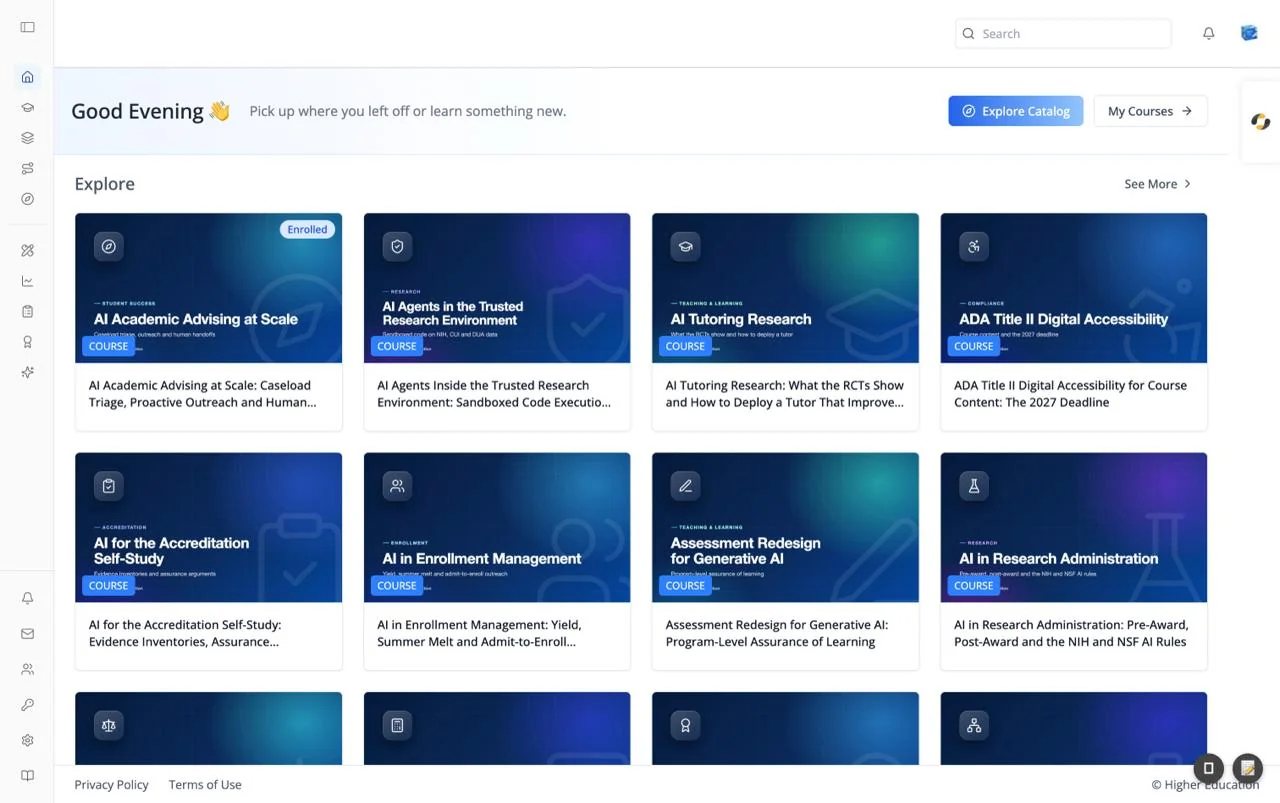
Home is the landing page of the LMS. It greets you, offers two quick ways into your learning, and shows a rail of course cards picked by your organization.
The greeting follows your computer's clock: "Good Morning" before noon, "Good Afternoon" until 6 p.m., and "Good Evening" after that. Beside it is a tagline your organization can customize; the default is "Pick up where you left off or learn something new."
Click Home at the top of the left rail to get here from anywhere. New learners may see the Start screen first if their organization has turned it on.
Target Audience
Learner | Administrator
Features
Explore Catalog
Opens the Discover page to browse everything in the catalog. Hidden when your organization has turned Discover off.
My Courses
Opens Discover filtered to the courses you are enrolled in.
Course rail
A grid of up to 16 cards. Your organization chooses what it shows:
| Setting | Heading | When it is empty | See More goes to |
|---|---|---|---|
| Catalog (default) | Explore | "No content found." | The full catalog |
| Enrolled | My Courses | "No enrolled content found." | Your enrolled content |
| Recommended | Recommended for You | "No recommended content found." | Your recommendations |
Visitors who are not signed in always see the catalog. The rail is hidden when Discover is turned off.
Content cards
Each card shows the cover image and title. A badge at the bottom left of the image names the content type (COURSE, PROGRAM, or PATHWAY), and pills at the top right show Enrolled or Recommended when they apply. Click a card to open its course page, program page, or pathway page.
See More
The See More link at the right of the rail heading opens the matching view on the Discover page.
Empty catalog
If the organization has no content yet, the rail is replaced by a message. Course creators see "No courses available yet." with a button to create the first course. Everyone else sees "No courses have been created yet." with a Contact Support button that emails the organization's support address.
How to Use
Step 1: Pick up where you left off
Click My Courses, or a card marked Enrolled, to return to a course.
Step 2: Find something new
Browse the rail, click See More for the full list, or click Explore Catalog to search and filter.