Course Administration: Overview
Overview
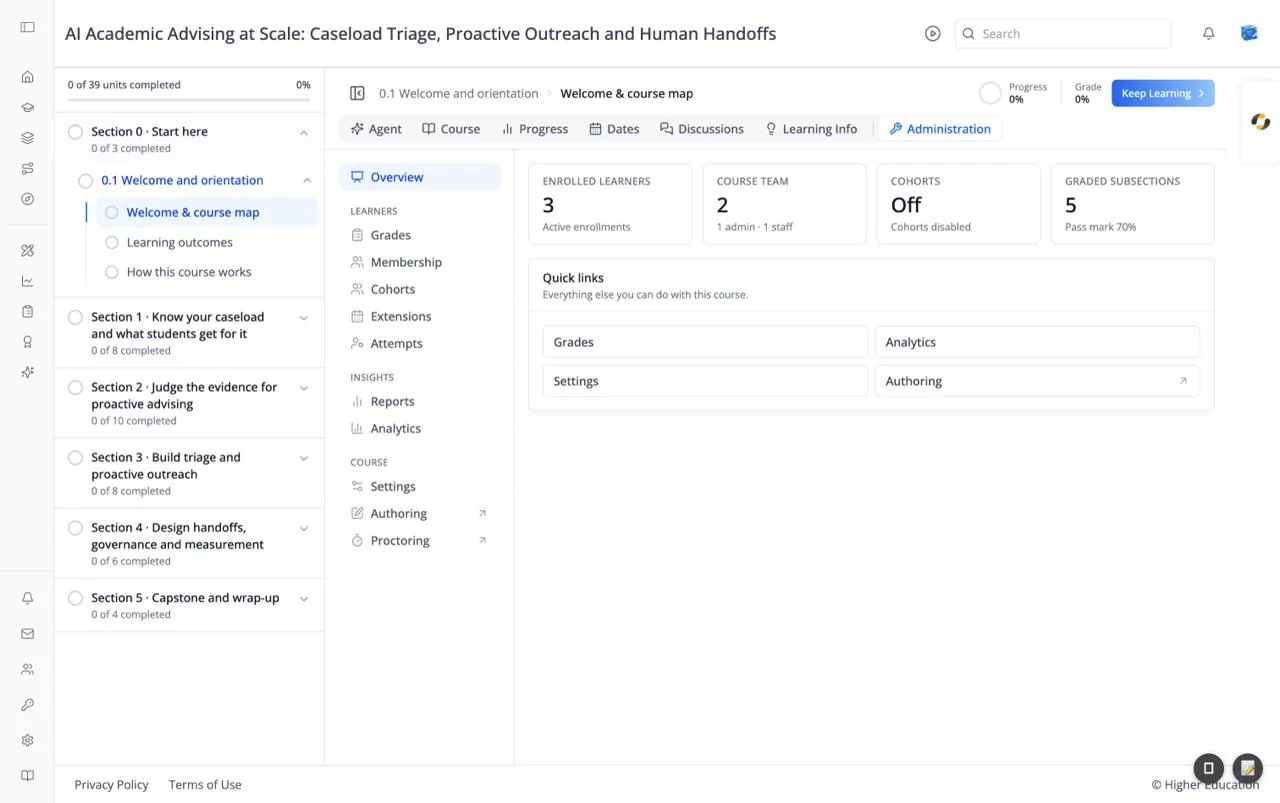
The Administration tab holds the tools for running a course: enrolling learners, managing grades and due dates, pulling reports, and changing the course's settings. It sits at the end of the course tabs, after a divider, and opens on Overview.
A navigation column on the left groups the tools:
- Overview
- Learners: Grades, Membership, Cohorts, Extensions, Attempts
- Insights: Reports, Analytics
- Course: Settings, Authoring ↗, Proctoring ↗
Items marked ↗ open in a new browser tab. On a phone the navigation becomes a row of pills above the content.
Target Audience
Course staff | Administrator
Who sees what:
- Platform administrators and members of the course team with the staff or instructor role see every tool.
- Limited staff see every tool except Authoring: they can run the course but not edit its content.
- Analytics is also available to anyone with analytics permission for the organization.
The Administration tab is hidden from learners.
Features
Enrolled learners
The number of active enrollments.
Course team
How many people are on the course team, broken down as "{n} admin · {m} staff".
Cohorts
The number of cohorts, or Off with "Cohorts disabled" when cohorts are not in use. See Cohorts.
Graded subsections
How many subsections count toward the grade, with the pass mark (for example "Pass mark 70%").
Quick links
"Everything else you can do with this course.": shortcuts to Grades, Analytics, Settings, and Authoring ↗.
How to Use
Step 1: Open Administration
Open the course and click Administration at the end of the tab row.
Step 2: Check the course at a glance
Read the four cards for enrollment, team size, cohorts, and grading.
Step 3: Go to the tool you need
Pick a tool from the navigation on the left or from Quick links.