Analytics: Cost
Overview
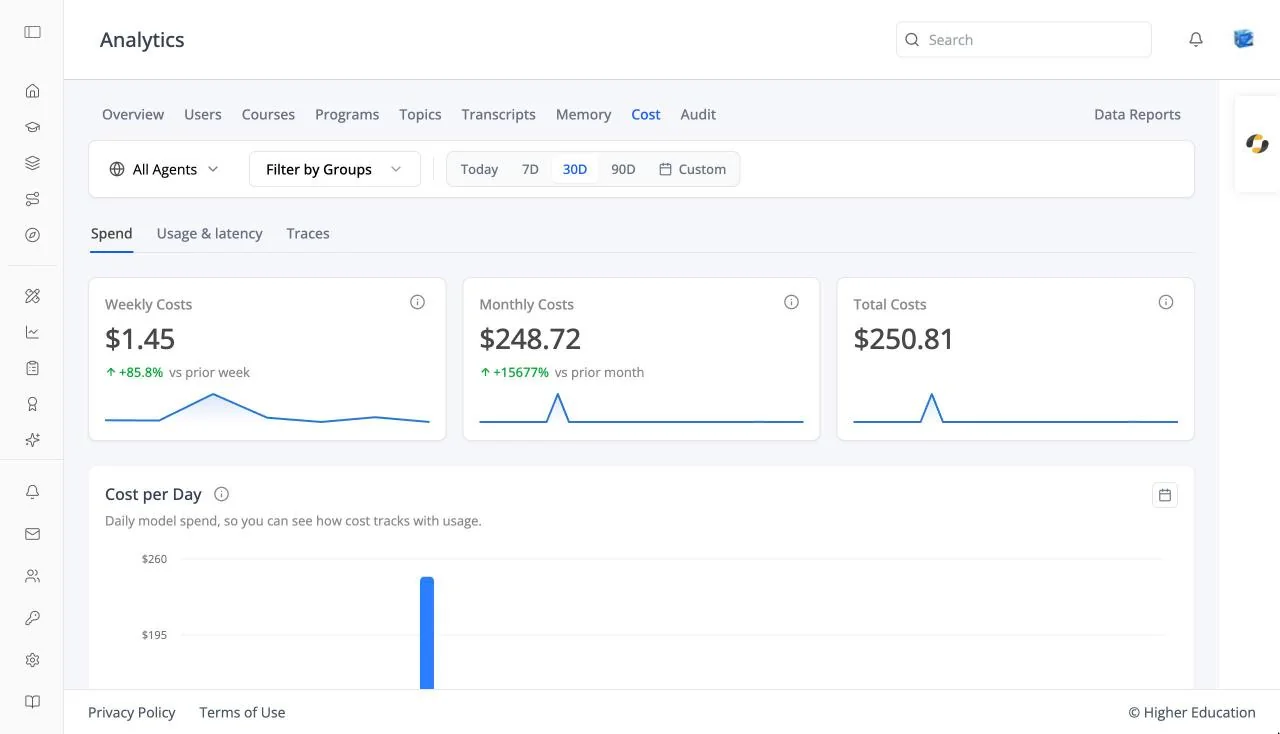
The Cost tab (listed as Costs in the left rail) shows what the AI agents cost to run, how fast they respond, and the individual model calls behind each request. It has three inner tabs: Spend, Usage & latency, and Traces. See also OS Analytics: Costs.
Target Audience
Administrator | Analytics viewers
Users without permission to see LLM usage get "You do not have permission to view LLM usage analytics."
Features
Spend
Weekly Costs, Monthly Costs, and Total Costs; charts of Cost per Day, Cost by Provider, and Cost by LLM; and a Cost per User table (User Email, Total Cost, Sessions, Last Active) with a Traces → link for each user.
Usage & latency
LLM spend, Tokens, LLM calls, and Latency p95, with charts of Spend over time, Spend by model, and Latency by model.
Traces
Every request, with Started, Service, User, Latency, and Cost, filterable by service and user. Click one to see its steps (Observations) and Open transcript to read the conversation.
How to Use
Step 1: Check spend
Open Spend to see this week's and this month's costs.
Step 2: Find what drives it
Use Cost by LLM and Cost per User to find the expensive models and heaviest users.
Step 3: Investigate slow or costly requests
Open Traces, filter to a user, and click a request.