Profile Dialog
Overview
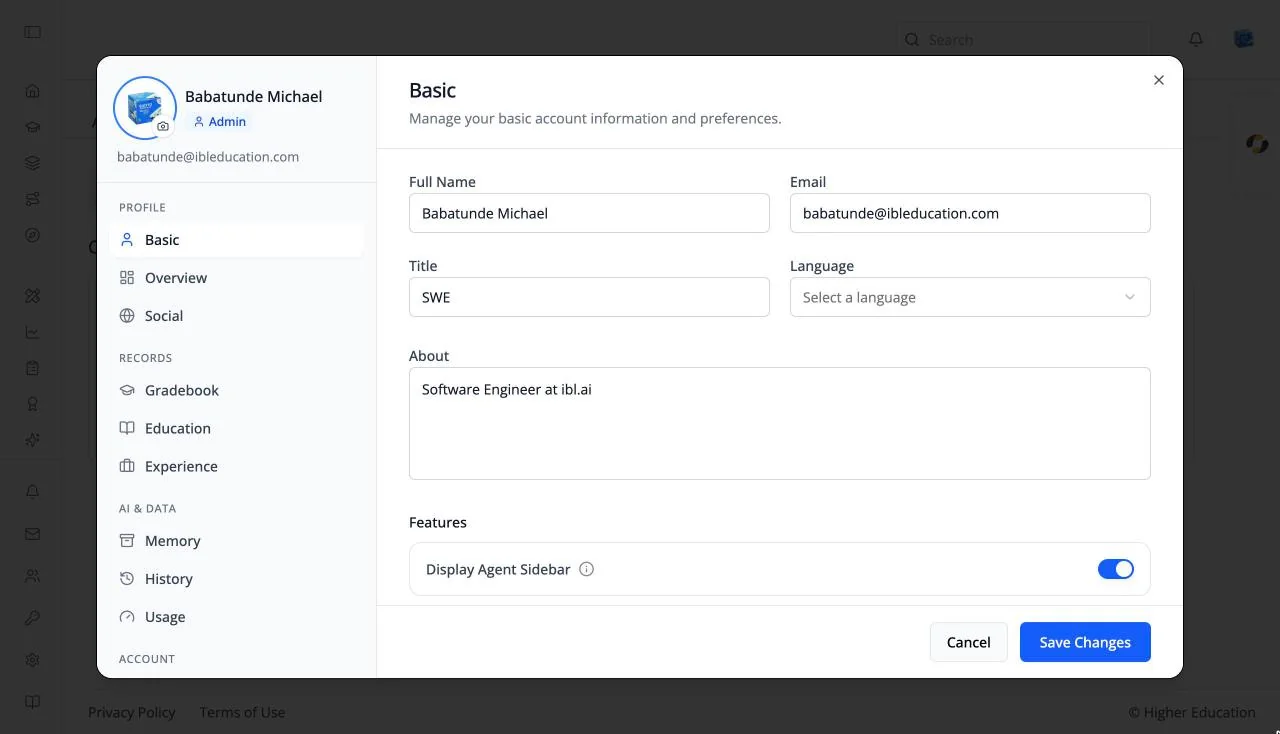
The profile dialog holds your account details and personal records. It is the same shared dialog used across ibl.ai applications, so most of its tabs are documented once, in the OS section, and linked from here.
Open it from your avatar in the top-right corner: choose Profile. It opens on the Basic tab. The left side shows your photo (click it to upload a new one), your name, and an Admin or User badge, above the tabs in four groups: Profile, Records, AI & data, and Account.
Target Audience
Learner | Administrator
Tabs
| Group | Tab | What it holds | Shown when |
|---|---|---|---|
| Profile | Basic | Full name, email, title, language, and an About section. See Profile: Basic | Always |
| Profile | Overview | "Your courses, conversations, AI usage and memory, all in one place." | Always |
| Profile | Social | Facebook, LinkedIn, and X links. See Profile: Social | Always |
| Records | Gradebook | Your grades across courses, programs, and pathways. See Gradebook | Opened from the avatar menu |
| Records | Education | Education, credentials, and skills. See Profile: Education | Always |
| Records | Experience | Work experience and your resume. See Profile: Experience and Resume | Always |
| Records | Purchases | What you have bought. See Profile: Purchases | Your organization sells access |
| AI & data | Memory | What AI agents remember about you. See Profile: Memory | Memory is on for your organization |
| AI & data | History | Your conversations with AI agents. See Profile: History | Always |
| AI & data | Usage | Your AI usage | Not shown to watchers |
| Account | Privacy | Chat privacy controls. See Profile: Privacy | Your organization lets users control chat privacy |
| Account | Security | Password reset and account deletion. See Profile: Security | Always |
| Account | Advanced | Desktop app settings | In the desktop app only |
Features
Display Agent Sidebar
The Features section of the Basic tab has one LMS-specific switch: Display Agent Sidebar. Turn it off to hide the AI agent tab on the right edge of every page. Turn it on again to bring it back, then click Save Changes.
Saving
The Basic and Social tabs save with Save Changes; Cancel discards your edits.
How to Use
Step 1: Open your profile
Click your avatar and choose Profile.
Step 2: Update your details
Edit your name, title, and About on Basic, add links on Social, and click Save Changes.
Step 3: Add your records
Add your education and work history on Education and Experience, and upload your resume.