Analytics: Overview
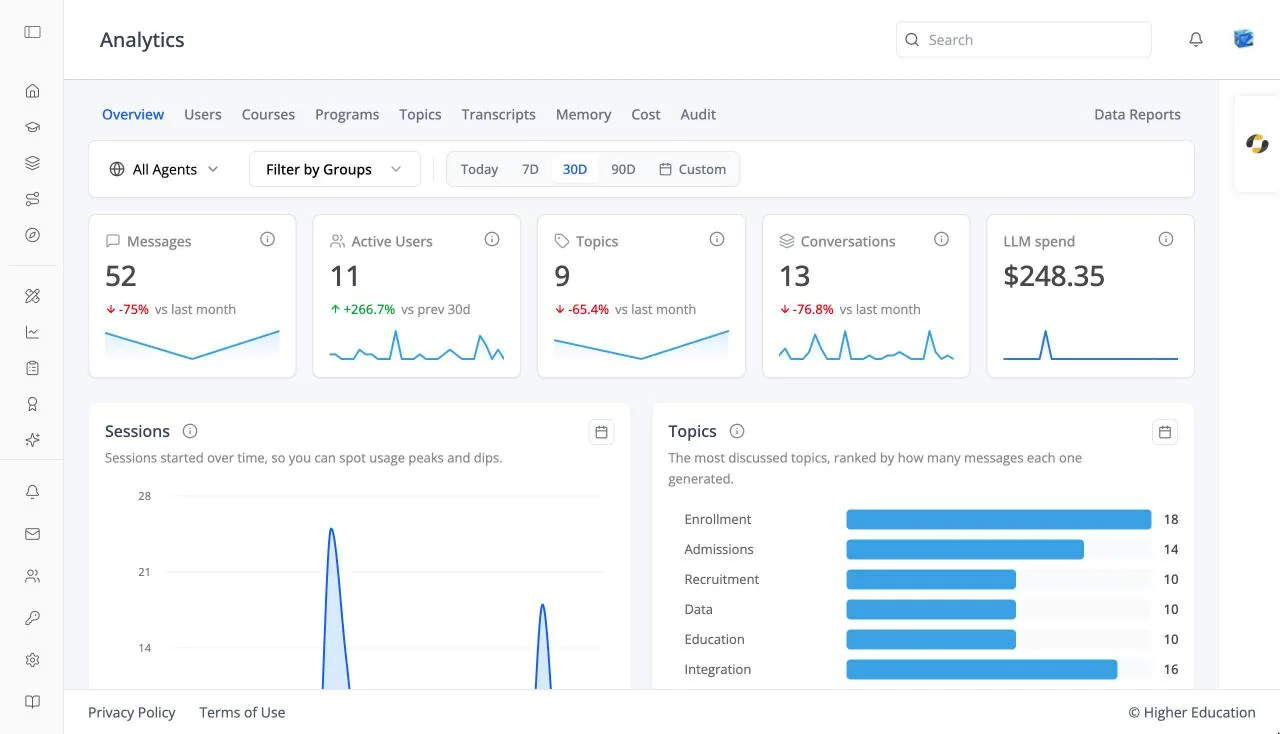
Overview
Analytics shows how your organization uses the LMS and its AI agents: who is active, what they ask about, how courses and programs are doing, what the AI costs, and what has changed. The analytics screens are shared with the rest of ibl.ai; in the LMS they cover the whole organization and add pages for courses and programs.
Open Analytics from the left rail. It expands into a menu of pages; the same pages appear as tabs across the top of every analytics screen, with Data Reports at the right:
Overview · Users · Courses · Programs · Topics · Transcripts · Memory · Cost · Audit · Monetization · Data Reports
The Overview tab is the landing page: headline numbers for messages, users, topics, conversations, and spend, with charts of activity over time.
Target Audience
Administrator | Analytics viewers | Watchers (limited tabs)
Users with analytics permission see every tab. Watchers, who follow particular groups of learners, see only Courses, Programs, Transcripts, Memory, and Data Reports. Monetization appears only when the organization sells access and you have selling permission.
Features
Filter bar
Shared by most analytics tabs:
- Agent picker: All Agents, or one agent ("Search agents…").
- Date range: Today, 7D, 30D, 90D, or a calendar for custom dates.
- Filter by Groups: limit the numbers to one or more user groups.
Headline cards
Messages, Active Users (compared with the previous 30 days), Topics, Conversations, and LLM spend. Each card explains itself, for example "Total messages exchanged between users and your agents in the selected period."
Sessions
An area chart of conversation sessions per day.
Topics
A ranked bar chart of the subjects people discuss most with the agents.
Active Users
A bar chart of distinct active users per day.
How to Use
Step 1: Set the scope
Choose an agent (or All Agents), a date range, and, if you need to, a group.
Step 2: Read the headline numbers
Check the cards for the period's totals and trend.
Step 3: Drill in
Open the tab for what you want to know more about: Users for people, Courses for enrollments, Transcripts for conversations, Cost for spend.