Notification Inbox
Overview
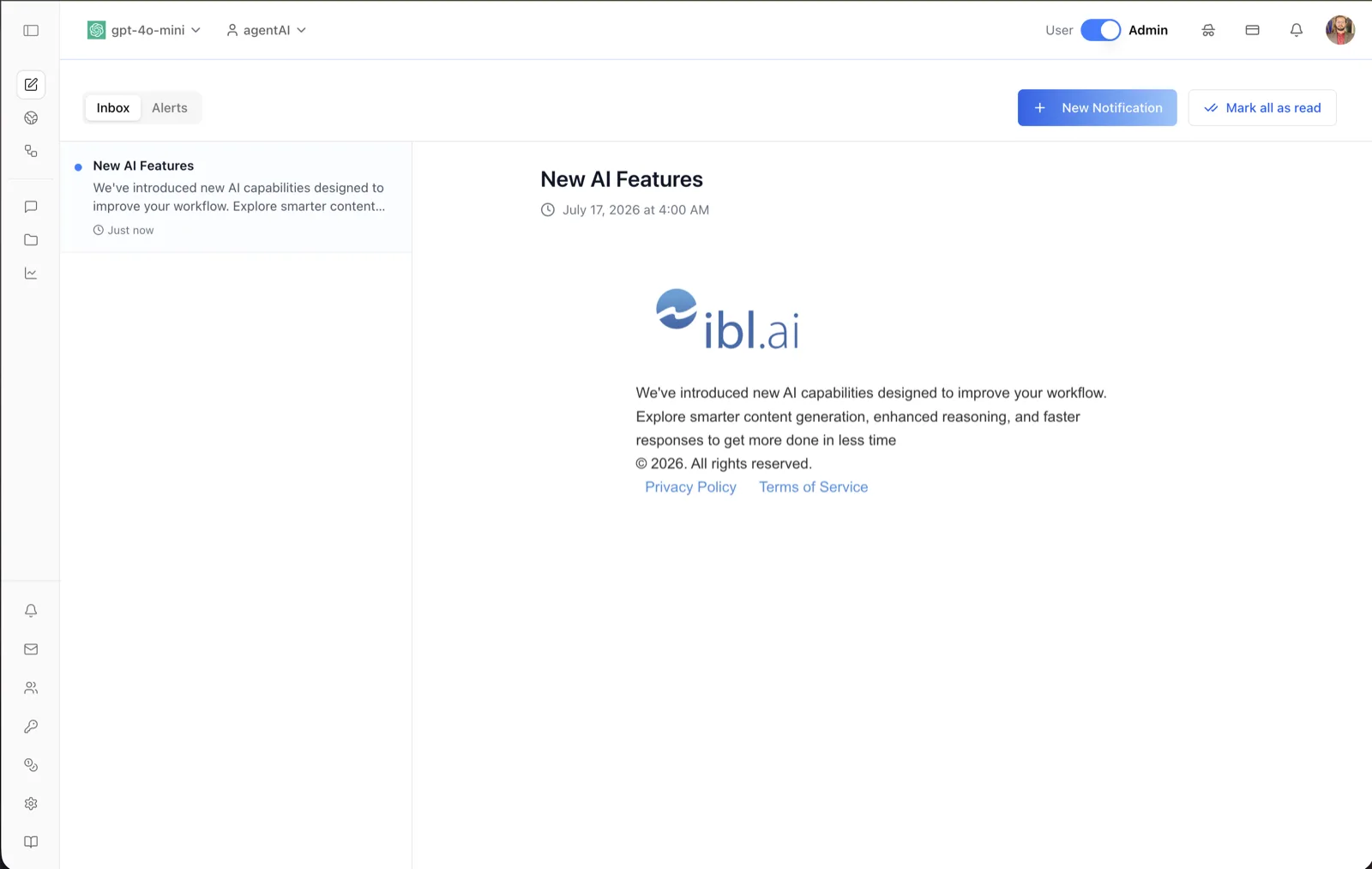
The notification inbox is the full-page view of every notification you have received on the platform — product announcements, course alerts, and messages sent by your organization's administrators. It complements the bell-icon dropdown in the top bar, which shows recent items and links here via View all.
The page is a two-pane layout: the left pane lists notifications with an unread indicator, a preview of the message, and a relative timestamp ("Just now"); the right pane renders the selected notification in full, including formatted HTML content such as logos, links, and footers.
Reach it from the bell icon in the top bar (View all) or the Notifications entry in the left navigation. Administrators additionally see controls to compose notifications and to manage automated alerts on the neighboring Alerts tab.
Target Audience
User | Administrator (the New Notification button and Alerts tab are administrator-facing)
Features
Inbox / Alerts tabs
A toggle at the top-left switches between the Inbox (received notifications, this page) and Alerts (predefined alert templates administrators can toggle and edit).
Notification list
The left pane lists notifications newest-first. Each entry shows a blue dot when unread, the notification title, a two-line preview of the message, and a relative timestamp with a clock icon. Clicking an entry opens it in the detail pane and marks it as read. When there is nothing to show, the pane reads "No notifications found".
Notification detail pane
The right pane renders the selected notification: its title, the exact delivery date and time (for example "July 17, 2026 at 4:00 AM"), and the full message body. Bodies render as formatted HTML, so announcements can include a logo, styled text, and footer links. Before a selection is made the pane prompts "Select a notification to view details".
New Notification (administrators)
The + New Notification button opens the "Send New Notification" dialog to message users in the organization. It includes a Preview field (the short text shown in notification lists — "Keep it concise for better engagement"), a Content field for the full message, a Send Time choice between "Send immediately" and "Schedule for later" with a date picker, and a Select Recipients section that can send to individual users or to groups, with a search box for finding them.
Mark all as read
Clears the unread state of every notification in one click. The same action is available from the bell-icon dropdown in the top bar.
How to Use
Step 1: Open the inbox
Click the bell icon in the top bar and choose View all, or select Notifications in the left navigation. The Inbox tab is selected by default.
Step 2: Read a notification
Click an entry in the left list. The full message renders in the right pane and the unread dot disappears.
Step 3: Clear the backlog
Click Mark all as read to reset every unread indicator at once.
Step 4 (administrators): Send a notification
Click + New Notification, write the preview text and message content, choose to send immediately or schedule for later, pick recipients (users or groups), and send. Recipients see it in their inboxes and bell dropdowns.