Profile: Purchases
Overview
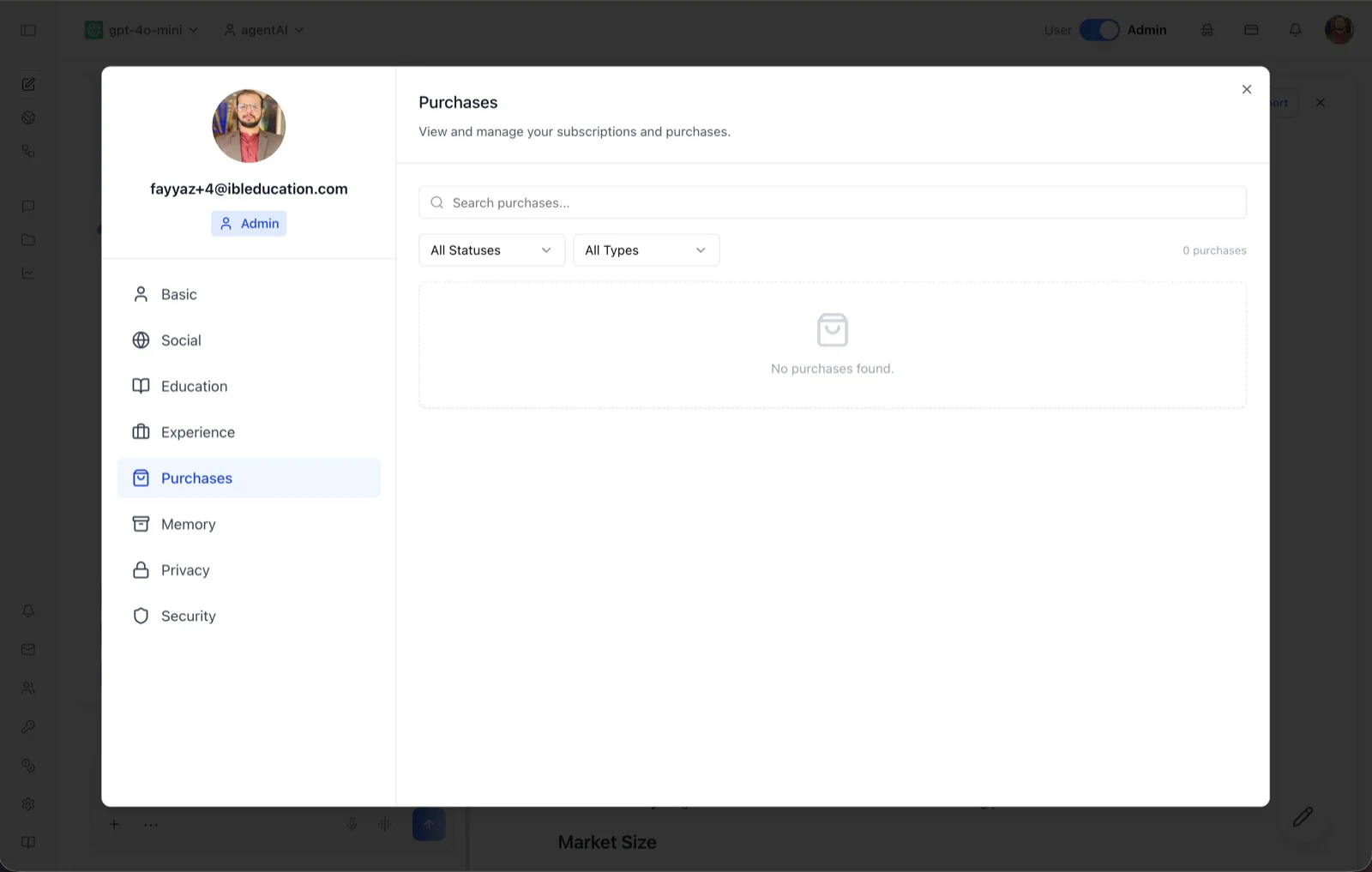
The Purchases tab of the User Profile dialog lists your subscriptions and one-off purchases on the platform. Its header reads "View and manage your subscriptions and purchases," and it combines a search box with status and type filters over the purchase list.
Each purchase renders as a card showing the item name, an item-type badge, the price plan name with its amount and billing interval, and — for subscriptions — the next renewal date (labeled "Renews:" for active plans or "Expires:" for plans set to cancel at period end). Clicking a card opens the purchase's details. Long lists paginate with Prev/Next controls.
To reach this screen, click your avatar in the top-right corner of the OS header, open your profile, and select "Purchases" in the left navigation rail.
Target Audience
User — any account holder reviewing what they have bought or subscribed to. (Organization-level billing lives in the organization administration screens, not here.)
Fields and Controls
Search purchases
A search field ("Search purchases...") that filters the list by keyword. When a search yields nothing, the empty state reads "No purchases match your search."
Status filter
A dropdown defaulting to "All Statuses," with options Active, Trialing, Canceled, and Past Due to filter subscriptions by their billing state.
Type filter
A dropdown defaulting to "All Types," filtering by what the purchase is for. Options are "Mentor" (an individual AI agent, as labeled in the UI), Course, Program, and Pathway.
Purchase count
A counter on the right (for example, "0 purchases") showing how many items match the current search and filters.
Purchase list / empty state
Matching purchases appear as clickable cards below the filters; with no purchases, the dashed placeholder shows a shopping-bag icon and "No purchases found." Paginated results add Prev/Next buttons with a page indicator.
How to Use
Step 1: Open the Purchases tab
Click your avatar in the top-right of the header, open your profile, and choose "Purchases" from the left navigation.
Step 2: Find a purchase
Type in the search box or narrow the list with the status and type dropdowns. The counter updates to show how many purchases match.
Step 3: Review details
Click any purchase card to open its details, including the plan, amount, billing interval, and renewal or expiry date.