Profile: History
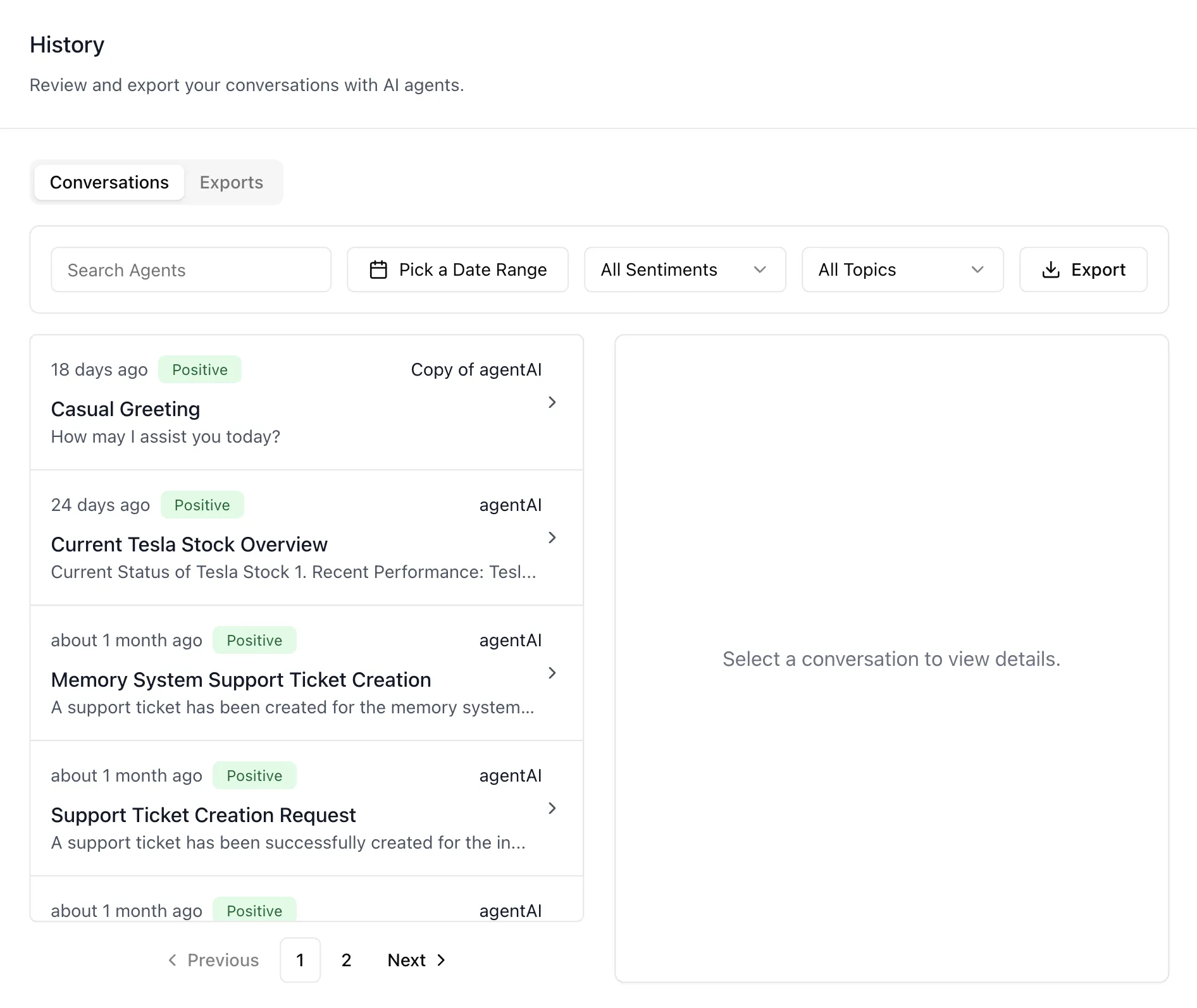
Overview
The History page is where you review and export your own conversations with AI agents — "Review and export your conversations with AI agents." It gathers every chat you have had, across every agent, into one place you control.
Two tabs divide the work. Conversations is the browser: filter by agent, date, sentiment, or topic, pick a conversation from the list, and read the full transcript beside it. Exports is the record of reports you have generated, with their status, the filters that produced them, when they expire, and a link to download them again.
This page shows your own chats and nobody else's. It reads from endpoints that only ever serve the signed-in account's sessions, so there is no permission to configure and no way to reach another person's history from here — an administrator reviewing conversations for a whole agent uses Agent Settings: Chat History instead.
To reach this screen, open your Profile and select History.
Target Audience
Any User
Panel Reference
Conversations / Exports tabs
Conversations browses your chats; Exports lists the reports you have generated from them.
Search Agents
An autocomplete over the agents you have talked to. Picking one narrows the list to conversations with that agent.
Pick a Date Range
A two-month calendar for bounding the list to a period — the usual way to find a conversation you remember having but cannot name.
All Sentiments
Filters the list by the sentiment recorded for each conversation — positive, neutral, or negative.
All Topics
Filters by the topics detected across your conversations, so you can gather everything you discussed on one subject regardless of which agent it happened with.
Export
Generates a report of everything matching the filters currently applied. The report is built on the server and appears under the Exports tab when it is ready, so a large export does not tie up the page.
Conversation list
Ten conversations to a page. Each row shows how long ago it happened, a sentiment badge, the agent's name, the conversation title, and a one-line preview of the agent's first reply as plain text.
Transcript preview
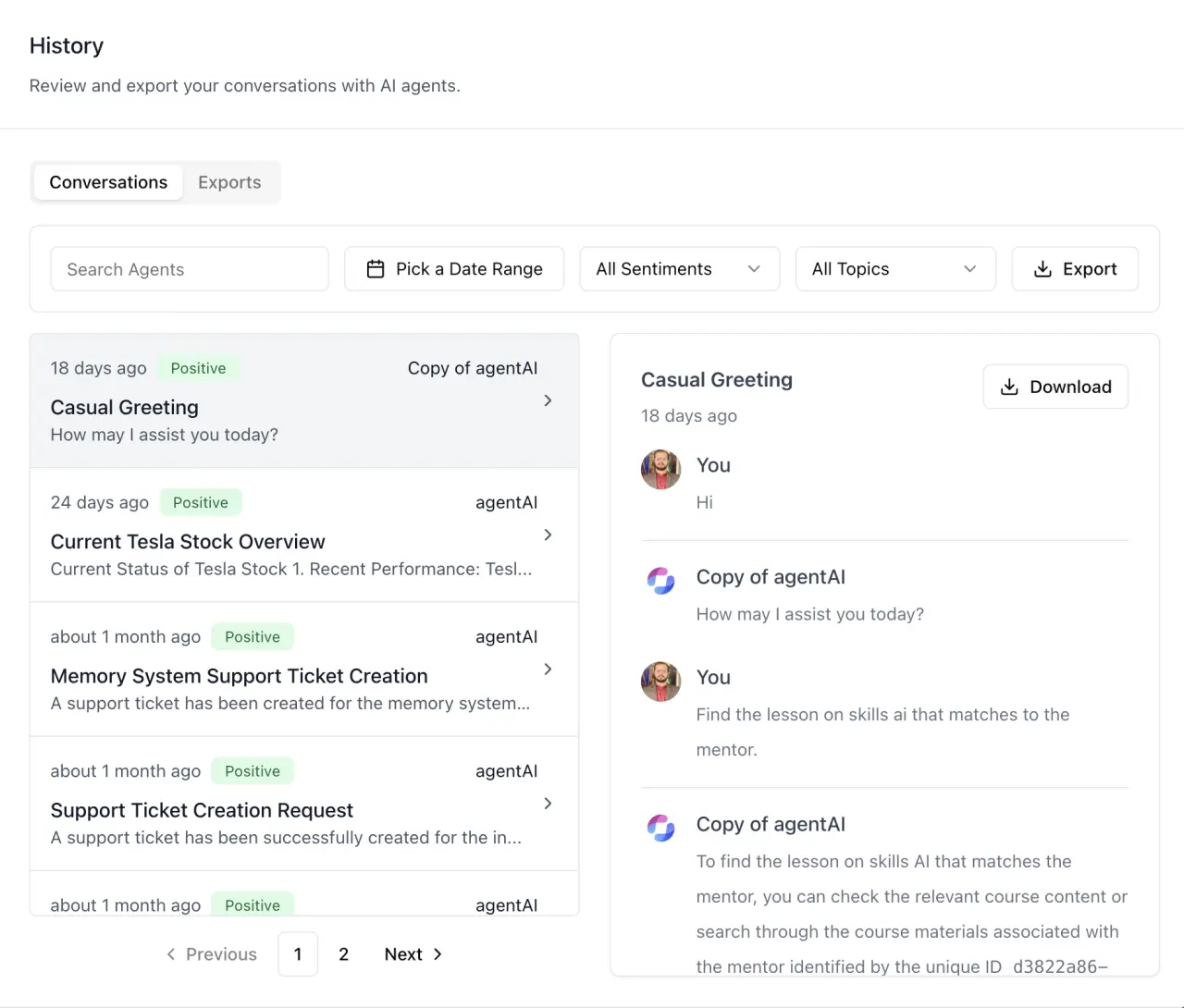
The selected conversation, rendered beside the list as alternating You and agent messages with both avatars, formatting intact. A Download button saves that one conversation as a CSV. Until you pick something the pane reads "Select a conversation to view details."
On a narrow screen there is no room for a second column, so selecting a conversation opens the transcript in a dialog over the list instead.
Exports tab
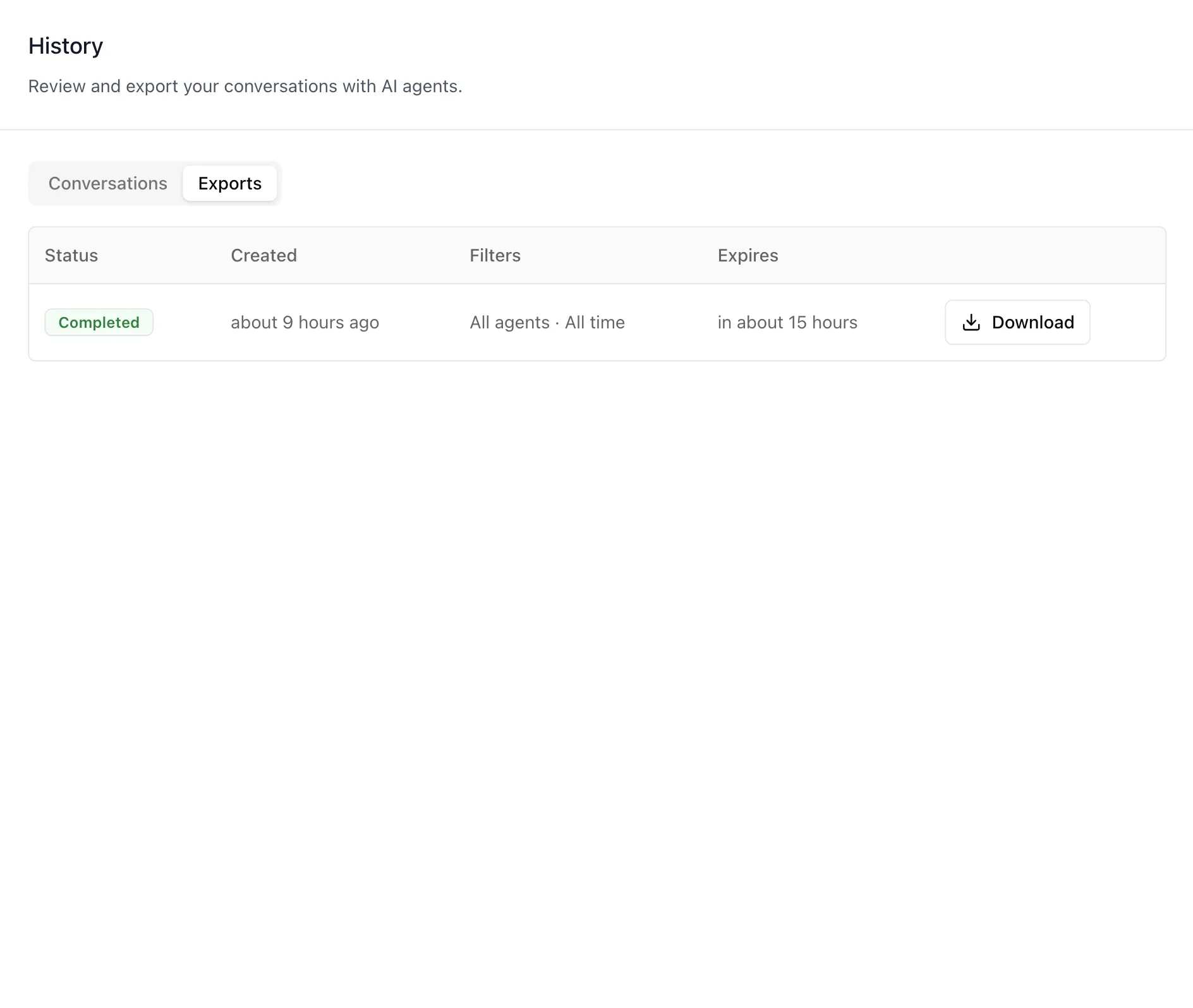
Your generated reports, newest first, each with a Status badge, when it was Created, a summary of the Filters it used (the agents or "All agents", the date range or "All time", plus topic and sentiment where you set them), when it Expires, and a Download button while it is still available. A report that is still building keeps a blue badge, updating on its own until it finishes.
How to Use
Step 1: Open your History
Open your Profile and select History. It opens on Conversations with your most recent chats first.
Step 2: Narrow to what you are looking for
Filter by agent when you know who you were talking to, by date range when you know roughly when, or by topic when you only remember the subject. The filters combine.
Step 3: Read the transcript
Select a conversation to read it in full beside the list, formatting and both avatars intact.
Step 4: Save a single conversation
Use Download above the transcript to save just that conversation as a CSV. It is built in your browser and arrives immediately — nothing is queued.
Step 5: Export a filtered set
For anything larger, set the filters you want and press Export. The report is generated on the server and lands under Exports; you can leave the page while it builds.
Step 6: Collect the report before it expires
Open Exports, wait for the status badge to settle, and download it. Each report shows its expiry — once past, re-run the export rather than looking for the old file.
Behavior Notes
- This is your history only. The page reads endpoints scoped to the signed-in account, so it is hidden when someone else views your profile, and it can never show another person's conversations. Cross-user review is a separate, permission-gated surface.
- The two save paths are different. Download in the transcript preview builds a CSV of one conversation in the browser, immediately. Export in the filters row creates a server-side report of the whole filtered set, which takes time and is listed with an expiry.
- Exports keep their own filter record. Each row states the filters that produced it, so a report downloaded weeks later can still be read for what it actually covers.
- List previews are plain text, transcripts are not. The one-line preview in the list strips formatting so rows stay a single line; the transcript beside it renders the message as written.
- Sentiment and topics come from analysis, not from you. Both filters are populated from what the platform detected across your conversations, which is why the available values differ from one account to another.
Building Chat History Into Your Own App
The History surface ships in the ibl.ai SDK as a tab of the Profile component, so users of a product you build can review and export their own conversations there. Install the iblai/vibe skills and render the Profile targeting its chat-history tab; the data-layer hooks behind it are exported too, if you would rather build the screen yourself on the same endpoints.
The endpoints are user-scoped by design — they serve only the authenticated caller's sessions — so an administrative view over everyone's conversations is a different surface, built from the agent History tab instead. The reusable skill for this workflow is iblai-vibe-history, and the SDK overview is at Vibe SDK.