Agent Settings: LTI Tool Endpoints
Overview
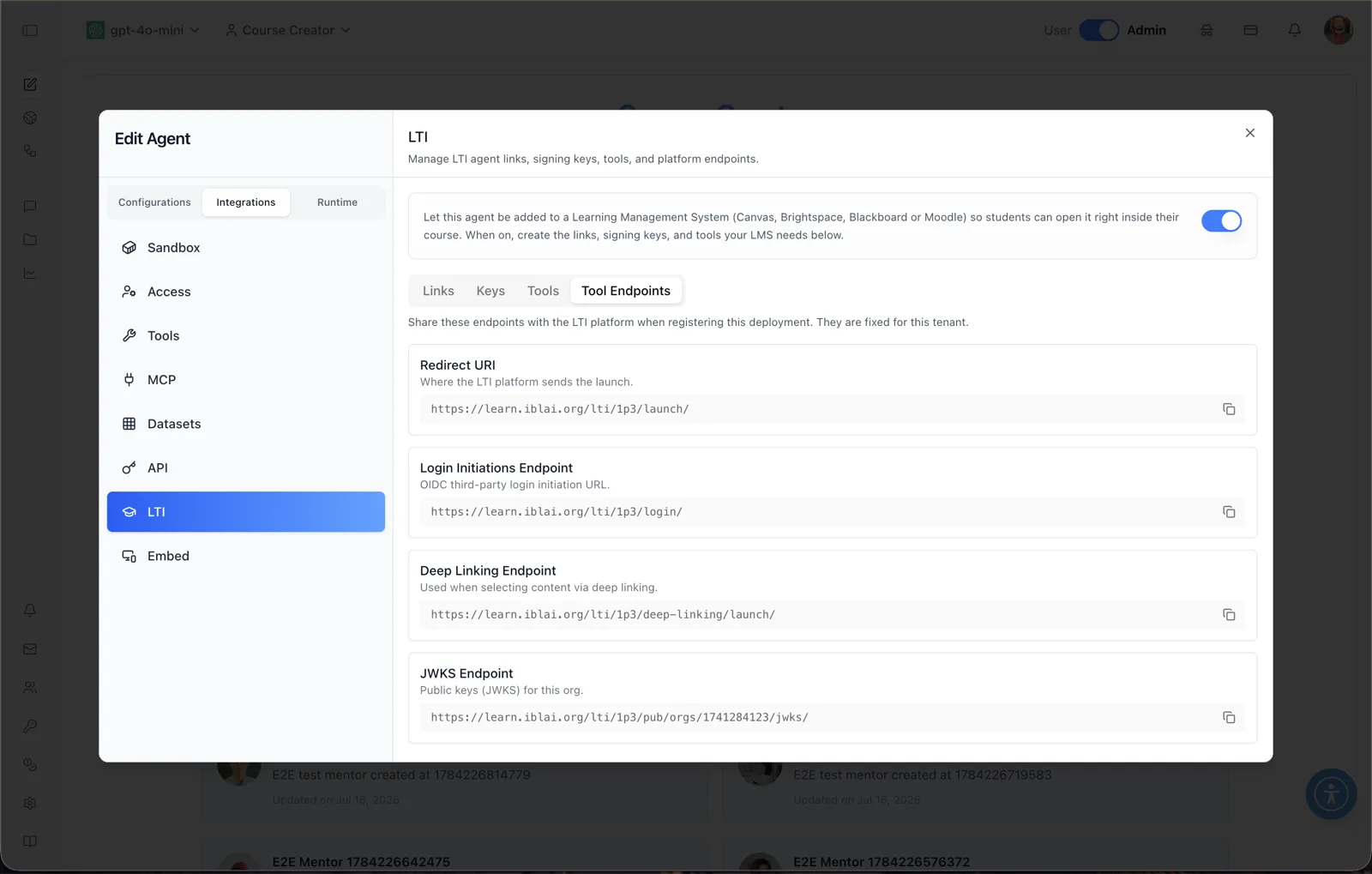
The Tool Endpoints sub-tab of the LTI panel lists the fixed URLs your Learning Management System needs when registering this platform as an LTI 1.3 tool. The caption on this sub-tab explains: "Share these endpoints with the LTI platform when registering this deployment. They are fixed for this organization." The endpoints are read-only — they are generated from the organization's LMS domain and are the same for every agent in the organization.
During LTI 1.3 tool registration (in Canvas, Brightspace, Blackboard, or Moodle), the LMS asks for the tool's redirect/launch URL, its OIDC login initiation URL, optionally a deep-linking URL, and the tool's public keyset (JWKS) URL. This screen collects all four in one place, each with a copy button (the button label flips to "Copied" after copying).
To reach this screen, open the Edit Agent modal, switch to the Integrations tab group (its sidebar lists Sandbox, Access, Tools, MCP, Datasets, API, LTI, and Embed), select LTI, and click the Tool Endpoints sub-tab. The panel header reads: "Manage LTI agent links, signing keys, tools, and platform endpoints." The LTI panel is admin-only.
Target Audience
Administrator
Endpoint Reference
All four endpoints are absolute https URLs on the /lti/ path of the organization's LMS domain and share a single origin (for example https://learn.iblai.org/...).
Redirect URI
"Where the LTI platform sends the launch." The launch/redirect URL — for example https://learn.iblai.org/lti/1p3/launch/. Enter it as the tool's redirect URI (and target/launch URL) in the LMS's LTI 1.3 registration.
Login Initiations Endpoint
"OIDC third-party login initiation URL." For example https://learn.iblai.org/lti/1p3/login/. LTI 1.3 launches begin with an OIDC third-party-initiated login; the LMS calls this URL first to start the authentication handshake.
Deep Linking Endpoint
"Used when selecting content via deep linking." For example https://learn.iblai.org/lti/1p3/deep-linking/launch/. Configure this in the LMS if you want instructors to use the LTI Deep Linking flow to pick content when placing the tool.
JWKS Endpoint
"Public keys (JWKS) for this org." For example https://learn.iblai.org/lti/1p3/pub/orgs/{org-id}/jwks/. This URL serves the organization's public keys in JSON Web Key Set format — the public halves of the signing keys managed on the Keys sub-tab — so the LMS can verify signed LTI messages. Note that this URL is organization-specific (it contains the org identifier).
Copy buttons
Each endpoint card has a copy-to-clipboard button; its label flips to "Copied" to confirm the URL is on the clipboard.
How to Use
Step 1: Open the Tool Endpoints sub-tab
In the Edit Agent modal, go to Integrations → LTI and click Tool Endpoints. The four endpoint cards render with their organization-specific URLs.
Step 2: Start the LMS-side registration
In your LMS admin area, begin an LTI 1.3 / Advantage tool registration (for example a Developer Key in Canvas or an LTI registration in Moodle).
Step 3: Paste the endpoints
Copy each URL from this screen into the matching field of the LMS form: Redirect URI for the redirect/target link, Login Initiations Endpoint for the OIDC login URL, Deep Linking Endpoint if you use content selection, and JWKS Endpoint as the tool's public keyset URL.
Step 4: Bring back the platform's values
The LMS registration produces its own values — issuer, client ID, auth login URL, auth token URL, and the platform's JWKS. Enter those on the Tools sub-tab (Create LTI Tool) to complete the pairing, and use the Links sub-tab's Target Link URI for the course placement.