Analytics: Transcripts
Overview
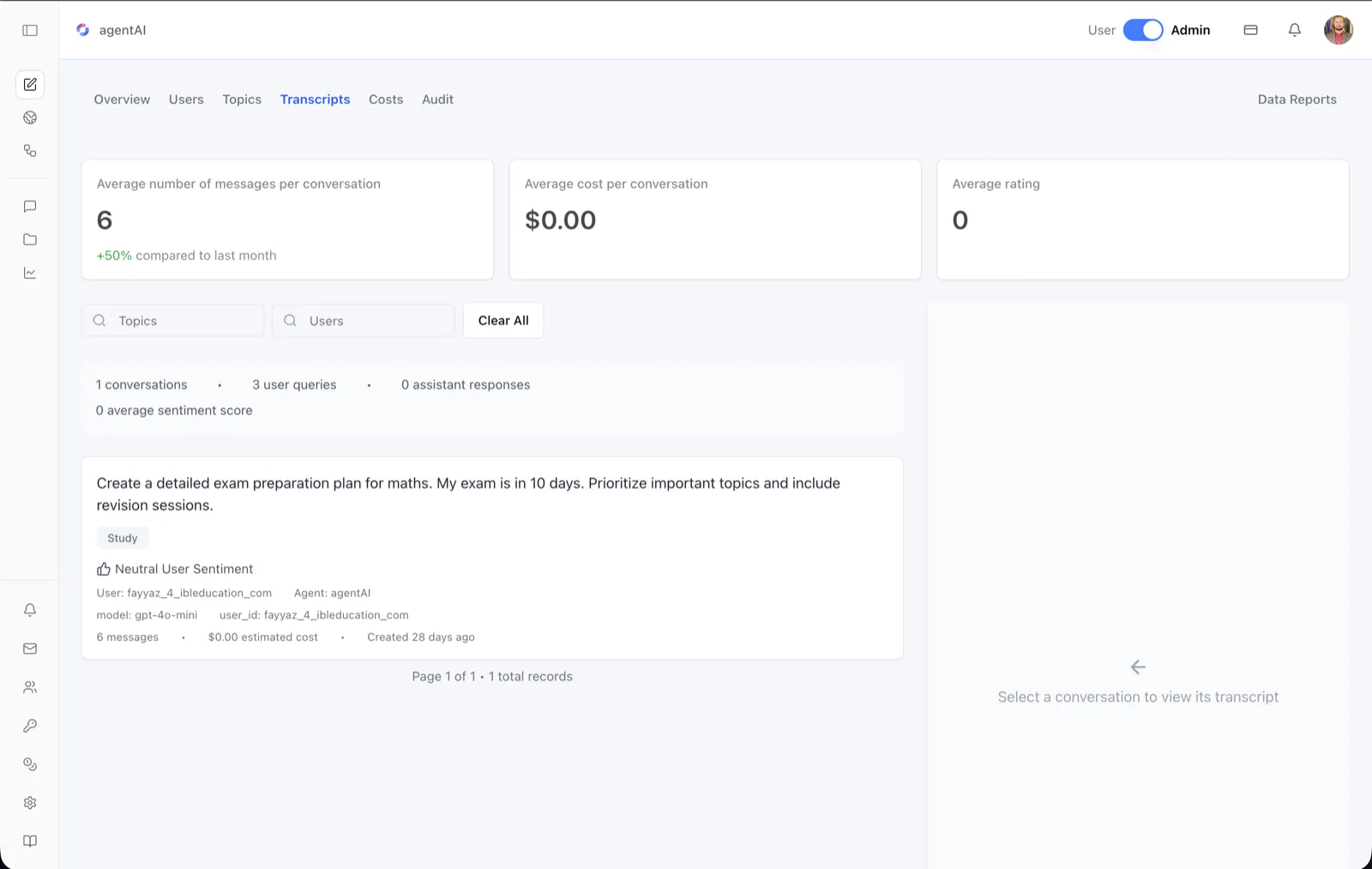
The Transcripts tab is the conversation review surface. It lists every conversation held with an agent as a searchable, filterable card list, and opens the full message-by-message transcript of any conversation in a side panel.
Each conversation card carries rich metadata — detected topics, user sentiment, the user's identity, the LLM model used, message count, estimated cost, and age — so you can triage which conversations to read. Headline cards at the top summarize conversation quality across the whole agent.
To reach it, open the agent in OS, switch the header toggle to Admin, click the analytics icon in the left sidebar, then select Transcripts in the tab bar (Overview · Users · Topics · Transcripts · Costs · Audit, with Data Reports on the right).
Target Audience
Administrator
What You See
Average number of messages per conversation
The mean count of messages in a conversation. When prior-period data exists, a percentage change "compared to last month" appears (the screenshot shows "+50% compared to last month" in green).
Average cost per conversation
The mean estimated LLM cost of a conversation, in dollars.
Average rating
The mean rating users have given the agent's responses; 0 when no ratings have been collected.
Topics and Users filters
Two search fields above the list. Topics filters conversations by topic label; Users filters by the user who held them. A spinner appears while results refresh, and the Clear All button resets both filters.
Summary bar
A gray strip above the list totals the current (filtered) result set: the number of conversations, user queries, assistant responses, and the average sentiment score.
Conversation cards
Each card leads with the first user message of the conversation (for example, "Create a detailed exam preparation plan for maths..."). Beneath it are: topic chips (such as "Study"); a sentiment line with a thumbs icon reading Positive, Neutral, or Negative User Sentiment; the user and agent identities; the model used (such as "gpt-4o-mini") and user_id; and a final row with the message count, the estimated cost in dollars, and when the conversation was created (relative time, such as "Created 28 days ago").
Pagination
The list is paginated, with a footer such as "Page 1 of 1 · 1 total records" and first/previous/next/last controls when there are multiple pages.
Transcript panel
The right pane initially reads "Select a conversation to view its transcript." Clicking a card loads the Conversation Transcript there: a summary of the user's full name, username, the agent, and the model, followed by the complete message thread.
How to Use
Step 1: Open the Transcripts tab
From the agent workspace in Admin mode, click the analytics icon in the left sidebar, then click Transcripts.
Step 2: Gauge conversation quality
Read the three headline cards: are conversations getting longer or shorter, what does each one cost on average, and how are users rating the agent?
Step 3: Filter the list
Type a topic name into Topics or a user identifier into Users to narrow the list. The summary bar recalculates for the filtered set. Click Clear All to reset.
Step 4: Triage from the cards
Skim first messages, sentiment labels, and costs to decide which conversations warrant a full read — for example, any card showing Negative User Sentiment.
Step 5: Read the full transcript
Click a conversation card. The right panel shows the complete exchange between the user and the agent, along with the participant and model details, so you can audit answer quality directly.