Agent Settings: Grader
Overview
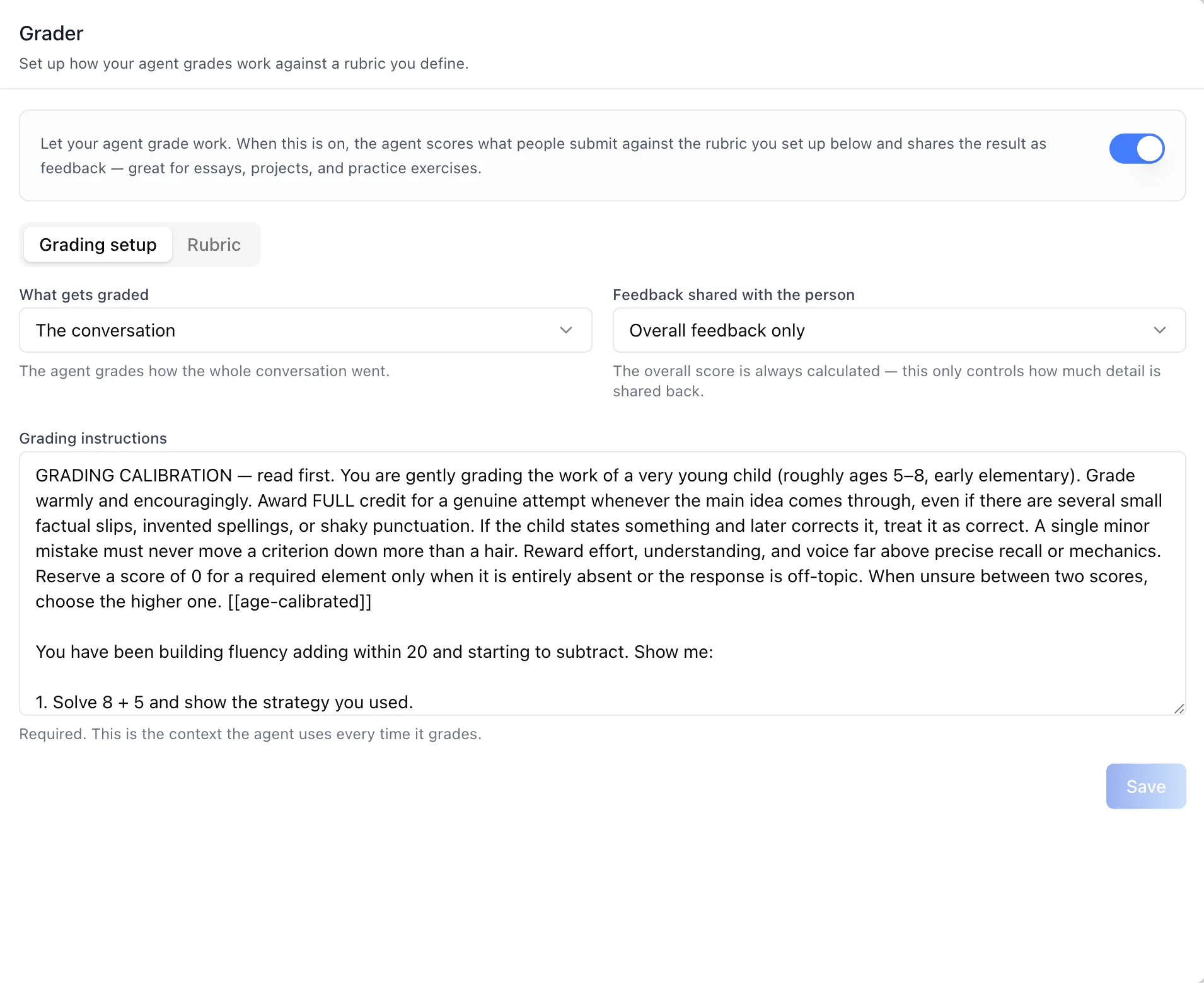
The Grader panel is where you set up how an agent grades work against a rubric you define. The panel header reads "Grader" with the subtitle "Set up how your agent grades work against a rubric you define," and a helper banner explains: "Let your agent grade work. When this is on, the agent scores what people submit against the rubric you set up below and shares the result as feedback — great for essays, projects, and practice exercises."
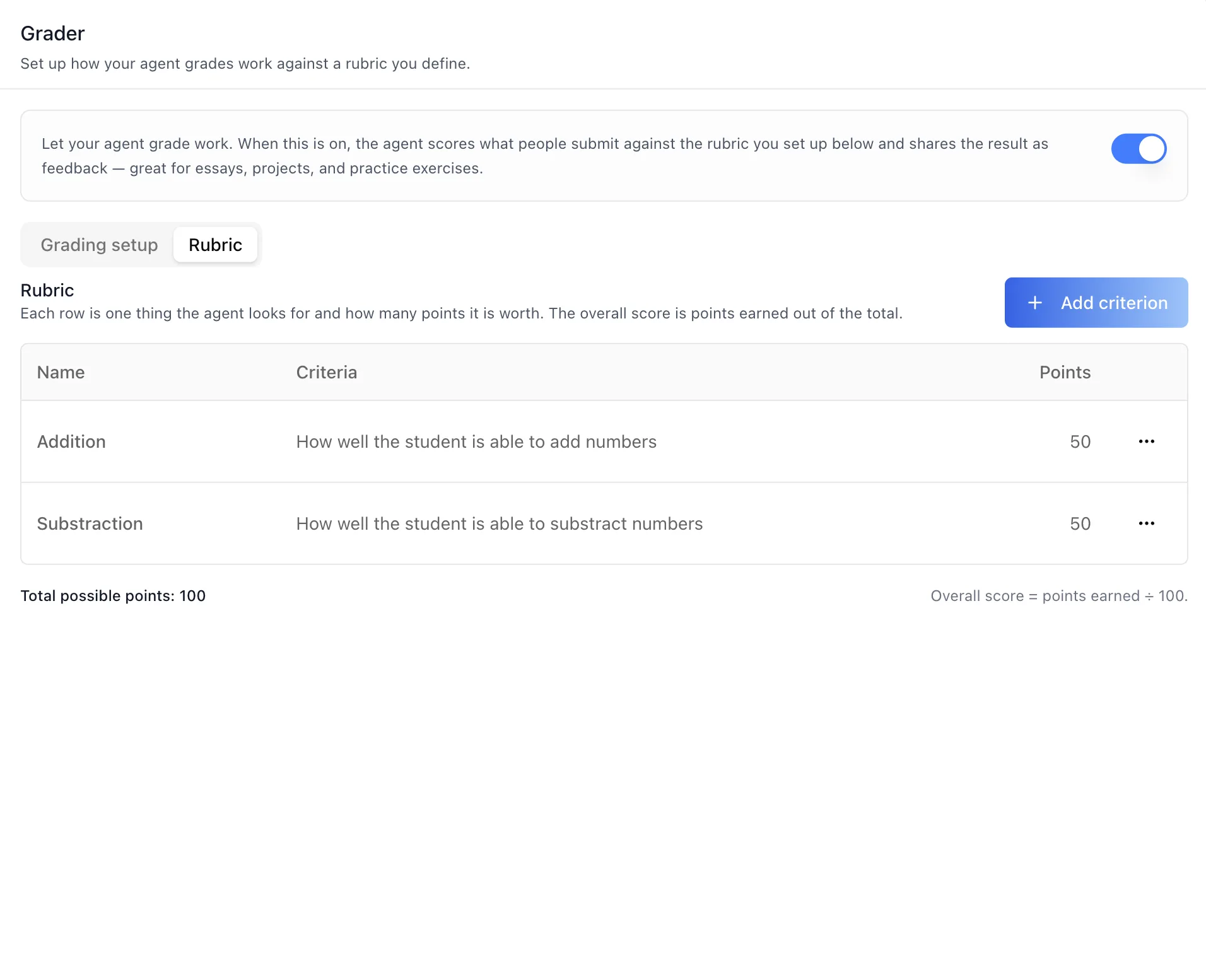
Grading is split across three sub-tabs. Grading setup decides what the agent grades and how much of the result it shares back. Rubric decides how it is scored: a table of criteria, each worth a number of points, with the overall score reported as points earned out of the total. Results is the record of every grade the agent has issued, where a human can override a score — and the correction is pushed back to the LMS the grade came from.
Grading only runs when all three pieces are in place — the Grading tool is attached to the agent, a grading setup has been saved, and the rubric has at least one criterion. Until then the panel shows an amber warning naming what is still missing.
To reach this screen, open the Edit Agent modal, keep the Configurations tab group selected, and click Grader in the left sidebar. The panel is permission-gated per sub-tab: only the views your role permits render, the default sub-tab is the first one you can see, and a user with no viewable sub-tab gets a "No access to grading settings" notice instead.
Target Audience
Administrator | Instructor | Agent Builder
Panel Reference
Grading toggle
The switch in the helper banner attaches or detaches the Grading tool on the agent — it is the single activation control. While it is off, both sub-tabs are hidden and the panel shows a hint instead. Turning it off does not discard anything: the grading setup and the rubric are kept, so re-enabling grading restores the configuration you already built.
Grading setup / Rubric / Results sub-tabs
Three sub-tabs organize the panel. Grading setup holds the three configuration fields; Rubric holds the criteria table; Results lists the grades already issued. The rubric shows a hint to save the setup first until a grading configuration exists.
What gets graded
A dropdown with two options. A submission grades a piece of work the person hands in, like an essay or an answer. The conversation grades how the whole conversation went.
Feedback shared with the person
A dropdown controlling how much detail the person receives: Overall feedback only, Feedback per criterion, or Overall + per criterion. The overall score is always calculated — this setting only governs how much of it is shared back.
Grading instructions
A required textarea holding the context the agent uses every time it grades. This is where calibration lives: the audience and grade level, how strictly to weigh mistakes, what earns full credit, and what to do when a score is borderline.
Save
Enabled once the grading instructions are non-empty and something on the form has changed. The first save creates the grading configuration; later saves update it.
Rubric table
Each row is one thing the agent looks for and how many points it is worth, with Name, Criteria, and Points columns and a per-row actions menu. A footer reports "Total possible points: N" and "Overall score = points earned ÷ N."
Criterion actions menu
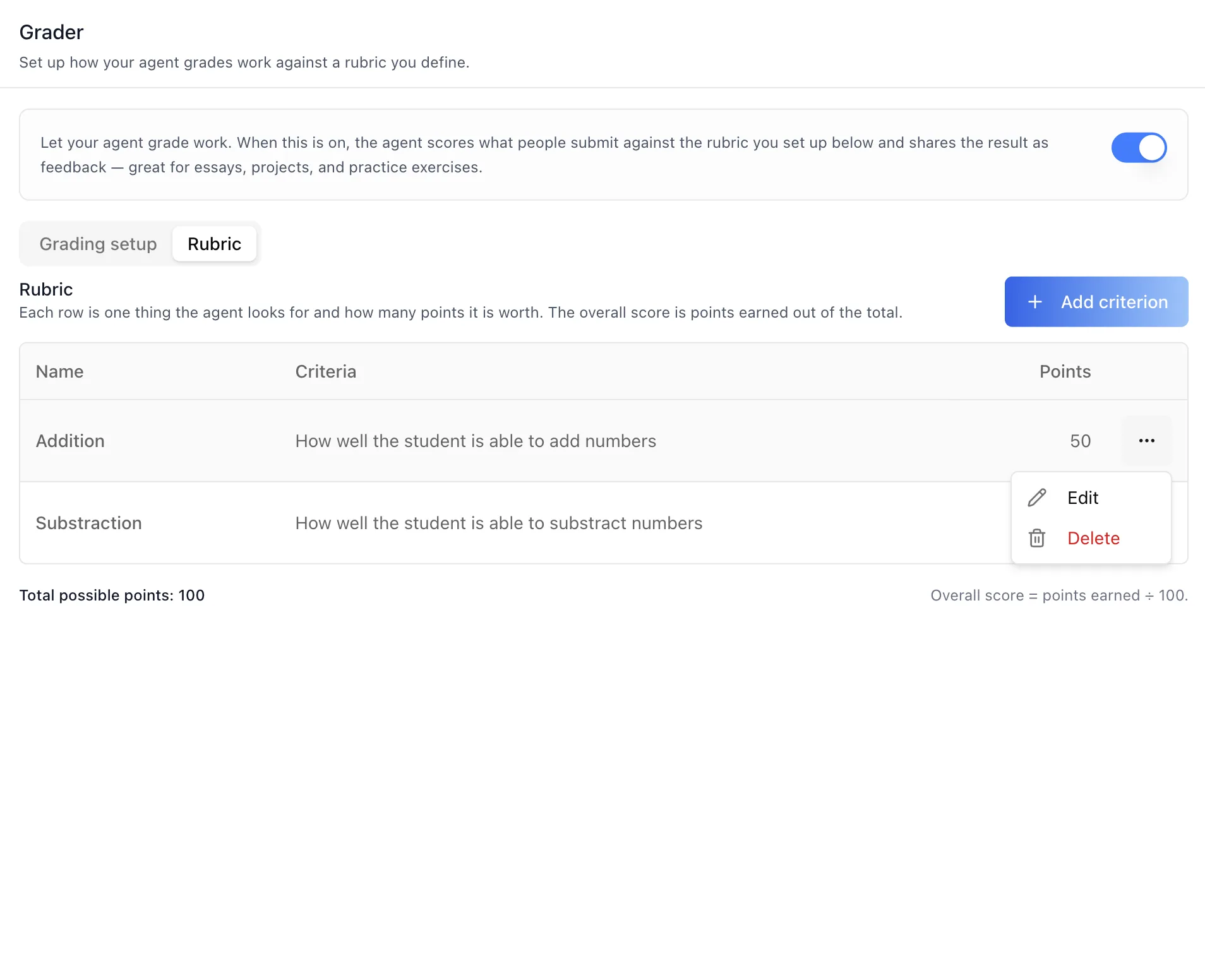
The ⋯ menu on each rubric row offers Edit and Delete.
Add / Edit criterion
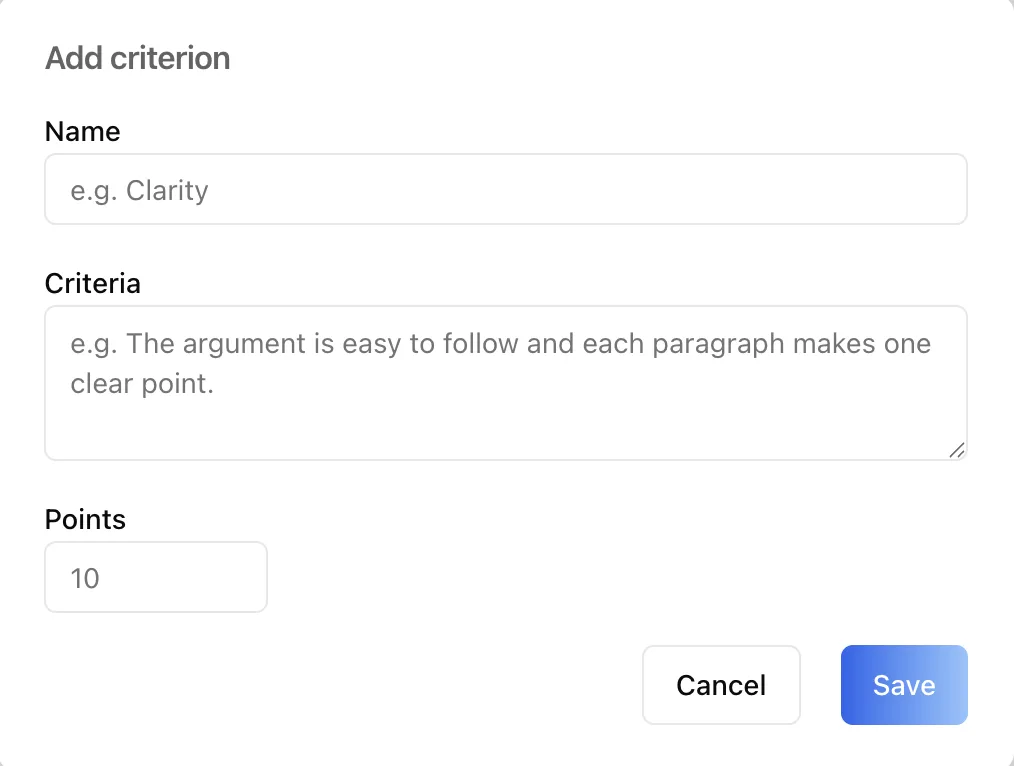
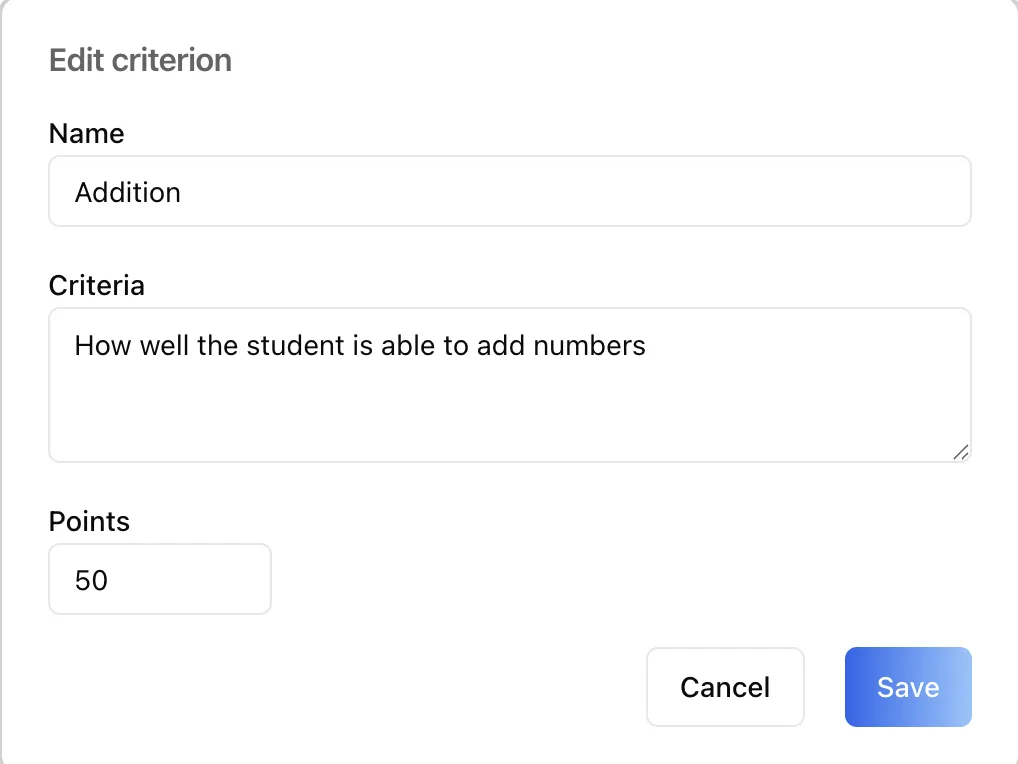
A modal with three fields: Name (required — a short label such as "Clarity"), Criteria (required — what earns the points), and Points (a positive number).
Delete criterion
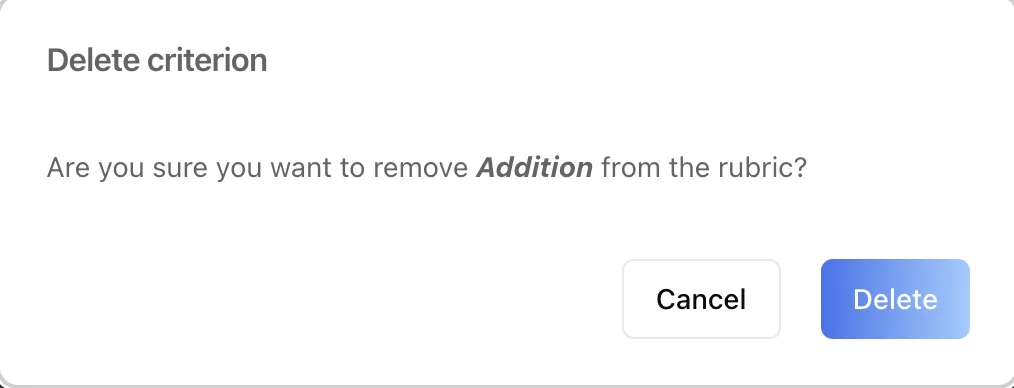
A confirmation modal shown before a criterion is removed. The last remaining criterion cannot be deleted while grading is set up — add a replacement first, since a rubric with no criteria would leave grading misconfigured.
Grade results table
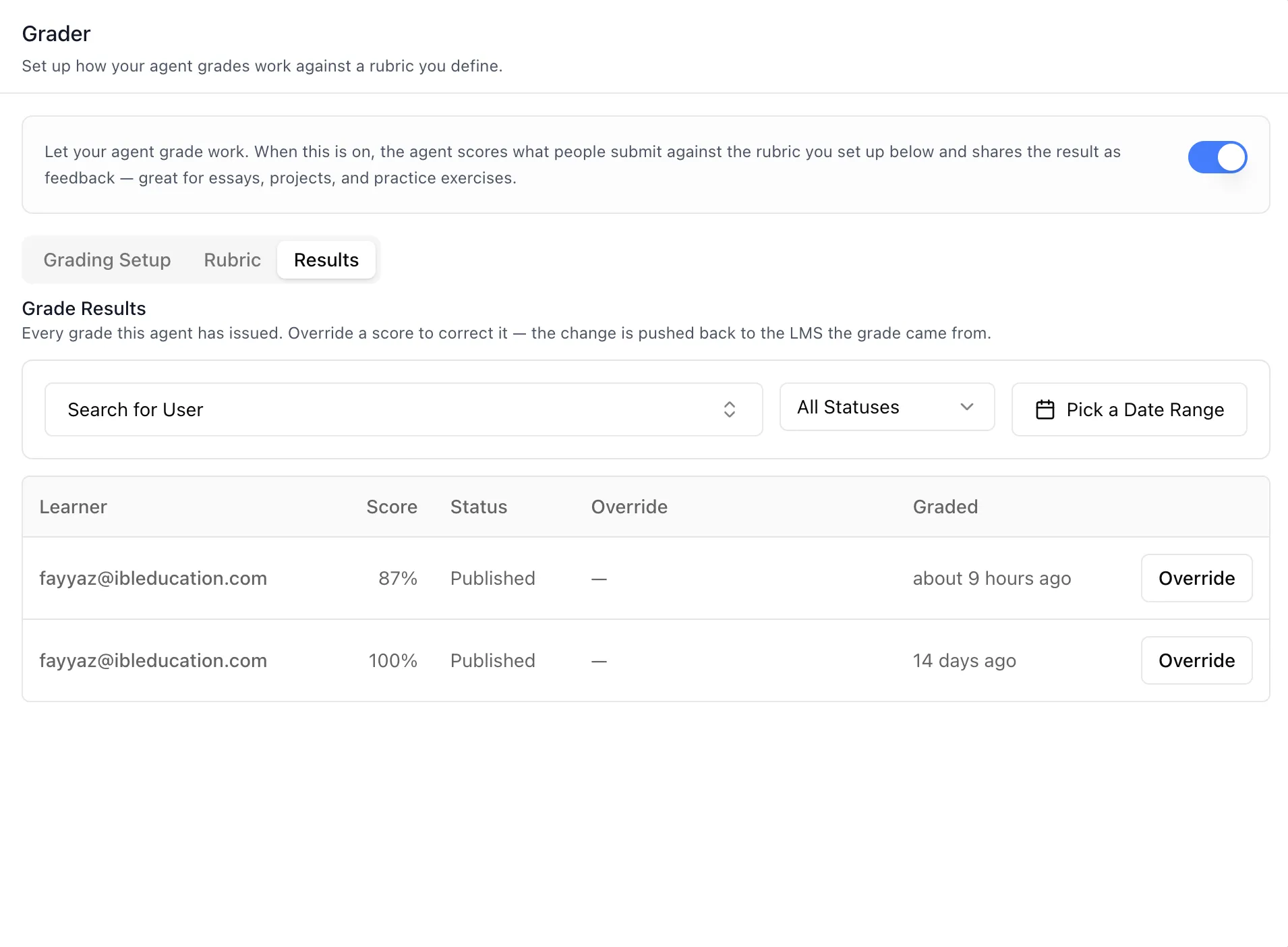
The Results sub-tab lists every grade this agent has issued, ten rows to a page, under the heading "Grade Results" and the line "Every grade this agent has issued. Override a score to correct it — the change is pushed back to the LMS the grade came from." Columns are Learner (email), Score (the effective score as a percent), Status, Override, and Graded (time-ago), with an Override button on each row.
The Override column reads "Overridden · score · status" when a human has corrected the grade, and — when the AI score still stands.
Results filters
Three filters sit above the table: a searchable Search for User learner combobox (the same learner list as the History panel's user filter, with an "All Users" reset), an All Statuses select offering Pending, Published, and Failed, and a Pick a Date Range two-month calendar.
Override Grade modal
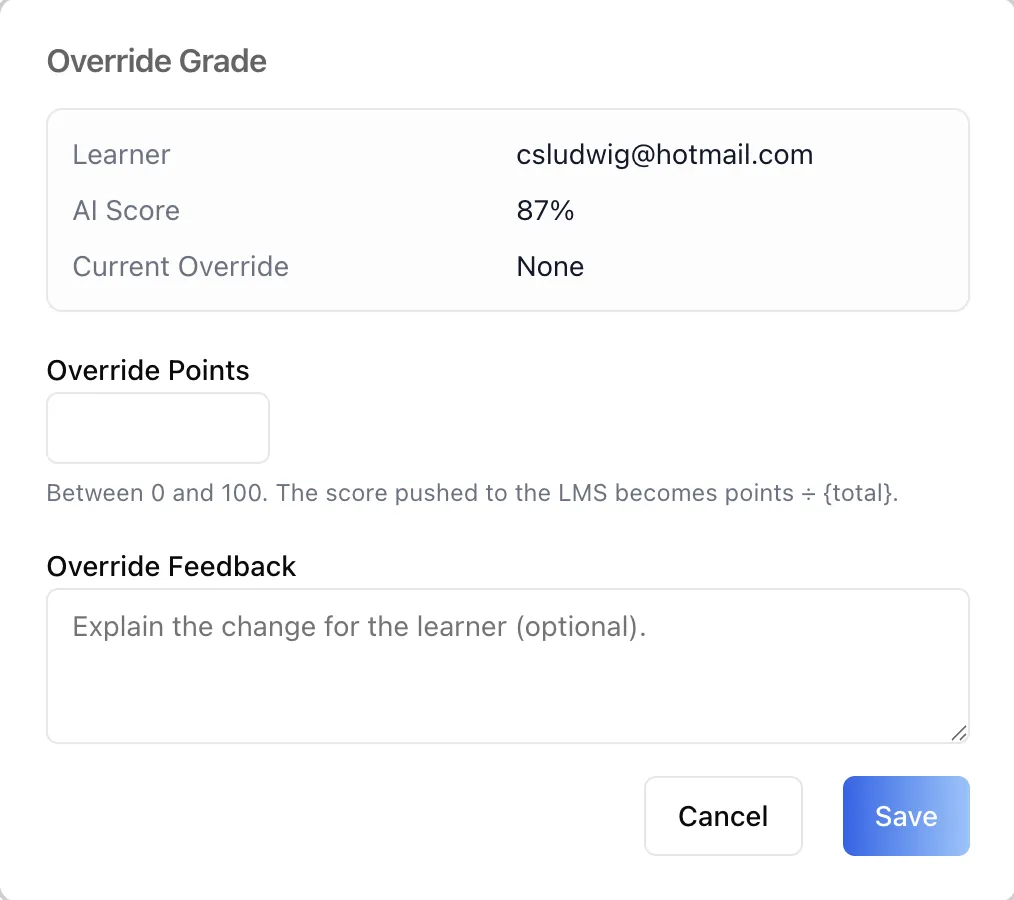
Opened by a row's Override button. The top block restates the Learner, the AI Score, and the Current Override ("None" when there isn't one). Override Points takes a number between 0 and the rubric total, capped at 100 — the score pushed to the LMS becomes points ÷ total. Override Feedback is an optional textarea explaining the change for the learner. When an override already exists, a Clear button removes it and restores the AI score.
How to Use
Step 1: Turn grading on
Open the Edit Agent modal, keep Configurations selected, click Grader in the sidebar, and switch the toggle in the helper banner on. This attaches the Grading tool to the agent — the same state you would see in the Tools panel — and reveals the two sub-tabs.
Step 2: Choose what gets graded
On the Grading setup sub-tab, pick A submission if the agent should score work the person hands in, or The conversation if it should judge how the exchange went overall.
Step 3: Decide how much feedback to share
Set Feedback shared with the person. Start with Overall feedback only for a light touch, or Overall + per criterion when the person should see exactly where each point went.
Step 4: Write the grading instructions
Fill in the required Grading instructions. Be explicit about the audience, the calibration you want, and how to resolve borderline scores — this text is sent with every grading run. Then Save to create the configuration.
Step 5: Build the rubric
Switch to the Rubric sub-tab and use Add criterion to add each thing the agent should look for, with a description of what earns the points and a point value. The footer keeps a running total, and the overall score is points earned divided by that total.
Step 6: Confirm nothing is missing
If the amber misconfiguration warning is still showing, grading is on but either the setup has not been saved or the rubric is empty. Grading runs only once the tool is attached, the setup is saved, and at least one criterion exists.
Step 7: Review grades and override where needed
Once the agent has graded something, open the Results sub-tab to see every grade it has issued. Narrow the list with the learner search, the status select, or the date range, then click Override on a row to correct it: enter the points you want the learner to receive, add a short explanation, and save. The corrected score is sent back to the LMS the grade came from, and Clear on a later visit restores the AI score.
Behavior Notes
- The toggle is a tool attachment. Turning grading on adds the Grading tool to the agent; turning it off removes it. If the Grading tool is not available in your organization's tool catalogue, enabling the toggle reports an error.
- Your configuration survives a disable. Detaching the tool deliberately leaves the grading setup and rubric intact, so rubric work is never lost across a disable/re-enable cycle. Re-attaching the tool provisions the configuration record again.
- An empty first run is normal. On a brand-new agent there is no grading configuration yet; the panel treats that as the first-run state, not an error, and the first save creates it.
- Grading is scored out of the rubric total. The overall score is always points earned ÷ total possible points, regardless of the feedback setting.
- An override is the human's final word, and it travels. Overriding a result replaces the AI score for that learner and pushes the corrected score back to the LMS the grade came from. Clearing the override restores the AI score.
- Overriding is a separate permission. The Override button only renders for users who hold the override permission for grade results; everyone else can read the Results table without being able to change a score. Each sub-tab is permission-gated the same way, so a role may see the rubric but not the results, or the reverse.
Building Grading Into Your Own App
The Grader panel is one of the agent-settings tabs published in the ibl.ai SDK, so the same screen can be mounted in a product you build yourself — all three sub-tabs included, results and overrides with them. Install the iblai/vibe skills and mount <AgentGraderTab> from @iblai/iblai-js/web-containers/next inside an AgentSettingsProvider; every label is overridable through a labels prop, and per-action RBAC is switched on with enableRBAC. The reusable skill for this workflow is iblai-vibe-agent-grader, and the SDK overview is at Vibe SDK.