Canvas Options
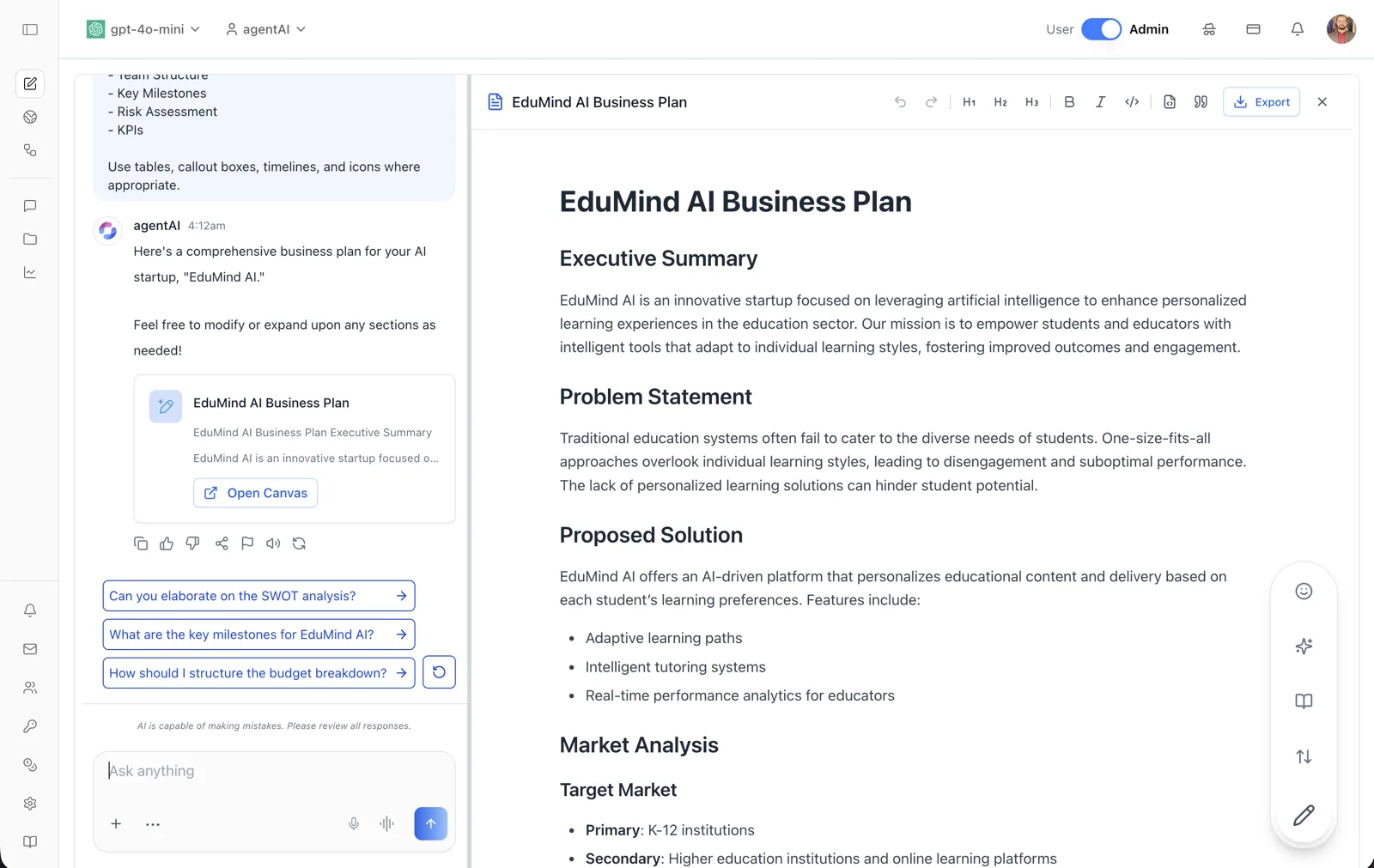
Overview
The Canvas options menu is a set of one-click AI editing controls for the open document. Instead of typing revision requests into chat, you pick a transformation — adjust the length, change the reading level, add emojis, or apply a final polish — and the agent rewrites the whole document accordingly.
The menu lives behind the floating pencil button in the bottom-right corner of the Canvas panel. Hovering or clicking the pencil expands a vertical toolbar of four icons, each with a tooltip naming its action.
Every transformation is sent to the agent as a full-document update, so the result streams back into the Canvas and is captured as a new version — you can always step back to the previous version if you prefer the original.
Target Audience
User
Features
Pencil button
The entry point. It sits at the bottom-right of the Canvas panel; hovering or clicking it expands the options toolbar, and clicking elsewhere collapses it.
Add emojis (smiley icon)
Opens an "Add emojis" picker with four choices: Words (replace as many words as possible with emojis), Sections (decorate the start or end of every major section), Lists (add emojis to list items), and Remove (strip emojis from the document). Selecting an option applies it immediately.
Add final polish (sparkles icon)
Asks the agent to apply a finishing pass: add a document title or section titles where relevant, and check grammar, mechanics, and consistency. Click the sparkles icon once to arm it, then click the send arrow that replaces it to run the polish.
Reading level (book icon)
Opens a vertical slider with six positions: Graduate School, College, High School, Keep current reading level, Middle School, and Kindergarten. Drag the handle to a level and click the send arrow to have the agent rewrite the document at that reading level. Leaving it on "Keep current reading level" cancels without changes.
Adjust the length (up-down arrows icon)
Opens a vertical slider with five positions: Longest (75% longer), Longer (50% longer), Keep current length, Shorter (50% shorter), and Shortest (75% shorter). Drag to the desired length and click the send arrow to apply. Leaving it on "Keep current length" cancels without changes.
How to Use
Step 1: Open the options
With a Canvas document open, hover over or click the pencil button in the bottom-right corner of the panel. The four option icons expand above it.
Step 2: Choose a transformation
Click the smiley (emojis), sparkles (polish), book (reading level), or arrows (length) icon.
Step 3: Set the level and send
For reading level and length, drag the slider handle to the position you want — the label appears beside it — then click the send (arrow) button. For emojis, pick Words, Sections, Lists, or Remove. For polish, click the send arrow that appears on the sparkles icon.
Step 4: Review the result
The agent streams the rewritten document into the Canvas as a new version. If you prefer the previous text, use the version menu next to the title to go back and restore it.