Agent Settings: LLM Selection
Overview
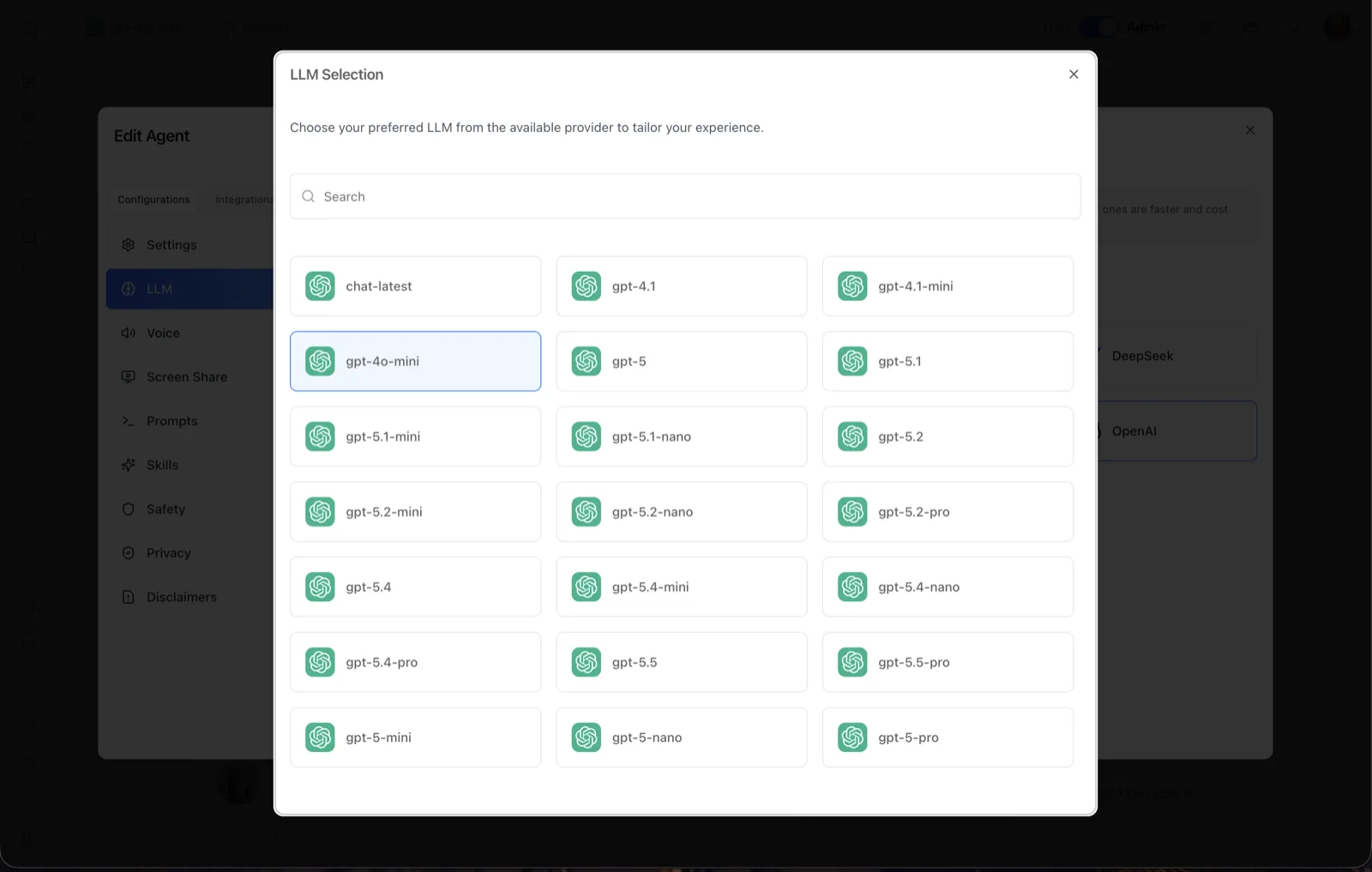
The LLM Selection dialog picks the exact model an agent uses from a chosen provider. Its subtitle reads: "Choose your preferred LLM from the available provider to tailor your experience." The dialog opens after you click a provider card (for example, OpenAI) on the LLM panel.
Each model appears as a card with the provider's icon and the model name. The agent's current model is highlighted (the screenshot shows gpt-4o-mini selected from the OpenAI list, which includes models such as chat-latest, gpt-4.1, gpt-4o-mini, gpt-5, and the gpt-5.x family with mini/nano/pro variants). The available models are served by the platform for the selected provider, so the list you see depends on your organization's configuration.
To reach this dialog, open the Edit Agent modal, stay on the Configurations tab group, select LLM in the left sidebar, then click a provider card.
Target Audience
Administrator | Agent Builder
Dialog Reference
Search
A search box at the top filters the model grid by name as you type — useful when a provider exposes a long model list.
Model cards
One card per model offered by the selected provider. Clicking a card immediately assigns that provider and model to the agent — the platform saves the agent's llm_provider and llm_name and shows an "LLM updated successfully" confirmation (or an error message if the update fails). The currently assigned model is outlined so you can see the active choice at a glance.
Close (X)
Closes the dialog without changing the agent's model. You can also return to the provider grid to pick a different provider first.
How to Use
Step 1: Open the LLM panel
Open the Edit Agent modal, keep Configurations selected, and click LLM in the sidebar.
Step 2: Pick a provider
Click the provider card whose models you want (for example, OpenAI, Anthropic, or Google). The LLM Selection dialog opens with that provider's models.
Step 3: Find the model
Type in the Search box to filter the grid if the list is long.
Step 4: Select the model
Click the model card. The agent is updated immediately and a success message confirms the change — there is no separate save step. Every subsequent reply from the agent is generated by the newly selected model.