Agent Settings: LLM Configuration
Overview
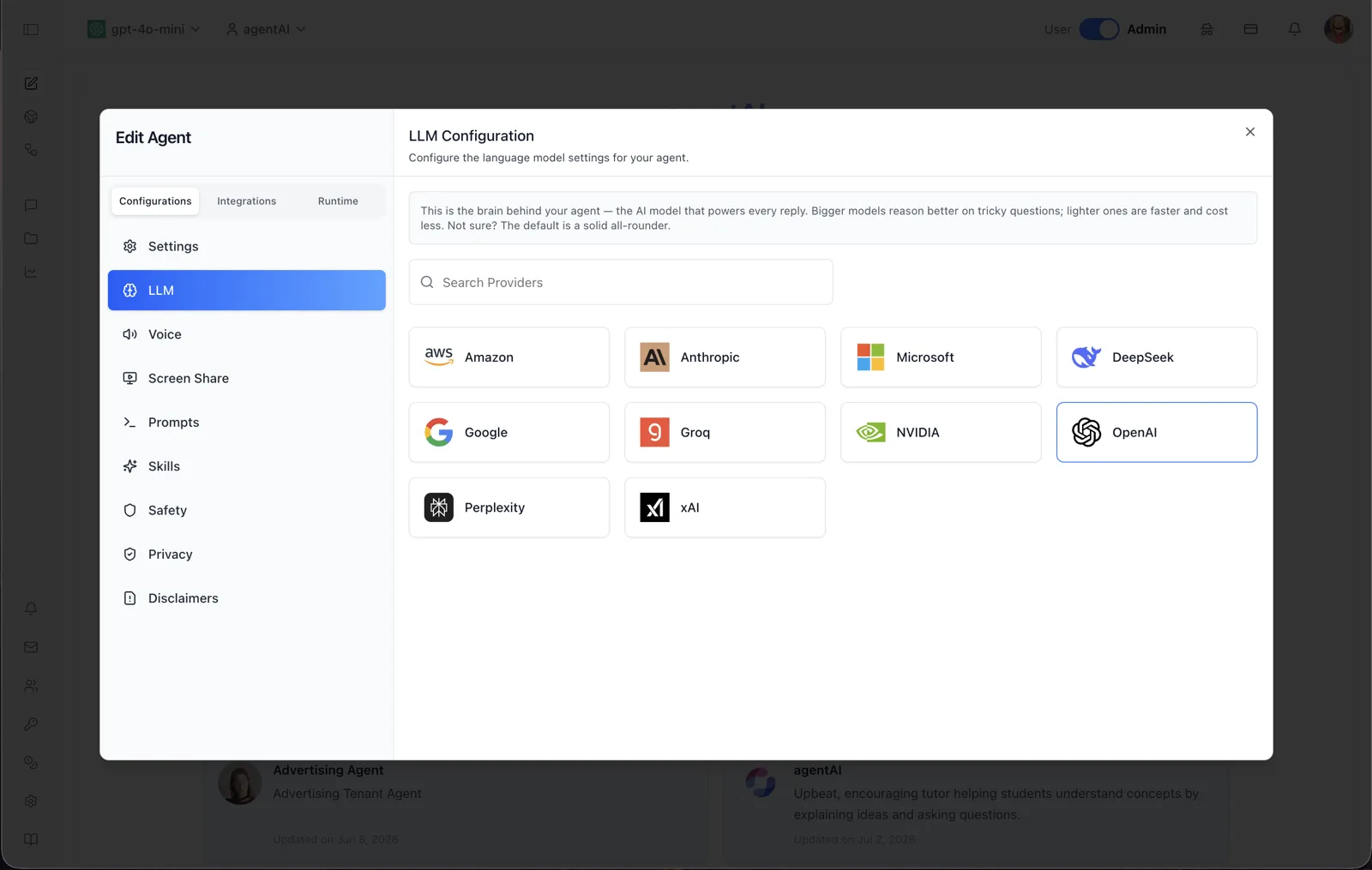
The LLM panel chooses which AI provider — and, in the follow-up dialog, which model — powers an agent's replies. The panel header reads: "LLM Configuration — Configure the language model settings for your agent," and the helper text explains: "This is the brain behind your agent — the AI model that powers every reply. Bigger models reason better on tricky questions; lighter ones are faster and cost less. Not sure? The default is a solid all-rounder."
The panel shows one card per available LLM provider. The screenshot shows Amazon, Anthropic, Microsoft, DeepSeek, Google, Groq, NVIDIA, OpenAI (highlighted as the current selection), Perplexity, and xAI. The provider list is served by the platform, so what appears depends on your organization's configuration. This provider choice is a core part of the platform's model-agnostic design — an agent can be switched between providers at any time.
To reach this screen, open the Edit Agent modal, stay on the Configurations tab group, and select LLM in the left sidebar.
Target Audience
Administrator | Agent Builder
Panel Reference
Search Providers
A search box that filters the provider grid by name as you type.
Provider cards
One card per LLM provider, showing the provider's logo and name. The provider currently assigned to the agent is outlined (OpenAI in the screenshot). Clicking a card opens the LLM Selection dialog listing that provider's available models; the agent's model is only changed once you pick a model there.
How to Use
Step 1: Open the LLM panel
Open the Edit Agent modal, keep Configurations selected, and click LLM in the sidebar.
Step 2: Find a provider
Scan the grid, or type in Search Providers to filter it. The outlined card is the agent's current provider.
Step 3: Open the provider's models
Click a provider card. The LLM Selection dialog opens with that provider's model list.
Step 4: Pick the model
Select a model in the dialog. The agent's provider and model are saved immediately and a "LLM updated successfully" confirmation appears. You can repeat this at any time to move the agent to a different provider or model.