Analytics: Audit
Overview
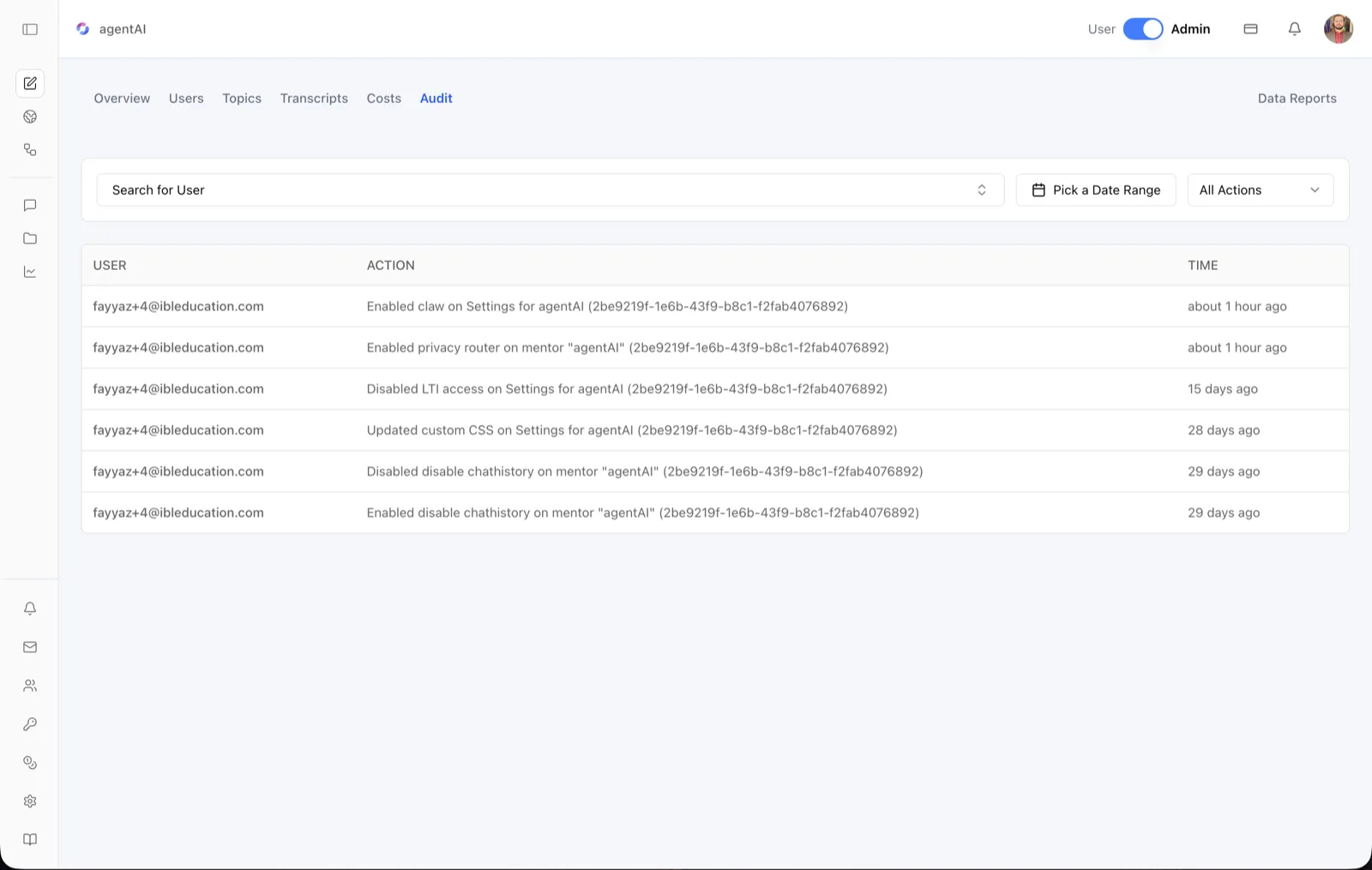
The Audit tab is the change log for an agent's configuration. Every create, update, or delete made to the agent or its settings is recorded with who did it, what changed, and when — giving administrators an accountability trail for governance and troubleshooting.
Entries are written in plain language. A single toggled setting reads as "Enabled ..." or "Disabled ..." (for example, "Disabled LTI access on Settings for agentAI"), other edits read as "Updated ..." with the changed fields named, and each entry ends with the agent's unique ID in parentheses so agents with the same name stay distinguishable.
To reach it, open the agent in OS, switch the header toggle to Admin, click the analytics icon in the left sidebar, then select Audit in the tab bar (Overview · Users · Topics · Transcripts · Costs · Audit, with Data Reports on the right). The tab only appears for users whose role grants the view-audit-logs permission on the agent.
Target Audience
Administrator
What You See
Search for User filter
A combobox that filters the log to actions performed by a specific user. Open it and pick (or type to search) the actor's identity.
Pick a Date Range filter
A calendar button that limits the log to entries between a start and end date; once set, the button shows the selected range (for example, "Jun 01 - Jun 15").
All Actions filter
A dropdown restricting the log by action type: All Actions (default), Create, Update, or Delete.
USER column
The email address of the person who made the change.
ACTION column
A human-readable description of the change. Boolean toggles render as "Enabled {setting} on {target}" or "Disabled {setting} on {target}"; other updates render as "Updated {fields} on {target}" (such as "Updated custom CSS on Settings for agentAI"); creations and deletions render as "Created {target}" / "Deleted {target}". Setting names are humanized — for example is_lti_accessible appears as "LTI access" — and the target names the agent or its settings plus the agent's unique ID in parentheses.
TIME column
When the change happened, as a relative time such as "about 1 hour ago" or "15 days ago". Entries are listed newest first.
Pagination
When the log spans multiple pages, pagination controls appear below the table.
How to Use
Step 1: Open the Audit tab
From the agent workspace in Admin mode, click the analytics icon in the left sidebar, then click Audit. If the tab is missing, your role lacks the view-audit-logs permission for this agent.
Step 2: Scan recent changes
The newest entries are at the top. Check the ACTION column to see what was changed and the USER column to see who changed it.
Step 3: Narrow the log
Use Search for User to isolate one administrator's actions, Pick a Date Range to bracket an incident window, and All Actions to show only creations, updates, or deletions. Filters combine.
Step 4: Correlate with behavior changes
When the agent starts behaving differently, match the timestamp of the change in this log against the symptom — for example, a "Disabled LTI access ..." entry explains why an LMS embed stopped working, and identifies exactly who to ask.