Agent Settings: Privacy
Overview
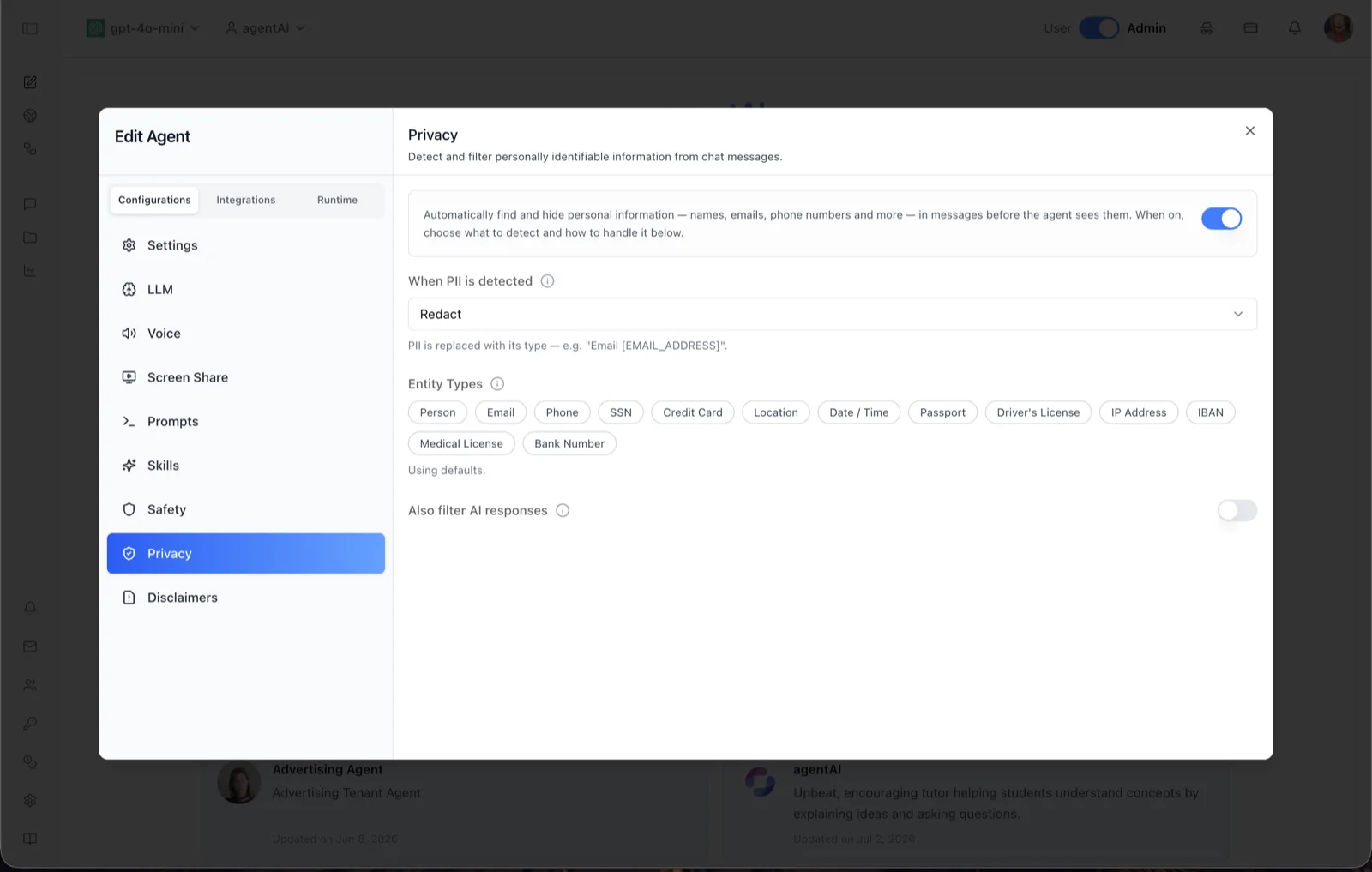
The Privacy panel configures automatic detection and filtering of personally identifiable information (PII) in chat messages. Its description reads: "Detect and filter personally identifiable information from chat messages." The intro banner explains the effect: "Automatically find and hide personal information — names, emails, phone numbers and more — in messages before the agent sees them. When on, choose what to detect and how to handle it below."
Filtering happens on the way in: user messages are scanned and PII is handled per your chosen action before the agent (and the underlying model) sees the text. An optional second toggle extends the same filtering to the AI's responses on the way out.
To reach this panel, open the Edit Agent modal, stay on the Configurations tab group, and select Privacy in the left sidebar.
Target Audience
Administrator | Agent Builder
Settings Reference
Privacy master toggle
The switch beside the intro banner enables the privacy router for this agent. When it is off, the dependent fields below (action, entity types, response filtering) are hidden; when on, they appear and take effect.
When PII is detected
A dropdown selecting how detected PII is handled. Three actions are available:
- Redact (shown selected) — helper text: "PII is replaced with its type — e.g. "Email [EMAIL_ADDRESS]"."
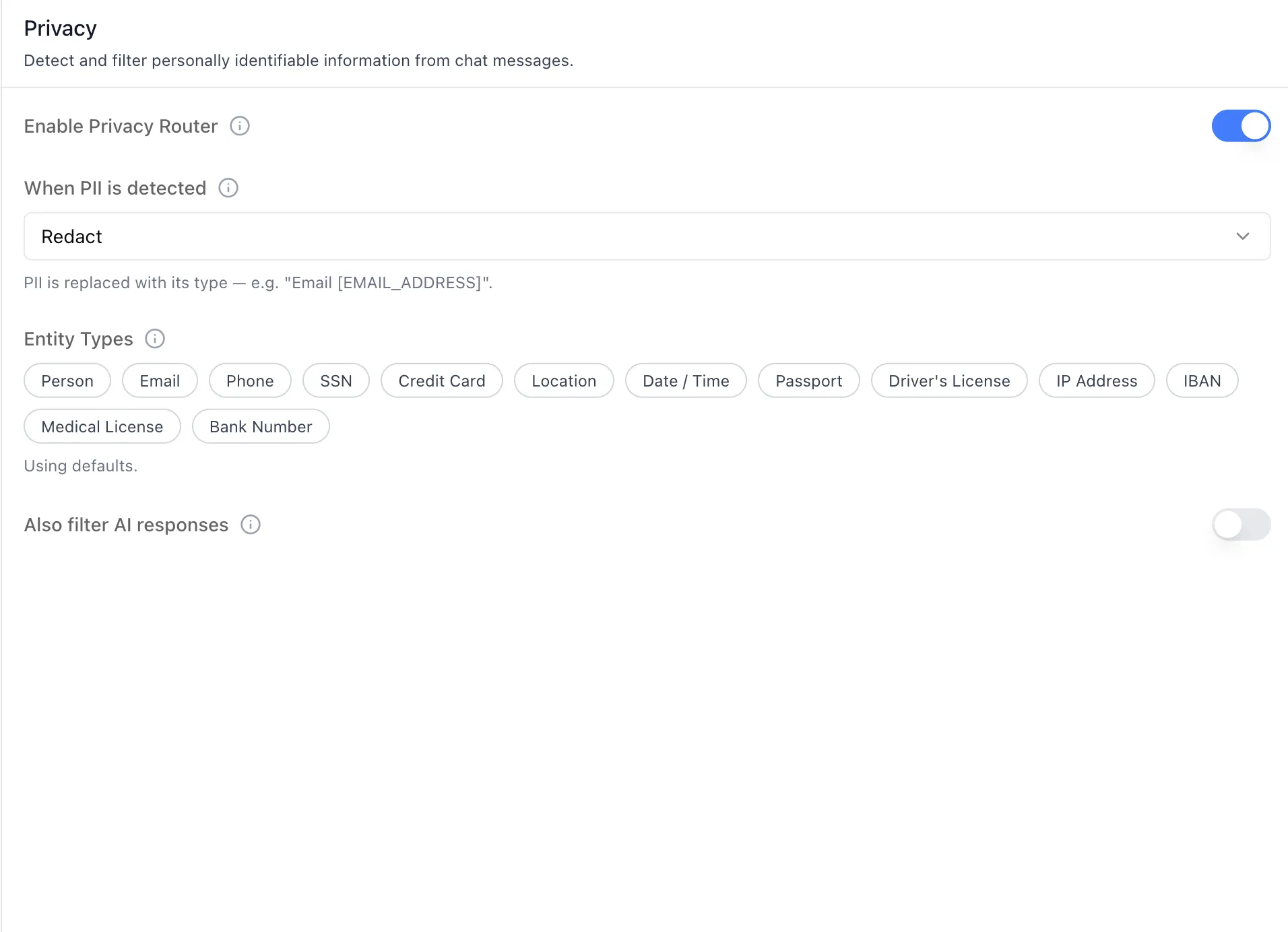
- Mask — obscures the detected value rather than naming its type.
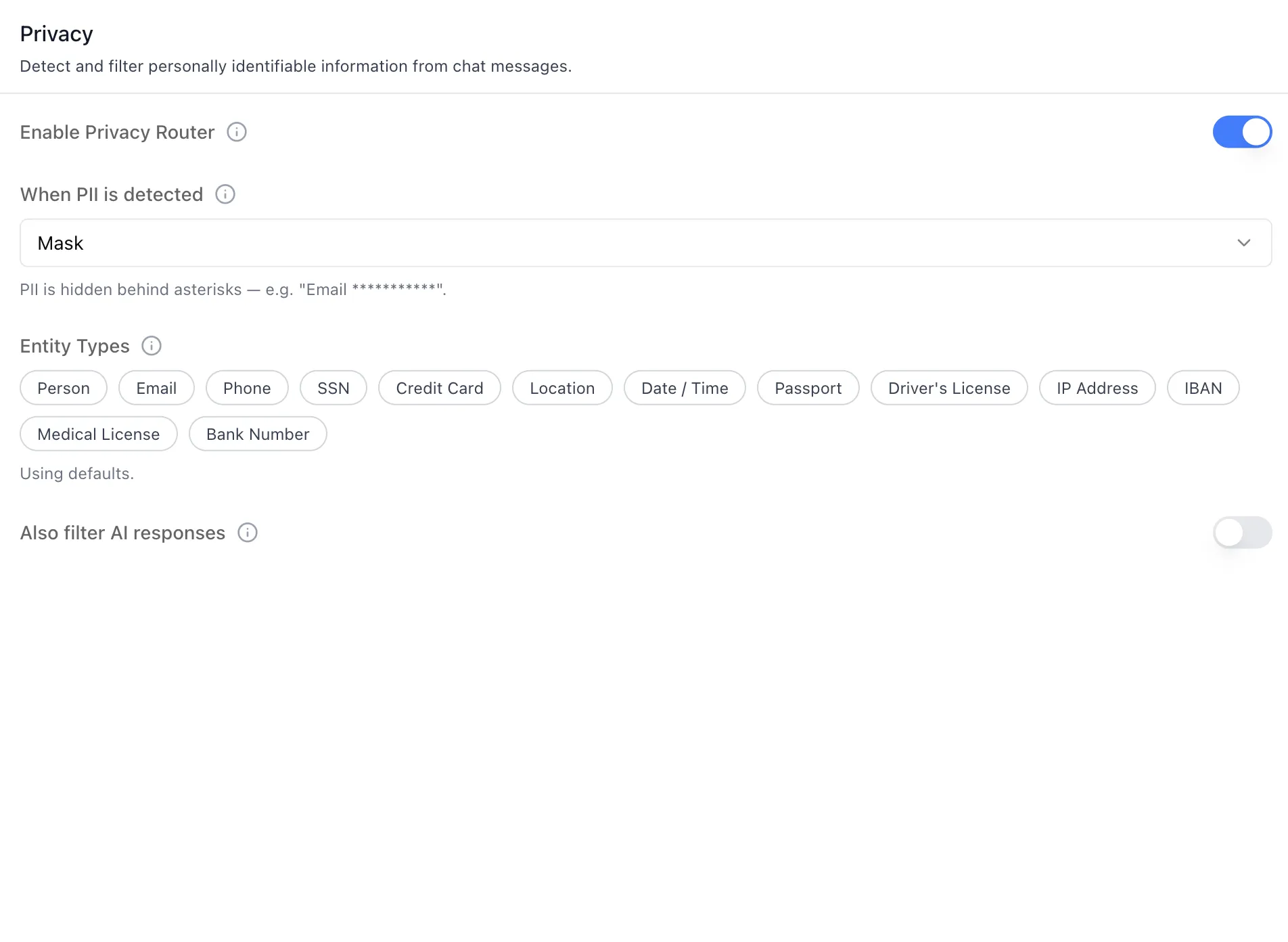
- Block — stops the message; choosing Block reveals a Block Message field where you set the text shown to the user, saved when the field loses focus.
Entity Types
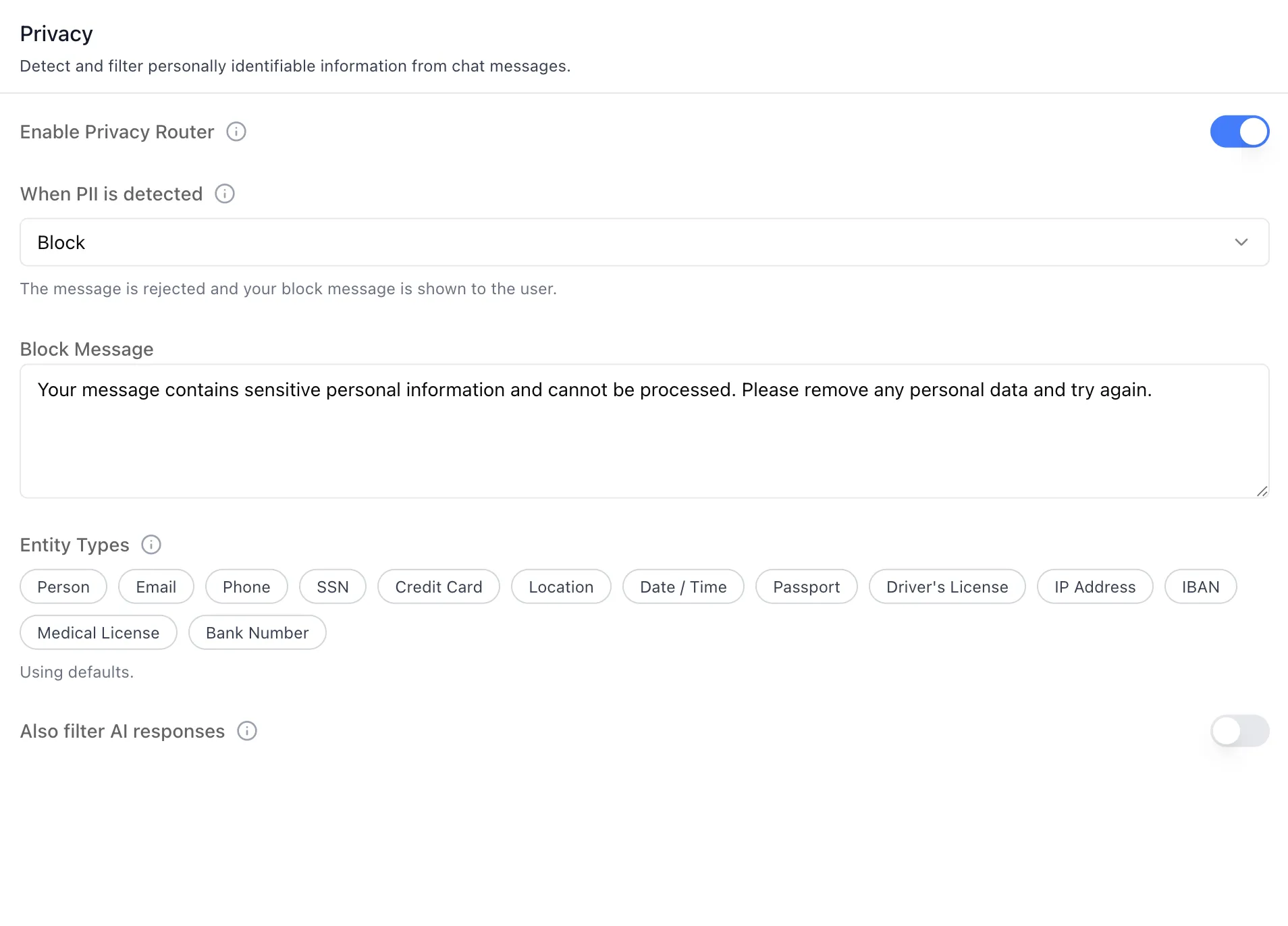
A row of selectable chips listing the PII categories the detector looks for: Person, Email, Phone, SSN, Credit Card, Location, Date / Time, Passport, Driver's License, IP Address, IBAN, Medical License, and Bank Number. Chips toggle on and off individually. When none are explicitly selected the hint "Using defaults." is shown, meaning the platform's default entity set applies.
Also filter AI responses
A toggle (off in the screenshot) that applies the same PII detection and handling to the agent's outgoing responses, not just incoming user messages.
How to Use
Step 1: Open the Privacy panel
Open the Edit Agent modal, keep Configurations selected, and click Privacy in the sidebar.
Step 2: Turn on PII detection
Enable the master toggle next to the intro banner. The action selector, entity chips, and response-filter toggle appear.
Step 3: Choose the handling action
In When PII is detected, pick Redact to replace values with their type, Mask to obscure them, or Block to stop the message entirely. If you pick Block, enter the message users should see in the Block Message field.
Step 4: Pick entity types
Click chips to select exactly which PII categories to detect — for example Person, Email, and Phone for a support agent, or SSN, Credit Card, IBAN, and Bank Number for finance-adjacent deployments. Leave all chips unselected to keep the defaults ("Using defaults.").
Step 5: Optionally filter responses too
Turn on Also filter AI responses if the agent's own output should pass through the same PII filter before reaching users.